
AVer AVerVision VP-1HD Installation guide
Other AVer Document Camera manuals

AVer
AVer AVerVision U70+ User manual

AVer
AVer TabCam User manual

AVer
AVer M70W User manual

AVer
AVer Vision F50 User manual

AVer
AVer AVerVision M70 User manual

AVer
AVer AVerVision F70W User manual

AVer
AVer AVerVision M50 User manual

AVer
AVer M5 User manual

AVer
AVer TR311V2 User manual

AVer
AVer AVerVision VP-1HD User manual

AVer
AVer M15-13M User manual

AVer
AVer AVerVision A30 User manual

AVer
AVer AVerVision M17-13M User manual

AVer
AVer AVerVision M70 User manual

AVer
AVer M90UHD User manual

AVer
AVer AVerVision F50 User manual

AVer
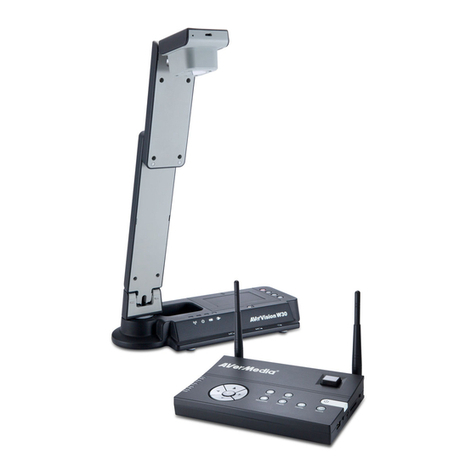
AVer W30 User manual

AVer
AVer M90UHD User manual
AVer
AVer W30 User manual

AVer
AVer AVerVision F50 User manual


