Avaya B189 Assembly Instructions

Installing and Maintaining Avaya B189 IP
Conference Phone
Release 6.6
Issue 1
September 2015

© 2013-2015, Avaya Inc.
All Rights Reserved.
Note
Using a cell, mobile, or GSM phone, or a two-way radio in close
proximity to an Avaya IP telephone might cause interference.
Documentation disclaimer
“Documentation” means information published by Avaya in varying
mediums which may include product information, operating
instructions and performance specifications that Avaya may generally
make available to users of its products and Hosted Services.
Documentation does not include marketing materials. Avaya shall not
be responsible for any modifications, additions, or deletions to the
original published version of documentation unless such
modifications, additions, or deletions were performed by Avaya. End
User agrees to indemnify and hold harmless Avaya, Avaya's agents,
servants and employees against all claims, lawsuits, demands and
judgments arising out of, or in connection with, subsequent
modifications, additions or deletions to this documentation, to the
extent made by End User.
Link disclaimer
Avaya is not responsible for the contents or reliability of any linked
websites referenced within this site or documentation provided by
Avaya. Avaya is not responsible for the accuracy of any information,
statement or content provided on these sites and does not
necessarily endorse the products, services, or information described
or offered within them. Avaya does not guarantee that these links will
work all the time and has no control over the availability of the linked
pages.
Warranty
Avaya provides a limited warranty on Avaya hardware and software.
Refer to your sales agreement to establish the terms of the limited
warranty. In addition, Avaya’s standard warranty language, as well as
information regarding support for this product while under warranty is
available to Avaya customers and other parties through the Avaya
Support website: http://support.avaya.com or such successor site as
designated by Avaya. Please note that if You acquired the product(s)
from an authorized Avaya Channel Partner outside of the United
States and Canada, the warranty is provided to You by said Avaya
Channel Partner and not by Avaya.
Licenses
THE SOFTWARE LICENSE TERMS AVAILABLE ON THE AVAYA
WEBSITE, HTTP://SUPPORT.AVAYA.COM/LICENSEINFO OR
SUCH SUCCESSOR SITE AS DESIGNATED BY AVAYA, ARE
APPLICABLE TO ANYONE WHO DOWNLOADS, USES AND/OR
INSTALLS AVAYA SOFTWARE, PURCHASED FROM AVAYA INC.,
ANY AVAYA AFFILIATE, OR AN AVAYA CHANNEL PARTNER (AS
APPLICABLE) UNDER A COMMERCIAL AGREEMENT WITH
AVAYA OR AN AVAYA CHANNEL PARTNER. UNLESS
OTHERWISE AGREED TO BY AVAYA IN WRITING, AVAYA DOES
NOT EXTEND THIS LICENSE IF THE SOFTWARE WAS
OBTAINED FROM ANYONE OTHER THAN AVAYA, AN AVAYA
AFFILIATE OR AN AVAYA CHANNEL PARTNER; AVAYA
RESERVES THE RIGHT TO TAKE LEGAL ACTION AGAINST YOU
AND ANYONE ELSE USING OR SELLING THE SOFTWARE
WITHOUT A LICENSE. BY INSTALLING, DOWNLOADING OR
USING THE SOFTWARE, OR AUTHORIZING OTHERS TO DO SO,
YOU, ON BEHALF OF YOURSELF AND THE ENTITY FOR WHOM
YOU ARE INSTALLING, DOWNLOADING OR USING THE
SOFTWARE (HEREINAFTER REFERRED TO
INTERCHANGEABLY AS “YOU” AND “END USER”), AGREE TO
THESE TERMS AND CONDITIONS AND CREATE A BINDING
CONTRACT BETWEEN YOU AND AVAYA INC. OR THE
APPLICABLE AVAYA AFFILIATE (“AVAYA”).
Avaya grants You a license within the scope of the license types
described below, with the exception of Heritage Nortel Software, for
which the scope of the license is detailed below. Where the order
documentation does not expressly identify a license type, the
applicable license will be a Designated System License. The
applicable number of licenses and units of capacity for which the
license is granted will be one (1), unless a different number of
licenses or units of capacity is specified in the documentation or other
materials available to You. “Software” means computer programs in
object code, provided by Avaya or an Avaya Channel Partner,
whether as stand-alone products, pre-installed on hardware products,
and any upgrades, updates, patches, bug fixes, or modified versions
thereto. “Designated Processor” means a single stand-alone
computing device. “Server” means a Designated Processor that
hosts a software application to be accessed by multiple users.
“Instance” means a single copy of the Software executing at a
particular time: (i) on one physical machine; or (ii) on one deployed
software virtual machine (“VM”) or similar deployment.
License types
Designated System(s) License (DS). End User may install and use
each copy or an Instance of the Software only on a number of
Designated Processors up to the number indicated in the order.
Avaya may require the Designated Processor(s) to be identified in
the order by type, serial number, feature key, Instance, location or
other specific designation, or to be provided by End User to Avaya
through electronic means established by Avaya specifically for this
purpose.
Shrinkwrap License (SR). You may install and use the Software in
accordance with the terms and conditions of the applicable license
agreements, such as “shrinkwrap” or “clickthrough” license
accompanying or applicable to the Software (“Shrinkwrap License”).
Copyright
Except where expressly stated otherwise, no use should be made of
materials on this site, the Documentation, Software, Hosted Service,
or hardware provided by Avaya. All content on this site, the
documentation, Hosted Service, and the product provided by Avaya
including the selection, arrangement and design of the content is
owned either by Avaya or its licensors and is protected by copyright
and other intellectual property laws including the sui generis rights
relating to the protection of databases. You may not modify, copy,
reproduce, republish, upload, post, transmit or distribute in any way
any content, in whole or in part, including any code and software
unless expressly authorized by Avaya. Unauthorized reproduction,
transmission, dissemination, storage, and or use without the express
written consent of Avaya can be a criminal, as well as a civil offense
under the applicable law.
Third Party Components
“Third Party Components” mean certain software programs or
portions thereof included in the Software or Hosted Service may
contain software (including open source software) distributed under
third party agreements (“Third Party Components”), which contain
terms regarding the rights to use certain portions of the Software
(“Third Party Terms”). As required, information regarding distributed
Linux OS source code (for those products that have distributed Linux
OS source code) and identifying the copyright holders of the Third
Party Components and the Third Party Terms that apply is available
in the products, Documentation or on Avaya’s website at: http://
support.avaya.com/Copyright or such successor site as designated
by Avaya. You agree to the Third Party Terms for any such Third
Party Components.
Preventing Toll Fraud
“Toll Fraud” is the unauthorized use of your telecommunications
system by an unauthorized party (for example, a person who is not a
corporate employee, agent, subcontractor, or is not working on your
company's behalf). Be aware that there can be a risk of Toll Fraud
associated with your system and that, if Toll Fraud occurs, it can
result in substantial additional charges for your telecommunications
services.
Avaya Toll Fraud intervention
If You suspect that You are being victimized by Toll Fraud and You
need technical assistance or support, call Technical Service Center
Toll Fraud Intervention Hotline at +1-800-643-2353 for the United
States and Canada. For additional support telephone numbers, see
the Avaya Support website: http://support.avaya.com or such
successor site as designated by Avaya. Suspected security
vulnerabilities with Avaya products should be reported to Avaya by
sending mail to: [email protected].
Downloading Documentation
For the most current versions of Documentation, see the Avaya
Support website: http://support.avaya.com, or such successor site as
designated by Avaya.

Contact Avaya Support
See the Avaya Support website: http://support.avaya.com for product
or Hosted Service notices and articles, or to report a problem with
your Avaya product or Hosted Service. For a list of support telephone
numbers and contact addresses, go to the Avaya Support website:
http://support.avaya.com (or such successor site as designated by
Avaya), scroll to the bottom of the page, and select Contact Avaya
Support.
Regulatory Statements
Australia Statements
Handset Magnets Statement
Danger:
The handset receiver contains magnetic devices that can
attract small metallic objects. Care should be taken to avoid
personal injury.
Industry Canada (IC) Statements
RSS Standards Statement
This device complies with Industry Canada licence-exempt RSS
standard(s). Operation is subject to the following two conditions:
1. This device may not cause interference, and
2. This device must accept any interference, including
interference that may cause undesired operation of the
device.
Le présent appareil est conforme aux CNR d'Industrie Canada
applicables aux appareils radio exempts de licence. L'exploitation est
autorisée aux deux conditions suivantes:
1. L'appareil ne doit pas produire de brouillage, et
2. L'utilisateur de l'appareil doit accepter tout brouillage
radioélectrique subi, même si le brouillage est susceptible
d'en compromettre le fonctionnement.
Radio Transmitter Statement
Under Industry Canada regulations, this radio transmitter may only
operate using an antenna of a type and maximum (or lesser) gain
approved for the transmitter by Industry Canada. To reduce potential
radio interference to other users, the antenna type and its gain
should be so chosen that the equivalent isotropically radiated power
(EIRP) is not more than that necessary for successful
communication.
Conformément à la réglementation d'Industrie Canada, le présent
émetteur radio peut fonctionner avec une antenne d'un type et d'un
gain maximal (ou inférieur) approuvé pour l'émetteur par Industrie
Canada. Dans le but de réduire les risques de brouillage
radioélectrique à l'intention des autres utilisateurs, il faut choisir le
type d'antenne et son gain de sorte que la puissance isotrope
rayonnée équivalente ne dépasse pas l'intensité nécessaire à
l'établissement d'une communication satisfaisante.
This Class B digital apparatus complies with Canadian ICES-003.
Cet appareil numérique de la classe B est conforme à la norme
NMB-003 du Canada.
Radiation Exposure Statement
This device complies with Industry Canada's RF radiation exposure
limits set forth for the general population (uncontrolled environment)
and must not be co-located or operated in conjunction with any other
antenna or transmitter.
Cet appareil est conforme aux limites d'exposition aux rayonnements
RF d'Industrie Canada énoncés dans la population générale
(environnement non contrôlé) et ne doivent pas être co-situés ou
exploités conjointement avec une autre antenne ou émetteur.
Japan Statements
Class B Statement
This is a Class B product based on the standard of the VCCI Council.
If this is used near a radio or television receiver in a domestic
environment, it may cause radio interference. Install and use the
equipment according to the instruction manual.
Denan Power Cord Statement
Danger:
Please be careful of the following while installing the
equipment:
• Please only use the connecting cables, power cord, and
AC adapters shipped with the equipment or specified by
Avaya to be used with the equipment. If you use any
other equipment, it may cause failures, malfunctioning,
or fire.
• Power cords shipped with this equipment must not be
used with any other equipment. In case the above
guidelines are not followed, it may lead to death or
severe injury.
本製品を安全にご使用頂くため、以下のことにご注意ください。
•接続ケーブル、電源コード、AC アダプタなどの部品は、必ず
製品に同梱されております添付品または指定品をご使用くだ
さい。添付品指定品以外の部品をご使用になると故障や動作
不良、火災の原因となることがあります。
•同梱されております付属の電源コードを他の機器には使用し
ないでください。上記注意事項を守らないと、死亡や大怪我
など人身事故の原因となることがあります。
México Statement
The operation of this equipment is subject to the following two
conditions:
1. It is possible that this equipment or device may not cause
harmful interference, and
2. This equipment or device must accept any interference,
including interference that may cause undesired operation.
La operación de este equipo está sujeta a las siguientes dos
condiciones:
1. Es posible que este equipo o dispositivo no cause
interferencia perjudicial y
2. Este equipo o dispositivo debe aceptar cualquier
interferencia, incluyendo la que pueda causar su operación
no deseada.
Power over Ethernet (PoE) Statement
This equipment must be connected to PoE networks without routing
to the outside plant.
U.S. Federal Communications Commission (FCC) Statements
Compliance Statement
The changes or modifications not expressly approved by the party
responsible for compliance could void the user’s authority to operate
the equipment.
To comply with the FCC RF exposure compliance requirements, this
device and its antenna must not be co-located or operating to
conjunction with any other antenna or transmitter.
This device complies with part 15 of the FCC Rules. Operation is
subject to the following two conditions:
1. This device may not cause harmful interference, and
2. This device must accept any interference received,
including interferences that may cause undesired
operation.
Class B Part 15 Statement
This equipment has been tested and found to comply with the limits
for a Class B digital device, pursuant to Part 15 of the FCC Rules.

These limits are designated to provide reasonable protection against
harmful interferences in a residential installation. This equipment
generates, uses and can radiate radio frequency energy and, if not
installed and used in accordance with the instructions, may cause
harmful interference to radio communications. However, there is no
guarantee that interference will not occur in a particular installation. If
this equipment does cause harmful interferences to radio or
television reception, which can be determined by turning the
equipment off and on, the user is encouraged to try to correct the
interference by one or more of the following measures:
• Reorient or relocate the receiving antenna.
• Increase the separation between the equipment and receiver.
• Connect the equipment into an outlet on a circuit different from
that to which the receiver is connected.
• Consult the dealer or an experienced radio/TV technician for
help.
Radiation Exposure Statement
This equipment complies with FCC radiation exposure limits set forth
for an uncontrolled environment . This equipment should be installed
and operated with minimum distance of 8 in or 20 cm between the
radiator and your body. This transmitter must not be co-located or
operating in conjunction with any other antenna or transmitter.
Trademarks
All non-Avaya trademarks are the property of their respective owners.
Linux® is the registered trademark of Linus Torvalds in the U.S. and
other countries.

Contents
Chapter 1: About this guide..................................................................................................... 7
Intended audience................................................................................................................... 7
Documentation........................................................................................................................ 7
Support.................................................................................................................................. 7
Chapter 2: Overview................................................................................................................. 8
Overview................................................................................................................................ 8
Connection layout.................................................................................................................... 8
Chapter 3: Installing the deskphone..................................................................................... 11
Avaya B189 Conference IP Phone.......................................................................................... 11
Updating phone software for installation.................................................................................. 11
Pre-installation checklist......................................................................................................... 11
Plugging in Avaya B189 Conference IP Phone........................................................................ 13
Plugging in and resetting the deskphone using the Dynamic Addressing Process....................... 13
Phone initialization................................................................................................................ 14
Understanding the plug in and reset process........................................................................... 16
Understanding unnamed registration....................................................................................... 19
PA system............................................................................................................................ 19
Connectors and controls of a PA interface box......................................................................... 20
Connecting a PA interface box to a conference phone.............................................................. 20
Chapter 4: Maintaining Avaya B189 Conference IP Phones............................................... 22
About software distribution packages...................................................................................... 22
Downloading software packages............................................................................................ 23
Contents of the settings file.................................................................................................... 24
Downloading text language files............................................................................................. 25
Applying settings to logical groups.......................................................................................... 25
Chapter 5: Using local Administrative Menu procedures................................................... 26
About Administration Menu procedures................................................................................... 26
Entering the Administration Menu......................................................................................... 26
Entering and validating IPv4 addresses................................................................................... 27
Local administrative menu...................................................................................................... 27
Setting the operational mode to 802.1X................................................................................... 28
Using the preinstallation checklist........................................................................................... 29
Changing IP address information............................................................................................ 29
Enabling and disabling the debug mode.................................................................................. 31
Clearing the deskphone settings............................................................................................. 31
Managing the PA system....................................................................................................... 32
Enabling the auxiliary port for the PA system..................................................................... 32
Turning on the internal speaker and microphones.............................................................. 33
Changing the group identifier.................................................................................................. 33
September 2015 Installing and Maintaining Avaya B189 IP Conference Phone 5
Comments on this document? [email protected]

Changing Ethernet interface control........................................................................................ 33
Logging off from the phone..................................................................................................... 34
Resetting system values........................................................................................................ 35
Restarting the phone............................................................................................................. 35
Changing SSON settings....................................................................................................... 36
Performing a self-test............................................................................................................. 37
Chapter 6: Troubleshooting................................................................................................... 38
Resolving error conditions...................................................................................................... 38
Failure to hear DTMF tones.................................................................................................... 39
Correcting a power interruption............................................................................................... 39
Using the VIEW procedure for troubleshooting......................................................................... 39
Installation error and status messages.................................................................................... 41
Operational errors and status messages................................................................................. 45
LLDP Troubleshooting........................................................................................................... 49
Proposed Solution........................................................................................................... 49
LLDP setup and troubleshooting steps.................................................................................... 50
Proposed solution for DHCP configured deskphones......................................................... 50
Proposed solution for script-configured deskphones........................................................... 51
Proposed solution for LLDP-configured deskphones.......................................................... 51
Secure Shell Support............................................................................................................. 51
Contents
6 Installing and Maintaining Avaya B189 IP Conference Phone September 2015
Comments on this document? [email protected]

Chapter 1: About this guide
Intended audience
This guide is for personnel who install the Avaya B189 Conference IP Phones, Local Area Network
(LAN), and the related server system.
Documentation
Document
number
Title Use this document to: Audience
Using
16-604295 Using Avaya B189 Conference
IP Phone
Refer to procedures for using Avaya
B189 Conference IP Phone.
End users
Administering
16-604294 Administering Avaya B189
Conference IP Phone
Refer to administrative tasks that you
can perform for Avaya B189
Conference IP Phone.
End users and
administrators
Support
Go to the Avaya Support website at http://support.avaya.com for the most up-to-date
documentation, product notices, and knowledge articles. You can also search for release notes,
downloads, and resolutions to issues. Use the online service request system to create a service
request. Chat with live agents to get answers to questions, or request an agent to connect you to a
support team if an issue requires additional expertise.
September 2015 Installing and Maintaining Avaya B189 IP Conference Phone 7
Comments on this document? [email protected]

Chapter 2: Overview
Overview
Avaya B189 IP Conference Phone is a multiline H.323 conference phone that you can use to make
calls and hold conferences with HD quality voice.
The features of the conference phone include a 5-inch touch screen, mute, and volume control
buttons, one On-hook/Off-hook button, and a Phone button. You can navigate the menu only
through the touch screen. Bi-color LEDs provide visual indication of an incoming call, call in
progress, call on hold, and a muted microphone.
Avaya B189 IP Conference Phone supports Public Address (PA) system and two-way
communication with external microphones and speakers. As the LEDs are visible from all angles,
the conference phone visually alerts the users. You can attach additional microphones to the
conference phone to cover a wide area. The conference phone supports both Auto dialing and Edit
dialing.
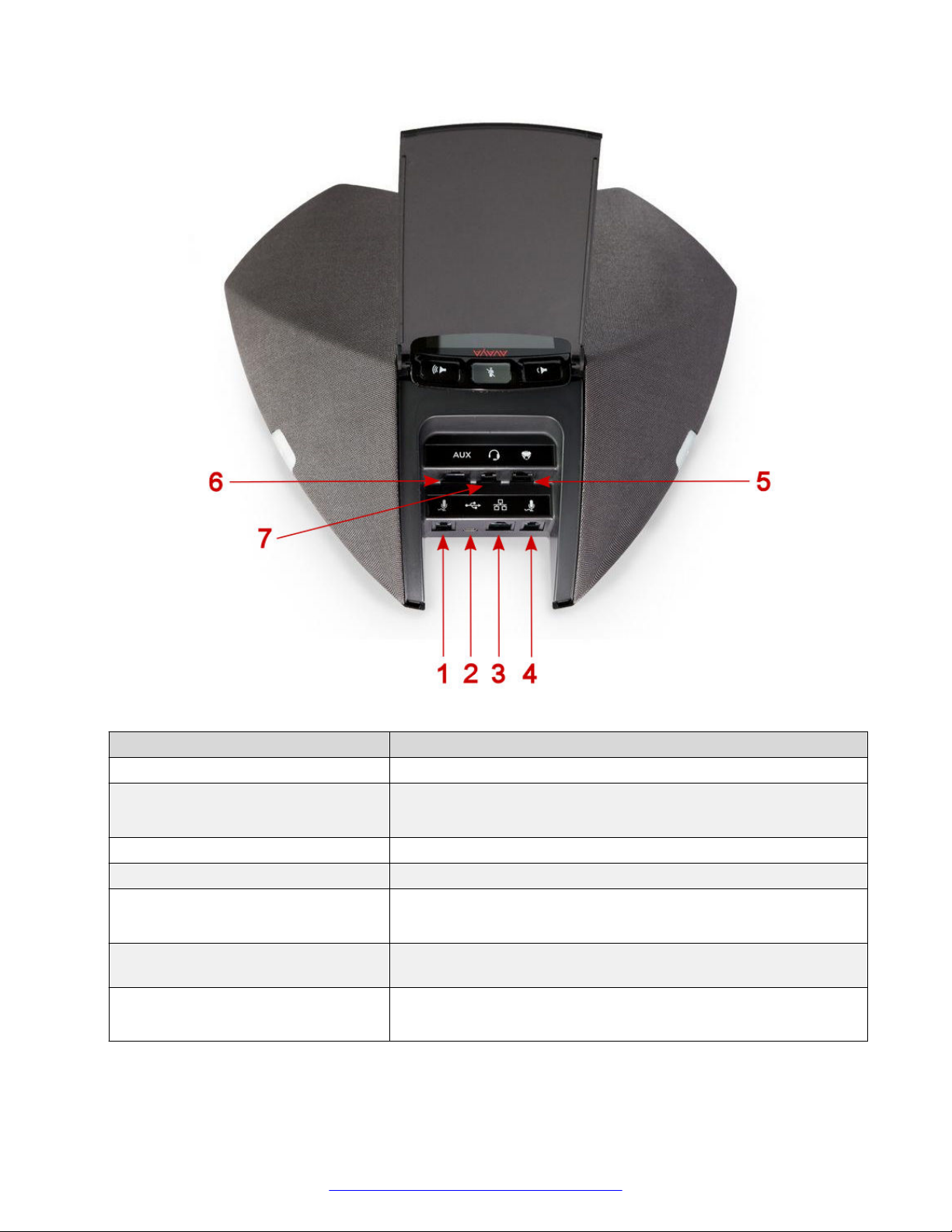
Connection layout
The following table lists the connections that are available on the conference phone.
8 Installing and Maintaining Avaya B189 IP Conference Phone September 2015
Comments on this document? [email protected]

Figure 1: Connection layout on Avaya B189 IP Conference Phone
Callout number Description
1 Left side expansion microphone port
2 USB Connection
Note: This connection is reserved for future use.
3 RJ 45 Network connection socket
4 Right side expansion microphone port
5 Daisy chain connection socket
Note: This connection is reserved for future use.
6 Auxiliary connection port. This port is used to connect to a PA
system using PA System Interface Box.
7 Headset connection port
This connection is reserved for future use.
Connection layout
September 2015 Installing and Maintaining Avaya B189 IP Conference Phone 9
Comments on this document? [email protected]

Figure 2: Connection layout on Avaya B189 IP Conference Phone
Callout number Description
1 SD card slot
Overview
10 Installing and Maintaining Avaya B189 IP Conference Phone September 2015
Comments on this document? [email protected]
Other manuals for B189
7
Table of contents
Other Avaya IP Phone manuals

Avaya
Avaya 9640G User manual

Avaya
Avaya 4600 Series Installation instructions

Avaya
Avaya 1165E User manual

Avaya
Avaya 3901 User manual

Avaya
Avaya IP Office 9608 User manual

Avaya
Avaya 9610 User manual

Avaya
Avaya IP Office T7100 User manual

Avaya
Avaya E129 User manual

Avaya
Avaya E169 User manual

Avaya
Avaya 1408 User manual

Avaya
Avaya 3616 Series User manual

Avaya
Avaya J100 Series Instruction Manual

Avaya
Avaya 1600 Series Service manual

Avaya
Avaya J169 User manual

Avaya
Avaya 9408 User manual

Avaya
Avaya IP Office 9608 User manual

Avaya
Avaya IP Office 4601 User manual

Avaya
Avaya 9620 Deskphone Edition User manual

Avaya
Avaya PARTNER Version 140 Phone User manual

Avaya
Avaya 4620SW User manual