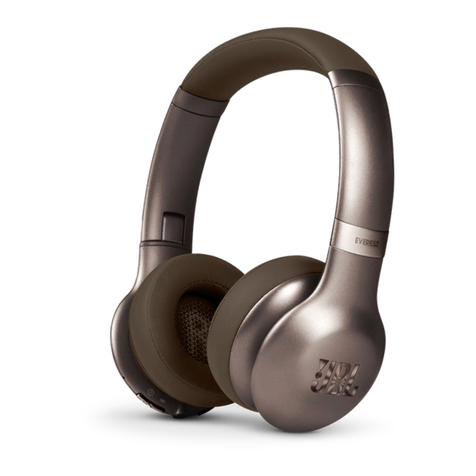
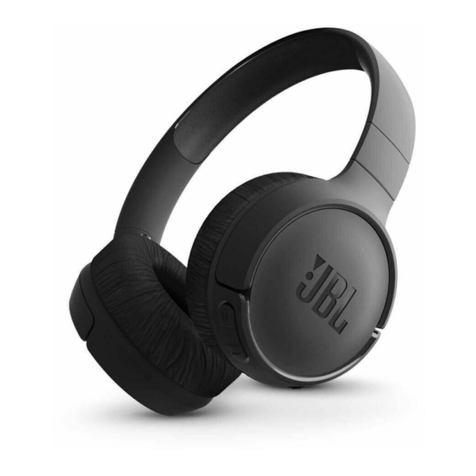
ausdom AH862 User manual

User’s Manual
MODEL:AH862
Wireless Headphone

-1-
1. Package Contents
The AH862 is a build-in microphone, reliable connection for
high-quality superior sound and foldable Bluetooth headset. It
uses an adjustable headband, soft-comfortable leather ear pads
and features a closed-cup design for enhanced bass reproduction
and minimal sound leakage.
1. Bluetooth headphone
2. Micro USB charging cable
3. 3.5mm audio cable
4. User manual
2. Features
1. Bluetooth V4.1
2. Rubber oil process
3. Large buttons, more human operations
4. Foldable design, easy to carry
5. High-grade leather headphone sheath and ear pads
6. Build-in microphone and hands-free
7. Charging the battery with USB cable
3. Overview
Bluetooth Headset English
Leather headband Adjustable headband
Foldable hinge
Leather ear pad
3.5mm input jack
Micro-USB port
LED indicator
Micro USB charging cable 3.5mm audio cable
Control buttons
*Power on/off button( )
*Previous track(<)
*Next track(>)
*Volume up(+)
*Volume down(-)

-2-
4. Connection
4.1 Audio Connection
Connect to the 3.5mm jack connector on your audio device (ex.
mobile phone or PC) using the included audio cable. The headset
provides you plug and play feature that lets you play the music
automatically.
Bluetooth Headset English
Note:
When a call comes in with the Bluetooth connection, the audio
connection will stop.
4.2 USB Connection
Connect to a power supply using the included USB charging cable.
Note:
It will not affect the Bluetooth and audio connections during
charging.
4.3 Bluetooth Connection
AH862 allows you to connect to a device with Bluetooth feature.
1. Press and hold the power button on the headset for 4 seconds
to enter pairing mode.
2. Connect the headset to a device with Bluetooth feature (ex.
mobile phone). For more pairing information, refer to “6. Pairing
Configurations”.
3. When the connection is completed, you can talk and play
music through the Bluetooth feature.
Bluetooth Wireless
Connection
Mobile phone
Headset
Audio connection
USB Connection
Laptop

-3-
5. Charging the Battery
1. Connect the headset to a power supply using the included
USB charging cable.
2. Charge the headset for 2 hours until the red LED Indicator
turns off.
Bluetooth Headset English
Note:
During the first charge, don’t disconnect the headset from the
power supply even if the LED Indicator on the headset indicates
that the battery is fully charged. Leave it to charge at least 2 hours
in order to ensure fully charged.
The LED Indicator flashes red and sounds an alert tone that
indicating the headset is in the low battery status.
6. Pairing Configurations
1. Press and hold the power button for about 4 seconds to enter
“Pairing Mode”.
2. Turn on your device, and then enable the Bluetooth feature.
3. Your Bluetooth device will list the new device that can be
connected.
4. Select “AUSDOM AH862”. If your device prompts for a code or
PIN, enter “0000”. After the connection is made, the LED
Indicator on your headset turns solid blue and sounds “Pairing
successful connected” or “connected” indicating the Bluetooth
wireless connection has been completed already.
Laptop for power supply
Headset
Micro USB Charging cable

-4-
Bluetooth Headset English
Note:
When using the mobile phone and headset for a Bluetooth
connection, the distance between both can not exceed 10
meters.
You can only pair and connect one device every time. To switch
Bluetooth device, disconnect the headset from the current
device (disable the Bluetooth feature) before connecting to
another.
7. Answering a Call
Before answering a call, make sure the headset is already paired
with the mobile phone. Refer to “6. Pairing Configurations” to get
more pairing information.
1. Press and hold the power button for 2-3 seconds to power on
the headset.
2. For a moment, the headset will enter “Pairing Mode” directly if
it has ever been paired with the Bluetooth device.
3. The LED indicator turns solid blue indicating the pairing is
connected between the headset and mobile phone.
4. Using the mobile phone to dial a number.
5. When the call is connected, press the power button on the
headset to talk with the build-in microphone.
6. To end the call, press the power button once. You can also use
the mobile phone to end a call.
Bluetooth connection
Dial phone number
Hello
Incoming call

-5-
Bluetooth Headset English
8. Using the Headset
The table below shows you how to use the button on your
headset.
Action Description
Power On
Press and hold the power button for 2-3 seconds
to power on the headset. The LED indicator flashes
blue and sounds a “Power on” indicating the
headset has been powered on already.
Power Off
Press and hold the power button for 2-3 seconds
to power off the headset. The LED indicator flashes
red and sounds a “Power off” indicating the
headset has been powered off already.
Pairing Mode
Press and hold the power button for 4 seconds to
enter “Pairing Mode”. The LED indicator will
flash red and blue alternately. It sounds a “Power
on│Pairing” to indicate the pairing mode has
been enabled already.
Answer a Call Press the power button or use your mobile phone
to answer a call.
End a Call Press the power button or use your mobile phone
to end the call.
Reject a Call Press the power button twice quickly
Use Last No. (Redial) Press the power button twice quickly.
Play Music Press the power button once upon the audio
connected.
Pause Music Press the power button once to stop the music
playback.
Adjust Volume Press the Volume Up or Down button to adjust the
volume.
Select Music Track Press the Previous Track or Next Track button to
select the music track.

-6-
Bluetooth Headset English
9. LED Indicator
The LED Indicator specifies the status of your headset. The table
below shows you the various LED indications available.
10. Take Care of Your Headset
1. Avoid exposing the headset to rain or other liquids.
2. Avoid getting moisture or liquids into any button and other
equipments.
3. Always store the headset upon power off and safely protected.
4. Only use a dry cloth to wipe and clean the headset.
5. You can use a damp cloth to wipe the ear leatherette cushions
carefully.
6. Store the headset at a suitable temperatures between
-25oC~60oC. High temperature may damage the battery life and
reduce the battery performance.
* In the paring mode, when idling more than three minutes, the LED indicator
will turn to continuous flashing blue from flashing red and blue alternately.
About 10 minutes after flashing, the headset will shut down automatically. In
the period before the headset shut down, you can still pair and connect the
Bluetooth device.
Color Status Description
Blue
Solid Pairing complete
Red
Blue & Red
Flashes Standby
Flashes Power on
Flashes 2 Times Every 1-2 Sec. On line call
Solid Charging
Flashes Low battery
Flashes 2 Times Power Off
Alternate Flashes Pairing
Flashes 2 Times Every 1-2 Sec. Incoming call
11. Troubleshooting
Q: I can not hear anything in my headset when using the
mobile phone.
A:Try and Check the following:
Make sure your headset and mobile phone have been paired
and are within the allowed range.
Adjust the speaker volume on the headset by press the volume
up button.
Q: Why doesn’t my headset work with the mobile phone?
A:Try and Check the following:
Make sure the headset is charged. The LED indicator is solid
blue when the headset is pairing completed.
Make sure you are within available range of the Bluetooth signal.
It is a long time without pairing and connection with Bluetooth
device, please re-paring again.
Q: My headset is not charging?
A:Try and Check the following:
Make sure to use the USB charging cable.
Connect the cable directly to a USB port on your PC. Do not user
other charging device to charge your headset.
When charging, the LED indicator should solid red. If not, the
USB port may be fail or not providing enough power. Try another
power supply.
Q: Will the headset support other Bluetooth equipment?
A:The headset is designed to work with Bluetooth configuration.
It can also support other Bluetooth devices just for a headset,
hands-free or advance audio distribution profile.
Q: Why doesn’t my computer connect the headset via
Bluetooth?
A:Make sure your computer has Bluetooth signal or used the
USB Bluetooth Adapter. And the Bluetooth feature is enabled.
Q: Why won’t my headset pair with the mobile phone?
A:Try and Check the following:
Make sure the headset is charged and is in pairing mode. Low
battery may cause the connection fail.
Make sure Bluetooth feature is active on your mobile phone,
and put it into Bluetooth pairing mode.
Make sure the name of pairing connection is correctly. You might
also be prompted to enter the pass code “0000” to accept pairing.

-7-
Bluetooth Headset English
Q: I can not hear anything in my headset when using the
mobile phone.
A:Try and Check the following:
Make sure your headset and mobile phone have been paired
and are within the allowed range.
Adjust the speaker volume on the headset by press the volume
up button.
Q: Why doesn’t my headset work with the mobile phone?
A:Try and Check the following:
Make sure the headset is charged. The LED indicator is solid
blue when the headset is pairing completed.
Make sure you are within available range of the Bluetooth signal.
It is a long time without pairing and connection with Bluetooth
device, please re-paring again.
Q: My headset is not charging?
A:Try and Check the following:
Make sure to use the USB charging cable.
Connect the cable directly to a USB port on your PC. Do not user
other charging device to charge your headset.
When charging, the LED indicator should solid red. If not, the
USB port may be fail or not providing enough power. Try another
power supply.
Q: Will the headset support other Bluetooth equipment?
A:The headset is designed to work with Bluetooth configuration.
It can also support other Bluetooth devices just for a headset,
hands-free or advance audio distribution profile.
Q: Why doesn’t my computer connect the headset via
Bluetooth?
A:Make sure your computer has Bluetooth signal or used the
USB Bluetooth Adapter. And the Bluetooth feature is enabled.
Q: Why won’t my headset pair with the mobile phone?
A:Try and Check the following:
Make sure the headset is charged and is in pairing mode. Low
battery may cause the connection fail.
Make sure Bluetooth feature is active on your mobile phone,
and put it into Bluetooth pairing mode.
Make sure the name of pairing connection is correctly. You might
also be prompted to enter the pass code “0000” to accept pairing.

-8-
Bluetooth Headset English
12. Specifications
Item Description
Mic. Spec
Microphone Unit Φ 4*1.5mm
-42±3dB S.P.L at 1KHz
<2.2k Ω
100Hz-10,000Hz
Omni-directional
Speaker Spec.
Bluetooth
Spec.
Battery Spec.
S.P.L
Impedance
32 ΩImpedance
101±3dB S.P.L at 1KHzS.P.L
20mW
HSP, HFP, A2DP, AVRCPSupport Profile
4.1Bluetooth Version
Rated Power
Frequency
Response
20Hz-20KHz
Frequency
Response
-92dBmSensitivity
2.402GHz-2.48GHz
Transmission
Frequency
AUSDOM AH862Pairing Name
Micro USBCharging Port
More than 1000 hoursStandby Time
About 20 hoursTalking Time
About 18 hoursPlaying Time
About 2 hoursCharging Time
10m
Transmission
Distance
Battery Type Build in 360 mah
rechargeable lithium battery
-25oC~60oC
Storage
Temperature
-10oC~45oC
Operating
Temperature
Directivity
Φ 40mm*6.3mm
Speaker Diameter
A:Try and Check the following:
Make sure your headset and mobile phone have been paired
and are within the allowed range.
Adjust the speaker volume on the headset by press the volume
up button.
Q: Why doesn’t my headset work with the mobile phone?
A:Try and Check the following:
Make sure the headset is charged. The LED indicator is solid
blue when the headset is pairing completed.
Make sure you are within available range of the Bluetooth signal.
It is a long time without pairing and connection with Bluetooth
device, please re-paring again.
Q: My headset is not charging?
A:Try and Check the following:
Make sure to use the USB charging cable.
Connect the cable directly to a USB port on your PC. Do not user
other charging device to charge your headset.
When charging, the LED indicator should solid red. If not, the
USB port may be fail or not providing enough power. Try another
power supply.
Q: Will the headset support other Bluetooth equipment?
A:The headset is designed to work with Bluetooth configuration.
It can also support other Bluetooth devices just for a headset,
hands-free or advance audio distribution profile.
Q: Why doesn’t my computer connect the headset via
Bluetooth?
A:Make sure your computer has Bluetooth signal or used the
USB Bluetooth Adapter. And the Bluetooth feature is enabled.
Q: Why won’t my headset pair with the mobile phone?
A:Try and Check the following:
Make sure the headset is charged and is in pairing mode. Low
battery may cause the connection fail.
Make sure Bluetooth feature is active on your mobile phone,
and put it into Bluetooth pairing mode.
Make sure the name of pairing connection is correctly. You might
also be prompted to enter the pass code “0000” to accept pairing.

-1-
1. Verpackungsinhalt
Der AH862 ist ein klappbarer Bluetooth Kopfhörer mit einem
eingebauten Mikrofon und zuverlässiger Verbindung für einen
hochqualitativen überlegenen Klang. Er besitzt ein verstellbares
Kopfband, weich-angenehme Leder-Ohrpolster und weist ein
geschlossenes Ohrmuschel Design auf, für eine verstärkte
Bass-Wiedergabe und einen minimalen Klangverlust.
1. Bluetooth Kopfhörer
2. Mikro USB Ladekabel
3. 3, 5 mm Audiokabel
4. Benutzerhandbuch
2. Eigenschaften
1. Bluetooth V4.1
2. Gummiöl-Verarbeitung
3. Große Tasten, ergonomische Bedienung
4. Klappbares Design, bequem zu tragen
5. Hochqualitative Lederhülle für Kopfhörer und Ohrmuschel
6. Eingebautes Mikrofon und Freisprechen
7. Laden der Batterie mit USB Kabel
3. Übersicht
Bluetooth Kopfhörer Deutsch
Lederkopfband Einstellbares Kopfband
Klappbares Scharnier
Lederohrmuschel
3.5 mm Stecker
Mikro-USB-Schnittstelle
zum Aufladen
LED-Anzeige
Micro-USB-Kabel 3.5 mm Audiokabel
Tastenfunktion
*EIN/AUS- und
Anrufkontrolltaste( )
*VorherigesLied(<)
*Nächste Melodie(>)
*Lauter Taste(+)
*Leiser Taste(-)
Table of contents
Languages:
Other ausdom Wireless Headphones manuals

ausdom
ausdom AH2 User manual

ausdom
ausdom M04S User manual

ausdom
ausdom AH861 User manual

ausdom
ausdom Bass One User manual

ausdom
ausdom ANC1 User manual

ausdom
ausdom M06 User manual

ausdom
ausdom AH850S User manual

ausdom
ausdom ANC8 User manual

ausdom
ausdom ANC10 User manual

ausdom
ausdom Mixcder E9 PRO User manual