
ATEN CS-84A User manual

CS-82A / CS-84A
USER MANUAL
PS/2 KVM Switch

FCC Information
This equipment has been tested and found to comply with the limits
for a Class B digital device, pursuant to Part 15 of the FCC Rules.
These limits are designed to provide reasonable protection against
harmful interference in a residential installation. This equipment
generates, uses and can radiate radio frequency energy, and if not
installed and used in accordance with the instruction manual, may
cause interference to radio communications. However, there is no
guarantee that interference will not occur in a particular installation. If
this equipment does cause harmful interference to radio or television
reception, which can be determined by turning the equipment off and
on, the user is encouraged to try to correct the interference by one or
more of the following measures:
Reorient or relocate the receiving antenna;
Increase the separation between the equipment and receiver;
Connect the equipment into an outlet on a circuit different from
that which the receiver is connected;
Consult the dealer or an experienced radio/television technician
for help.
RoHS
This product is RoHS compliant.

- 3 -
CS-82A / CS-84A User Manual
Online Registration
You can register your product at our online support center:
Online Support
International
Telephone Support
For telephone support, call this number:
International http://support.aten.com
North America http://www.aten-usa.com/product_registration
Email Support [email protected]
Online
Support
Technical Support http://eservice.aten.com
Product Information http://www.aten.com
Telephone Support 886-2-8692-6959
International 886-2-8692-6959
China 86-400-810-0-810
Japan 81-3-5615-5811
Korea 82-2-467-6789
North America 1-888-999-ATEN ext 4988
1-949-428-1111

- 4 -
Package Contents
The CS-82A / CS-84A KVM Switch package contains the
following items:
1 CS-82A or CS-84A KVM Switch
2 Custom KVM Cable Sets (CS-82AC package only)
4 Custom KVM Cable Sets (CS-84AC package only)
1 User Manual*
Check to make sure that all the components are present and that
nothing got damaged in shipping. If you encounter a problem,
contact your dealer.
Read this manual thoroughly and follow the installation and
operation procedures carefully to prevent any damage to the unit,
and/or any of the devices connected to it.
*Features may have been added to the CS-82A / CS-84A since
this manual was printed. Please visit our website to download
the most up-to-date version of the manual.
Copyright © 2008–2019 ATEN
®
International Co., Ltd.
Manual Part No. PAPE-1217-4ATG
Printing Date: 2019-04-19
ATEN and the ATEN logo are trademarks of ATEN International Co., Ltd. All rights
reserved. All other trademarks are the property of their respective owners.

- 5 -
Overview
The CS-82A / CS-84A 2/4-Port PS/2 KVM (Keyboard, Video,
Mouse) Switch is a control unit that allows access to two/four
computers from a single PS/2 console (keyboard, monitor and
mouse). Before the development of the Master View, the only
way to control multiple computer configurations from a single
console was through a complex and costly network system. Now,
with the CS-82A / CS-84A, you can easily access two/four
computers in a cost effective manner.
Setup is fast and easy; plugging cables into their appropriate
ports is all that is entailed. There is no software to configure; there
are no installation routines, and no incompatibility problems.
Since the CS-82A / CS-84A intercepts keyboard input directly, it
works on any hardware platform and with all operating systems.*
The CS-82A / CS-84A provides two convenient methods to
access the computers connected to the system: 1) Port selection
pushbuttons located on the unit's front panel; and 2) Hotkey
combinations entered from the keyboard.
There is no better way to save time and money than with a CS-
82A / CS-84A installation. Since a single console manages all of
the computers, the CS-82A / CS-84A setup: 1) eliminates the
expense of having to purchase a separate keyboard, monitor,
and mouse for each computer; 2) saves all the space those extra
components would take up; 3) saves on energy costs; and 4)
eliminates the inconvenience and wasted effort involved in
constantly moving around from one computer to another.
Note: Mac and Sun systems may require an additional adapter.
Please see www.aten.com or contact your dealer for
details.

- 6 -
Features
One PS/2 console controls two (CS-82A) or four (CS-84A)
computers
Easy to install – no software required – connecting cables is
all it takes
Computer selection via front panel pushbuttons and hotkeys
Multiplatform support – Windows 2000/XP/Vista, Linux,
FreeBSD, Mac*, and Sun*.
Superior video quality – up to 1920 x 1440; DDC2B
Compact, sturdy, durable metal housing
Keyboard and mouse emulation for error-free booting
Supports Microsoft Intellimouse and the scrolling wheel on
most mice
Auto Scan function to monitor computer operation
Non-powered*
Note: 1. Mac and Sun systems may require an additional
adapter. Please see www.aten.com or contact your
dealer for details.
2. The CS-82A / CS-84A can get its power from the
computer. Therefore, use of a power adapter is optional
and requires a separate purchase. A power adapter is
only required if your installation exceeds 10 m.

- 7 -
System Requirements
Console
A VGA, SVGA, or multisync monitor capable of the highest
resolution you will be using on any computer on the
installation.
A PS/2 keyboard
A PS/2 mouse
Computers
The following equipment must be installed on each computer that
is to be connected to the system:
A VGA, SVGA, or multisync port
A PS/2 keyboard port
A PS/2 mouse port
Cables
Two or four custom KVM cable sets are provided with the CS-
82AC or CS-84AC packages only, as follows:
CS82AC includes 2 x 1.2 m cables
CS84AC includes 2 x 1.2 m and 2 x 1.8 m cables.
If you have purchased the CS-82A or CS-84A package, note that
only custom KVM cable sets specifically designed to work with
this switch may be used. KVM cable sets are available in 1.2, 1.8,
3, 5, 10, and 20 meter lengths.
Please please www.aten.com or contact your dealer for further
details.
Optional Accessories
USB-to-PS/2 Converter – to connect to computers that do not
have PS/2 ports.
Sun Console Converter – to connect to Sun systems
Power Adapter (DC9V, 300mA) – required if your installation
exceeds 10 m.

- 8 -
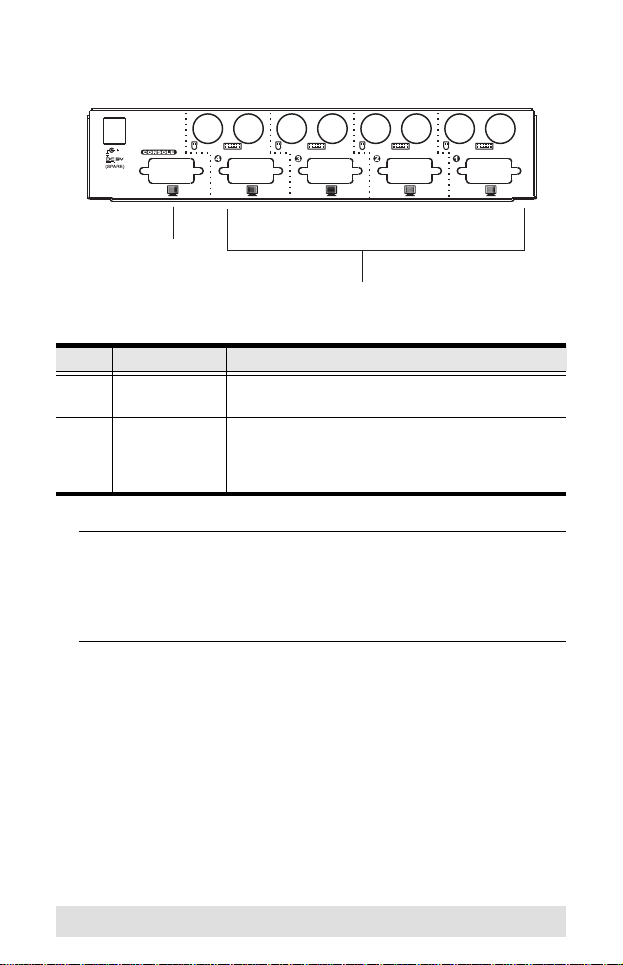
Components
Front View
Note: The component diagrams show the 4-port CS-84A. The
CS-82A has two ports.
No. Component Description
1 Port Selection
Pushbuttons
Press a pushbutton to access the computer attached
to the corresponding port.
2 Port LEDs The Port LEDs are built into the Port Selection
Pushbuttons. The upper ones are the On Line LEDs;
the lower ones are the Selected LEDs:
On Line
Lights ORANGE to indicate that the computer
attached to the corresponding port is up and running.
Selected
Lights GREEN to indicate that the computer attached
to its corresponding port is the one that has the KVM
focus.
Note: Depending on the port’s status, the LED may
flash according to a specific pattern. See the table
under Troubleshooting, page 19.
3Console
Keyboard and
Mouse ports
The cables from your PS/2 keyboard and PS/2
mouse plug in here. Each port is color-coded and
identified with an appropriate icon.
1 & 2 3
- 9 -
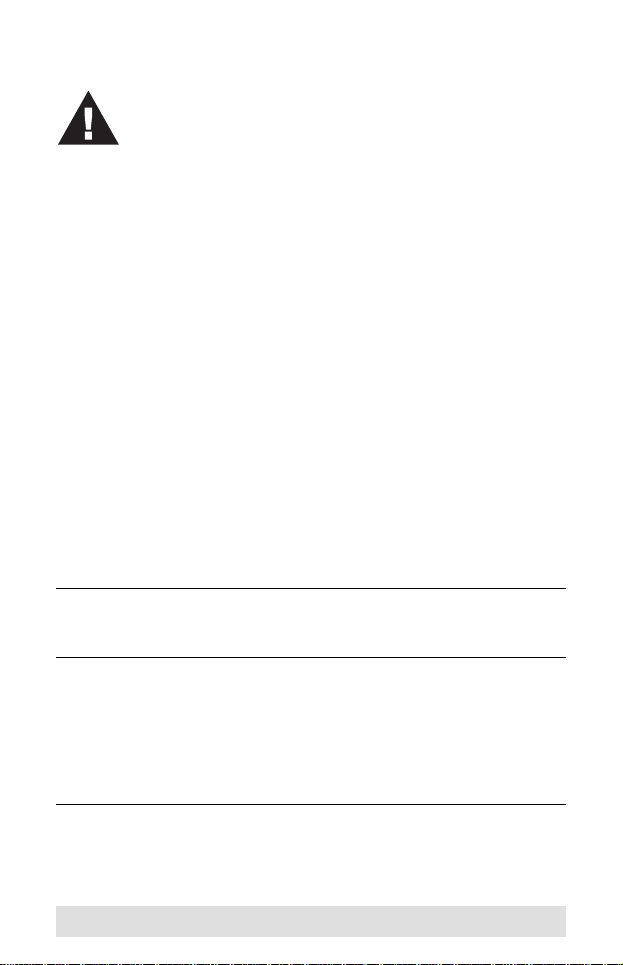
Rear View
Note: Since the KVM cables come with PS/2 connectors,
certain hardware configurations (such as notebooks)
that don’t have two PS/2 ports may require the use of a
USB-to-PS/2 converter. Please see www.aten.com or
contact your dealer for details.
No. Component Description
1 Console Video
Connector
The cable from your monitor plugs in here.
2 KVM Port
Section
The KVM cables that connect to the computer’s
monitor, keyboard, and mouse ports plug in here.
Each port is color-coded and identified by an
appropriate icon.*
1
2
- 10 -
Installation
To set up your CS-82A / CS-84A installation, refer to the
installation diagram on the next page (the numbers in the
diagram corresponds to the steps, below), and do the following:
1. Plug your PS/2 keyboard, and PS/2 mouse into the Console
ports located on the unit’s front panel.
2. Plug your monitor into the Console port located on the unit’s
back panel.
3. Using the Custom KVM cable sets provided, plug the monitor,
keyboard, and mouse connectors into the KVM Port sections
of the CS-82A / CS-84A.
4. At the other end of the cable, plug the corresponding monitor,
keyboard, and mouse connectors into their respective ports
on the computers you are connecting.
Note: Verify that all plugs are in the same KVM Port sockets (all
in Port 1, all in Port 2, etc.). Each socket is marked with an
appropriate icon.
5. If you choose to use external power (which is optional if your
installation does not exceed 10 m), plug the power adapter
into an AC power source, then plug the power adapter cable
into the CS-82A / CS-84A’s power jack.
6. Power on the computers.
Note:
The CS-82A / CS-84A’s power on default is to link to the first
computer that is powered on.
1. Make sure that the power to any device that you
connect to the installation has been turned off. You
must unplug the power cords of any computers that
have the Keyboard Power On function.
2. To prevent damage to your installation from power
surges or static electricity. It is important that all
connected devices are properly grounded.
This manual suits for next models
2
Table of contents
Other ATEN Switch manuals

ATEN
ATEN US3312 User manual

ATEN
ATEN VS481C User manual

ATEN
ATEN Bi-Tronics AF-241 User manual

ATEN
ATEN ALTUSEN KH2508 User manual

ATEN
ATEN CS1942 User manual

ATEN
ATEN Master View ACS-1602 User manual

ATEN
ATEN Master View CS-88A User manual

ATEN
ATEN KE6900 User manual

ATEN
ATEN CS-62A User manual

ATEN
ATEN ALTUSEN SN0108 User manual

ATEN
ATEN CS1944DP User manual

ATEN
ATEN Master View CS-1754 User manual

ATEN
ATEN MasterView CS-1732A User manual

ATEN
ATEN ServerMaster CS12 CS12 CS12 User manual

ATEN
ATEN KH1508Ai User manual

ATEN
ATEN CS1964 User manual

ATEN
ATEN Altusen KM0932 User manual

ATEN
ATEN CN8000A User manual

ATEN
ATEN VS-881 User manual

ATEN
ATEN CS22U User manual


