
Asus RT-N11 User manual

User Manual
RT-N11
EZ Wireless N Router
E3813 First Edition May 2008
®
e3188_WL520GU_GC_Manual.indd 1 5/22/08 2:50:12 PM
EZ Wireless N Router / EZ Wireless N 無線路由器

Manufacturer Contact Information
ASUSTeK COMPUTER INC.
Address 15 Li-Te Road, Peitou, Taipei, Taiwan 11259
Telephone +886-2-2894-3447
Fax +886-2-2890-7798
E-mail [email protected]
Web site www.asus.com.tw
Technical Support
Telephone +86-21-38429911
Online support support.asus.com
ASUS COMPUTER INTERNATIONAL (America)
Address 44370 Nobel Drive, Fremont, CA 94538, USA
Fax +1-510-608-4555
Web site usa.asus.com
Technical Support
Telephone +1-812-282-2787
Support fax +1-812-284-0883
Online support support.asus.com
ASUS COMPUTER GmbH (Germany and Austria)
Address Harkort Str. 25, D-40880 Ratingen, Germany
Telephone +49-2102-95990
Fax +49-2102-959911
Web site www.asus.de
Online contact www.asus.de/sales
Technical Support
Telephone +49-1805-010923
Support Fax +49-2102-9599-11
Online support support.asus.com
e3188_WL520GU_GC_Manual.indd 2 5/22/08 2:50:13 PM

RT-N11 EZ Wireless N Router User Manual
1
R
Table of Contents
6SHFLÀFDWLRQ6XPPDU\............................................................................2
1. Package Contents ................................................................................3
2. Connecting ADSL Modem and Wireless Router................................3
1) Cable connection ...............................................................................3
2) Status Indicators ................................................................................4
3) Wall Mounting Option.........................................................................4
3. Getting Started......................................................................................5
1) Wired Connection...............................................................................5
2) Wireless Connection..........................................................................5
3) Setting IP Address for Wired or Wireless Connection .......................5
&RQÀJXULQJWKH:LUHOHVV5RXWHU........................................................6
5) Quick Setup ......................................................................................7
4. Wireless Router Features ..................................................................12
1) Choosing an Appropriate Operation Mode .....................................12
1) Setting up Wireless Encryption .......................................................12
3) Setting up Virtual Server in Your LAN..............................................14
4) Setting up Virtual DMZ in Your LAN.................................................15
5) Setting up DDNS .............................................................................15
5. Setting up Using ASUS utility ................................................................ 19
1) Utility Installation for RT-N11............................................................19
2) EZSetup...........................................................................................20
6. Troubleshooting .................................................................................21
7. Appendix .............................................................................................24
&RQÀJXUH571XQGHU9LVWD26.........................................................30
e3188_WL520GU_GC_Manual.indd 3 5/22/08 2:50:14 PM

RT-N11 EZ Wireless N Router User Manual
2
R
$OOVSHFLÀFDWLRQVDUHVXEMHFWWRFKDQJHZLWKRXWQRWLFH
6SHFLÀFDWLRQ6XPPDU\
Network Standard Compatible with 802.11b/g/n, 802.3, 802.3u, 802.1x,
802.11i, IPv4, CSMA/CA, CSMA/CD, ICMP
Operating Frequency 2.4G ~ 2.483GHz
Operation Channel 11 for N. America, 14 Japan, 13 Europe (ETSI)
Ethernet Port WAN x 1, LAN x 4 RJ45 for 10/100 BaseT
Antenna 2 External Detachable Antenna
WPS Button Support WPS (Wi-Fi Protection Setup) Push Button
and PIN Code Setup
LED Power x 1, AIR x 1, WAN x 1, LAN x 4
Security 64/128 -bit WEP, WPA-Personal, WPA2-Personal,
WPA-Enterprise, WPA2-Enterprise, WPA-Auto (TKIP/
AES), WPA2-Auto (TKIP/AES), Radius with 802.1x
Firewall & Access Control NAT Firewall, SPI (Stateful Package Inspection)
Firewall, WAN Ping Control, Domain Access Control,
URL Filter, MAC Filter, Inbound/Outbound Packet
Filter, DoS Detection
9316XSSRUW IPSec / PPTP / L2TP Pass-Through
Quality of Service WMM (Wi-Fi multimedia)
Customizable QoS rules
Advanced Network Support up to 4 Multiple BSSIDs/ESSIDs, VLANs
Network Management Support SNMP, IGMP, UPnP, DHCP, DNS Proxy, NTP
Client, DDNS, Port Trigger, Virtual Server, Virtual
DMZ, VPN Pass-Through, WDS
Power Supply +5V with max. 1.2A current
Note: Use only the adapter included in the package.
Using other adapters may damage the device.
Temperature Operating: 0~40oC Storage: -10~70oC
Humidity Operating: 10-90% Storage: 0~90%
Dimension 179 x 119 x 37 (L x W x H) mm
Weight 310g
e3188_WL520GU_GC_Manual.indd 4 5/22/08 2:50:15 PM

RT-N11 EZ Wireless N Router User Manual
3
R
2. Connecting ADSL Modem and Wireless Router
1. Package Contents
• RT-N11 Wireless Router x 1
• Power Adapter x 1
• Docking Stand x 1
• Utility CD x 1
• RJ-45 cable x 1
1) Cable connection
1
Modem
Wall Telephone Outlet
Wall Power Outlet
Phone
Power
2
Wall Power Outlet
ASUS Wireless Router
LAN
3
Modem
Wall Telephone Outlet
Wall Power Outlet
LAN
Power
Phone
Power
ASUS Wireless Router
WAN
Power
Note: Use only the adapter included in the package. Using other adapters may
damage the device.
Note: The device in the above illustration is for your reference only. Please refer to
your package for the real product.
Rear Panel
e3188_WL520GU_GC_Manual.indd 5 5/22/08 2:50:19 PM

RT-N11 EZ Wireless N Router User Manual
4
R
2) Status Indicators
PWR (Power)
Off No power
On System ready
Flashing-slow Firmware upgrade failed/Rescure Mode
Flashing-quick EZsetup processing/Rescure Mode
AIR (Wireless Network)
Off No power
On Wireless system ready/Radio-off
Flashing Transmitting or receiving data (Through Wireless)
WAN (Wide Area Network)
Off No power or no physical connection
On Has physical connection to an Ethernet network
Flashing Transmitting or receiving data (Through Ethernet Cable)
LAN 1-4 (Local Area Network)
Off No power or no physical connection
On Has physical connection to an Ethernet network
Flashing Transmitting or receiving data (Through Ethernet Cable)
3) Wall Mounting Option
2XWRIWKHER[$686571:LUHOHVV5RXWHULVGHVLJQHGWRVLWRQDUDLVHGÁDWVXUIDFHOLNHD
ÀOHFDELQHWRUERRNVKHOI7KHXQLWPD\DOVREHFRQYHUWHGIRUPRXQWLQJWRDZDOORUFHLOLQJ
Follow these steps to mount the ASUS Wireless Router to a wall:
1. Look on the underside for the two mounting hooks.
0DUNWZRXSSHUKROHVLQDÁDWVXUIDFH
3. Tighten two screws until only 1/4'' is showing.
4. Latch the hooks of the ASUS Wireless Router onto the screws.
Note:5HDGMXVWWKHVFUHZVLI\RXFDQQRWODWFKWKH$686:LUHOHVV5RXWHURQWRWKH
screws or if it is too loose.
PWR
AIR LAN
WAN
e3188_WL520GU_GC_Manual.indd 6 5/22/08 2:50:21 PM

RT-N11 EZ Wireless N Router User Manual
5
R
7KH$686571:LUHOHVV5RXWHUFDQPHHWYDULRXVZRUNLQJVFHQDULRVZLWKSURSHUFRQÀJXUDWLRQ
The default settings of the wireless router may need change so as to meet your individual needs.
Therefore, before using the ASUS Wireless Router, check the basic settings to make sure they all
work in your environment.
$686SURYLGHVDXWLOLW\QDPHG(=6HWXSIRUIDVWZLUHOHVVFRQÀJXUDWLRQ,I\RXZRXOGOLNHWRXVH
(=6HWXSIRU\RXUZLUHOHVVQHWZRUNFRQÀJXUDWLRQUHIHUWRFKDSWHUIRUGHWDLOV
Note: :LUHG FRQQHFWLRQ IRU LQLWLDO FRQÀJXUDWLRQ LV UHFRPPHQGHG WR DYRLG SRVVLEOH
setup problems due to wireless uncertainty.
1) Wired Connectionired Connection
The ASUS RT-N11 Wireless Router is supplied with an Ethernet cable in the package. Since
the ASUS Wireless Router has integrated auto-crossover function, therefore, you can use either
straight-through or crossover cable for wired connection. Plug one end of the cable to the LAN
port on the rear panel of the router and the other end to the Ethernet port on your PC.
2) Wireless Connection
For establishing wireless connection, you need an IEEE 802.11b/g compatible WLAN card. ReferRefer
to your wireless adapter user manual for wireless connection procedures. By default, the
SSID of ASUS Wireless Router is “default” (in lower case), encryption is disabled and open
system authentication is used.
3) Setting IP Address for Wired or Wireless Connection
To access RT-N11 Wireless Router, you must have correct TCP/IP settings on your wired or
wireless clients. Set the IP addresses of the clients within the same subnet of RT-N11.
Getting IP address Automatically
The ASUS Wireless Router integrates DHCP server functions, therefore, you can make your
PC get IP address automatically from the ASUS Wirelesss Router.
Note: Before rebooting your PC, switch ON the
wireless router and make sure the router is in ready
state.
Setting up IP address Manually
To set IP address manually, you need to know the default
settings of the ASUS Wireless Router:
• IP address 192.168.1.1
• Subnet Mask 255.255.255.0
3. Getting Started
e3188_WL520GU_GC_Manual.indd 7 5/22/08 2:50:21 PM

RT-N11 EZ Wireless N Router User Manual
6
R
To set up the connection with a manually assigned
IP address, the address of your PC and the wireless
router must be within the same subnet:
• IP address: 192.168.1.xxx (xxx can be any
number between 2 and 254. Make sure the IP
address is not used by other device)
• Subnet Mask: 255.255.255.0 (same as RT-N11)
• Gateway: 192.168.1.1(IP address of RT-N11)
• DNS: 192.168.1.1 (RT-N11), or assign a known
DNS server in your network.
&RQÀJXULQJWKH:LUHOHVV5RXWHU
Defaults
User name: admin Password: admin
Enter the following address in your
web browser: http://192.168.1.1
After logging in, you can see the ASUS Wireless Router home page.
7KHKRPHSDJHGLVSOD\VTXLFNOLQNVWRFRQÀJXUHWKHPDLQIHDWXUHVRIWKHZLUHOHVVURXWHU
2
1
3
e3188_WL520GU_GC_Manual.indd 8 5/22/08 2:50:24 PM

RT-N11 EZ Wireless N Router User Manual
7
R
1. Select your time zone and click
Next.
5) Quick Setup
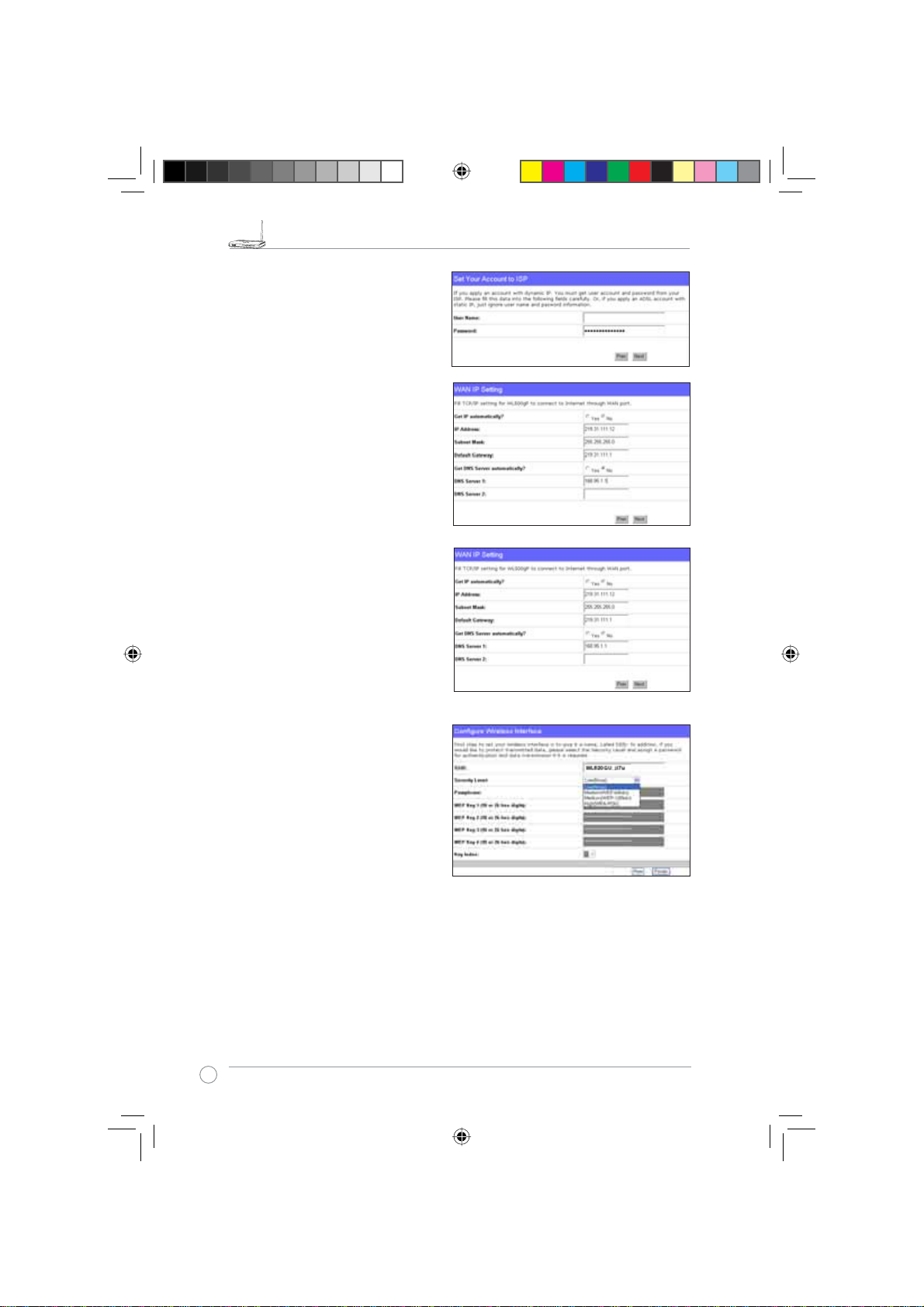
To start quick setup, click Next to enter the “Quick Setup”
page. Follow the instructions to setup the ASUS Wireless
Router.
2. ASUS Wireless Router supports
five types of ISP services: cable,
PPPoE, PPTP, static WAN IP,
and Telstra BigPond. Select your
connection type and click Next to
continue.
Cable or dynamic IP user
If you are using services provided by
cable ISP, select Cable Modem or other
connection that gets IP automatically.
If your ISP provides you hostname, MAC
address, and heartbeat server address,
fill these information into the boxes on
the setting page; if not, click Next to skip
this step.
PPPoE user
If you use PPPoE service, select ADSL
connection that requires username
and password. It is known as PPPoE.
You need to input the username and
password provided by your ISP. Click
Next to continue.
e3188_WL520GU_GC_Manual.indd 9 5/22/08 2:50:26 PM
RT-N11 EZ Wireless N Router User Manual
8
R
PPTP user
If you are using PPTP services, select ADSL
connection that requires username,
password and IP address. Fill in the
username, password and IP address
provided by your ISP into the fields. Click
Next to continue.
Static IP user
If you are using ADSL or other connection
type that uses static IP address, select ADSL
or other connection type that uses static
IP address. Input the IP address, subnet
mask, and default gateway provided by your
ISP. You can specify DNS servers, or get
DNS information automatically.
herk036@adsl-comfort
3. After the connection type setting is
complete, you are to set up your
wireless interface. Specify to your
wireless router an SSID (Service Set
Identifier), which is a unique identifier
attached to packets sent over WLAN.
This identifier emulates a password
when a device attempts to communicate
with your wireless router via WLAN.
If you want to protect transmitted data, select a Security Level to enable encryption methods.
Medium: Only users with the same WEP key settings can connect to your wireless router and
WUDQVPLW GDWD XVLQJ ELWV RU ELWV :(3 NH\ HQFU\SWLRQ &RQÀJXUH WKH VHWWLQJV DV 2SHQ
System/WEP instead of Shared Key/WEP.
High: Only users with the same WPA pre-shared key settings can connect to your wireless
router and transmit data using TKIP encryption.
e3188_WL520GU_GC_Manual.indd 10 5/22/08 2:50:30 PM
Other manuals for RT-N11
1
Table of contents
Other Asus Network Router manuals

Asus
Asus ROG STRIX GS-AX3000 User manual

Asus
Asus WL-600g User manual

Asus
Asus RT-N11 User manual

Asus
Asus ROG Rapture GT-AC5300 User manual

Asus
Asus RX3081 User manual

Asus
Asus GX-D1051 User manual

Asus
Asus RT-AX88U User manual

Asus
Asus Wireless-N600 User manual

Asus
Asus ZenWiFi XD4S User manual

Asus
Asus DSL-N55U User manual

Asus
Asus RT-AX68U User manual

Asus
Asus ROG Rapture GT-BE98 Pro User manual

Asus
Asus TUF Gaming AX4200 User manual

Asus
Asus 90IG02W1-BU9G10 User manual

Asus
Asus RT-BE96U User manual

Asus
Asus RT-AC1900P User manual

Asus
Asus RT-AC85MR User manual

Asus
Asus RX3141 User manual

Asus
Asus RT-AC52U Manual

Asus
Asus RT-AX1800S User manual





