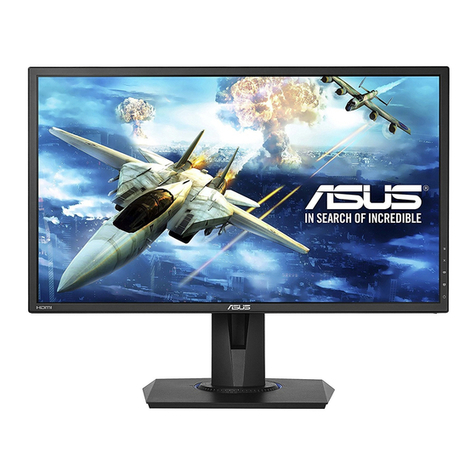
Asus VA321H User manual

VA321 series
LCD Monitor
User Guide

ii
Copyright © 2015 ASUSTeK COMPUTER INC. All Rights Reserved.
No part of this manual, including the products and software described in it, may be reproduced,
transmitted, transcribed, stored in a retrieval system, or translated into any language in any form or by any
means, except documentation kept by the purchaser for backup purposes, without the express written
permission of ASUSTeK COMPUTER INC. (“ASUS”).
Product warranty or service will not be extended if: (1) the product is repaired, modied or altered, unless
such repair, modication of alteration is authorized in writing by ASUS; or (2) the serial number of the
product is defaced or missing.
ASUS PROVIDES THIS MANUAL “AS IS” WITHOUT WARRANTY OF ANY KIND, EITHER EXPRESS
OR IMPLIED, INCLUDING BUT NOT LIMITED TO THE IMPLIED WARRANTIES OR CONDITIONS OF
MERCHANTABILITY OR FITNESS FOR A PARTICULAR PURPOSE. IN NO EVENT SHALL ASUS, ITS
DIRECTORS, OFFICERS, EMPLOYEES OR AGENTS BE LIABLE FOR ANY INDIRECT, SPECIAL,
INCIDENTAL, OR CONSEQUENTIAL DAMAGES (INCLUDING DAMAGES FOR LOSS OF PROFITS,
LOSS OF BUSINESS, LOSS OF USE OR DATA, INTERRUPTION OF BUSINESS AND THE LIKE),
EVEN IF ASUS HAS BEEN ADVISED OF THE POSSIBILITY OF SUCH DAMAGES ARISING FROM ANY
DEFECT OR ERROR IN THIS MANUAL OR PRODUCT.
SPECIFICATIONS AND INFORMATION CONTAINED IN THIS MANUAL ARE FURNISHED FOR
INFORMATIONAL USE ONLY, AND ARE SUBJECT TO CHANGE AT ANY TIME WITHOUT NOTICE,
AND SHOULD NOT BE CONSTRUED AS A COMMITMENT BY ASUS. ASUS ASSUMES NO
RESPONSIBILITY OR LIABILITY FOR ANY ERRORS OR INACCURACIES THAT MAY APPEAR IN THIS
MANUAL, INCLUDING THE PRODUCTS AND SOFTWARE DESCRIBED IN IT.
Products and corporate names appearing in this manual may or may not be registered trademarks or
copyrights of their respective companies, and are used only for identication or explanation and to the
owners’ benet, without intent to infringe.
Table of contents
Notices......................................................................................................... iii
Safety information ...................................................................................... iv
Care & Cleaning........................................................................................... v
1.1 Welcome! ...................................................................................... 1-1
1.2 Package contents......................................................................... 1-1
1.3 Assembling the monitor base..................................................... 1-2
1.4 Connect cables............................................................................. 1-3
1.4.1 Rear of the LCD monitor ................................................. 1-3
1.5 Monitor introduction .................................................................... 1-4
1.5.1 Using the Controls button ............................................... 1-4
1.5.2 QuickFit Function ............................................................ 1-6
2.1 Detaching the arm/stand (for VESA wall mount) ...................... 2-1
3.1 OSD (On-Screen Display) menu ................................................. 3-1
3.1.1 Howtorecongure.......................................................... 3-1
3.1.2 OSD Function Introduction.............................................. 3-2
3.2 Specications............................................................................... 3-9
3.3 Troubleshooting (FAQ).............................................................. 3-10
3.4 Supported Timing List............................................................... 3-11

iii
Notices
This product implements power management functionality. In case of no
signal input after 10 seconds, the product automatically goes to sleep/
standby mode.
As an Energy Star® Partner, our company has determined
that this product meets the Energy Star® guidelines for
energyefciency.
AEEEYönetmeliğineUygundur

iv
Safety information
• Before setting up the monitor, carefully read all the documentation that
came with the package.
• To prevent fire or shock hazard, never expose the monitor to rain or
moisture.
• Never try to open the monitor cabinet. The dangerous high voltages
inside the monitor may result in serious physical injury.
• If the power supply is broken, do not try to fix it by yourself. Contact a
qualified service technician or your retailer.
• Before using the product, make sure all cables are correctly connected
and the power cables are not damaged. If you detect any damage,
contact your dealer immediately.
• Slots and openings on the back or top of the cabinet are provided for
ventilation. Do not block these slots. Never place this product near or
over a radiator or heat source unless proper ventilation is provided.
• The monitor should be operated only from the type of power source
indicated on the label. If you are not sure of the type of power supply to
your home, consult your dealer or local power company.
• Use the appropriate power plug which complies with your local power
standard.
• Do not overload power strips and extention cords. Overloading can
result in fire or electric shock.
• Avoid dust, humidity, and temperature extremes. Do not place the
monitor in any area where it may become wet. Place the monitor on a
stable surface.
• Unplug the unit during a lightning storm or if it will not be used for a
long period of time. This will protect the monitor from damage due to
power surges.
• Never push objects or spill liquid of any kind into the slots on the
monitor cabinet.
• To ensure satisfactory operation, use the monitor only with UL listed
computers which have appropriate configured receptacles marked
between 100-240V AC.
• The socket-outlet shall be installed near the equipment and shall be
easily accessible.
• If you encounter technical problems with the monitor, contact a
qualified service technician or your retailer.
• This product contains chemicals known to the State of California to
cause cancer, and birth defects or other reproductive harm. Wash
hands after handling.

v
Care & Cleaning
• Before you lift or reposition your monitor, it is better to disconnect the
cables and power cord. Follow the correct lifting techniques when
positioning the monitor. When lifting or carrying the monitor, grasp the
edges of the monitor. Do not lift the display by the stand or the cord.
• Cleaning. Turn your monitor off and unplug the power cord. Clean the
monitor surface with a lint-free, non-abrasive cloth. Stubborn stains
may be removed with a cloth dampened with mild cleaner.
• Avoid using a cleaner containing alcohol or acetone. Use a cleaner
intended for use with the LCD. Never spray cleaner directly on the
screen, as it may drip inside the monitor and cause an electric shock.
The following symptoms are normal with the monitor:
• The screen may flicker during the initial use due to the nature of the
fluorescent light. Turn off the Power Switch and turn it on again to
make sure that the flicker disappears.
• You may find slightly uneven brightness on the screen depending on
the desktop pattern you use.
• When the same image is displayed for hours, an afterimage of the
previous screen may remain after switching the image. The screen will
recover slowly or you can turn off the Power Switch for hours.
• When the screen becomes black or flashes, or cannot work anymore,
contact your dealer or service center to fix it. Do not repair the screen
by yourself!
Conventions used in this guide
WARNING: Information to prevent injury to yourself when trying
to complete a task.
CAUTION: Information to prevent damage to the components
when trying to complete a task.
IMPORTANT: Information that you MUST follow to complete a
task.
NOTE: Tips and additional information to aid in completing a task.

vi
Wheretondmoreinformation
Refer to the following sources for additional information and for product
and software updates.
1. ASUSwebsites
The ASUS websites worldwide provide updated information on ASUS
hardware and software products. Refer to http://www.asus.com
2. Optional documentation
Your product package may include optional documentation that may
have been added by your dealer. These documents are not part of
the standard package.

1-1
ASUS LCD Monitor VA321 series
1.1 Welcome!
Thank you for purchasing the ASUS®LCD monitor!
The latest widescreen LCD monitor from ASUS provides a crisper,
broader, and brighter display, plus a host of features that enhance your
viewing experience.
With these features, you can enjoy the convenience and delightful visual
experience that the monitor brings to you!
1.2 Package contents
Check your package for the following items:
LCD monitor
Monitor Base
Quick Start Guide
Warranty Card
1x Power Adapter
1x Power Cord
1x VGA Cable
1x DVI Cable
1x Audio Cable
•If any of the above items is damaged or missing, contact your retailer
immediately.

1-2 Chapter 1: Product Introduction
1.3 Assembling the monitor base
1. Carefully put the front of the monitor face down on a clean table.
2. Attach the base to the arm. Beware to align the latch to the notch on
the base. (1)
3. The end of the arm will slightly protrude from the base. No need to
push it in. (2)
4. Screw the base to the arm tightly. (3)
2
1
3
•We recommend that you cover the table surface with soft cloth to prevent
damage to the monitor.

1-3
ASUS LCD Monitor VA321 series
1.4 Connect cables
1.4.1 Rear of the LCD monitor
CAUTION
RISKOF ELECTRIC SHOCK
DONOT OPEN
ATTENTION
RISQUED ÉLECTROCUTION
NEPASOUVRIR
DVIHDMI VGA
DCIN
VGA
DVIHDMI
1 4 5 62 3
7
10
8
9
1. DC-IN port
2. HDMI port
3. DVI port
4. VGA port
5. Audio in
6. Earphone jack
7. Control button
8. Screw holes for VESA wall mount
9. Kensington Lock
10. Power button

1-4 Chapter 1: Product Introduction
1.5 Monitor introduction
1.5.1 UsingtheControlsbutton
Use the controls button on the back of the monitor to adjust the image
settings.
Standard Mode
VGA 1920x1080@60Hz
Menu
QuickFit
Close
Brightness
Blue Light Filter
Input Select
2
1
3
4
5
6
7
2
3
5
5
6
7
1. Power Button/Power Indicator:
• Press this button to turn the monitor on/off.
• The color definition of the power indicator is as the table below.
Status Description
White ON
Amber Standby mode
OFF OFF
2. MENU Button:
• Press this button to enter the OSD menu.
3. QuickFit Button:
• This is a hotkey to activate the QuickFit function designed for
alignment.
• The QuickFit function contains 6 pages of common grid
patterns, paper sizes, and photo sizes. See page 1-6 for
details.
Table of contents
Other Asus Monitor manuals

Asus
Asus ROG STRIX XG259CM User manual

Asus
Asus VG32A Series User manual

Asus
Asus MX27AQ Series User manual

Asus
Asus PA328CGV Series User manual

Asus
Asus VZ2491R Series User manual

Asus
Asus VW228TLB User manual

Asus
Asus VW19 Series User manual

Asus
Asus ROG STRIX XG27A User manual

Asus
Asus VY279HF Series User manual

Asus
Asus VS278N User manual

Asus
Asus MM19D User manual

Asus
Asus VP229Q Series User manual

Asus
Asus ROG SWIFT 360HZ PG27AQN User manual

Asus
Asus LS201 User manual

Asus
Asus BE249 Series User manual

Asus
Asus VP279H User manual

Asus
Asus ROG Swift PG27V User manual

Asus
Asus VG27AQM1A Series User manual

Asus
Asus C624C Series User manual

Asus
Asus VC239 Series User manual




