
Argos Bush 5 User manual

Quick Start Guide
Bush 5” Android Phone
BUSH_5_Android_cover.indd 1 26/11/2014 12:33:01

Table of contents
For more information, please consult the FAQs on www.argos.co.uk.
Make sure to read them before considering any product return. As we
are often updating and improving our products, your device’s software
may have a slightly dierent appearance or modied functionality than
presented in this Quick Start Guide.
Package contents..........................................................................................................
Description of the phone...........................................................................................
Assembling......................................................................................................................
Getting started...............................................................................................................
3G & WiFi connection...................................................................................................
Google account & Contacts........................................................................................
Hints & tips with AndroidTM................................................................................
Troubleshooting.............................................................................................................
2
3
6
8
10
12
14
16
BUSH_5_Android_book.indd 1 28/11/2014 11:03:24

2
Package Contents
Check your product box for the following items:
-BUSH 5 Android
-Battery
-Headset
-Micro SIM adaptor
-USB cable
-Charger
-Quick start guide
-Warranty Legal & Safety notices
-BUSH Green & Blue back casings
-Translucent protective case
-Screen Protector
The supplied items are designed only for your device and may not be
compatible with other devices. Unapproved accessories may cause your
device to malfunction.
BUSH_5_Android_book.indd 2 28/11/2014 11:03:24
3
27-01-2014
last modification:
AC50B OX
CONFIDENTIAL
DRAWING
Rev
1
scale 1:1 mm
1 2
11-02-2014
last modification:
AC50 NE
CONFIDENTIAL
DRAWING
Rev
2
scale 1:1 mm
5
6
34
7
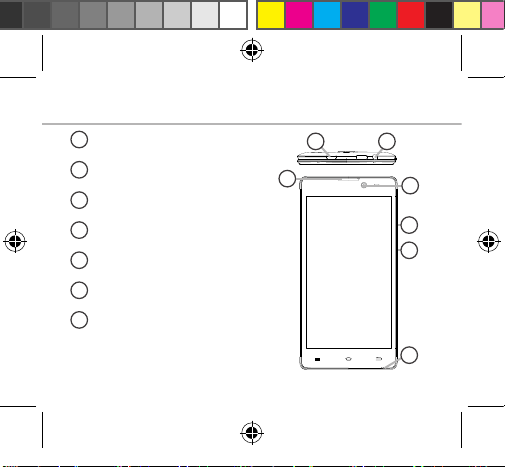
1Micro-USB port
Headset jack
Loudspeaker
Webcam
Volume buttons
ON/OFF button
Microphone
2
3
4
5
Description of the phone
6
7
BUSH_5_Android_book.indd 3 28/11/2014 11:03:25

4
9
8
10
11-02-2014
last modification:
AC50 NE
CONFIDENTIAL
DRAWING
Rev
2
scale 1:1 mm
Description of the phone
8
10
9
Camera
Flash
Loudspeaker
BUSH_5_Android_book.indd 4 28/11/2014 11:03:25

5
11-02-2014
last modification:
AC50 NE
CONFIDENTIAL
DRAWING
Rev
2
scale 1:1 mm
11 12 13
Menu: open the list of options available on the current screen.
Home/Recent apps/Google NOW: short press to return to the Home
screen; double press to open the list of recent applications; long press to
access Google Now.
Back: return to the previous screen..
Menu
Home/Recent apps/ Google NOW
Back
13
12
11
BUSH_5_Android_book.indd 5 28/11/2014 11:03:25

6
Assembling
Opening
1. Use the notch to remove the back cover.
Do not bend or twist the back cover excessively. Doing so may damage
the cover.
2. Remove the battery.
Inserting SIM cards
For your 3G SIM card, slide it facing downwards in the 2G/3G slot (slot 1)
with the cut corner of the card outermost as shown on page 7.
For your standard SIM card, slide it facing downwards in the 2G slot (slot 2)
with the cut corner of the card outermost as shown on page 7.
Inserting a Memory card
For your Memory card, slide it facing downwards in the slot 3.
Closing
1. Align the battery’s 4 contact points with those of the phone and gently
press the battery down into place.
2. Replace the back cover clicking it back into position.
Tip:
Before using your device for the first time, charge its battery completely.
BUSH_5_Android_book.indd 6 28/11/2014 11:03:25

7
Picture to show how to removed the bottom casing Picture to show how to insert the battery pack Picture to show the scards position
Picture to show how to remove the bottom casing Picture to show how to insert the battery pack Picture to show the scards position
Slot2
Slot3
Slot2
Picture to show how to remove the bottom casing Picture to show how to insert the battery pack Picture to show the scards position
Picture to show how to remove the bottom casing Picture to show how to insert the battery pack Picture to show the scards position
Slot1
Slot3
Picture to show how to removed the bottom casing Picture to show how to insert the battery pack Picture to show the scards position
Picture to show how to removed the bottom casing Picture to show how to insert the battery pack Picture to show the scards position
Assembling
Slot1 2G/3G SIM card
Slot2 2G SIM card
Slot3 Memory card
Lift
the back
cover
using the
notch
BUSH_5_Android_book.indd 7 28/11/2014 11:03:26

8
Turn ON
1. Press and hold the ON/OFF button to turn on the device.
When you turn on your device, a PIN code may be requested.
2. Type the PIN code supplied with your SIM card.
Beware of typing a wrong PIN code.
3. Select ‘OK’.
Turn OFF
To turn o your device, press and hold the ON/OFF button, and then
select Power o > OK.
Sound & Notication proles
Getting started
Tip:
Your device will go into standby mode when you do not use it for a
specified period of time. To wake up your device, press the ON/OFF
button. To set the duration, go to Settings > Display > Sleep.
1. When the device is turned on, press
and hold the ON/OFF button.
2. Select an option.
Silent Vibrate Sound
BUSH_5_Android_book.indd 8 28/11/2014 11:03:26

9
Through the wizard
The rst time you start up your phone, the installation wizard will help
you set up your device:
-Language
-Date & time
-WiFi connection
-Location service options
Touch screen actions:
Tap: touch once to select or launch a menu, option, or application.
Touch and hold: tap an item and hold it for more than 2 seconds to drag,
remove, create folders etc.
Drag: touch and hold an item and move it to a new location.
Flick: briskly scroll up, down, left, or right to move through lists or screens.
Pinch: place two of your ngers far apart, and then pinch them together.
BUSH_5_Android_book.indd 9 28/11/2014 11:03:26
Table of contents
Other Argos Cell Phone manuals


