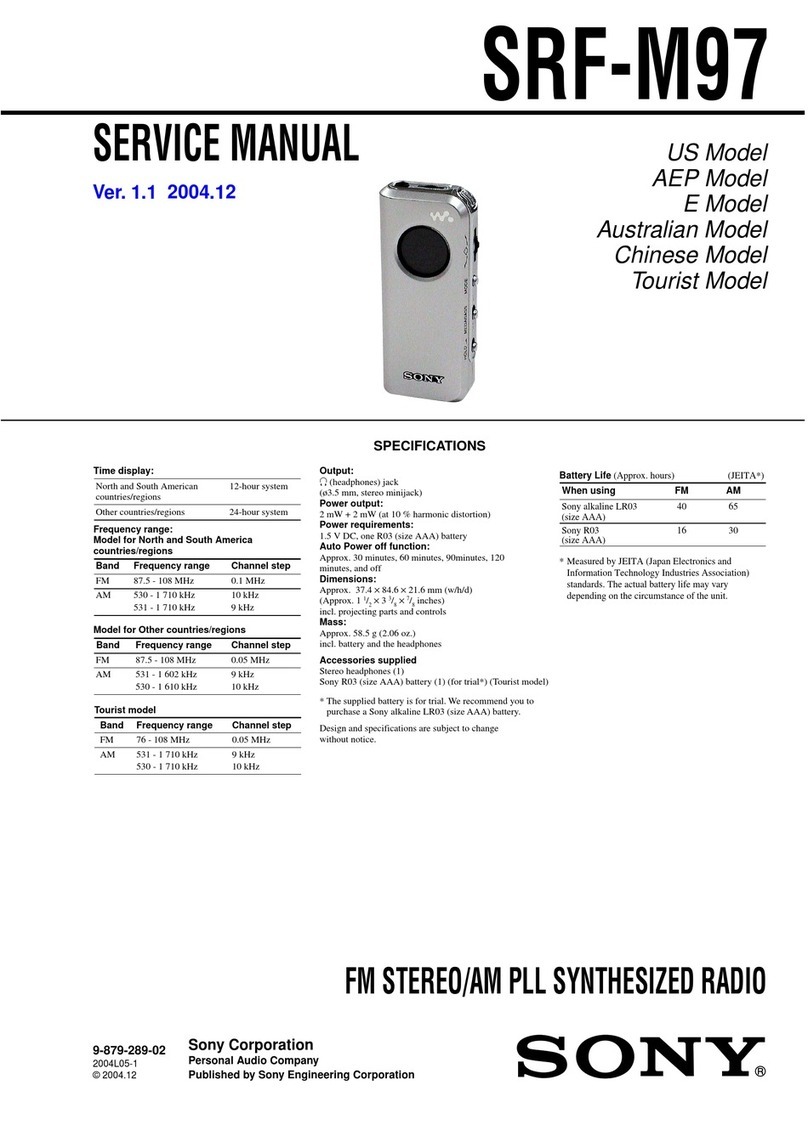
AMC LIVE Radio User manual

LIVE RADIO PLAYER - modern and universal music player which gives a possibili y
o choose one of he five available music sources. LIVE RADIO PLAYER unres ric ed
freedom o lis en world wide radio s a ions independen ly on your loca ion. Nowadays
echnologies and freedom choice are he main idea of his in erne radio player’s.
CONTENTS:
Device fea ures
Safe y ins ruc ions
3
Sys em componen s
4
Wha do you need before s ar ing
4
Fron panel
5
Rear panel
5
De ailed descrip ion
Radio sec ion
6
USB/SD players sec ion
6
Remo e con rol
8
In erne radio opera ion
Connec ing o he wireless ne work.
10
Wireless ne work’s scan
10
The radio s a ions finding
11
S oring he radio s a ions o he prese s
13
Radio s a ions which no live broadcas ing
13
FM radio uner
14
Time, da a and Alarm se ings
15
Media Player
PC se up
17
Media files playing using UPnP server
19
Se up
Ne work configura ion
22
“My S uff” configuring
24
(Regis ering and se ups on Reciva websi e)
Troubleshoo ing 27
Specifica ions 28
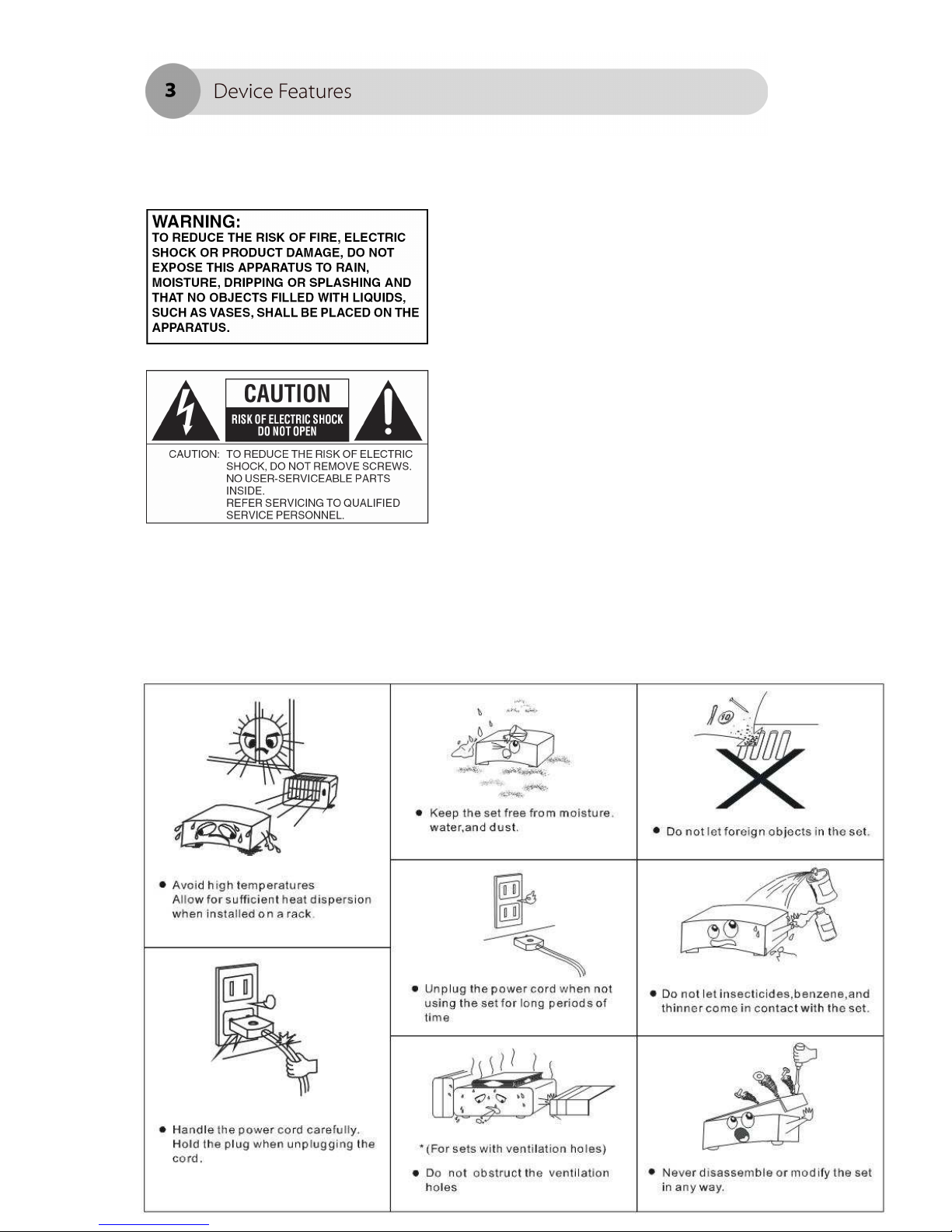
Safety instructions
Note before use
Important
Do no ins all his equipmen in a
confined space such as a book
case or similar uni .
The appara us should no be
dripped or splashed and no
objec s filled wi h liquids, such as
vases, should no be placed on
he appara us.
This uni should no be used near
wa er (e.g. near ba h ub,
washbowl, ki chen sink, laundry
ub, in a we basemen , or near a
swimming pool, e c.) Care should
be aken so han objec s do no
fall and liquids are no spilled in o
enclosure hrough openings.

System components
All sys em includes:
LIVE RADIO PLAYER........................................................................................................................1pc.
Remo e con rol ................................................................................................................................1pc.
S ereo RCA audio cable ..............................................................................................................2pc.
Power cable........................................................................................................................................1pc.
Wi-Fi an enna ....................................................................................................................................1pc.
User manual .......................................................................................................................................1pc.
What do you need before starting?
Before you s ar using LIVE RADIO PLAYER you need he following:
•A broadband In erne connec ion.
•A wireless access poin (Wi-Fi) connec ed o your broadband In erne , preferably
via a rou er. If you have no wireless ne work, you can use LAN wire connec ed o your
broadband in erne , preferably via a rou er. You can selec o use wireless or LAN wire
in he se ing menu.
•WEP or WPA code. If your wireless ne work is configured o use Wired Equivalen
Privacy (WEP) or Wi-Fi Pro ec ed Access (WPA) da a encryp ion hen you need o know
he WEP or WPA code so you can ge he In erne radio o communica e wi h he
ne work.
Before you con inue, make sure ha your wireless access poin is powered up and
connec ed o your broadband In erne . To ge his par of he sys em working you
mus read he ins ruc ions supplied wi h he wireless access poin .
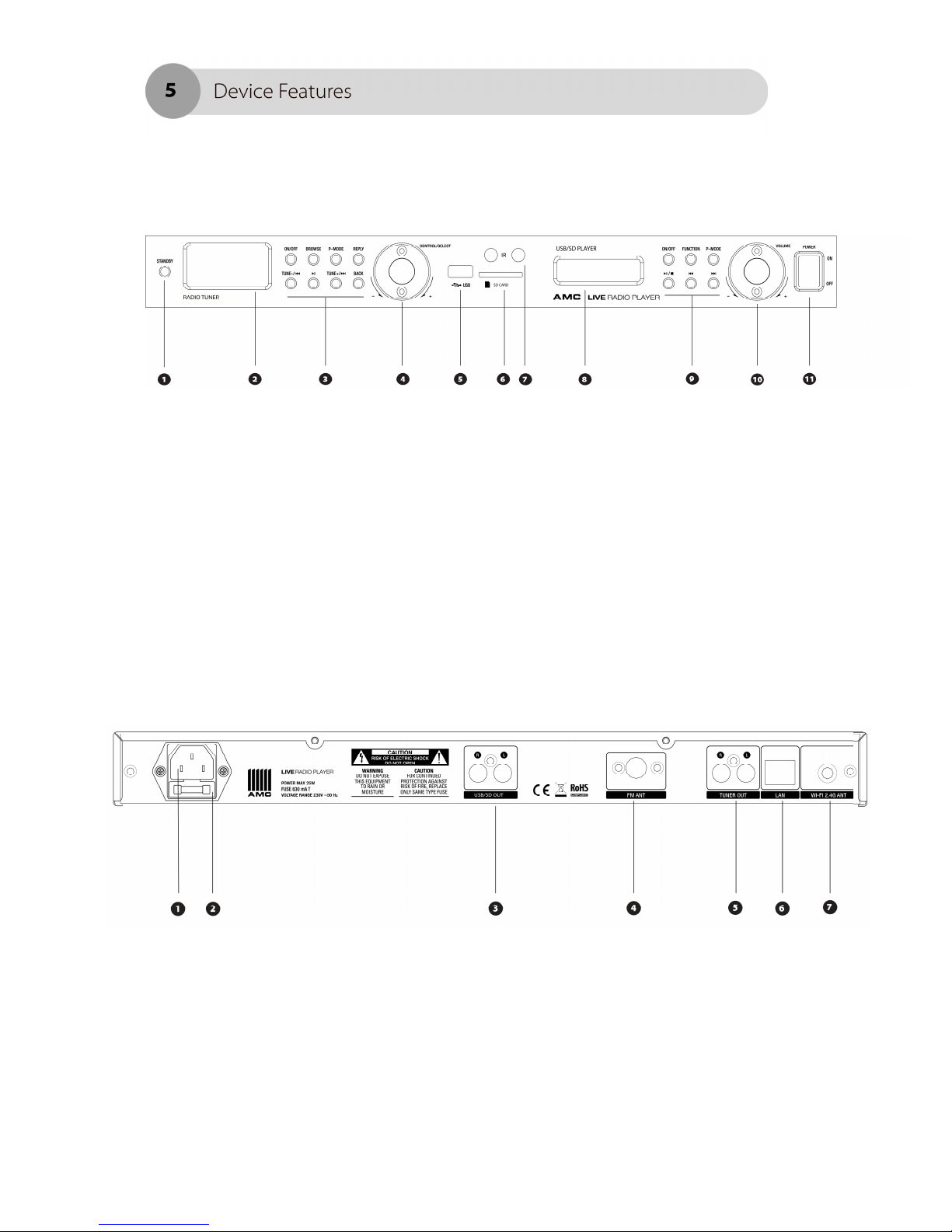
Front panel
1. S and by swi ch 2. Radio uner’s display
3. Radio uner’s func ion bu ons 4. Volume and menu naviga ion’s
. USB slo 6. SD card’s slo
7. IR de ec ors 8. USB/SD player’s display
9. USB/SD player’s func ion bu ons 10. USB/SD player’s volume con rol
11. Power swi ch
Rear panel
1. Main power socke 2. Fuse holder
3. USB/SD player’s line ou pu 4. FM an enna plug
. Tuner line ou pu 6. LAN cable socke
7. Wi-Fi an enna plug
Radio section
FUNCTIONS KEY
•S andby swi ch – allows se ing s andby mode on he device.
•ON/Off - urns on and off radio sec ion on he device.
•BROWSE – browse he rack info in he playlis (ac ive in media mode only)
•P mode – change playing mode, repea or random on/off (ac ive in media mode
only)
•Replay – his key for fu ure upgrade func ion, communica e wi h in erne server.
•TUNE - - Previous rack and backward FM s a ions search. (ac ive in media
and FM radio mode only)
• - Play/pause (ac ive in media mode only)
•TUNE + - Nex rack and forward FM s a ions search. (ac ive in media and FM
radio mode only)
•Back – allows o go back in o previous menu page.
•CONTROL/SELECT – when he uni is in playing mode, urn he clockwise or
coun erclockwise if you wan o increase or decrease volume level. When he
uni is In MENU s age, urn his knob for naviga ion in menu and push for selec ion.
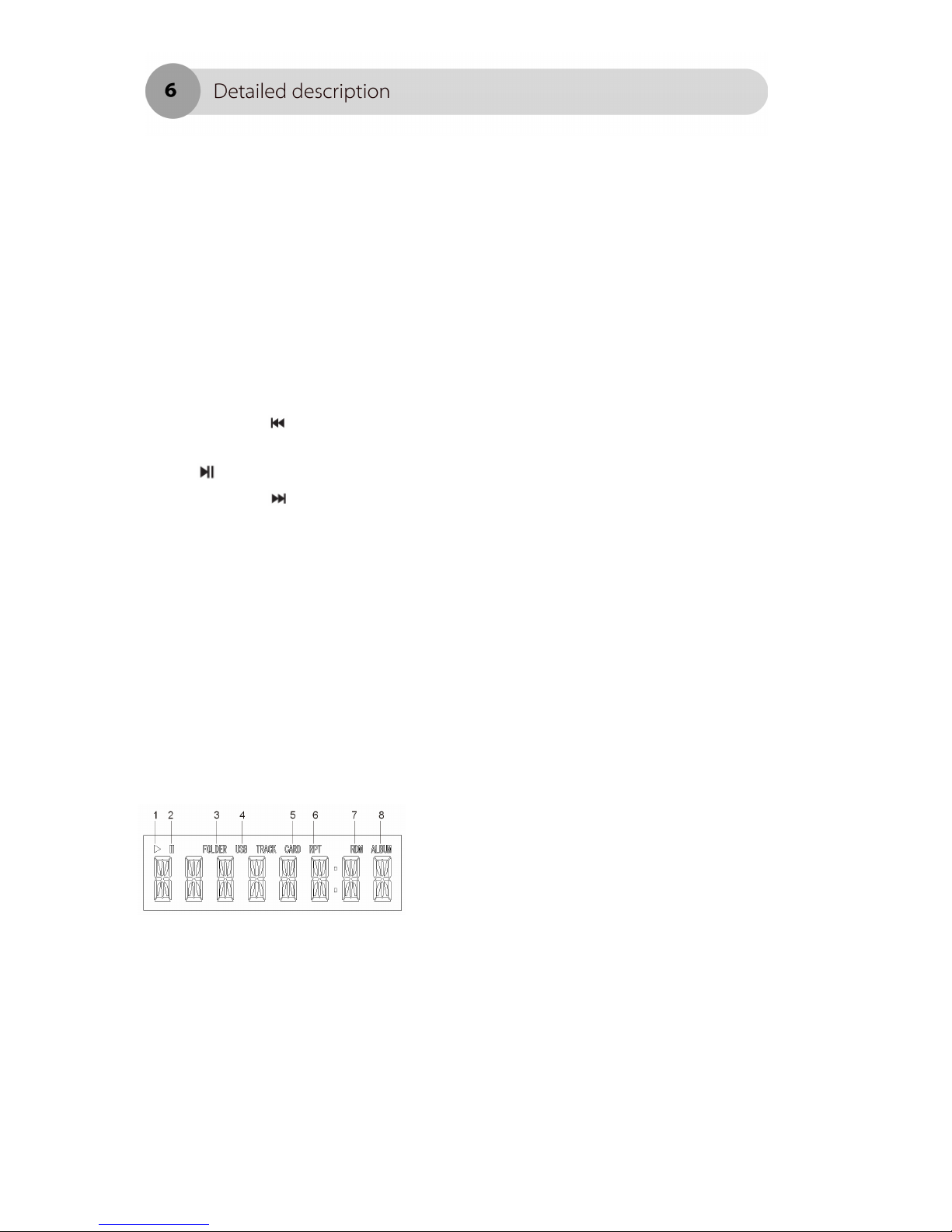
USB/SD players section
DISPLAY
1. Playing indica or 2. Pause indica or
3. Folder’s repea ing indica or 4. Music source indica or
. Music source indica or 6. Repea ing indica or
7. Random playing indica or 8. An album indica or is ac ive
in s op mode and indica es
a number of folders.
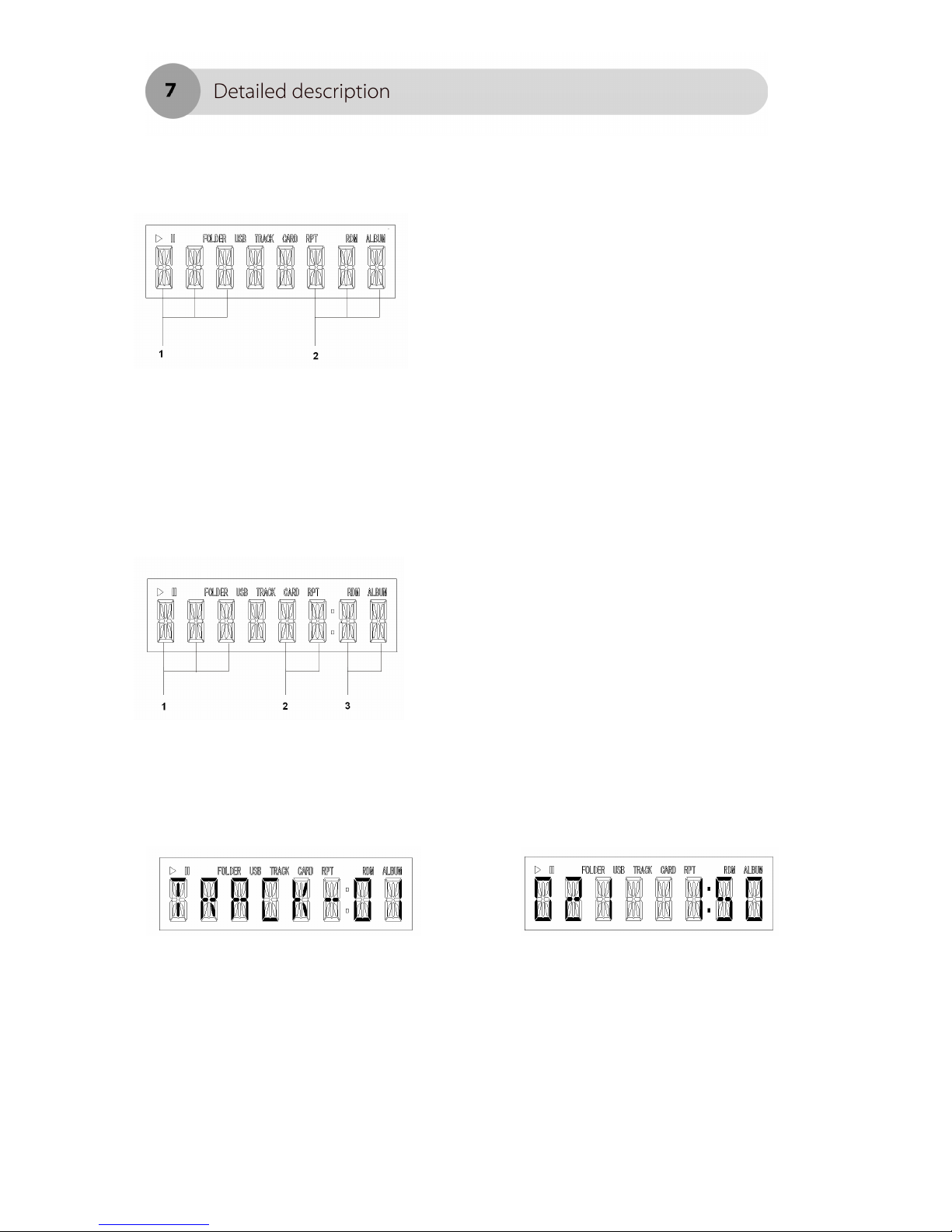
DISPLAY STATUS IN STOP MODE
1.
Firs digi s indica e o al files number in he USB or SD card.
2.
Second hree digi s indica e o al folders number.
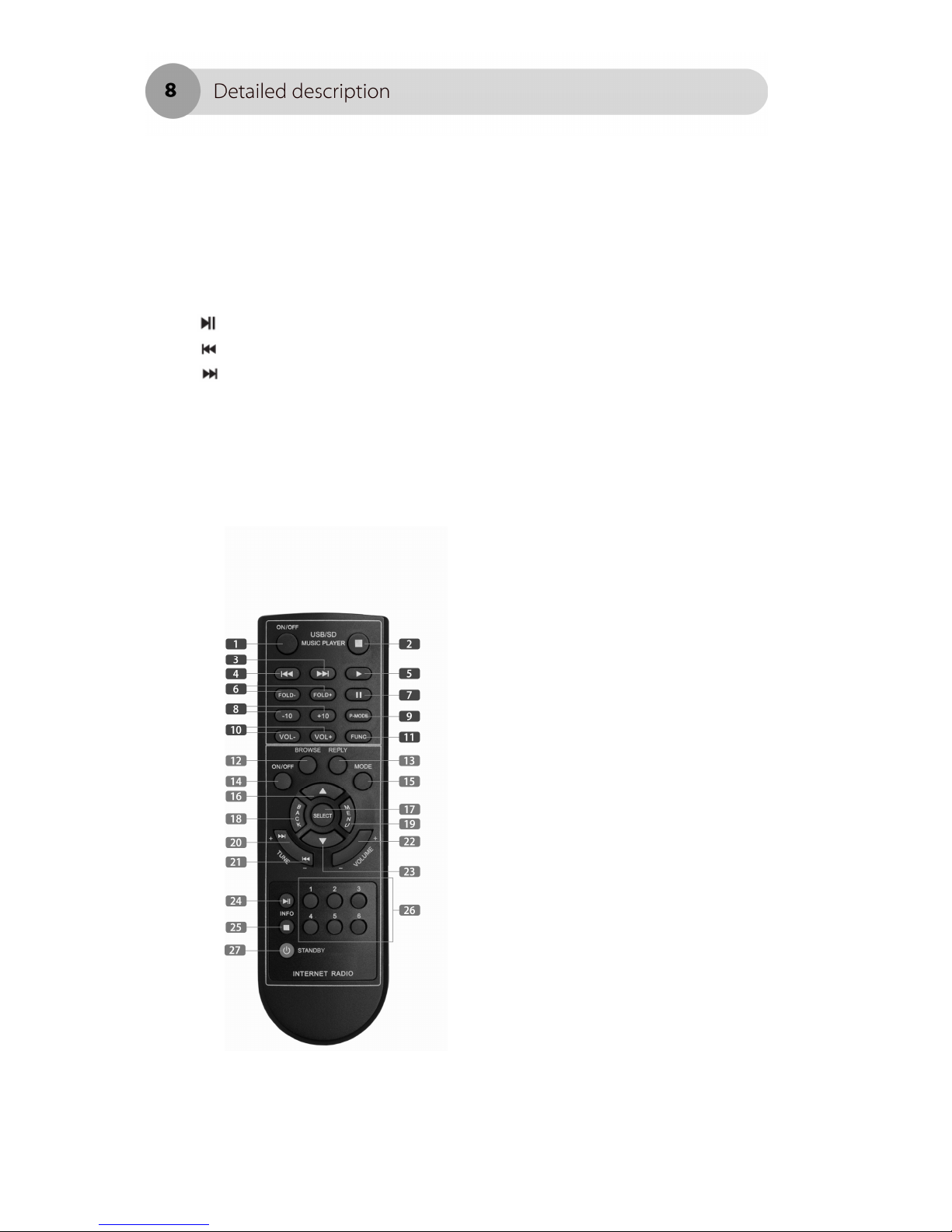
DISPLAY STATUS IN PLAY MODE
1.
Playing rack number.
2.
Time display (minu es)
3.
Time display (seconds)
When he uni is playing, af er each 5 seconds display will show informa ion abou
playing file. In res ime, display shows playing ime and sound rack number.
USB/SD FUNCTIONS KEY
•ON/Off - urns on and off USB/SD sec ion on he device.
•Func ion – music source selec ion. Change music source be ween USB and SD.
•P mode – change playing mode: repea one → repea folder → random→
normal.
• ■ - Play/pause/s op bu on.
• - backward playing ack by pressing
• - forward playing rack by pressing
•Volume - when he uni is in playing mode, urn he clockwise or
coun erclockwise if you wan o increase or decrease volume level
Remote control
1. ON/Off - urns on and off USB/SD
sec ion on he device.
2. S op playing USB/SD rack
3. Backward USB/SD playing
4. Forward USB/SD playing ack
5. Play bu on for USB/SD player.
6. Change he playing folder.
7. Pause played rack form USB/SD
player
8. Skips 10 rack o backward or forward
9. Change playing mode on he USB/SD
player : repea one → repea folder →
random→ normal.
10. Volume key for USB/SD player
11. Func ion – music source selec ion.
Change music source be ween USB and
SD.
12. BROWSE – browse he rack info in
he playlis (ac ive in media mode only)
13. Replay – his key for fu ure upgrade
func ion, communica e wi h in erne
server.
14. Radio uner on/off swi ch
15. Mode – change music source
be ween in erne radio → FM radio →
Media player
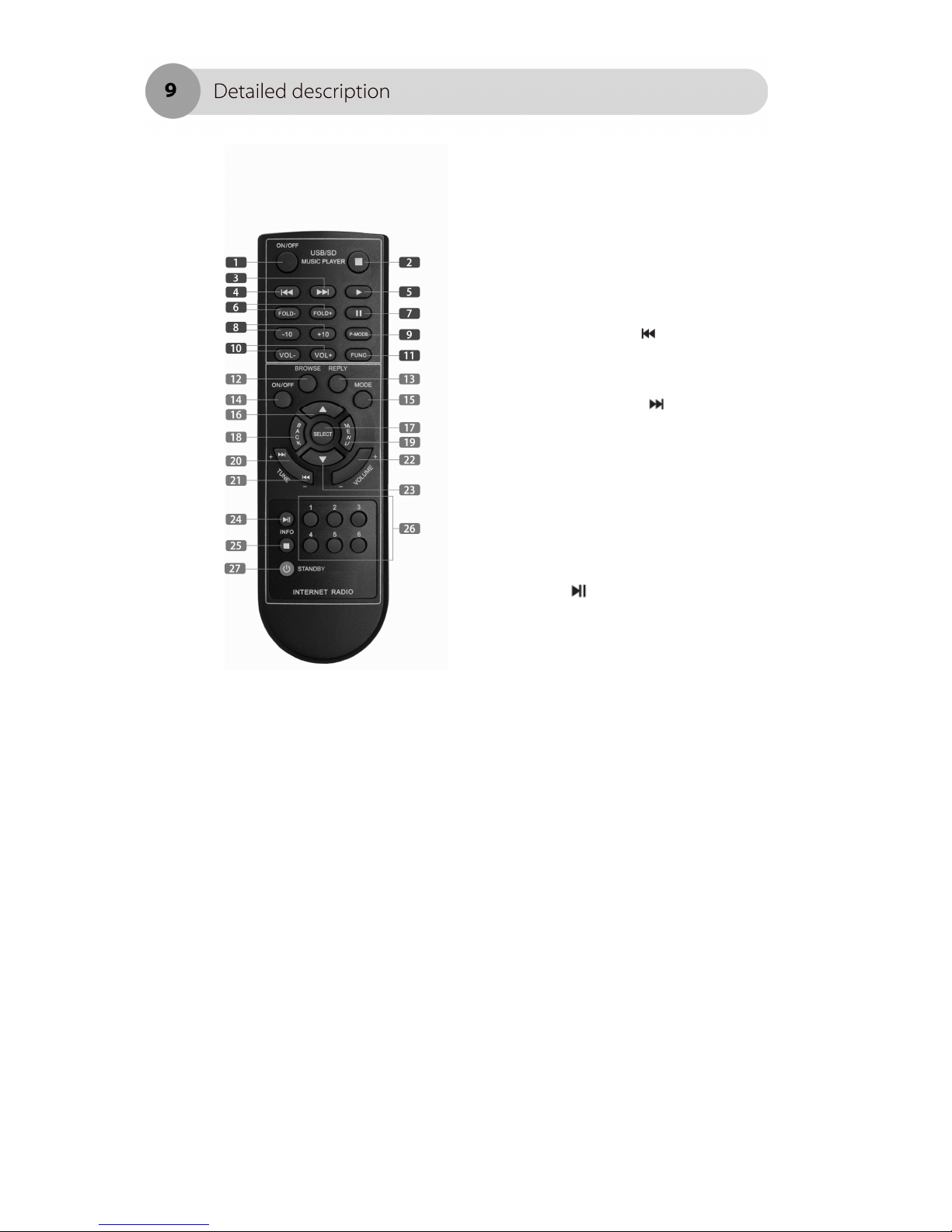
16. Up key for naviga ion in menu.
When uni is in FM mode pressing his
key adds 0.05Mhz o displayed
frequency.
17. SELECT for menu selec ion
18. Back – allows o go back in o
previously menu page.
19. Menu – calls menu in radio display
20. TUNE + Nex rack and forward
FM s a ions search. (ac ive in media and
FM radio mode only)
21. TUNE - - Previous rack and
backward FM s a ions search. (ac ive in
media and FM radio mode only)
22. Volume key for radio
23 Down key for naviga ion in menu.
When uni is in FM mode pressing his
key sub rac 0.05Mhz o displayed
frequency.
24. - Play/pause (ac ive in media
mode only)
25. STOP key (ac ive in media mode
only)
26. Prese s for in erne and FM radio
s a ions. Push and hold for 3 seconds
one of keys o save s a ion on he
pressing key.
76. Whole uni s s andby key.
Connecting to the wireless network.
Power up he Radio
Please connec power cable and urn power swi ch on, wai abou 15 seconds un il
display ligh s up. In his momen displays shows:
Initialising network
Af er a few seconds, his indica ion will change o:
Scanning
Note: If you would like o give your radio a s a ic IP address hen please look a he
“Ne work configura ion” sec ion under he ‘Se ings” guide in his manual.
Wireless networks scan
When he display shows <Scan for ne works>, press he SELECT bu on on he
remo e con rol or fron panel. During he ne works scanning radios display shows:
Scanning
If wireless ne work is no found display shows his able:
No Wireless
Networks Found
If his happens hen you have o ge your wireless access poin working - see he
ins ruc ions supplied wi h i . When he radio finds your wireless ne work, i displays
he ESSID for he access poin on he screen - his is a name ha is alloca ed o he
access poin by he person who se up he ne work - for example:
My network
Other manuals for LIVE Radio
3
Table of contents
Other AMC Radio manuals