Amazfit GTR 2 User manual

User Manual for Amazfit GTR 2 (English Edition)
Contents
User Manual for Amazfit GTR 2 (English Edition) ......................................................................................1
Getting started................................................................................................................................................3
Appearance ....................................................................................................................................3
Power on and off............................................................................................................................3
Charging ........................................................................................................................................3
Wearing & Replacing Watch Strap ...............................................................................................4
Connecting & Pairing ....................................................................................................................4
Updating the system of your watch ...............................................................................................5
Control center ................................................................................................................................5
Time System ..................................................................................................................................6
Units...............................................................................................................................................6
Common operations.......................................................................................................................6
Functions available when the watch is connected to the phone ....................................................................7
App alerts.......................................................................................................................................7
Call.................................................................................................................................................7
Find Mobile ...................................................................................................................................8
Find Watch ....................................................................................................................................8
Watch Face ....................................................................................................................................................9
Watch Face Complications............................................................................................................9
Always On Display........................................................................................................................9
Add Watch Faces.........................................................................................................................10
Change Watch Faces ...................................................................................................................10
Delete Watch Faces .....................................................................................................................10
Shortcuts ......................................................................................................................................................11
Smart Assistant ............................................................................................................................11
Quick Access Apps......................................................................................................................11
Press the lower button..................................................................................................................11
Workout .......................................................................................................................................................12
Workout .......................................................................................................................................12
Workout GPS Positioning ...........................................................................................................12
Workout Reminders & Settings...................................................................................................13
Workout Control..........................................................................................................................14

Viewing workout records ............................................................................................................14
Activities and Health ...................................................................................................................................15
PAI...............................................................................................................................................15
Activity Goal ...............................................................................................................................15
Idle Alerts ....................................................................................................................................16
Heart Rate ....................................................................................................................................16
Heart Rate Alerts .........................................................................................................................16
Automatic Heart Rate Detection..................................................................................................17
Manual measurement...................................................................................................................17
Sleep ............................................................................................................................................17
Sleep Assistant.............................................................................................................................17
Sleep Breathing Quality Monitoring ...........................................................................................18
SpO₂.............................................................................................................................................18
Precautions for SpO₂ Measurement.............................................................................................19
Stress............................................................................................................................................19
Voice Function.............................................................................................................................................20
Offline Voice ...............................................................................................................................20
Multimedia Function....................................................................................................................................20
Music ...........................................................................................................................................20
Watch Apps..................................................................................................................................................22
Watch Apps .................................................................................................................................22
App List .......................................................................................................................................22
Schedule.......................................................................................................................................22
Weather........................................................................................................................................22
Compass.......................................................................................................................................23
Barometric Altimeter...................................................................................................................23
Alarm ...........................................................................................................................................24
Timer ...........................................................................................................................................24
Countdown...................................................................................................................................24
Watch Settings .............................................................................................................................................25
Bluetooth Settings........................................................................................................................25
System Language Settings...........................................................................................................25

Getting started
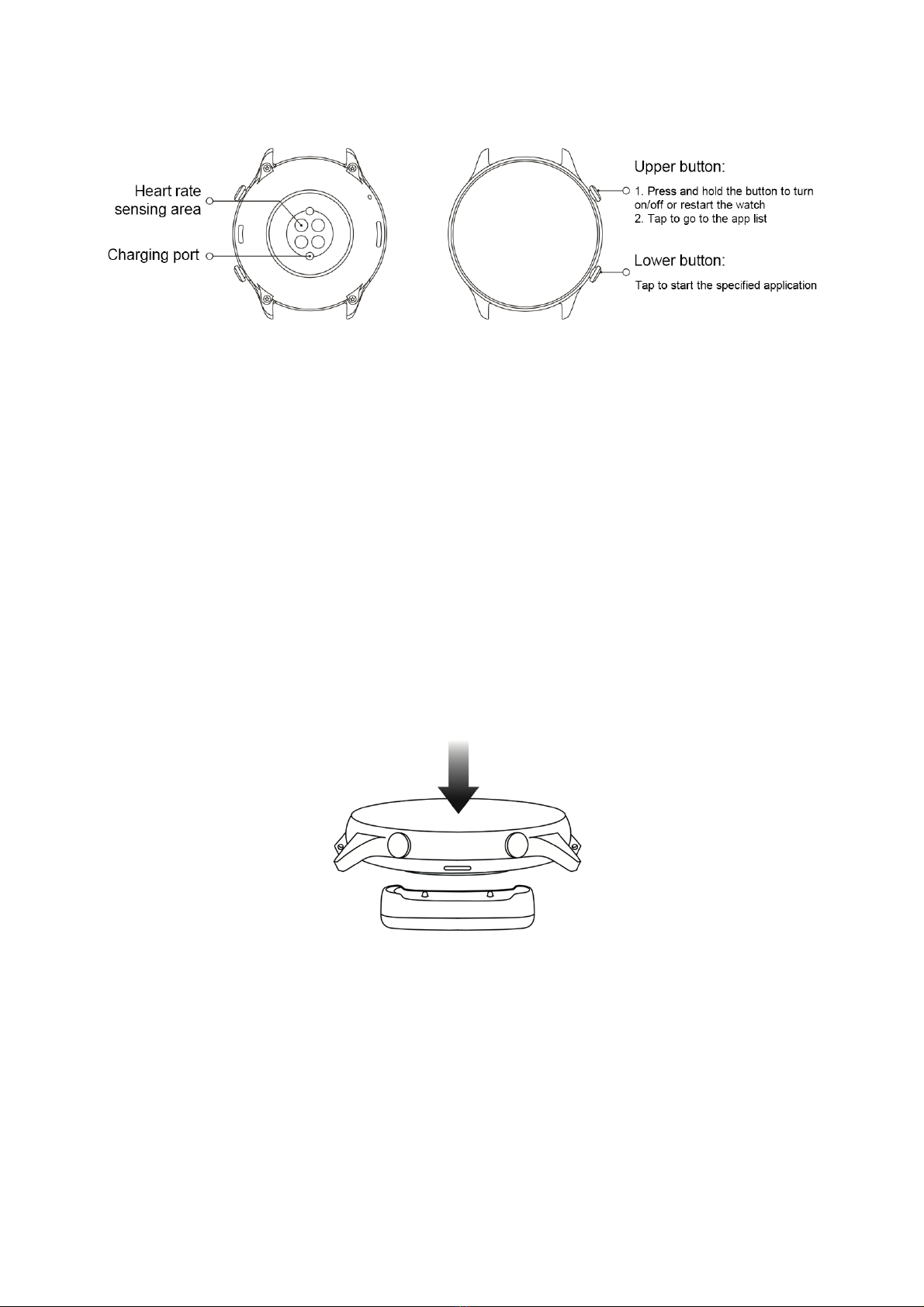
Appearance
Power on and off
Power on:
Long press the upper button to turn on the screen and go to the start screen. If turning on the watch by long
pressing the upper button doesn't work, charge the watch and try again.
Shut down:
When the device is on, long press the upper button for 5 sec to go to the power menu to shut down or restart the
watch.
Force shut down:
When the device is on, long press the upper button for 10 sec to restart the watch.
Charging
This product charges via a magnetic charging base. Please use the included charging base. Align the charging port
on the back of the watch with the metal contacts on the charging base, and wait until the charging level indicator
appears on the watch screen.
Note:
Use the original charging base and ensure the charging port is dry.

Use a computer USB port or a charger with a rated output voltage of 5V and a rated output current above 1A to
charge your watch.
Wearing & Replacing Watch Strap
Put the strap on with comfortable looseness to allow the skin to breathe and the sensor to function.
When measuring SpO₂, avoid wearing the watch on the wrist joint, keep your arm flat, maintain a comfortable
(appropriately tight) fit between the watch and the skin of your wrist, and keep your arm still throughout the
measurement process. When affected by external factors (such as arm sag, arm sway, arm hair, and tattoo),
measurement results may be inaccurate or the measurement may fail with no output.
You can tighten the watch strap during workout and loosen it afterwards. Tighten the strap appropriately if your
watch sways on your wrist or fails to output data.
To change the watch strap, refer to the illustration below:
Note:
After the strap is attached, please pull the strap using appropriate force to ensure a secure attachment.
Avoid contact with liquid, as the leather strap is not waterproof. Switch to a fluororubber strap or a silicone strap
when you cannot avoid such contact, for example, when swimming.
Connecting & Pairing
Use your phone to scan the following QR code, and download and install the Zepp app. For the best user
experience, update the app to the latest version as prompted.
Note: Your mobile phone must run Android 5.0 or iOS 10.0 or later.
Initial pairing:
When the watch is started for the first time, the QR code used for pairing is displayed on the screen.

On your phone, start and log in to the Zepp app and scan the QR code displayed on the watch to pair your phone
with the watch.
Pairing with a new phone:
1. On your old phone, start the Zepp app and synchronize data with the watch.
2. On your old phone, go to the information page of the watch, tap Unpair at the bottom of the page, and unpair
the old phone from the watch.
3. Restore the factory settings of the watch, and restart the watch. After the watch is restarted, pair the watch
with your new phone according to the initial pairing procedure.
Updating the system of your watch
Keep the watch connected with your phone, start the Zepp app, and select Profile > Amazfit GTR 2. Tap System
updates to view or update the system of your watch.
It is recommended that you tap Update Immediately when your watch receives a system update message.
Control center
On the watch face page, swipe down to go to the control center for the following system functions: Flashlight,
Brightness adjustment, DND, Battery saver mode, Screen locked, Find mobile, Volume setting, Theater mode,
and Keep Watch Awake.

Time System
Keep the watch connected with your phone. During data synchronization, the watch automatically follows the
system time and time format of your phone, and displays the time in a 12 h or 24 h format.
Units
Keep the watch connected with your phone, start the Zepp app, and go to Profile > Settings. Here, you can set the
unit of measurement for distance and weight. During data synchronization, the watch automatically follows the
settings in the app.
Common operations
Tap the screen
To enable this function, select the current item, or
proceed with the next step.
Long press the watch face
to activate Watch face selection and Watch face
settings
Cover the screen
Turn off the screen
Swipe up, down, left, or right
Scroll on the page or switch pages. On some pages,
you can swipe right to return to
the upper-level page
Press the upper button
Wake up the watch, and go to the app list or return to
the watch face
Press the lower button
Start a particular app
Long press the upper button for 5 sec or longer
Power on the watch, go to the power page, and force
restart

Functions available when the watch is connected to the phone
App alerts
Keep the watch connected with your phone to receive phone app alerts on your watch. You can swipe up on the
watch face page to view the latest 20 alerts in the Notification Center.
Setting method:
Keep the watch connected with your phone, start the Zepp app, and go to Profile > Amazfit GTR 2 > Notifications
and Reminders > App alerts. Here, you can select apps for which the app alerts function needs to be enabled.
Note:
To enable this function on an Android phone, you need to add the Zepp app to the whitelist or auto-run list in the
phone background so that the app always runs in the background. If the Zepp app is killed by the phone's
background process, the watch will be disconnected from your phone, and you cannot receive app alerts on the
watch.
Call

Pair the watch with your phone via Bluetooth and maintain the connection to receive calls on the watch.
Setting method:
Method one: Start the Zepp app and go to "Profile > Amazfit GTR 2 > App settings". On the Phone page, turn on
"Call on watch", then pair the watch and your phone through Bluetooth as instructed.
Method two: On the watch and your phone, go to "Settings > Bluetooth to pair them:
1. On your phone, go to Settings, then select "Bluetooth" to turn on the Bluetooth, and set the phone to be
discoverable. On the watch, go to App list > Settings > Network and connections > Bluetooth. Ensure the
Bluetooth is turned on.
2. Find the watch in the search results for available devices on your phone, and tap to pair them. Or, find your
phone in the Bluetooth search results on the watch, and tap to pair the devices.
Find Mobile
1. Keep the watch connected with your phone.
2. On the watch face page, swipe down to go to the control center, and tap Find mobile. Your phone will vibrate
and ring.
3. In App list, select Widgets, and tap Find mobile. Your phone will vibrate and ring.
Find Watch
Keep the watch connected with your phone, start the Zepp app, and choose Profile > Amazfit GTR 2 > Find
watch, after which your watch will vibrate.

Watch Face
Watch Face Complications
Some watch faces support complications. With the complications, you can view information such as steps,
consumption, and weather, or tap a complication to launch the corresponding app. You can also edit information
as needed.
Edit watch face complications:
1. Wake up the watch face, and long press the watch face page to go to the watch face selection page.
2. Swipe left or right to preview the watch faces available to the watch. The Edit button will be displayed at the
bottom of a watch face that supports complications. You can tap this button to go to the page for editing the
complications of this watch face.
3. Select the complication to be edited, and tap this complication, or swipe up or down on the screen to switch
between complications.
4. After editing, press the upper button to enable a watch face.
Always On Display
If this function is enabled, the screen still displays some information in standby mode, which seriously reduces
battery life.
Set Always On Display:
1. Wake up the watch and press the upper button to go to the app list. Then choose Settings > Display and
brightness > Always On Display.
2. Select the watch face style and enable status for Always On Display.

Add Watch Faces
In addition to the built-in watch faces, you can choose online watch faces as desired from the watch face store in
the Zepp app and synchronize them to the watch. You can also set your phone images as custom watch faces with
the app.
Add online watch faces:
1. Keep the watch connected with your phone, start the Zepp app, and go to Profile > Amazfit GTR 2 > Store.
2. Select one or more watch faces you wish to use, then synchronize them to the watch to give yourself multiple
options.
Add customized watch faces:
Keep the watch connected with your phone, start the Zepp app, go to Profile > Amazfit GTR 2 > Store, and go to
customized watch faces.
Change Watch Faces
1. Wake up the watch face, and long press the watch face page to go to the watch face selection page.
2. Swipe left or right to preview the watch faces available to the watch, including built-in watch faces and
synchronized online watch faces.
3. Tap the desired watch face to replace the current watch face with the desired one.
Delete Watch Faces
When storage space on the watch is running out, you will need to delete some of the watch faces to make room for
new ones (some build-in watch faces cannot be deleted).
1. Wake up the watch face, and long press the watch face page to go to the watch face selection page.
2. Swipe left or right to preview the watch faces available on the watch, including built-in watch faces,
synchronized online watch faces, and customized watch faces.
3. Long press the watch face you want to delete, and swipe up on the screen. A delete button appears if the
watch face can be deleted. Tap to delete it.
Other manuals for GTR 2
1
Table of contents
Other Amazfit Watch manuals

Amazfit
Amazfit Band 7 User manual

Amazfit
Amazfit GTR 4 User manual

Amazfit
Amazfit GTR 2e User manual

Amazfit
Amazfit GTS 4 User manual

Amazfit
Amazfit Bip U Pro User manual

Amazfit
Amazfit A2029 User manual

Amazfit
Amazfit Verge User manual

Amazfit
Amazfit GTR User manual

Amazfit
Amazfit GTS User manual

Amazfit
Amazfit X User manual

Amazfit
Amazfit GTS 2 mini User manual

Amazfit
Amazfit Bip S User manual

Amazfit
Amazfit A1969 User manual

Amazfit
Amazfit GTR 4 User manual

Amazfit
Amazfit UYG4048RT User manual

Amazfit
Amazfit Nexo User manual

Amazfit
Amazfit Verge Lite User manual

Amazfit
Amazfit Verge User manual

Amazfit
Amazfit GTS 3e User manual

Amazfit
Amazfit GTR Mini User manual