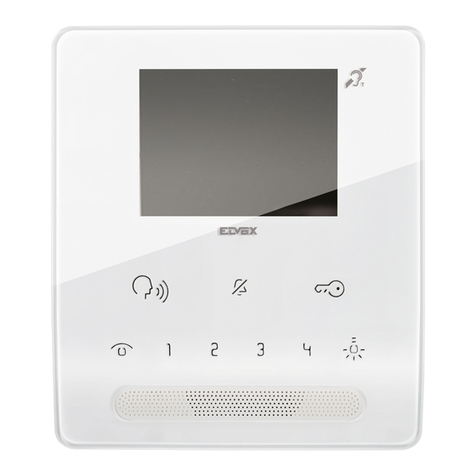
Akuvox R29 Series User manual

R29 Series Door Phone User Manual

About This Manual
Thank you for choosing Akuvox’s R29S/F door phone. This manual is intended for end users, who need to properly configure the
door phone. It provides all functions and configuration of R29S/F, the information detailed in this user manual applicable to firmware
version 29.1.1.116.zip or lower version.
Please verify the packaging content and network status before setting.
The old firmware may be a little different from 29.1.1.116.zip about someconfiguration. Please consult your administrator for
more information.
Contact Us
For more information about the product, please visit us atwww.akuvox.com or feel free to contact us by
Telephone: +86-592-2133061 ext.7694/8162
We highly appreciate your feedback about our products.

FCC Caution:
AnyChangesormodificationsnotexpresslyapprovedbythepartyresponsibleforcompliancecouldvoidtheuser'sauthoritytooperatethe
equipment.
Thisdevicecomplieswithpart15oftheFCCRules.Operationissubjecttothefollowingtwoconditions:(1)Thisdevicemaynotcauseharmful
interference,and(2)thisdevicemustacceptanyinterferencereceived,includinginterferencethatmaycauseundesiredoperation.
Note:ThisequipmenthasbeentestedandfoundtocomplywiththelimitsforaClassBdigitaldevice,pursuanttopart15oftheFCCRules.
Theselimitsaredesignedtoprovidereasonableprotectionagainstharmfulinterferenceinaresidentialinstallation.Thisequipmentgenerates,
usesandcanradiateradiofrequencyenergyand,ifnotinstalledandusedinaccordancewiththeinstructions,maycauseharmfulinterference
toradiocommunications.However,thereisnoguaranteethatinterferencewillnotoccurinaparticularinstallation.Ifthisequipmentdoes
causeharmfulinterferencetoradioortelevisionreception,whichcanbedeterminedbyturningtheequipmentoffandon,theuseris
encouragedtotrytocorrecttheinterferencebyoneormoreofthefollowingmeasures:
—Reorientorrelocatethereceivingantenna.
—Increasetheseparationbetweentheequipmentandreceiver.
—Connecttheequipmentintoanoutletonacircuitdifferentfromthattowhichthereceiverisconnected.
—Consultthedealeroranexperiencedradio/TVtechnicianforhelp.

Content
1. Product overview...........................................................................................................................................................................1
1.1. Product Description ................................................................................................................................................................1
1.2. Power Connection ..................................................................................................................................................................2
2. Daily Use.........................................................................................................................................................................................3
2.1. Making a Call ..........................................................................................................................................................................3
2.1.1. Calling From Digital Keypad ..........................................................................................................................................3
2.1.2. Calling From Phonebook ...............................................................................................................................................3
2.2. Receiving a Call......................................................................................................................................................................4
2.3. Gaining Access .......................................................................................................................................................................4
2.3.1. Public Key......................................................................................................................................................................4
2.3.2. Private Key ....................................................................................................................................................................4
2.3.3. RF (Radio-Frequency) Card ..........................................................................................................................................5
2.3.4. Answer Unit ...................................................................................................................................................................5
2.4. Monitoring ...............................................................................................................................................................................5
3. Configuration..................................................................................................................................................................................6

3.1. How to Access System Settings .............................................................................................................................................6
3.2. Basic Settings .........................................................................................................................................................................6
3.2.1. Time...............................................................................................................................................................................6

3.2.2. Volume...........................................................................................................................................................................7
3.2.3. Await ..............................................................................................................................................................................7
3.2.4. Language.......................................................................................................................................................................8
3.2.5. LED................................................................................................................................................................................8
3.3. Advanced Settings ..................................................................................................................................................................8
3.3.1. Address..........................................................................................................................................................................8
3.3.2. Password.......................................................................................................................................................................9
3.3.3. Contact ..........................................................................................................................................................................9
3.3.4. LockPasswd ................................................................................................................................................................10
3.3.5. AntiAlarm .....................................................................................................................................................................10
3.3.6. RFCard (Radio Frequency Card) ................................................................................................................................11
3.3.7. RTSP (Real Time Streaming Protocol) Server.............................................................................................................11
3.3.8. Motion..........................................................................................................................................................................11

1
1.Product overview
1.1. Product Description
The R29F and R29S are Android-based IP video door phone with a
touch screen. It incorporates audio and video communications, access
control and video surveillance.
Its finely-tuned Android OS allows for feature custo mization to better
suit the habit of usage of local people. Powered by it, R29S’s multiple
ports, such as RS485 and Wiegand ports, can be used to easily
integrate external digital systems, such as elevator controller and fire
alarm detector, helping to create a holistic control of building entrance
and its surroundings and giving occupants a great sense of security.
It is applicable to multi-storey residential buildings, high-rise office
buildings and their complexes.

2
1.2. Power Connection
The door phone is powered by simply connecting the two wires of he
power adapter to the wiring interface on the back of the door phone.
Plug the wire printed with white bars to the first pin and slightly①②
press it so that it gets locked inside.
Plug the wir③e printed with letters to the④second pin and slightly
press it so that it gets locked inside.
Note:12V/1A DC from LPS(power line≤3m) or 48V/0.25A PoE

3
2.Daily Use
2.1. Making a Call
There are two ways to make a call from the door phone to monitor units,
which can be an indoor monitor or an intercom app.
2.1.1.Calling From Digital Keypad
The default interface of the door phone is the dial interface.①
Enter the number to call on the digital keypad, for example②
room number 1022, and tap the dial icon.③
2.1.2.Calling From Phonebook
Tap the icon to enter the phonebook④
To find a specific occupant, scroll up or down the pre⑤-
imported contact list, which is either a room number, an
occupant’s name, or the combination of both, or search the⑥
list by number or alphabet.

4
Tap the dial key next to the contact found.⑦
2.2. Receiving a Call
When a monitor unit calls the door phone, it will auto answer the
incoming call by default. There is no need to press any answer key.
2.3. Gaining Access
There are multiple ways of opening door.
2.3.1.Public Key
Public key is a 8-digit password used by all occupants in a building.
Enter the public key on the dial interface, for example①
33333333, the default public key of the door phone, and tap②
the unlock icon to open door.
2.3.2.Private Key
Private key is an exclusive 8-digit password for each occupant in a

5
building, which could be set with the help of the door phone
administrator.
Same as the public key, enter the private key on the digital①
keypad and tap the unlock icon to open door.②
2.3.3.RF (Radio-Frequency) Card
The R29Fand R29S are compatible with both13.56MHz and 125KHz
RF cards. Place the card near the reader and you will hear “The door③
is now opened.”
2.3.4.AnswerUnit
During the call between the answer unit and the door phone, the
occupant tap the unlock key on the monitor unit to grant access.
2.4. Monitoring
The video footage from the door phone camera can be viewed by
Other manuals for R29 Series
6
This manual suits for next models
2
Table of contents
Other Akuvox Intercom System manuals

Akuvox
Akuvox R29 Series Service manual

Akuvox
Akuvox R26B User manual

Akuvox
Akuvox R20 Series Manual

Akuvox
Akuvox R26 User manual

Akuvox
Akuvox R20AF Manual

Akuvox
Akuvox IT83 Series User manual

Akuvox
Akuvox R27 series User manual

Akuvox
Akuvox IT82A Manual

Akuvox
Akuvox R20A-2 Series User manual

Akuvox
Akuvox IT82 Series Manual