
AirLive ARM104_v3 User manual

Quick Setup Guide
ARM104
_
v3
ADSL2/2+ Modem Router
English ●●●
Русский ●●●
Português ●●●
日本語 ●●●
15
1
29
43

1
1
English
4-port ADSL2/2+ Modem Router
A
R
M
-
104_v3
1.1 Back Panel:
The back panel of the ARM-104_v3 1 ADSL 2/2+ Modem Router contains
ADSL, Ethernet Switches, Reset Button and Power Adaptor connection
ADSL Port for connecting to the ADSL/ADSL2/ADSL2+
Service Provider.
Ports 1~4 Four 10/100Mbps Ethernet Ports for connecting to the
network devices
RESET Restore the 4 Ports ADSL2/2+ Router to factory default
setting.
POWER 12V DC/1A Power adapter connector.
Basic Installation
L
If your LAN has any of the following situations such as Router, Existing
DHCP Server or PCs using Fixed (Static) IP Addresses, Please refer to
the full User Manual on the CD-ROM
LThe ADSL line must be connected before using the configuration.
LIf you create a connection using EZ-setup wizard, you must run the
EZ-setup wizard again to reconfigure
The default IP address : 192.168.1.1
The default user name : admin,
the default password : airlive
The default DHCP Range : 192.168.1.x
English
Basic Information
2
2
English
4-port ADSL2/2+ Modem Router
A
R
M
-
104_v3
! All the Ethernet port of the ARM-104_v3 ADSL2/2+ Modem
Router supports auto
-
crossover capability.
RESET Button :
Reboot & Restore the ARM-104_v3 setting to factory
defaults.
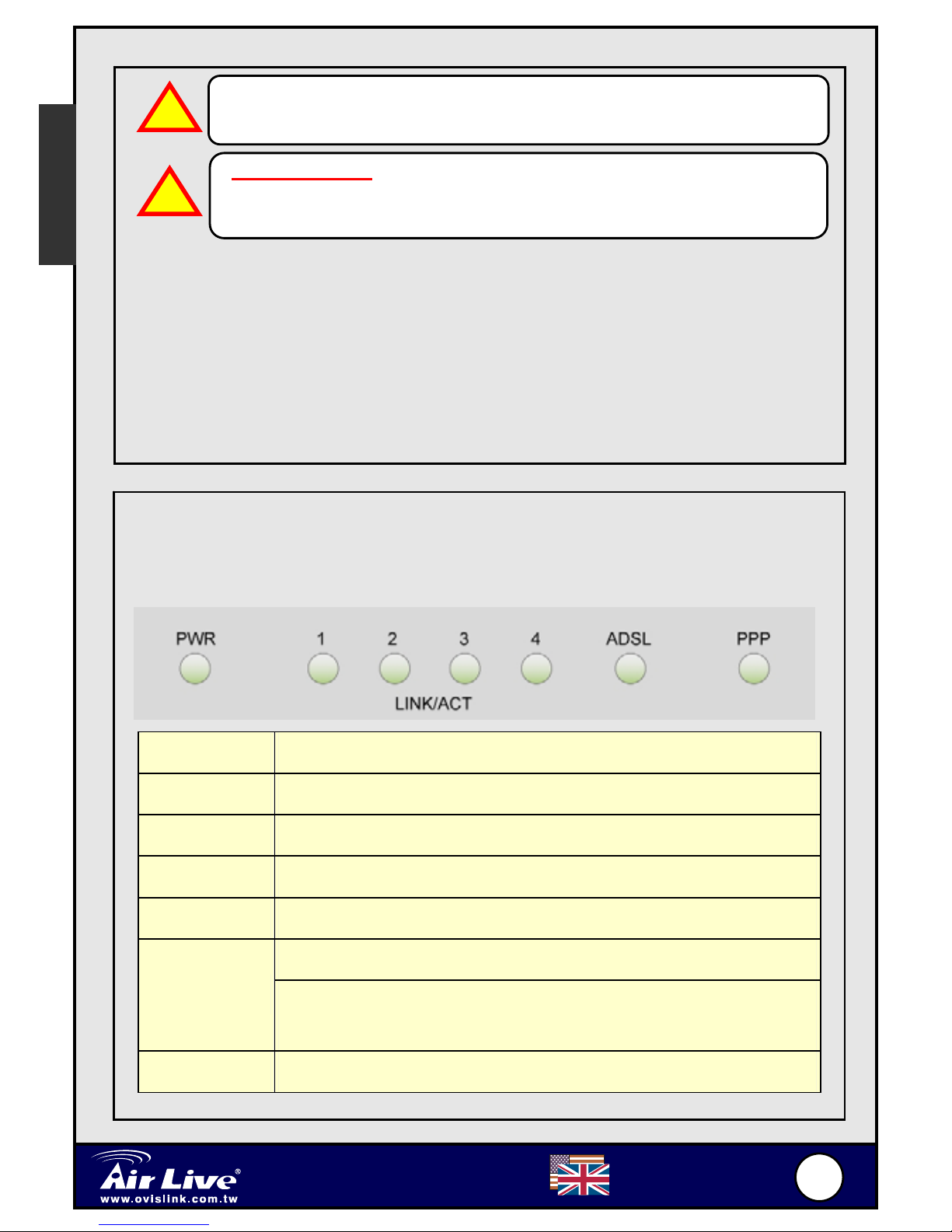
1.2 Front Panel
The ARM-104_v3 ADSL2/2+ Modem Router’s LEDs indicators display
information about the device’s status.
PWR Lights up when the ARM-104_v3 is powered on.
1 LINK/ACT Blinking when the ARM-104_v3 is Sending/Receiving data.
2 LINK/ACT Blinking when the ARM-104_v3 is Sending/Receiving data.
3 LINK/ACT Blinking when the ARM-104_v3 is Sending/Receiving data.
4 LINK/ACT Blinking when the ARM-104_v3 is Sending/Receiving data.
Blinking when the ARM-104_v3 system is ready.
ADSL Lights up when a successful ADSL connection is
established.
PPP Lights up when a PPP connection is established.
To Reset the ARM-104_v3 ADSL2/2+ Modem Router:
Ensure that the device is powered on.
Press the Reset button for 10~15 seconds and release.. Do not
power off the device during the reset process.
The default settings are now restored after 30 seconds.
!
English

3
3
English
4-port ADSL2/2+ Modem Router
A
R
M
-
104_v3
Connecting ARM-104_v3
2.1 Connection Mechanism:
This section describes the hardware connection mechanism of your
ARM-104_v3 on your Local Area Network (LAN) connect to the Internet,
how to configure your ARM-104_v3 for Internet access or how to manually
configure your Internet connection.
Before you can establish an Internet or Wireless connection through your
ARM-104_v3, make sure you have the following:
1. A Computer/Notebook with an installed Ethernet Adaptor and an
Ethernet Cable.
2. ADSL service account and configuration information provided by
your Internet Service Provider (ISP). The following configuration
parameters are require in order to connect your ARM-104_v3 to
the Internet :
a. VPI/VCI parameters
b. Multiplexing Method
c. Host and Domain Names
d. ISP Login Name and Password
e. ISP Domain Name Server ( DNS ) Address
f. Fixed or Static IP Address
English

4
4
English
4-port ADSL2/2+ Modem Router
A
R
M
-
104_v3
2.2 Steps for Connection:
Following are the steps to properly connect your ARM-104_v3:
1. Turn off your computer.
2. Connect the ADSL port of your ARM-104_v3 to the wall jack of the
ADSL Line with a RJ-11 cable.
3. Connect the Ethernet cable (RJ-45) from your ARM-104_v3 to the
Ethernet Adaptor in your computer.
4. Connect the Power adaptor to the ARM-104_v3 and plug the other
end into a Power outlet.
5. Turn on your ARM-104_v3.
The Power light will lit after turning on the ARM-104_v3.
Auto and self-diagnostic process will turn the LED indicators ON
and OFF during the process.
6. Turn on your computer.
7. Refer to the next chapter to setup or configure your system’s
Network Adaptor.
Setting Up The TCP/IP
Windows ME
/
9
8
Step 1: Click Start →Settings →
Control Panel.Step 2:Double-click the
Network.
English

5
5
English
4-port ADSL2/2+ Modem Router
A
R
M
-
104_v3
Step 3: Go to Configuration icon,
select network adapter installed
and click Properties.
Step 4: Go to IP Address icon
and select Obtain an IP address
automatically.
Step 5: Go to Gateway icon and
erase all previous setting.
2
1
1
1
Step 6: Go to DNS Configuration
icon, select Disable DNS and
click OK.
1
2
Windows 2000
Step 1: Click Start →Settings →
Control Panel.
English

6
6
English
4-port ADSL2/2+ Modem Router
A
R
M
-
104_v3
Step 2: Double-click the Network
and Dial-up Connections.
Step 3: Right Click the Local Area
Connection and select Properties.
Step 4: Select Internet Protocol
(TCP/IP) and click Properties.
Step 5: Select Obtain an IP
address automatically and DNS
server address automatically.
Then, click OK
2
1
1
1
2
2
3
Windows xp
Step 1: Click Start→Control
Panel→Classic View.
English

7
7
English
4-port ADSL2/2+ Modem Router
A
R
M
-
104_v3
Step 2: Double-click the Network
Connections.
Step 3: Right Click on the Local
Area Connection and select
Properties.
Step 4: Go to General icon, select
Internet Protocol (TCP/IP) and
click Properties.
Step 5: Go to General icon, select
Obtain an IP address automatically
and DNS server address
automatically. Then, click OK.
2
1
1
1
2
2
3
Setting Up the ARM-104_v3
1.
Launch your web browser, and enter the
ARM-104_v3
ADSL2/2+
Modem Router’s IP Address :
“
192.168.1.1
”
in the
address field
then press the “Enter” key to login.
English

8
8
English
4-port ADSL2/2+ Modem Router
A
R
M
-
104_v3
2. Enter the default User Name : “admin” and Password : “airlive”.
Then press “OK” to login.
3. Enter the default User Name : “admin” and Password : “airlive”.
Then press “OK” to login.
! Note that the Username and Password are case sensitive.
English

9
9
English
4-port ADSL2/2+ Modem Router
A
R
M
-
104_v3
4. Click “EZ SETUP -- Automatic Setup” and proceed with the
following steps to help you install the ARM-104_v3 quickly and
easily.
Step 1. Select your country from the list and your ISP name (if available).
The router will automatically select the correct encapsulation and
VPI/VCI parameters.
English
Table of contents
Languages:
Other AirLive Modem manuals


