AirLive WN-200USB User manual

W
N-200USB
W
ireless 11n USB Dongle
Use
r
’s Manual

Copyright and Disclaimer
AirLive WN-200USB User’s Manual
Copyright & Disclaimer
No part of this publication may be reproduced in any form or by any means, whether
electronic, mechanical, photocopying, or recording without the written consent of OvisLink
Corp.
OvisLink Corp. has made the best effort to ensure the accuracy of the information in this
user’s guide. However, we are not liable for the inaccuracies or errors in this guide.
Please use with caution. All information is subject to change without notice
All Trademarks are properties of their respective holders.

Table of Contents
i
AirLive WN-200USB User’s Manual
Table of Contents
1. Introduction ................................................................................................1
1.1 Overview..............................................................................................1
1.2 How to Use This Guide........................................................................1
1.3 Driver/Utility Upgrade and Tech Support..............................................1
1.4 Features...............................................................................................2
2. Installing the WN-200USB .........................................................................3
1.1 Requirement ........................................................................................3
2.2 Package Content .................................................................................3
2.3 Knowing your WN-200USB..................................................................4
2.4 Software Installation.............................................................................4
2.5 Hardware Installation ...........................................................................8
2.6 LED Table ............................................................................................9
3. Configuration of WN-200USB .................................................................10
3.1 Important Information.........................................................................10
3.2 Using AirLive Wireless LAN Utility .....................................................10
3.2.1 Status Information......................................................................................10
3.2.2 Menu Structure of AirLive Wireless LAN Utility .......................................... 11
3.2.3 Network Screen .........................................................................................12
3.2.4 Profile Screen ............................................................................................16
3.2.5 Advance Screen ........................................................................................22
3.2.6 Statistics Screen ........................................................................................24
3.2.7 WMM Screen.............................................................................................26
3.2.8 WPS Screen ..............................................................................................27
3.2.9 Radio on/off Button....................................................................................29
3.2.10 About Screen ...........................................................................................29
3.3 Using Windows Zero Configuration ...................................................30
4. Troubleshooting.......................................................................................34
5. Specifications...........................................................................................36
6. Network Glossary ....................................................................................38

1. Introduction
1
AirLive WN-200USB User’s Manual
1 1. Introduction
1.1 Overview
The WN-200USB provides a wireless network interface for your Notebook or PC. Besides
common wireless standard 802.11b/g, WN-200USN is also able to access 802.11n
wireless network whose data transfer is up to 150Mbps.
1.2 How to Use This Guide
WN-200USB is a wireless 11n USB dongle. It is recommended that you read through the
entire user’s guide whenever possible. The user guide is divided into different chapters.
You should read at least go through the first 3 chapters before attempting to install the
device.
Recommended Reading
Chapter 1: This chapter explains the basic information for WN-200USB. It is a must read.
Chapter 2: This chapter is about hardware installation. You should read through the
entire chapter.
Chapter 3: This chapter is about windows utility installation. You also should read
through the entire chapter.
Chapter 4: If any trouble in using WN-200USB, you can refer to this chapter
Chapter 5: This chapter show technical specification of WN-200USB.
Chapter 6: Explanation on network technical terms from A to Z. Highly recommended for
reference when you encounter an unfamiliar term.
1.3 Driver/Utility Upgrade and Tech Support
If you encounter a technical issue that can not be resolved by information on this guide, we

1. Introduction
AirLive WN-200USB v2 User’s Manual
2
recommend that you visit our comprehensive website support at www.airlive.com. The
tech support FAQ are frequently updated with latest information.
In addition, you might find new driver/utility that either increase software functions or
provide bug fixes for WN-200USB. You can reach our on-line support center at the
following link:
http://www.airlive.com/support/support_2.jsp
Since 2009, AirLive has added the “Newsletter Instant Support System” on our website.
AirLive Newsletter subscribers receives instant email notifications when there are new
download or tech support FAQ updates for their subscribed AirLive models. To become
an AirLive newsletter member, please visit: http://www.airlive.com/member/member_3.jsp
1.4 Features
Compatible with Draft IEEE 802.11n, 802.11b and 802.11g 2.4GHz
Data transmission rate is up to 150Mbps
Supports Turbo Mode which can enhance the data transmission rate within the specific
wireless network
Supports WMM (Wi-Fi Multimedia) function (IEEE 802.11e QoS standard) and can
meet the requirement of the multi-media data bandwidth
Supports 64/128-bit WEP, WPA (TKIP with IEEE802.1x) and WPA2 (AES with IEEE
802.1x) functions for high level security
Supports CCX v5 (Cisco Compatible Extensions) for the radio monitoring and fast
roaming
Automatic fallback which increases the data security and reliability
Supports USB 2.0 interface

2. Installing the WN-200USB
3
AirLive WN-200USB User’s Manual
2 2. Installing the
WN-200USB
This chapter describes the software and hardware installation procedure for the
WN-200USB. For utility configuration, please go to chapter 3 for more details.
1.1 Requirement
It is important to make sure that you have the below requirement before installing the
WN-200USB.
Your operation system of PC or Notebook is Windows 2000/XP/Vista.
Available USB port.
CD-ROM drive.
IEEE802.11b, IEEE802.11g or IEEE802.11n wireless LAN.
2.2 Package Content
Unpack the contents of the WN-200USB and verify them against the checklist below.
One unit of WN-200USB
User Guide (CD-ROM)
Quick Installation Guide
WN-200USB User Guide (CD-ROM) Quick Installation Guide
Compare the contents of your WN-200USB package with the standard checklist above. If
any item is missing or damaged, please contact your local dealer for service.

2. Installing the WN-200USB
AirLive WN-200USB User’s Manual
4
2.3 Knowing your WN-200USB
Below are descriptions and diagrams of the product:
2.4 Software Installation
You should install the supplied software BEFORE inserting the WN-200USB.
1. Insert the CD-ROM into the drive on your PC or Notebook.
2. The main screen of AutoRun CD will appear automatically. If not, please run
“D:\autorun.exe” where D is the letter of your CD-ROM drive. Select Install Driver &
Utility to start installation

2. Installing the WN-200USB
5
AirLive WN-200USB User’s Manual
3. Please read the end user license agreement and click “I accept the terms of the license
agreement” then click “Next” button to accept license agreement.
4. It is recommended that users choose “install driver and AirLive WLAN utility”. If you want
to update the driver only, choose “Install driver only”. Click “Next” to continue.

2. Installing the WN-200USB
AirLive WN-200USB User’s Manual
6
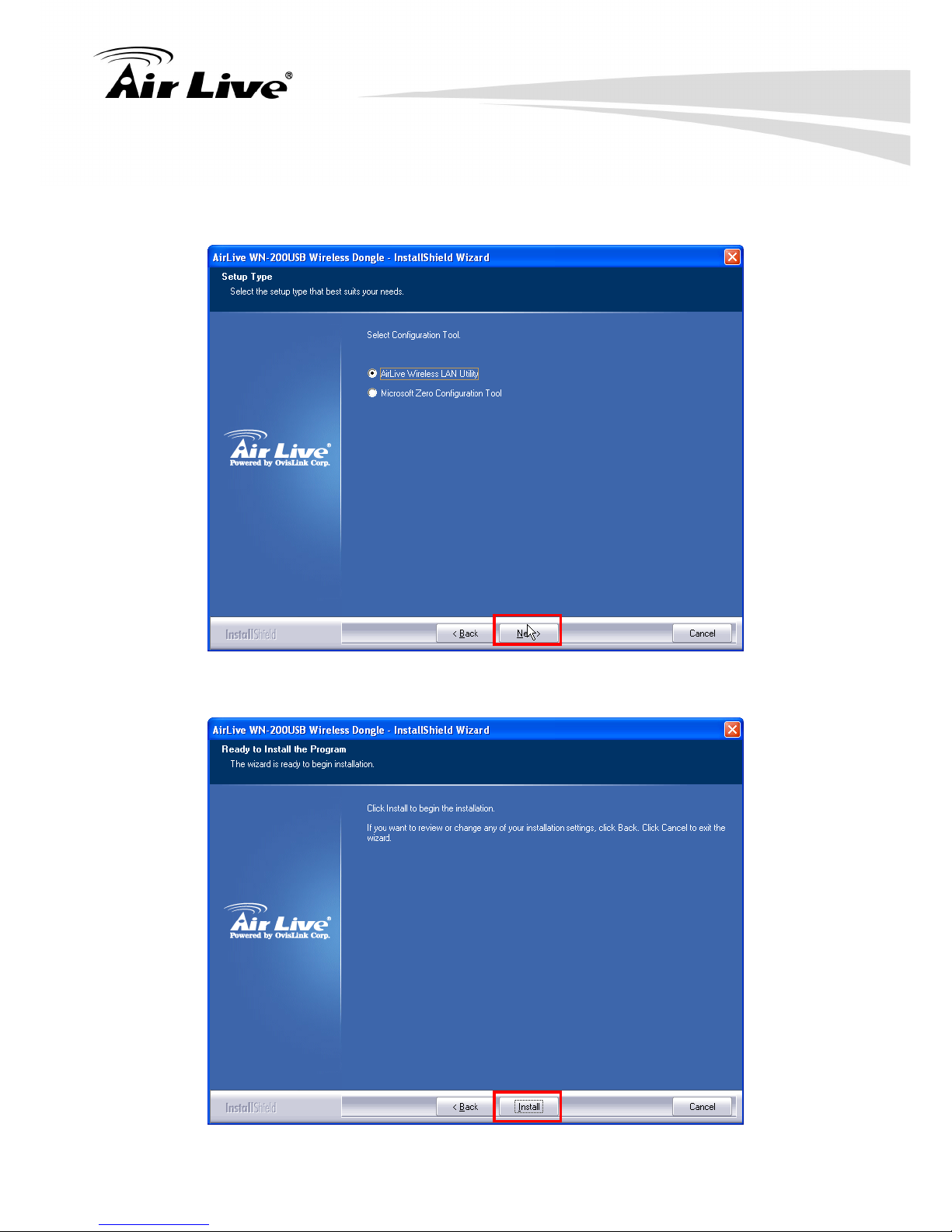
5. It’s recommended to select “AirLive Wireless LAN Utility”, which provides fully access to
all functions of this wireless network card. If you prefer to use the wireless configuration
tool provided by Windows XP or Vista, please select “Microsoft Zero Configuration Tool”
then click “Next”.
6. You will see the following message, please click “Install” to start utility installation.

2. Installing the WN-200USB
7
AirLive WN-200USB User’s Manual
7. Please wait while the install procedure is running. When you see this message, please
click “Finish” to complete the driver installation process.
8. After installation is complete, wireless configuration utility will be shown in the desktop of
your computer automatically. You will also see an icon at the lower-right corner of your
windows system. If you put the mouse cursor on the icon, the status of wireless card will
be displayed as a popup balloon.
Users can easily check current status of WN-200USB in system tray, as shown below.
Table of contents
Other AirLive Computer Hardware manuals

AirLive
AirLive WN-300USB V3 User manual

AirLive
AirLive WN-370USB User manual

AirLive
AirLive WL-1600USB User manual

AirLive
AirLive WN-360USB User manual

AirLive
AirLive WL-1600USB User manual

AirLive
AirLive AIRVIDEO-100 User manual

AirLive
AirLive WLA-5500CPE User manual

AirLive
AirLive WN-370USB User manual

AirLive
AirLive AirVideo-100v2 User manual

AirLive
AirLive WN-250USB User manual
Popular Computer Hardware manuals by other brands

EMC2
EMC2 VNX Series Hardware Information Guide

Panasonic
Panasonic DV0PM20105 Operation manual

Mitsubishi Electric
Mitsubishi Electric Q81BD-J61BT11 user manual

Gigabyte
Gigabyte B660M DS3H AX DDR4 user manual

Raidon
Raidon iT2300 Quick installation guide

National Instruments
National Instruments PXI-8186 user manual