AirLive AIRVIDEO-100 User manual

Table of Contents
AirVideo-100 User’s Manual
AirVideo-100
W
ireless Presenter Dongle
User’s Manual

Copyright & Declaimer
AirVideo-100 User’s Manual 2
Copyright & Disclaimer
No part of this publication may be reproduced in any form or by any means, whether electronic,
mechanical, photocopying, or recording without the written consent of OvisLink Corp.
OvisLink Corp. has made the best effort to ensure the accuracy of the information in this user’s guide.
However, we are not liable for the inaccuracies or errors in this guide. Please use with caution. All
information is subject to change without notice
All Trademarks are properties of their respective holders.

Copyright & Disclaimer
3 AirVideo-100 User’s Manual
Federal Communication Commission
Interference Statement
This equipment has been tested and found to comply with the limits for a Class B digital device,
pursuant to Part 15 of FCC Rules. These limits are designed to provide reasonable protection against
harmful interference in a residential installation. This equipment generates, uses, and can radiate
radio frequency energy and, if not installed and used in accordance with the instructions, may cause
harmful interference to radio communications. However, there is no guarantee that interference will
not occur in a particular installation. If this equipment does cause harmful interference to radio or
television reception, which can be determined by turning the equipment off and on, the user is
encouraged to try to correct the interference by one or more of the following measures:
1. Reorient or relocate the receiving antenna.
2. Increase the separation between the equipment and receiver.
3. Connect the equipment into an outlet on a circuit different from that to which the receiver is
connected.
4. Consult the dealer or an experienced radio technician for help.
FCC Caution
This device and its antenna must not be co-located or operating in conjunction with any other
antenna or transmitter.
This device complies with Part 15 of the FCC Rules. Operation is subject to the following two
conditions: (1) this device may not cause harmful interference, and (2) this device must accept any
interference received, including interference that may cause undesired operation.
Any changes or modifications not expressly approved by the party responsible for compliance could
void the authority to operate equipment.

Copyright & Declaimer
AirVideo-100 User’s Manual 4
Federal Communication Commission (FCC) Radiation Exposure Statement
This EUT is compliance with SAR for general population/uncontrolled exposure limits in ANSI/IEEE
C95.1-1999 and had been tested in accordance with the measurement methods and procedures
specified in OET Bulletin 65 Supplement C.
R&TTE Compliance Statement
This equipment complies with all the requirements of DIRECTIVE 1999/5/EC OF THE EUROPEAN
PARLIAMENTAND THE COUNCIL of March 9, 1999 on radio equipment and telecommunication
terminal Equipment and the mutual recognition of their conformity (R&TTE)
The R&TTE Directive repeals and replaces in the directive 98/13/EEC (Telecommunications Terminal
Equipment and Satellite Earth Station Equipment) As ofApril 8, 2000.
Safety
This equipment is designed with the utmost care for the safety of those who install and use it.
However, special attention must be paid to the dangers of electric shock and static electricity when
working with electrical equipment. All guidelines of this and of the computer manufacture must
therefore be allowed at all times to ensure the safe use of the equipment.
EU Countries Intended for Use
The ETSI version of this device is intended for home and office use inAustria, Belgium, Denmark,
Finland, France, Germany, Greece, Ireland, Italy, Luxembourg, the Netherlands, Portugal, Spain,
Sweden, and the United Kingdom.
The ETSI version of this device is also authorized for use in EFTAmember states: Iceland,
Liechtenstein, Norway, and Switzerland.
EU Countries Not intended for use
None.
The specification is subject to change without notice.

Table of Contents
AirVideo-100 User’s Manual
Table of Contents
1. Introduction ........................................................................................................7
1.1. System Requirements........................................................................... 8
1.2. Package Contents................................................................................. 8
1.3. Hardware Installation ............................................................................ 9
2. Software Installation.........................................................................................11
3. Windows WPS Utility........................................................................................16
3.1 Login................................................................................................... 17
3.2 Main User Interface............................................................................. 18
3.3 Screen Projection................................................................................ 19
3.4 Menu Description................................................................................ 20
3.5 Show Login Code................................................................................ 20
3.6 Open Admin Web Page....................................................................... 21
3.7 Searching Server ................................................................................ 22
3.8 Projection Quality................................................................................ 23
3.9 Projection Source................................................................................ 24
3.10 Connection Profile............................................................................... 25
3.11 Auto WiFi Connect .............................................................................. 26
3.12 Auto Power Manager .......................................................................... 27
3.13 Hide UI................................................................................................ 27
3.14 Advanced Screen Capture.................................................................. 28
3.15 Make PnS Token................................................................................. 29
3.16 Copy Application to desktop................................................................ 30
3.17 About................................................................................................... 31
3.18 Exit...................................................................................................... 32
4. Mac WPS Utility ................................................................................................33
4.1 Launch Application.............................................................................. 33
4.2 Main User Interface............................................................................. 35
4.3 Screen Projection................................................................................ 35
5. Web Management.............................................................................................37
5.1 Home Page......................................................................................... 37
5.2 Download Software............................................................................. 38
5.3 Login Web Admin................................................................................ 39
5.3.1 System Status.............................................................................. 40
5.3.2 Network Setup ............................................................................. 41
5.3.3 Projection Setup........................................................................... 43

Table of Contents
AirVideo-100 User’s Manual 6
5.3.4 Change Passwords...................................................................... 44
5.3.5 Reset to Default........................................................................... 45
5.3.6 Firmware Upgrade ....................................................................... 46
5.3.7 Reboot System ............................................................................ 47
5.3.8 Logout.......................................................................................... 48
6. Specifications...................................................................................................49
7. Wireless Network Glossary .............................................................................50
1. Introduction
7 AirVideo-100 User’s Manual
1 1.Introduction
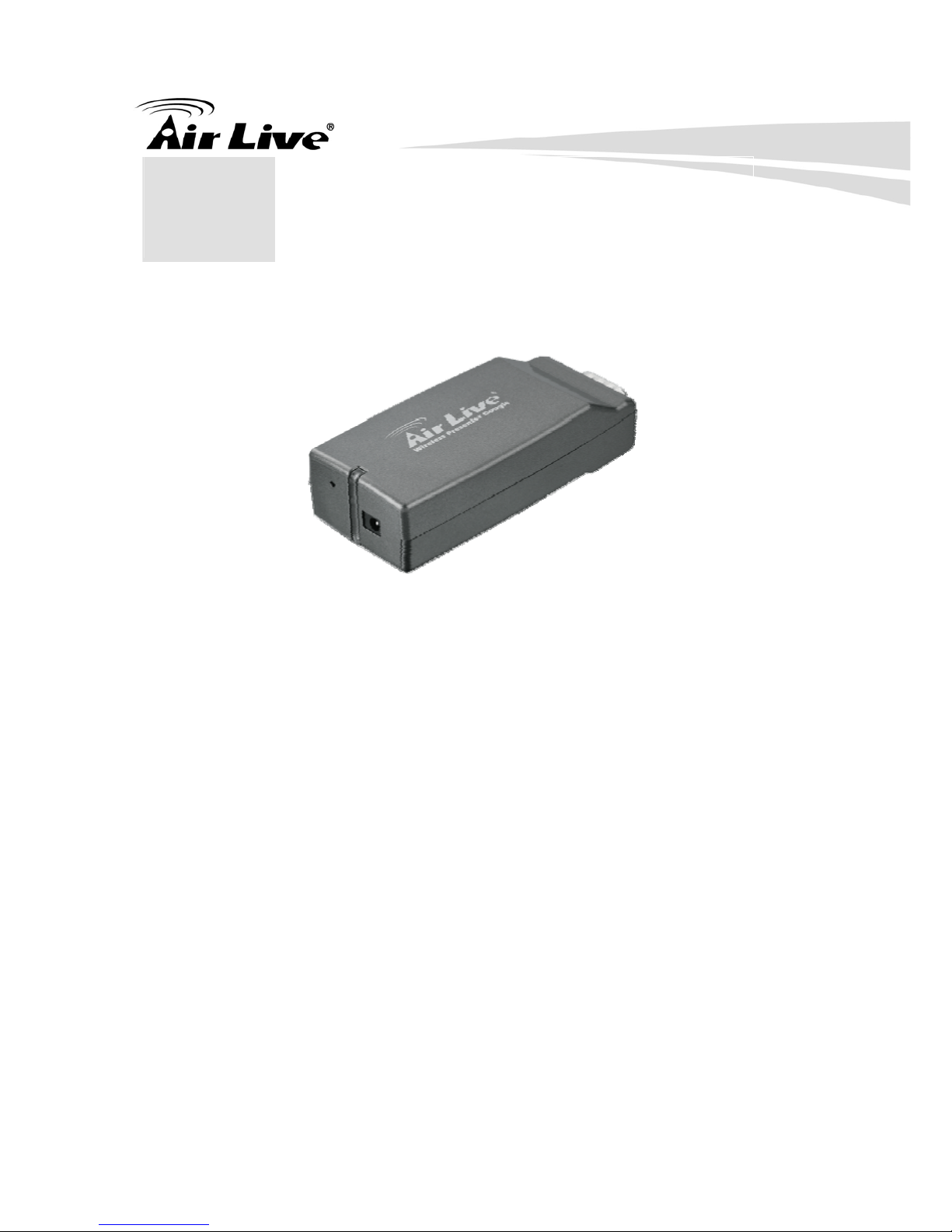
Thank you for purchasing AirLiveAirVideo-100, the Wireless Presenter Dongle. The
Wireless Presenter Dongle is the most cost-effective and efficient way to upgrade
your projector by simply plug-in AirVideo-100. The simple step of Plug-and-Connect
allows anyone to give a wireless presentation instantly. TheAirVideo-100 is a must-
have device for your meeting room.
yThe smallest wireless presentation system with slim and compact design
yUpgrade your projector instantly with Wi-Fi capability
yDisplay presentation materials wirelessly without boundary
y4-to-1 split screen projection; up to 4 computers simultaneously
yPower over VGA, power directly supplied from the VGA port*
*The projector itself must also support Power over VGA to enable this function, please refer to the
session of “Specifications” for compatible list

1. Introduction
AirVideo-100 User’s Manual 8
1.1. System Requirements
yProjector/Monitor or TV with VGAinput
yClient utility: Windows XP/Vista/7 and Mac OS X 10.5/10.6
1.2. Package Contents
Before installing the adapter, please check if there’s anything missing in the package,
and contact your dealer of purchase to claim for missing items:
yAirVideo-100
yQuick Setup Guide
ySoftware CD
y6V DC 0.8A power adapter
1. Introduction
9 AirVideo-100 User’s Manual
1.3. Hardware Installation
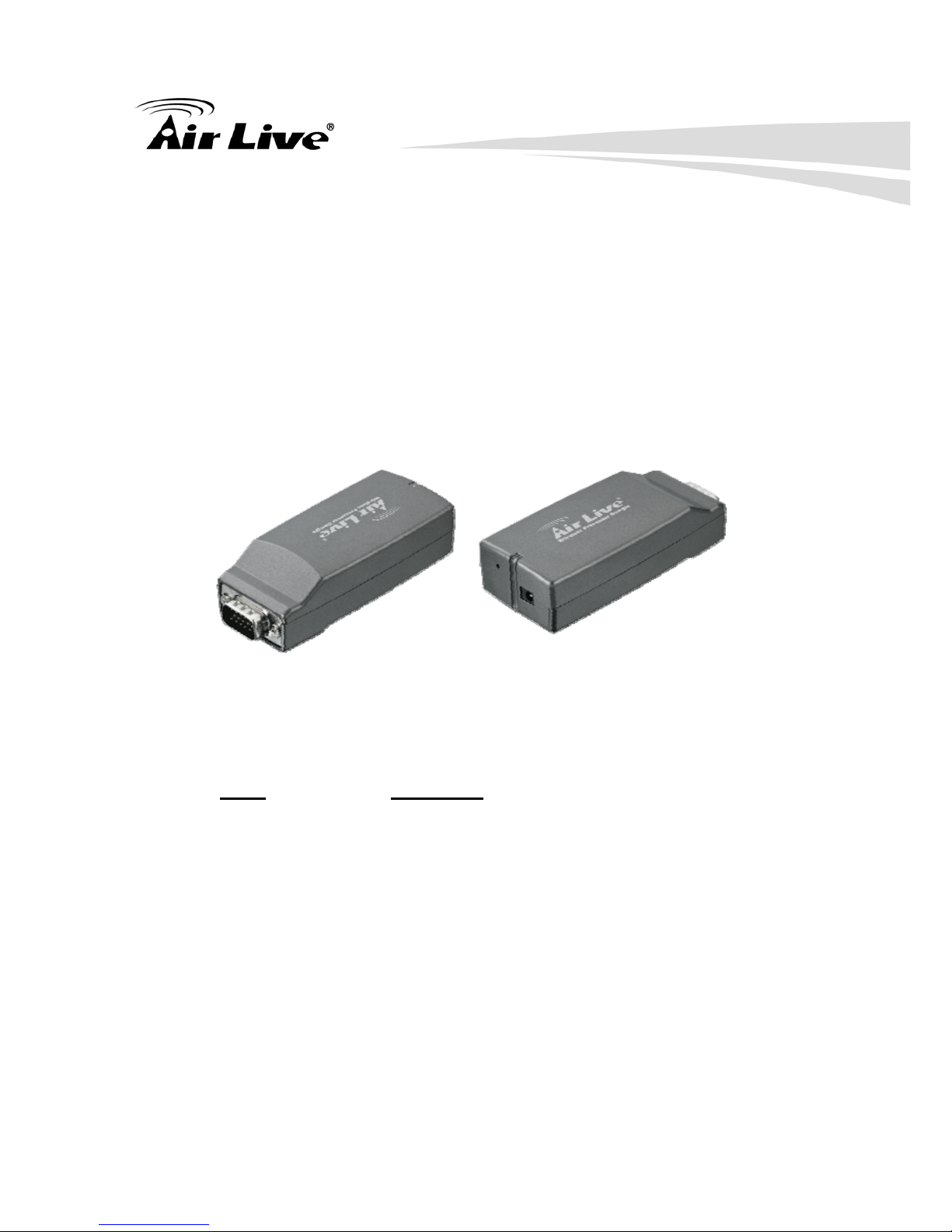
yVGA 15-pin Male Connector
yPower jack
yLink/Activity LED (Green)
yReset button
Mode LED Status
Power ON Steady Green LED
Off Adapter disabled/No Power

1. Introduction
AirVideo-100 User’s Manual 10
Quick Start
Plug the AirVideo-100 into projector’s VGA input or connect it to a VGA cable and
turn on the projector power
Power on AirVideo-100, when projector shows the default menu on the screen as
illustrate below, the device is now ready.
Table of contents
Other AirLive Computer Hardware manuals

AirLive
AirLive WL-1600USB User manual

AirLive
AirLive AirVideo-100 User manual

AirLive
AirLive WN-200USB User manual

AirLive
AirLive WN-370USB User manual

AirLive
AirLive AirVideo-100v2 User manual

AirLive
AirLive WN-300USB User manual

AirLive
AirLive WN-300USB V3 User manual

AirLive
AirLive WN-370USB User manual

AirLive
AirLive WN-250USB User manual

AirLive
AirLive WLA-5500CPE User manual


Popular Computer Hardware manuals by other brands

EMC2
EMC2 VNX Series Hardware Information Guide

Panasonic
Panasonic DV0PM20105 Operation manual

Mitsubishi Electric
Mitsubishi Electric Q81BD-J61BT11 user manual

Gigabyte
Gigabyte B660M DS3H AX DDR4 user manual
Raidon
Raidon iT2300 Quick installation guide

National Instruments
National Instruments PXI-8186 user manual