
Aethra StarBridge EB1030 Product information sheet

1
StarBridge
Aethra ADSL Modem/Router line
EB1030: Ethernet
EB1040: Ethernet & USB
Easy Start
Version 1.0

2

3
INTRODUCTION 4
MINIMUM SYSTEM REQUIREMENTS 4
ADSLMODEM/ROUTERPACKAGE 5
ADSL MODEM/ROUTER OVERVIEW 6
1. CONNECTING THE ADSL MODEM/ROUTER TO YOUR COMPUTER/NOTEBOOK 8
2. CONFIGURING YOUR ETHERNET NETWORK CARD - INSTALLING YOUR USB
DEVICE 13
2.1 CONFIGURING THE ETHERNET CARD 13
2.2 INSTALLING YOUR USB DEVICE 17
3. CONFIGURING YOUR WEB BROWSER 21
4. CONNECTING TO THE INTERNET 22
FREQUENTLY ASKED QUESTIONS 25

4
Introduction
ThankyouforyourpurchaseoftheADSLModemRouter! TheADSLModemRouter
providesyou withahigh-speedbroadband Internetconnectionusingyour existing
phoneline that atthesame time allowsyouto make phonecalls.
The ADSL Ethernet & USB Modem Router can be connected to any computer/
notebook with a USB Port or 10/100 Base-T Ethernet card. For multiple users
connection,you may connectyourcomputers/notebooksto both theEthernetPort
andUSBPortontheADSLRouteratthesametimeorexpandtheEthernetconnection
of the ADSL Router with an Ethernet Hub / Switch.
This documentation assumes that you have already installed an Ethernet card on
yourcomputer/notebook.
Minimum System Requirements
•Pentium®MMX233MHz
•A CD-ROM Drive
•Ethernetcard installed withTCP/IPProtocol(required only ifyouareconnecting
tothe ETHERNET port ofyourADSLModem/Router)
Or
•USBPort (required only ifyou are connecting tothe USB Port ofyour ADSL
Modem/Router)
•HostOperatingSystemssupportforEthernetandUSBports:
Windows®98/98SE
Windows®2000
Windows®Me
Windows®XP
•HostOperatingSystemssupportonlyforEthernetport:
Windows®NT
Machintosh®
Linux® and UNIX
•WebBrowsersupport:
MicrosoftInternetExplorer4.0(orlaterversions)
Netscape®Navigator3.02(orlater versions)
5
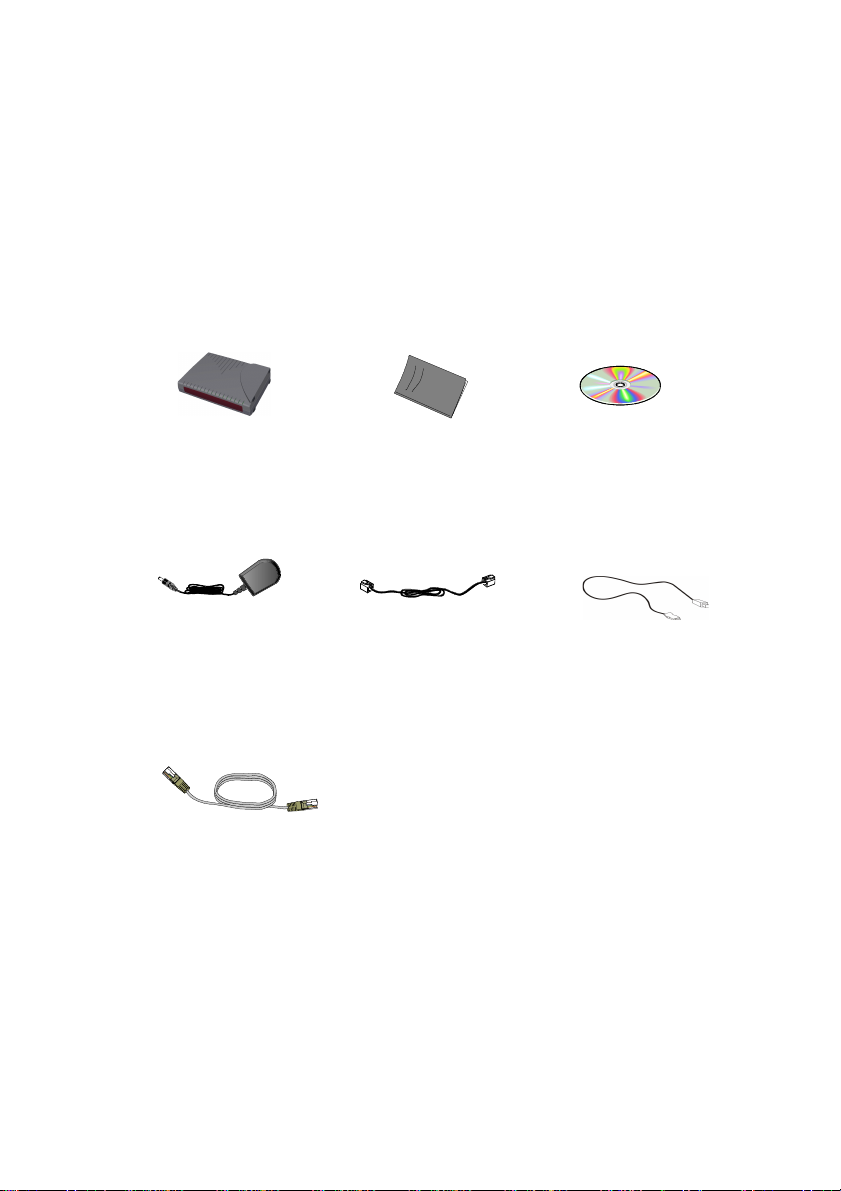
ADSL Modem/Router Package
Telefonico Cable
(RJ-11) USB Cable
(only EB1040)
(blu)
Power Adapter
(DC12V)
Ethernet Cable
(yellow)
UTP CAT-5 (RJ-45)
ADSL Modem/Router
Ethernet & USB
installazion CDEasy Start
Manual

6
ADSL Modem/Router Overview
FrontIndicators
1
2
3
4
1) USB (only EB1040)
Lights up when the USB device driver is
successfullyinstalledinyourComputer/Notebook
2) ETH/ACT
Lights up when the Ethernet cable is properly
connectedfrom your ADSLModem/Routerto the
EthernetCard.
Flickers whenthe ADSL is transmitting/receiving
data.
3) DSL
Lights up when the ADSL connection is
established.
Flickers whenthe ADSL Modem/Router is trying
to establish a connection with the ADSL Service
Provider.
4) POWER
Lights up when power is supplied to the ADSL
Modem/Router.

7
BackPanel 1) LINE
Telephone jack (RJ-11) to connect to your
Telephone Wall Socket (ADSL line).
2) USB (only EB1040)
USB port to connect to the USB port on your
computer/notebook.
3) RESET
To reset your ADSL Router to factory default
settings.(Allcustomized settingsthatyou have
saved will be lost!) Please refer to the below
footer1on how to activate the reset function.
4) ETHERNET
10/100 Base-T Ethernet jack (RJ-45) to
connect to your Ethernet Network card or
Ethernet Hub / Switch.
5) DC IN
To connect the Power Adapter that comes
with your package.
6) SWITCH (Optional)
Switch of the low voltage DC power.
1Toactivatetheresetfunction:
- Ensure that your ADSL Router is powered on.
-Use a paper clip or a pencil tip to depress the reset button and release. At this point, the DSL indicator
light will go off, followed by the USB and ETHERNET indicators. The reset is in progress.
-When the DSL indicator starts blinking, it means that the reset process is completed. The default settings
arenowrestored.
- ADSL line is established once the DSL indicator lights up.

8
1. Connecting the ADSL Modem/Router to
Your Computer/Notebook
Power off your Computer/Notebook or/and any connected devices
before connecting to the ADSL Router!
Toconnecttoyour ADSLModem/Router,youneedtohaveeitheranEthernet Portor
aUSB Port presentonyour Computer/Notebook.
(Seethenote on the following page ifyouarenotsureof how the Ethernet and
USBPort lookslike)
1.1.1 For Single User Connection
Thefollowingshowsatypicalsingle-user connection.
Checkif yourComputer/Notebookhas anEthernetPort.
-If an Ethernet Port is present, please proceed to section 1.1.2(a) Connecting
to the Ethernet.
-IfanEthernetPortisnotpresent,locatetheUSBPortonyourComputer/Notebook
and proceed to section 1.1.2(b) Connecting to the USB.
1.1.2 For Multiple-Users Connection
Youmayconnect one computer/notebook to theEthernetPortandanotherone to
the USB Port on the ADSL Modem/Router at the same time. Refer to both section
1.1.2(a) Connecting to the Ethernet and section 1.1.2(b) Connecting to
the USB for the connections
For more than 2 Computers/Notebooks connections, you may also expand the
Ethernetconnection byconnectingthe ADSLModem/Routerto anEthernetSwitch/
Hub.

9
Seethe followingillustration.
For details on the connection and types of Ethernet Network cable to use with the
EthernetSwitch/Hub,pleaserefertothedocumentationthatcomeswithyourEthernet
Switch/Hub.
Proceed to 1.2.
NOT SURE HOW THE ETHERNET/USB PORT LOOKS LIKE?
Thefollowing are some tipstohelpyou locate yourEthernetandUSB
PortsonyourComputer/Notebook. Alternatively, youmayreferto the
documentationthatcomeswithyourComputer/Notebook.
Locating the Ethernet Port on your Computer/Notebook
MostComputers/NotebookshavelabelsdescribingthePorts.For
Ethernet Port, you will see either ETHERNET, ETH or RJ45 labeled
nearthe Port. If yourComputer/Notebookdoesnot have such
descriptions,trythefollowing:
- Picture A gives the illustration of an Ethernet Port. All Ethernet Ports
have8conductors on it. Do not mistaken with theLINEPort(PictureB)
thathasonly 6 conductors.
-TheEthernet Port is slightly bigger thantheLINEPort.
LOCATING THE USB PORT ON YOUR COMPUTER/NOTEBOOK
TheUSB Port onyourComputer/Notebookcan often beidentifiedbythe
labelUSBor the icon:
A. ETHERNET: B. LINE:

10
1.1.2(A) Connecting to the Ethernet
(Thisconnection is notrequiredif you areconnectingto an EthernetSwitch/Hub
formultiple-usersconnection).
Forsingle-user
connection.
Formulti-user
connection.
1.1.2(B) Connecting to the USB
You may now proceed to1.2
Forsingle-user
connection.
You may now proceed to1.2
This manual suits for next models
1
Table of contents


