Abocom WR5210 User manual

802.11n/b/g High
Power Router with
Passive PoE
User’s Manual

Federal Communication Commission
Interference Statement
This equipment has been tested and found to comply with the limits for a Class B digital device,
pursuant to Part 15 of the FCC Rules. These limits are designed to provide reasonable protection
against harmful interference in a residential installation. This equipment generates uses and can
radiate radio frequency energy and, if not installed and used in accordance with the instructions,
may cause harmful interference to radio communications.
However, there is no guarantee that interference will not occur in a particular installation. If this
equipment does cause harmful interference to radio or television reception, which can be
determined by turning the equipment off and on, the user is encouraged to try to correct the
interference by one or more of the following measures:
Reorient or relocate the receiving antenna.
Increase the separation between the equipment and receiver.
Connect the equipment into an outlet on a circuit different from that to which the receiver is
needed.
Consult the dealer or an experienced radio/TV technician for help.
Warning: Changes or modifications to this unit not expressly approved by the party responsible
for compliance could void the user authority to operate the equipment.
This device complies with Part 15 of the FCC Rules. Operation is subject to the following two
conditions: (1) this device may not cause harmful interference, and (2) this device must accept any
interference received, including interference that may cause undesired operation.
The user’s manual or instruction manual for an intentional or unintentional radiator shall caution the
user that changes or modifications not expressly approved by the party responsible for compliance
could void the user’s authority to operate the equipment.
CAUTION:
1.To comply with FCC RF exposure compliance requirements, a separation distance of at least 20 cm
must be maintained between the antenna of this device and all persons.
2.This Transmitter must not be co-located or operating in conjunction with any other antenna or
transmitter
For product available in the USA/Canada market, only channel 1~11 can be operated. Selection of other channels is not possible.

Table of Content
CHAPTER 1: INTRODUCTION..............................................................................1
Features.........................................................................................................................................1
Physical Details...........................................................................................................................1
CHAPTER 2: ABOUT OPERATION MODES.......................................................3
Access Point Mode.....................................................................................................................3
Gateway Mode ............................................................................................................................4
Client Mode ..................................................................................................................................5
CHAPTER 3: CONFIGURATION...........................................................................6
Hardware Connection...............................................................................................................6
Login...............................................................................................................................................7
Wizard (GW)..............................................................................................................................10
Internet Settings......................................................................................................................15
Wireless Settings .....................................................................................................................23
Firewall (GW)............................................................................................................................47
Administrator ............................................................................................................................54
CHAPTER 4: PC CONFIGURATION .................................................................59
Overview.....................................................................................................................................59
Windows Clients.......................................................................................................................59
Macintosh Clients.....................................................................................................................63
Linux Clients..............................................................................................................................63
Other Unix Systems.................................................................................................................64
Wireless Station Configuration...........................................................................................64
APPENDIX A: TROUBLESHOOTING.................................................................65
Overview.....................................................................................................................................65
General Problems.....................................................................................................................65
Internet Access.........................................................................................................................65
Wireless Access ........................................................................................................................66
APPENDIX B: ABOUT WIRELESS LANS..........................................................68
BSS................................................................................................................................................68
Channels......................................................................................................................................68
Security........................................................................................................................................68
Wireless LAN Configuration.................................................................................................69

1
Chapter 1:
Introduction
The Router is a draft 802.11n/b/g compliant Wireless Broadband Router with 4-port Fast Ethernet
Switch. With the advanced MIMO technology, it can support the data transmission rate 6 times more
(up to 300Mbps) and the coverage 3 times more than IEEE 802.11b/g devices. The Router enables your
whole network sharing a high-speed cable or DSL Internet connection. The incredible speed of the
Router makes it ideal for media-centric applications like streaming video, gaming, and Voice over IP
technology, ensure optimum performance and maximum coverage with the external antennas. With the
Router, you can share a high-speed Internet connection, files, printers, and multi-player games at
incredible speeds, without the hassle of stringing wires. The Router offers easy configuration for your
wireless network in the home and presents wireless network to you home of high functionality, security,
and flexibility.
Features
•Support the IEEE 802.11n/b/g standard, high speed date rate up to 300Mbps.
•Support WPS (Wi-Fi Protected Setup) button.
•High security with build-in Security: WEP 64/128, WPA, WPA2, 802.1x and 802.11i
•Support Gateway, AP, WDS (Bridge + Repeater) and Client modes.
•Advanced Quality of Service (QoS) - 802.11e, WMM
•Easy configuration for home user setup.
Physical Details
Front LEDs
LED Behavior
LED Printed Color Behavior Indication
ON Internet link / active
OFF Internet function off
Internet Internet Green
Blinking Internet traffic transmitting
OFF LAN function off
ON LAN link / active
LAN Green
Blinking LAN traffic transmitting

2
OFF WLAN off
ON WLAN link / active
Wireless
LAN WLAN Green
Blinking WLAN traffic transmitting
ON Power on
OFF Power off
Power
WPS Power
WPS Green
Blinking WPS is enabled to make a
connection
Rear Panel
Ports and buttons
Ant. Install the appending antenna here.
WPS
To enable the WPS function via web configuration (Go to
Wireless Settings> WPS), then press the physical WPS button
on the Wireless Router once, then the LED will start to flash.
Please make a connection with other WPS supported device
within 2 minutes.
Reset Keep on pressing the Reset button more than 3 seconds, the
Wireless Router will set all setting back to factory default values.
LAN 1-4
Use standard LAN cables (RJ45 connectors) to connect your PCs
to this port. If required, any port can be connected to another hub.
Any LAN port will automatically function as an "Uplink" port when
necessary.
Internet Connect the ADSL or Cable Modem here with RJ45 cable. If your
modem came with a cable, use the supplied cable, otherwise, use
a standard LAN cable (RJ45 connectors).
DC 12V Connect the supplied power adapter here.

3
Chapter 2: About
Operation Modes
This device provides operational applications with AP, Gateway and Client (Infrastructure) modes,
which are mutually exclusive.
If you want to change the settings in order to perform more advanced configuration or even change the
mode of operation, you can select the mode you desired by the manufacturer as described in the
following sections.
The default setting mode is Gateway mode.
Access Point Mode
When acting as an Access Point (AP), this device connects all the stations (PC/notebook with wireless
network adapter) to a wireless network. All stations can have the Internet access if only the Access
Point has the Internet connection.

4
Gateway Mode
When Gateway (GW) mode is selected, the device will enter gateway mode. And the wireless
connection will be set up from a point-to-point local LAN into a point-to-multipoint WAN.

5
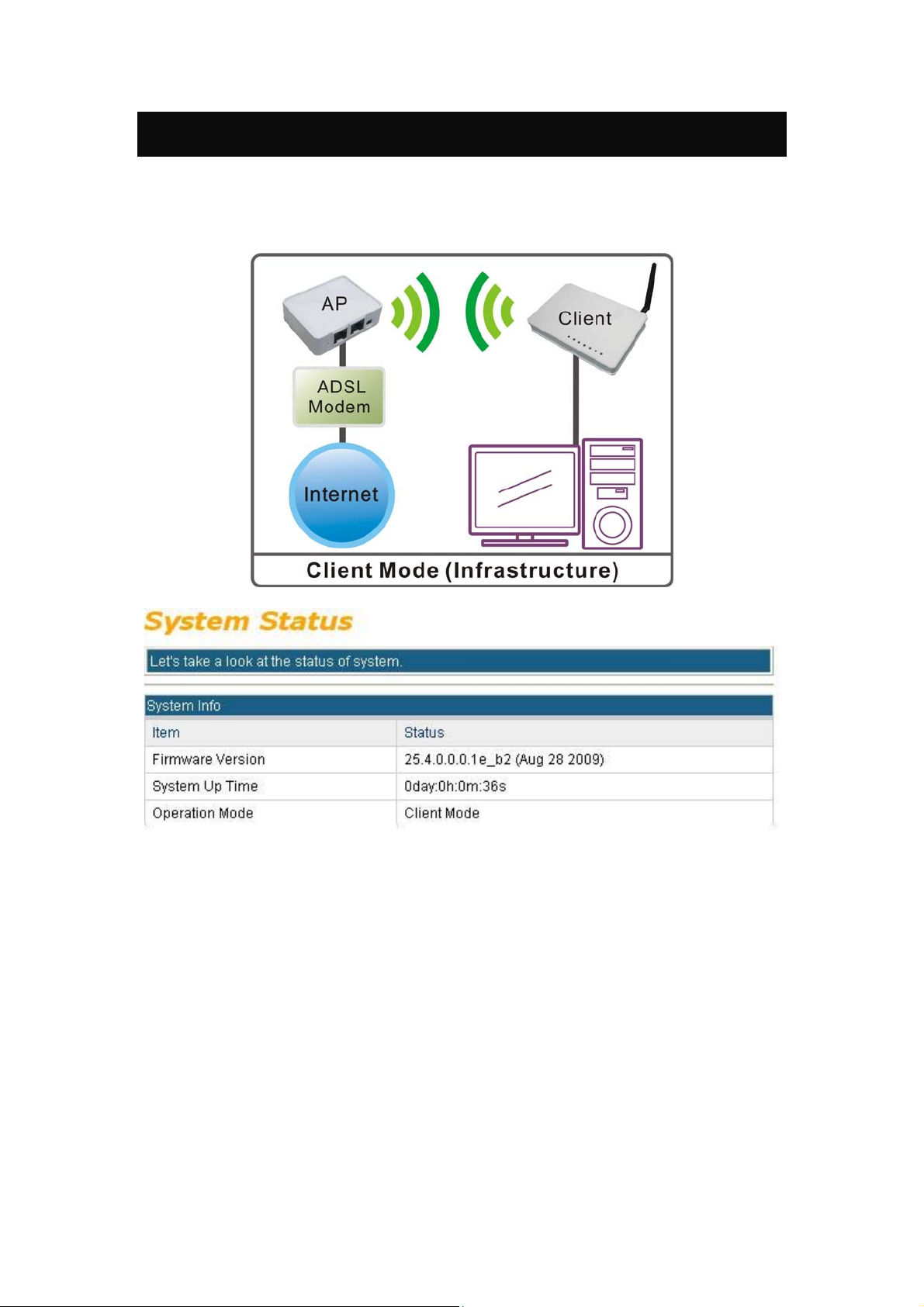
Client Mode
If set to Client (Infrastructure) mode, a device connects to each other through an access point or a base
station (gateway or router.) This device can work like a wireless station when it’s connected to a
computer directly, so that the computer can send packets from wired end to wireless interface.

6
Chapter 3:
Configuration
Hardware Connection
1. Connect one end of the Ethernet cable to the LAN port of the Wireless Router, another end to
your PC or notebook.
2. Then, connect another Ethernet cable one end to the Internet port of the Wireless Router, the other
end to the ADSL or cable modem.
3. Finally, connect the Wireless Router with a power to an outlet.

7
Login
1. Start your computer and make sure the connection by an Ethernet cable between your computer
and the Wireless Router.
2. Start your Web Browser.
3. In the Address box, enter the IP address of the Wireless Router, as in this example, which uses the
Wireless Router's default IP address: http://10.10.10.254
4. After connected successfully, the following screen will show up. Simply enter the username
"admin" and password “admin” to login.
Table of contents
Other Abocom Wireless Router manuals

Abocom
Abocom Bluetooth USB Dongle UBT3KH User manual

Abocom
Abocom WR254 User manual

Abocom
Abocom ARM914 User manual

Abocom
Abocom WAP2101 User manual

Abocom
Abocom SDW11G Instructions for use

Abocom
Abocom WR254E User manual

Abocom
Abocom WR104 K User manual

Abocom
Abocom UBT4KH User manual

Abocom
Abocom WAP5502 User manual

Abocom
Abocom WR5204U User manual

Abocom
Abocom WR5503 User manual

Abocom
Abocom BUD210 User manual

Abocom
Abocom BUD200 User manual

Abocom
Abocom CAS2047 User manual

Abocom
Abocom Wireless Router FSW410 User manual

Abocom
Abocom CAS4047 User manual

Abocom
Abocom WR5201 User manual

Abocom
Abocom ET-UW100 User manual

Abocom
Abocom WR5201 User manual

Abocom
Abocom ARM804 User manual