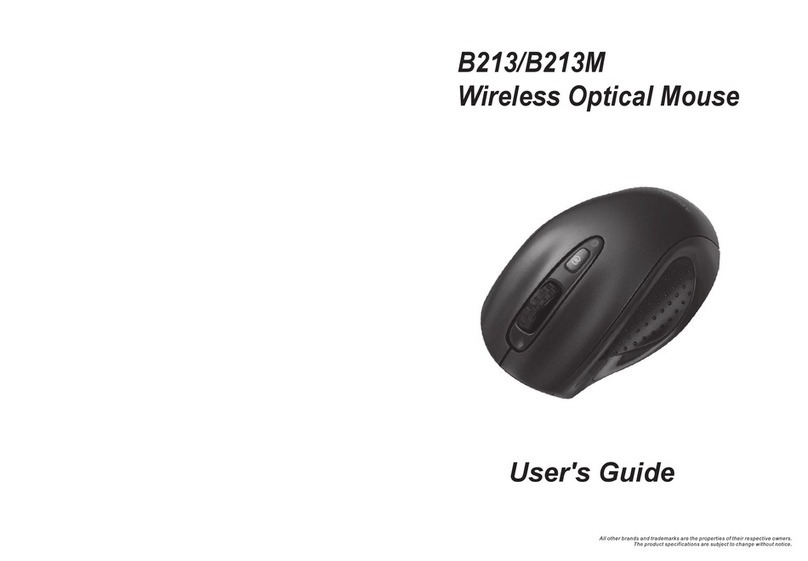
A4Tech G9-540F User manual

User Manual
Model: G9-540F
www.a4tech.com

1
THIS DEVICE COMPLIES WITH PART 15 OF THE FCC RULES. OPERATION IS SUBJECT TO THE
FOLLOWING TWO CONDITIONS: (1) THIS DEVICE MAY NOT CAUSE HARMFUL INTERFERENCE AND
(2) THIS DEVICE MUST ACCEPT ANY INTERFERENCE RECEIVED, INCLUDING INTERFERENCE THAT
MAY CAUSE UNDESIRED OPERATION.
Federal Communications Commission Requirements
The equipment has been tested and found to comply with the limits for Class B Digital Device, pursuant to part
15 of the FCC Rules. These limits are designed to provide reasonable protection against harmful interference
in a residential installation. This equipment generates uses and can radiate radio frequency energy and, if not
installed and used in accordance with the instruction, may cause harmful interference to radio communication.
However, there is no guarantee that interference will not occur in a particular installation. If this equipment
does cause harmful interference to radio or television reception, which can be determined by turning the
equipment off and on, the user is encouraged to try to correct the interference by one or more of the following
measures:
●Reorient of relocate the receiving antenna.
●Increase the separation between the equipment and receiver.
●Connect the equipment into an outlet on a circuit different from that to which the receiver is connected.
●Consult the dealer or an experienced radio/TV technician for help.
THE CHANGES OR MODIFICATIONS NOT EXPRESSLY APPROVED BY THE PARTY RESPONSIBLE FOR
COMPLIANCE COULD VOID THE USER'S AUTHORITY TO OPERATE THE EQUIPMENT.
This device complies with Part 15 of the FCC Rules. Operation is subject to the following two conditions:
(1) This device may not cause harmful interference, and receiver.
(2) This device must accept any interference received, including interference that may cause undesired
operation.
FCC Radiation Exposure Statement
The equipment complies with FCC radiation exposure limits set forth for uncontrolled equipment and meets
the FCC radio frequency (RF) Exposure Guidelines in Supplement C to OET65. The equipment has very low
levels of RF energy that it is deemed to comply without testing of specific absorption ratio (SAR).
1. Hardware Installation

2
1). Connect the Multi-link receiver
Take out the Multi-link receiver from bottom of the mouse and connect it to your computer.
2). Insert the batteries
Open the battery cover and insert the supplied batteries.
Note: Make sure the positive (+) and negative (-) ends of the battery match the polarity indicators inside the
battery compartment.
3). Turn on your Mouse
Push the power switch to ON position and turn on your mouse. >>Then LED light at the bottom of the mouse
is on immediately.
4). Position the wireless mouse and Multi-link receiver within 15m operating range (Note: The actual distance
depends on the environment.)
Note: For more functions such as RF Channel Lock, Gesture 16-in-1, 4-way Wheel and so on, please install
the G9 16-in-1(enclosed in the CD) software first!
2. Software Installation (Note: The software is applicable to Windows 2000/ XP/ 2003/ Vista/
Windows 7)

3
1). Uninstall previous installed mouse software.
2). Insert the enclosed CD to start installation and follow the on-screen instructions to finish the software
installation.
3). The shortcut icon " " will appear on your desktop screen, and then you have successfully installed the
software. (Otherwise, installation is failed and you have to remove the software and re-install.)
To remove the software, follow the steps:
Go to Start >> Programs >> A4TECH Software >> G9 16-in-1 >> Uninstall G9 16-in-1
To launch the software
Double click on the icon " " at the right-down corner of your system tray or double click on the icon " " at
your desktop screen. The "Main Menu" of "16-in-1" software will pop up.
3. Knowing the "16-in-1" software
"16-in-1" software offers programmable 16 functions in 1 click with RIGHT button.

4
Gesture 16-in-1
1). Click " " of "Gesture Button " at the "Main Menu" page and select "Gesture 16-in-1". The setup screen
will pop up as below.
Setup Screen
2). Click any " " at "Setup Screen", you will see the function list. Now you may setup 16 most-frequently-
used commands to the "Gesture Button ", and then click "Apply" at "Main Menu" of "16-in-1" software to save
your new setting! There are more than 30 commands you may select, including Keyboard, Mouse, Office, Text,
Multimedia, Internet and Open a file.
3). Knowing "16-in-1" functions
Function list Function instruction
No Setting There is no button setting being defined.
Keyboard You may setup the "Gesture Button" to simulate a keyboard’s keystroke, or a key
combination with “Win”, “Ctrl”, “Shift” and “Alt”, then followed with any keystroke on the
keyboard, and then assign it to the "Gesture Button".

5
Mouse You may setup "Gesture Button" to be one of “mouse left button, mouse right button,
wheel up and wheel down”.
Open a File You may setup the "Gesture Button" to open a file or program by one-click during
presentation.
Usage:
1). Select “Open a File” from the pull-down menu of the "Gesture Button" as "Figure 1"
shows.
Figure.1 Figure 2
2). A screen of file listings will pop up as "Figure 2" shows.
3). Select a file that you would open it with the "Gesture Button " and click “Open”.
4). Now you can see a file you selected has been assigned to "Gesture Button."
5). Click “Apply” to save the new setting.
Example: While make a presentation, it is embarrassing to keep others waiting due to searching for a
document, or look up for a program or a shortcut. With “Open a File” function, you may have better way to
resolve this issue. By setting up "Gesture Button②" in association to the document, program or shortcut, all
you need to do is to open any file instantly with "Gesture Button②" .

6
Office Sets You may setup any one of Office command sets such as: “Zoom In, Zoom Out, Paste
Text” to the "Gesture Button".
1. Zoom In/Out:One click to perform zoom in or zoom out function, applicable to CAD,
ACDSee, Windows or text editing programs.
2. Paste Text:One click to perform “Select, Copy & Paste” texts, it turns office jobs can
never be so simple.
Text
Commands
Quick access to Office, such as: New File, Open File, Save File, Redo, Undo.
Multimedia Quick access to Multimedia commands, such as: Media Player (Open), Previous, Next,
Stop, Play/Pause, Mute, Volume+, Volume-…etc.
Internet: Quick access to usually used Internet commands, such as: Backward, Forward, Stop,
Refresh, Search, My Favorite, Web Browser, E-mail...etc.
How to use "Gesture Button" as "16-in-1" function
Example 1:
Using as “Zoom In” command by default, when you are viewing a picture with ACDSee, or browsing a PPT
file in the Office, or Reading a PDF file…etc, just pressing the “Gesture Button ”and draw the line as shown
below, then release the “Gesture Button ”, the picture or the document will be zoomed in immediately.
Press and hold the gesture button to draw any of 16 lines and directions
as shown on the right, then release the button. The corresponding
commands will be executed immediately, including Keyboard, Mouse,
Office, Text, Multimedia, Internet and open a file, which can be preset
and store to your receiver memory.
Diagrams of 16 mouse
gestures

7
a. Start: Press the "Gesture Button "
b. Track of the drawing line: Draw the line as the
arrow direction.
c. End: Release the "Gesture Button "
d. Then the picture has been zoomed in.
Example 2:
See the contrast in EXCEL after drawing the line.
Now let's take " " as example to show you how to use these functions:
1. Select " " icon to represent "Zoom In" as shown:
2. Click " " to close the setup screen.
3. Click “ ” to save to receiver’s memory.
4. Draw the line in Excel.
Original After drawing the line, the column has been enlarged
Draw the line in Windows Picture and Fax Viewer.
Original After Drawing Line, the picture has been enlarged

8
DPI Setting
Click " " on "DPI Settings" of the Main Menu of "G9 16-in-1" software to adjust 5-level sensitivities among
800-1000-1200-1600-2000 DPI depending on different display applications
The icon will be displayed at the system tray when you adjust the DPI-level. You also can
change the DPI-level directly by pressing the DPI shift button(upon the model used).
Illustration of Mouse DPI
DPI Indication Explanation
800DPI
1000DPI

9
1200DPI
1600DPI
2000DPI
Mouse Report Rate
Mouse Report Rate is the term that how many times the mouse sends data to the computer in one second.
For instance, "Report Rate 500Hz" means "the mouse sends 500 times of data to the computer in one second".
G9 16-in-1 offers 3 report rates, e.g., 125Hz, 250Hz and 500Hz respectively. The higher times stands for the
smoother the cursor movement and precise click response, especially suitable for game play, which requires
high speed and quick response. (For a conventional mouse, the report rate is 125Hz).
According to various applications, the bandwidth is divided into 3 report rate levels:
1X Speed: USB report rate is 125Hz, suitable for office and general users, power consumption is the lowest.
2X Speed: USB report rate is 250Hz, suitable for CAD users, power consumption is normal.
4X Speed: USB report rate is 500Hz, suitable for heavy-duty game players, power consumption is high.
Table of contents
Other A4Tech Mouse manuals

A4Tech
A4Tech N-350 User manual

A4Tech
A4Tech N-600X User manual

A4Tech
A4Tech G7-630 User manual

A4Tech
A4Tech G10 -770L User manual

A4Tech
A4Tech G9-557HX User manual

A4Tech
A4Tech BT-630 User manual

A4Tech
A4Tech BatteryFREE NB-50D User manual

A4Tech
A4Tech G9-320 User manual

A4Tech
A4Tech G9-710 User manual

A4Tech
A4Tech G7-750N User manual

A4Tech
A4Tech G9-630 User manual

A4Tech
A4Tech G9-600HX User manual

A4Tech
A4Tech RSOP533N User manual

A4Tech
A4Tech NB-60 User manual

A4Tech
A4Tech BatteryFREE NB-30D User manual

A4Tech
A4Tech G9-340F User manual

A4Tech
A4Tech RFSOP-48 User manual

A4Tech
A4Tech BatteryFREE NB-72D User manual

A4Tech
A4Tech G9-800 User manual

A4Tech
A4Tech GL-6630 User manual