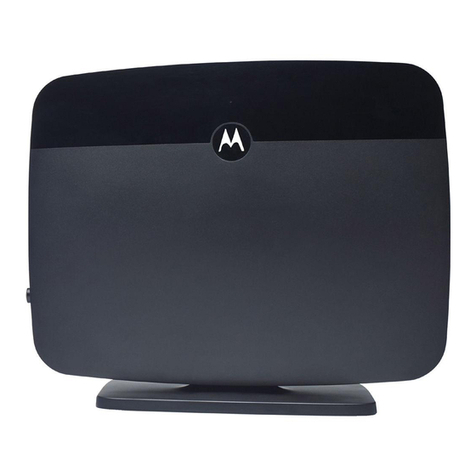
Zoom 4401 User manual

AP+4
U S E R G U I D E

2
Contents
Overview........................................................................... 5
Installing the AP+4 .......................................................... 6
Connecting the Hardware............................................... 7
Setting Up the AP+4....................................................... 8
Monitoring AP+4 Status ................................................ 16
Operating Mode ............................................................. 19
Wireless Configuration ................................................. 20
Basic Settings .............................................................. 20
Active Wireless Client Table......................................... 23
Wireless Security.......................................................... 24
Access Control ............................................................. 27
WDS Settings............................................................... 28
Site Survey................................................................... 29
Advanced Settings ....................................................... 31
WiFi Protected Setup™ (WPS) .................................... 34
TCP/IP Settings.............................................................. 37
LAN Interface ............................................................... 37
WAN Interface.............................................................. 39
Firewall Settings ............................................................ 50
Port Filtering................................................................. 50
IP Filtering .................................................................... 52
MAC Address Filtering ................................................. 53
URL Filtering ................................................................ 54
Port Forwarding............................................................ 55

3
DMZ ............................................................................. 56
Denial of Service .......................................................... 57
VPN Settings .................................................................. 61
VPN Setup (Client)....................................................... 63
Advanced VPN Settings for IKE................................... 67
Management................................................................... 69
Statistics....................................................................... 69
DDNS ........................................................................... 70
Time Zone Settings ...................................................... 72
Log ............................................................................... 73
Upgrade Firmware........................................................ 75
Save/Reload Configuration .......................................... 76
Password Setup ........................................................... 77
Troubleshooting ............................................................ 78
Zoom Customer Support .............................................. 83
Regulatory Information ................................................. 85

4
Package Contents
The AP+4 package contains the following:
•AP+4
•Power cube
•Ethernet cable
•Quick Start
•CD containing warranty information and
this documentation
If anything is missing or damaged, please contact Zoom
Customer Support or the vendor from whom you purchased the
AP+4.

5
Overview
You can use the AP+4 as a Router/Access Point, Universal
Repeater, Ethernet Client or Wireless ISP.
•
•
•
•
As a Router/AP, the AP+4 handles local network traffic both
wirelessly and through its four LAN (Local Area Network)
ports, and communicates via its WAN (Wide Area Network)
port to an ADSL modem, cable modem, or other Internet-
connected device.
As a Repeater, the AP+4 is placed near the edge of a
wireless network – for example, a Zoom X6 network – and
wirelessly links up to 200 more devices to the network.
As an Ethernet Client, the AP+4 connects via its LAN ports
to up to four game consoles or computers, and links them
wirelessly to a Zoom X6 or other wireless router.
As a Wireless ISP, the AP+4 can connect up to four wired
PCs or game consoles, give them Network Address
Translation protection, and connect them wirelessly to an
access point. If you select this mode, use the Wireless
Basic Setup page to configure the AP+4 as a wireless
client.
See Setting Up the AP+4 on page 8to choose an operating
mode.
This User Guide provides instructions for connecting and
configuring your AP+4 and setting up wireless and wired local
area networks. It includes details about security, firewalls, Virtual
Private Networks and administrative tasks.
When we update information about the AP+4, the information is
provided at this Zoom web site:
http://www.zoom.com/techsupport/wirelessg_support.html

1
Installing the AP+4
This chapter provides basic instructions for connecting the
hardware and configuring the AP+4 using the Setup Wizard. If
you have already done this by following the instructions in the
printed Quick Start, skip to Chapter 2, Wireless Configuration,
on page 20.
AP+4 Back Panel Connectors
Connector Description
WAN This port connects to the LAN or Ethernet port of an
ADSL or cable modem, using an Ethernet cable.
LAN 1 - 4 These Local Area Network ports connect via Ethernet
cable to up to four computers, game consoles or other
network devices.
PWR This port connects to a live power source using the
supplied power cube.
RESET To reset the modem to its factory settings, insert a
paper clip and press and hold for 10 seconds.
6 Zoom AP+4 User Guide

Chapter 1. Installing the AP+4 7
Connecting the Hardware
1Put the AP+4 near a computer to be used for setup. That
computer needs an Ethernet (LAN) port.
2Turn off the computer.
3Connect one end of the supplied power cube to the AP+4
PWR jack, and the other end to a live power source.
Important! Only use the power cube shipped with the AP+4.
Other power cubes may damage the device.
The PWR LED on the AP+4 front panel should turn on and
the WLAN LED should flash. (The WLAN LED continues to
flash to signify broadcast activity as long as the Wireless
LAN is enabled. It is enabled by default.)
4Connect one end of the supplied Ethernet cable to the
computer’s Ethernet port and the other end to one of the
AP+4’s LAN ports.
5Turn on the computer.
The WLAN LED continues flashing and the connected LAN
port and the ACT (Activity) LEDs become steady on. (If you
have a 10 Mbps Ethernet connection, the LAN LED does not
turn on.)
If you want the AP+4 to have access to the Internet, connect
its WAN port to the Ethernet port on your cable modem,
ADSL modem, or other broadband device. When you do
this, the WAN LED turns on if the broadband device is on
and its Ethernet port is working.

8 Zoom AP+4 User Guide
LED Status The AP+4 is . . .
PWR Steady connected to a power source
WLAN Flashing
Steady
broadcasting its SSID (network name)
not broadcasting its SSID and therefore
not available to wireless devices
seeking a wireless network connection
WAN Steady
Flashing
connected either wirelessly or via
Ethernet cable to a broadband modem
that connects to the Internet
transmitting or receiving data
LAN 1-4 Steady connected via Ethernet cable to up to
four computers or gaming devices
ACT
(Activity)
Steady
Flashing
connected via the associated LAN port
to a computer or other network device
transmitting or receiving data via the
associated LAN port
Setting Up the AP+4
1Open your web browser, enter 10.0.0.200 in the address
bar, and press the Enter key to open the Zoom AP+4
configuration software. The Status page appears first.
2In the left pane, select Setup Wizard.
3On the Welcome page, click Next.

4On the Choosing an Operating Mode page, select the way
you want to use the AP+4:
Router/Access Point. In this mode, which is the one most
users will select, the AP+4 links all wireless enabled
computers and other devices to a network and gives those
devices shared access to your broadband Internet
connection.
If you are using the AP+4 as a Repeater, on the Wireless
Basic Setup page at the Mode option, select AP+WDS.
Then, on the WDS Settings page, enter the MAC addresses
of access points you are communicating with.
Ethernet Client. This mode lets up to four computers, game
consoles or other devices plug into the AP+4 for wireless
access to a wireless network. (In this mode, the AP+4 acts
as a full bridge, just passing data back and forth between the
Internet and network devices.)
Wireless ISP. In this mode, the AP+4 connects to the
Ethernet ports of up to four wired PCs or game consoles,
and connects those devices wirelessly to a wireless access
point. Use this mode if you know you need to use the AP+4's
NAT functionality. Most users who need to connect a
computer or game console to an access point should set up
the AP+4 as an Ethernet Client instead.
If you select Wireless ISP mode, use the Wireless Basic
Setup page to configure the AP+4 as a wireless client.
Click Next to continue.
Chapter 1. Installing the AP+4 9

5To have the AP+4’s clock automatically updated by an NTP
server, on the Selecting a Time Zone page, select a Time
Zone and an NTP Server, and click Next.
6If you need to set up or modify your wired local network, use
the LAN Interface Setup page (see page 37 of this manual
for more information).
7If you want to connect to the Internet, select the method on
the Setting Up Internet Access page.
•
•
If you are among the great majority of customers who
are using the AP+4 as a Router/Access Point or with a
cable modem, at WAN Access Type select DHCP
Client.
If you select DHCP Client and at the end of the
installation process you have not connected successfully
to the Internet, it is possible that you are running PPPoE
software. In that case, at WAN Access Type select
PPPoE (Point-to-Point Protocol over Ethernet). Then
enter the User Name and Password given to you by
your service provider.
10 Zoom AP+4 User Guide
Other manuals for 4401
1
This manual suits for next models
1
Table of contents
Other Zoom Network Router manuals

Zoom
Zoom Cable Modem/Router User manual

Zoom
Zoom ZoomTel ADSL X5v 5585 User manual

Zoom
Zoom Gateway/Router V3 User manual

Zoom
Zoom V3 5567 User manual

Zoom
Zoom 4402 User manual

Zoom
Zoom 5524 User manual

Zoom
Zoom Zoom ADSL X6 5590 User manual

Zoom
Zoom 4403 User manual

Zoom
Zoom ZoomAir IG-4150 Installation and operating manual

Zoom
Zoom 5800F User manual