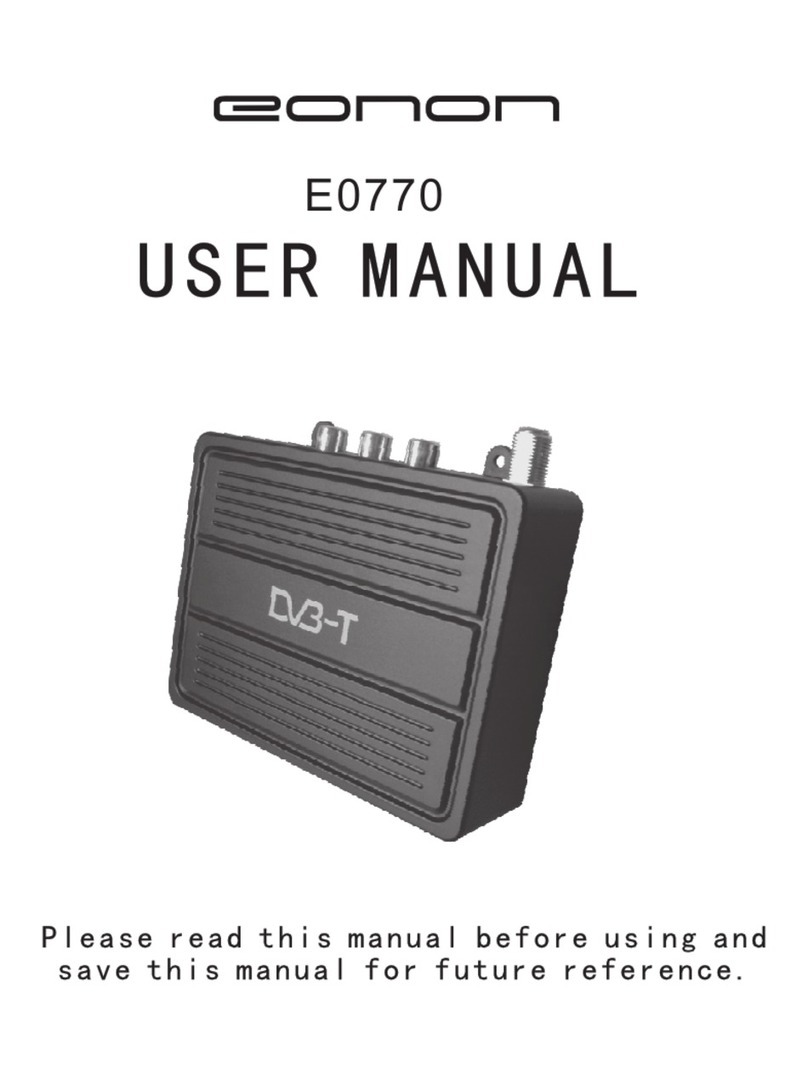
Xtreamer EXPRESS User manual

XTREAMER EXPRESS
USER MANUAL

Introduction
Thank you for purchasing another innovative product from Xtreamer!
Before you begin using your Xtreamer eXpress, please read the Quick Installation Guide (included
ith your device) and this User Manual. This manual contains product introduction, basic features
description, tips, cautions and other useful information, hich ill help you take full advantage of
features in your Xtreamer eXpress.
Please note that the company ill not be responsible for loss of or damage to your personal data as ell
as any other consequential loss as a result of the improper use of the product's hard are or soft are, or
caused by the product repair or any other unexpected incidents.
We shall not be responsible for any loss resulting from misunderstanding this manual and e shall not
be liable to third party for any loss or damage connected ith using this product.
Xtreamer eXpress is our next-generation media player and recorder as ell as an all-in-one
entertainment system that can also be used as a communication hub, a PC alternative and even a game
console hich delivers to your TV an ulta-HD video playback and a direct access to the best movies,
TV sho s and programs available on the internet.
Xtreamer eXpress features a po erful latest generation Realtek processor and an incredible graphic
GPU enabling you for the first time ever to enjoy 4K video playback and to easily record your cable
TV or any other devices connected to its HDMI IN port.
What Can I do With Xtreamer eXpress?
While you are probably used to having Android OS on your mobile device, its features can enrich your
home experience as ell giving you an opportunity to access an amazing variety of features in your
living room.
Xtreamer eXpress can be used as:
Multimedia player
Internet TV
Social Net orks Portal
Work Station ( ith mouse and keyboard connected)
Internet Bro ser
On-Line Shopping and Banking Portal
Communication Hub (Messenger and chat applications)
Out-Of-The-Office Android PC (E-mails, Office programs)
Game Console
And much more…

Ho does Xtreamer eXpress Look?

Remote Control Functions
Toggling Air-Mouse function is useful for those Android apps hich cannot be controlled by a regular
remote. Click on the MOUSE button and use directional keys and OK button to control your device.
You can also use alternative controllers such as Air-Mouse, Mini-Keyboard and ired peripherals.

HDD Installation

What do I need to Use Xtreamer 4K?
In order to start using Xtreamer eXpress you need:
High-definition TV
- A high-definition TV capable of displaying at least 720p or 1080p video.
Cables
- An HDMI cable to connect Xtreamer to your TV.
- An optical audio cable (optional) to connect to an amplifier or a receiver.
Net ork
- A Wi-Fi ireless net ork ( ireless video streaming requires 802.11a, g, or n), or Ethernet ( ired)
net ork connection.
- A broadband Internet connection.
Soft are and accounts
- No additional soft are is required for you to use Xtreamer eXpress.
- Gmail (Google) account is required in order to use the full functionality of your Xtreamer and access
Google Play Store.
Please note that some online services (such as Netflix, Hulu etc.) require a separate account and, in
some cases, a subscription.
Note: You can access and control your device remotely using AirDroid or a similar application.
Connecting your Xtreamer eXpress
HDMI

OPTICAL
NETWORK
EXTERNAL STORAGE

Connect your Xtreamer to a PC
You can connect your eXpress to a Windo s PC using a slave USB connection (USB Type C). This is
useful for transferring large amounts of data on your internal HDD.
Connect the cable; s itch the device on.
You ill also need to install a driver in order to access the drive.
Go to Device Manager and find FunctionFS Gadget(MTP) in the list of hard are under Other Devices.
Right-click → Property
Click Driver → Update Driver
Select “Bro se my Computer for Driver Soft are”
Choose “Let me pick from a list of device drivers on my computer”
Go to Portable Devices → Standard MTP Device → MTP USB Device
Install the driver and your PC ill mount it as an external storage device.
Note: only orks if you have an internal hard drive installed
Connect the po er cord to your Xtreamer eXpress and the other end to a po er outlet.
Turn on your TV and make a selection from the input type settings – these ill depend on your TV.

Main Menu Overvie
The Xtreamer eXpress Interface is comprised from several tabs,
Remote functions: Use directional keys to navigate the main menu and OK to make a selection
click on the EDIT (+) icon to add\remove apps to the main screen

The full list of applications is available from the App Manager tab.
The APP DRAWER gives you access to the list of the applications installed on your eXpress.
Another ay to access and control your applications is via SETTINGS -> MORE -> ADVANCED
->APPS
There you can disable notifications, clear data etc.
Table of contents