
XENX P3-1060 User manual
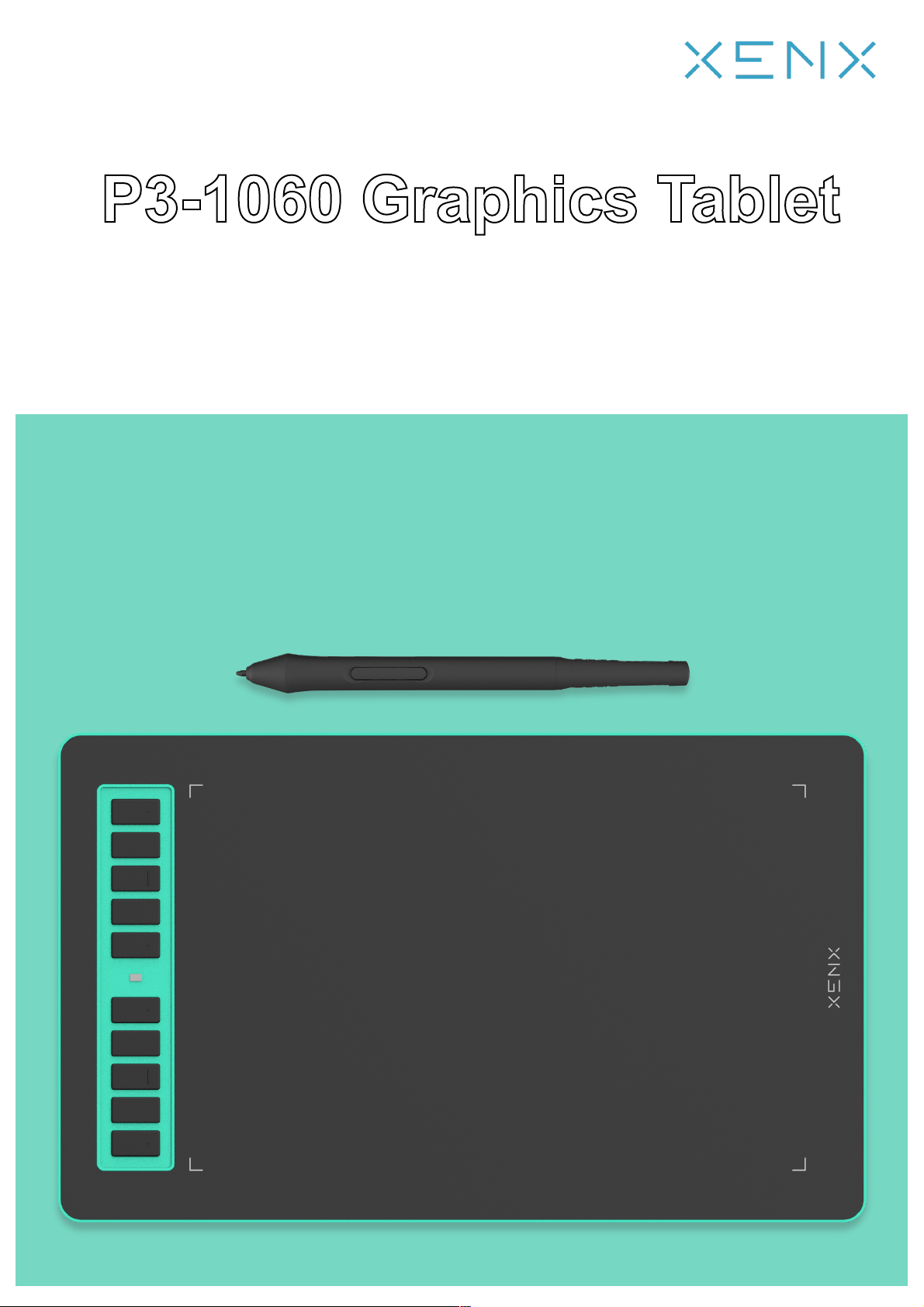
P3-1060 Graphics Tablet
User Manual
Table of Contents
Product overview
Packaging content
Setup your graphics tablet on Windows OS
Setup your graphics tablet on Mac OS
Setup your graphics tablet on Android OS
Xenx Driver settings
Replace the pen nib
Specifications
Warranty terms and conditions
1
2
3
4
5
6
7
8
9
1. Mapping settings
2. Shortcut buttons settings
3. Pen settings
4. Advanced settings
5. Device and application
6. Manage Xenx Driver settings file
Product overview1P3-1060
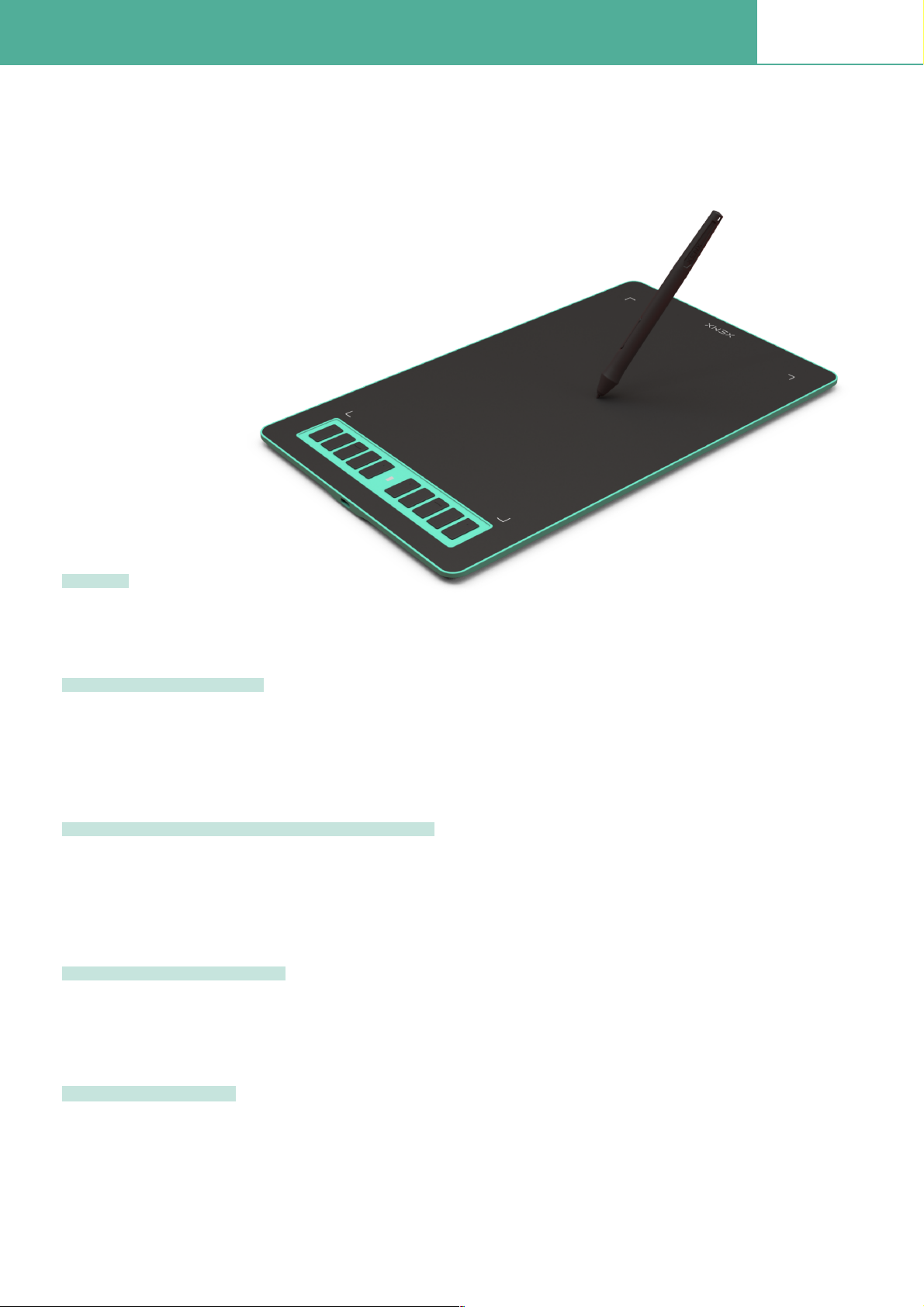
XENX P3-1060 is an ideal graphics tablet for digital art, painting, photo editing and graphic design.
Besides, it is a great tool for document annotation, pen input for online classes and meetings as well as
electronic signature application.
10 x 6.22 inches drawing area
Our battery-free pen is enhanced by a highly precise pressure sensor which ultilizes 8192 level of pressure
sensitivity. Two customizable side buttons allow you to put your favourable shortcuts on it
With Xenx Tablet Driver installed, you can customize the 10 on-tablet buttons to your favourite shortcuts.
These shortcuts can be conÞgured and saved per application
Xenx P3-1060 captures 266 sets of pen coordinates and pressure data per second
Xenx Tablet is compatible with Mac OS 10.12 or later, Windows 7 64-bit or later, Android 6.0 or later. You
can also enjoy driver free pen experience with Windows 10 and Android 6.0 or later
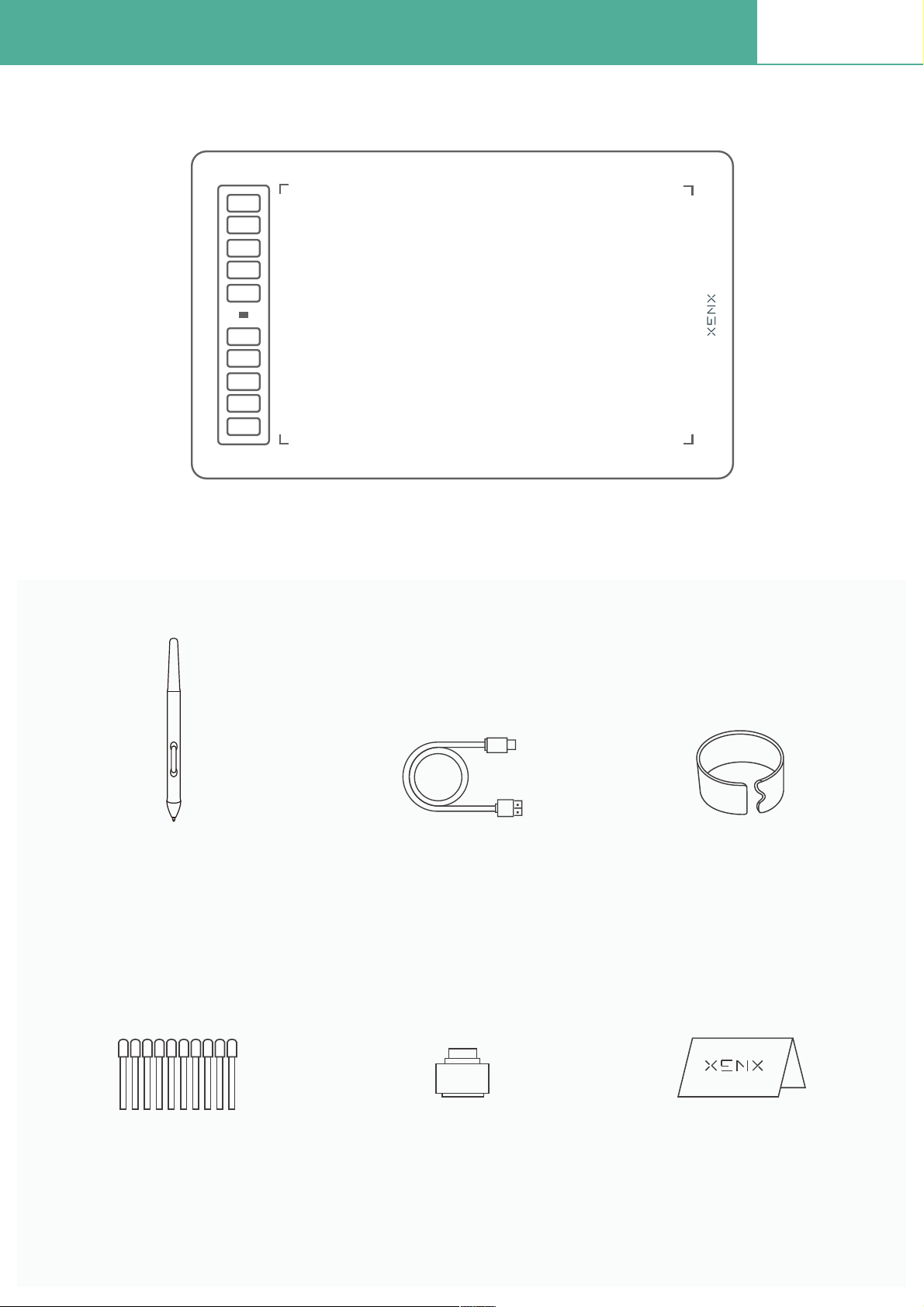
Size
Battery-free Pen
10 Customizable Shortcut Keys
High Performance
Compatibility
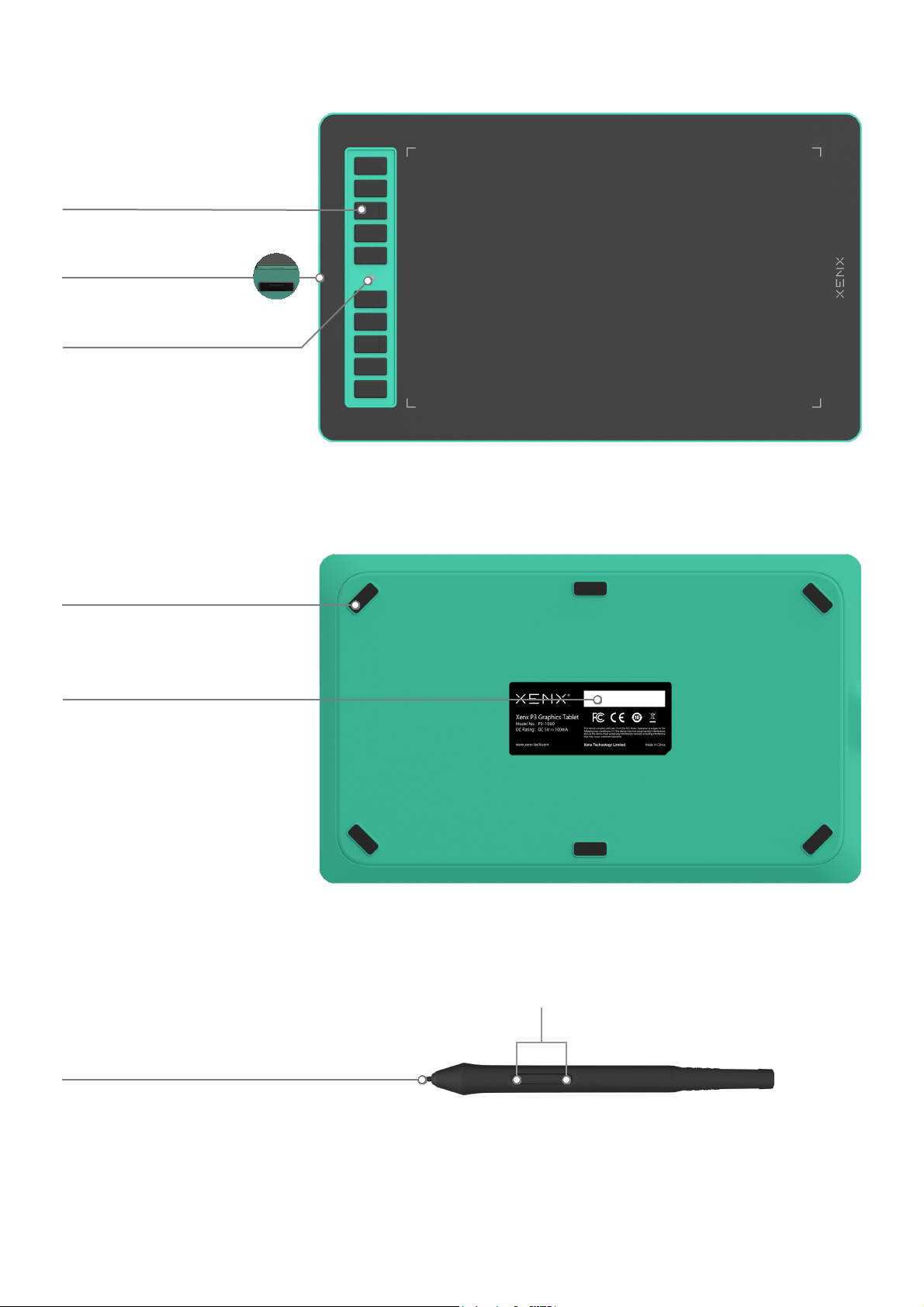
Shortcut Keys
Led indicator
7\SH-C connector
$QWLVOLSUXEEHUIRRW
5HSODFHDEOHSHQQLE
6KRUWFXWNH\V
6HULDOQXPEHU
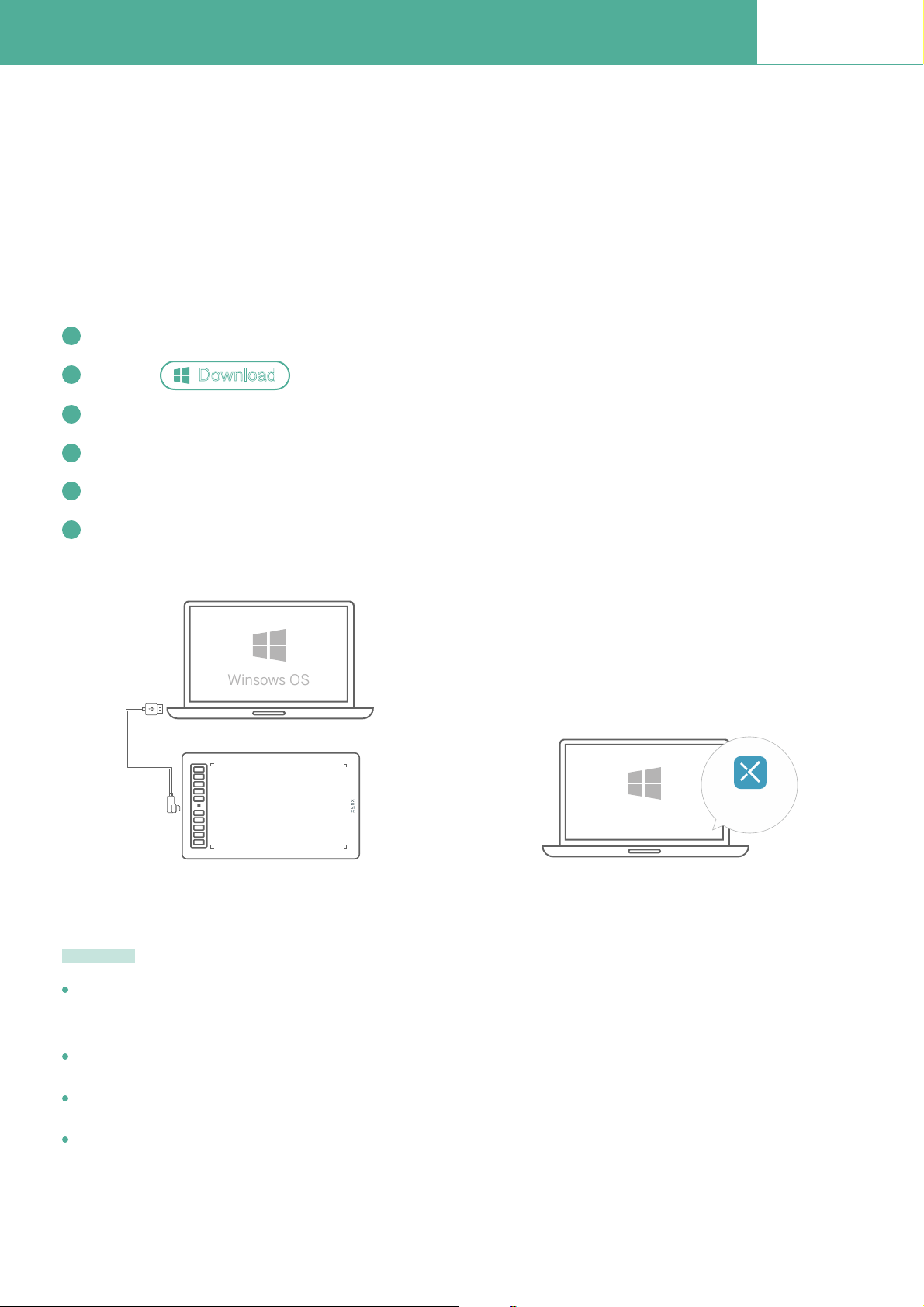
Packaging content2P3-1060
Battery-free Pen
Pen Nib*10 OTG Adapter Setup Guide
USB Cable
P3-1060
Nib Removal Tool
Setup your graphics tablet on Windows OS3P3-1060
Starting from Windows 10, Microsoft®has introduced Windows Ink to enhance experience on pen
applications. Thanks to this great feature, Xenx P3-1060 can simply plug and play for pen pressure
enabled applications, no additional driver is needed.
If you would like to receive extra tablet features such as customizing shortcut keys and screen mapping,
you have to install our Xenx Driver software to open up the full set of tablet functions.
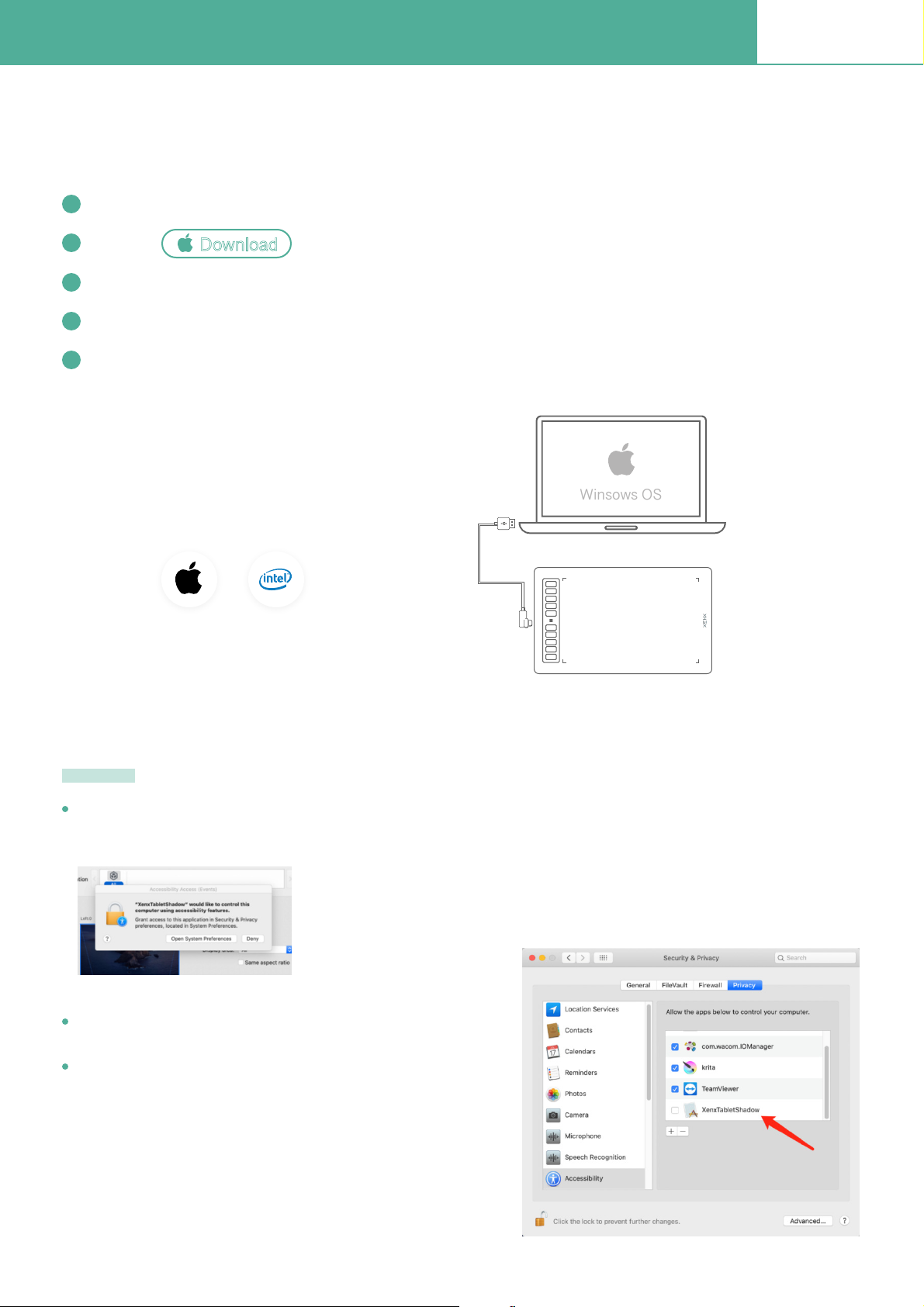
Download the Xenx Driver software from our ofÞcial website www.xenx-tech.com/download
Click the to start downloading the Þle
Download
Unzip the Þle and run the installation Þle by double click it
Follow the instructions to complete the installation. Restart your computer if prompted
Now you can connect your P3-1060 tablet to your computer with the USB type-C cable
You can always open the Xenx Driver by clicking the Xenx icon in system tray
Step 5 Step 6
USB
Type-C
The ofÞcial Xenx Driver installer may sometimes be blocked by anti-virus program. If you encounter this
problem, please temporary disable the anti-virus software to allow the Xenx Driver installation
Always download the Xenx Driver from our ofÞcial website www.xenx-tech.com
Xenx Driver only supports Windows 7 or later.
If you have other graphics tablet driver installed, please uninstall it before installing the Xenx Driver
software
Note
Winsows OS
Winsows OS Xenx Driver
1
2
3
4
5
6
Setup your graphics tablet on Mac OS4P3-1060
Xenx graphics tablet supports Mac OS 10.12 or later. Please follow the below instructions to install
Xenx Driver software on your Mac computer.
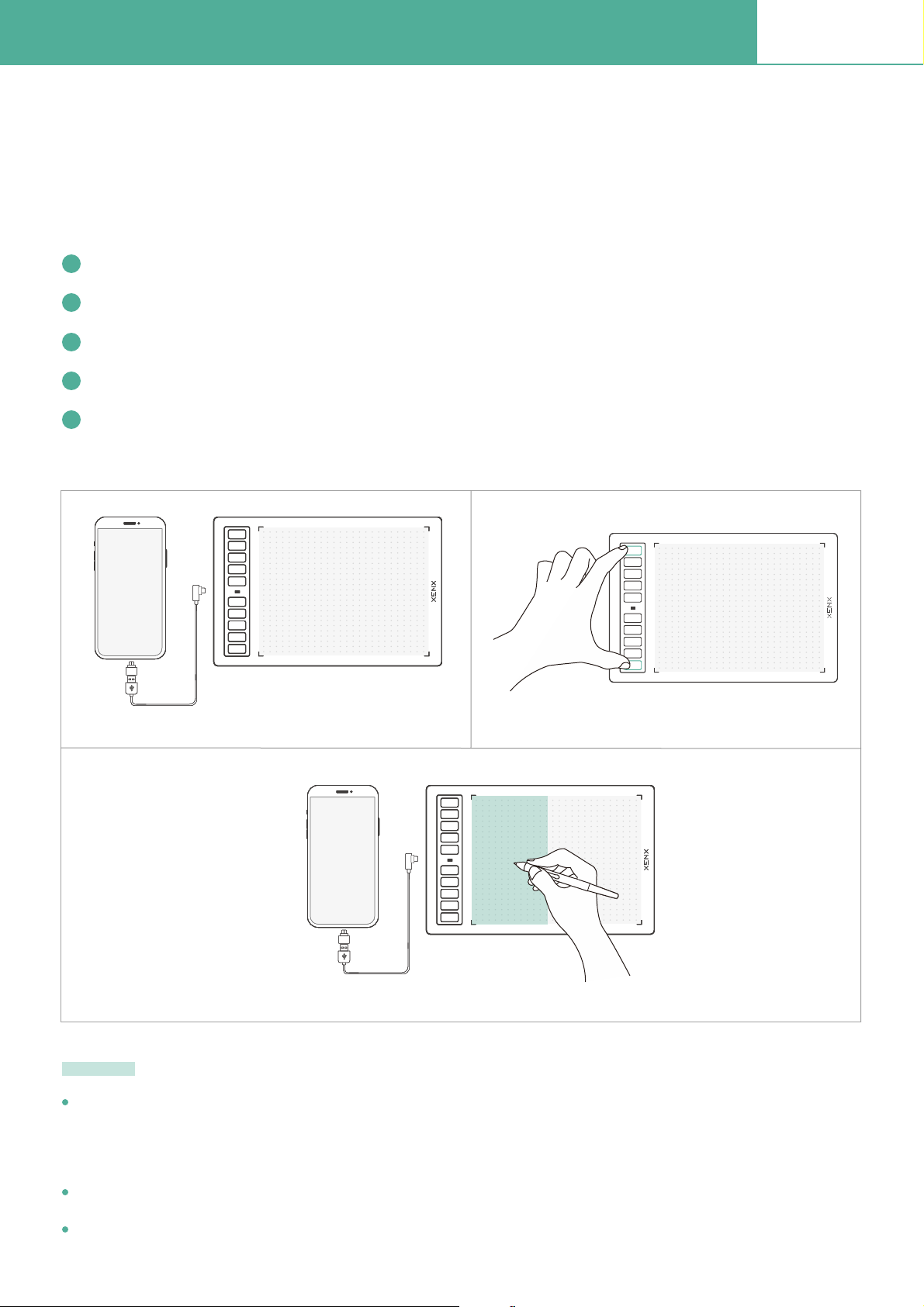
Download the Xenx Driver software from our ofÞcial website www.xenx-tech.com/download
Click the and select the version of CPU of your Mac computer
CPU
Download
Unzip the Þle and run the installation Þle by double click it
Follow the instructions to complete the installation. Restart your computer if prompted
Now you can connect your P3-1060 tablet to your computer with the USB type-C cable
Step 5
USB
Type-C
If you see the below warning after installing the Xenx Driver software, please update the system
preferences with the following steps:
Open ÒSystem PreferencesÓ -> ÒSecurity and PrivacyÓ
Look for “XenxTabletShadow” and allow it
Note
Winsows OS
M1
1
2
3
4
5
Setup your graphics tablet on Android OS5P3-1060
Xenx graphics tablet supports plug and play on Android OS 6 or later. Default orientation of the
drawing area is in landscape mode. When using Xenx tablet an Android phone, you may Þnd ratio
distortion.
To switch the Xenx tablet to match the phone aspect ratio, please follow the steps below:
Xenx graphics tablets only support Android OS 6.0 or later. For some Android devices, the USB OTG
function is disabled by default. Please check with your Android device manufacturer for setting up the
OTG function
Please note that the shortcut keys on tablet and pen are not supported in Android devices
Only USB Type-C OTG adapter is provided with Xenx graphics tablet
Note
Connect XENX tablet to your Android phone with Type-C OTG adaptor
Launch your drawing or writing app
Press and hold both the top and bottom buttons at the same time for 5 seconds
XENX tablet will switch to portrait mode to Þt your phone orientation
To switch back to landscape mode for your PC or Mac, press and hold the two buttons again for
5 seconds
1
2
3
4
5
Step 1
K1
K2
K7
K3
K8
K6
K4
K9
K5
K10
K1
K2
K7
K3
K8
K6
K4
K9
K5
K10
K1
K2
K7
K3
K8
K6
K4
K9
K5
K10
K1
K2
K7
K3
K8
K6
K4
K9
K5
K10
K1
K2
K7
K3
K8
K6
K4
K9
K5
K10
K1
K2
K7
K3
K8
K6
K4
K9
K5
K10
K1
K2
K7
K3
K8
K6
K4
K9
K5
K10
K1
K2
K7
K3
K8
K6
K4
K9
K5
K10
Step 3
Step 4
K1
K2
K7
K3
K8
K6
K4
K9
K5
K10
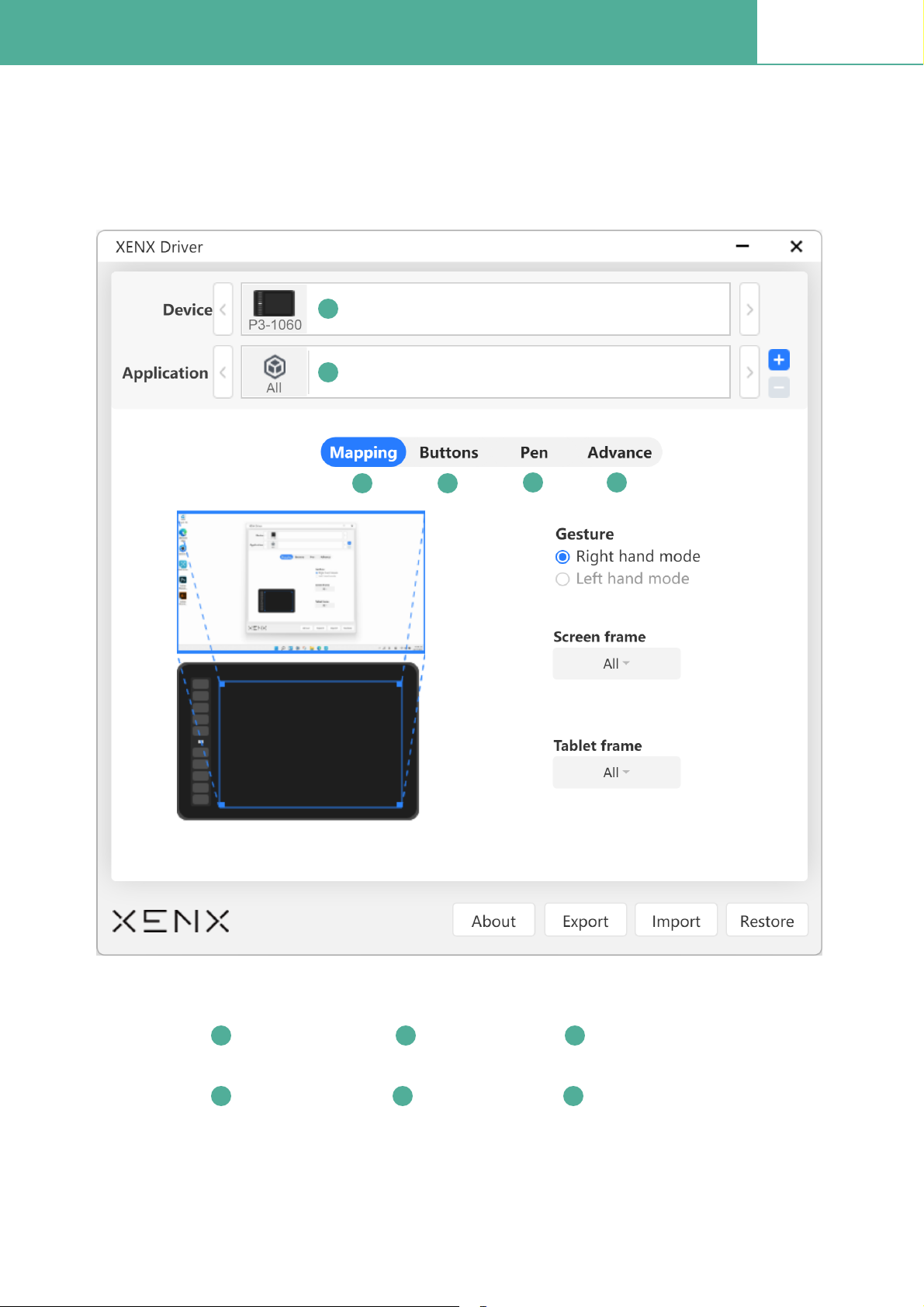
Xenx Driver settings6P3-1060
There are 6 sections on Xenx Driver software:
Mapping Buttons Pen
Advance Device Application
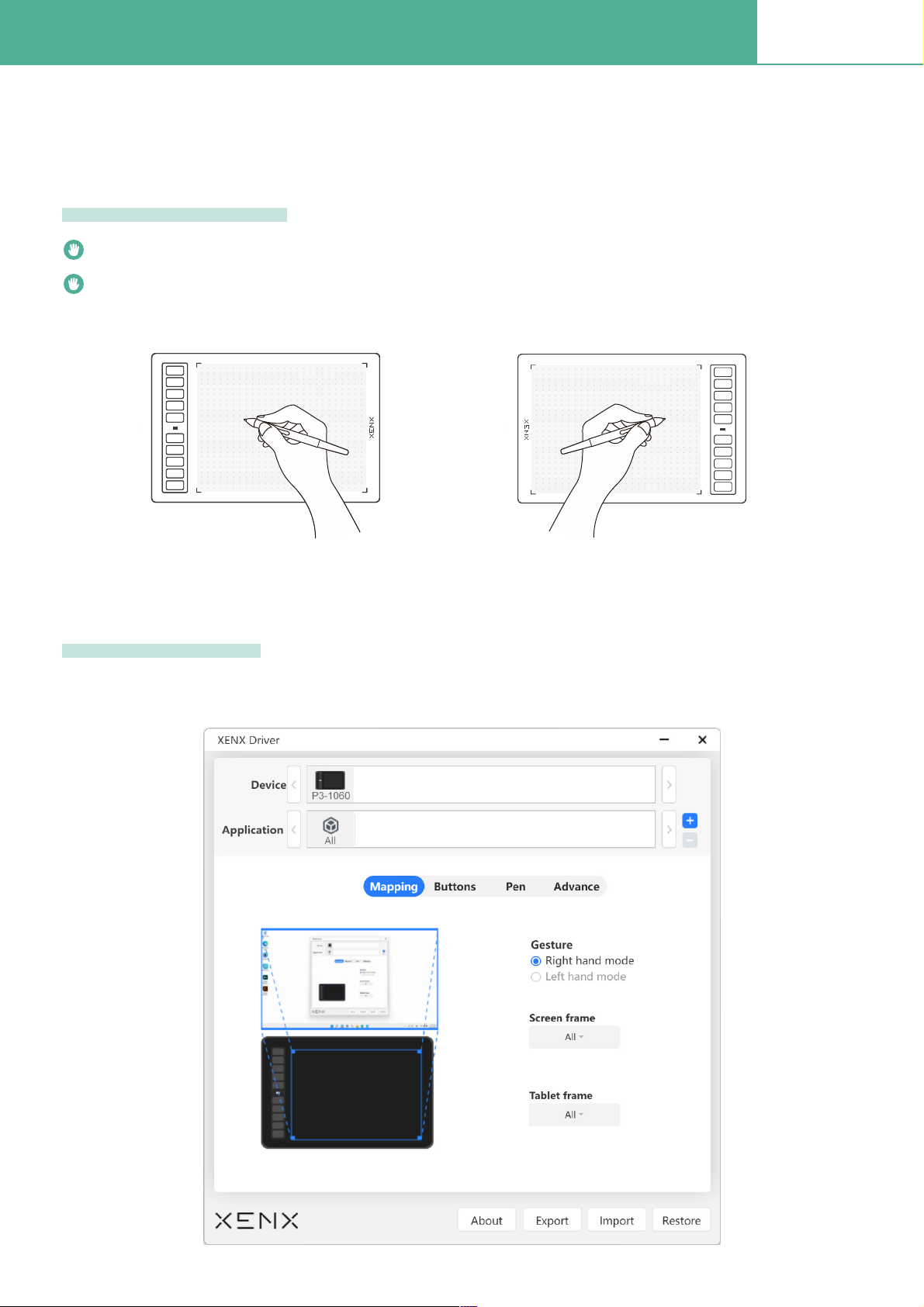
Mapping settings6.1 P3-1060
With mapping function, you can customize how the graphics tablet drawing area maps to your
monitor(s). Besides, you can deÞne the left-handed or right-handed orientations of the tablet.
By default, the full tablet drawing area will map to your entire display(s)
Right hand mode - shortcut keys are located at the left side of the tablet
Right hand mode
Left hand mode - shortcut keys are located at the left side of the tablet
Tablet orientation
Screen mapping
K1
K2
K7
K3
K8
K6
K4
K9
K5
K10
Right hand mode
K1
K2
K7
K3
K8
K6
K4
K9
K5
K10
Left hand mode
K1
K2
K7
K3
K8
K6
K4
K9
K5
K10
Table of contents
Other XENX Graphic Tablet manuals


