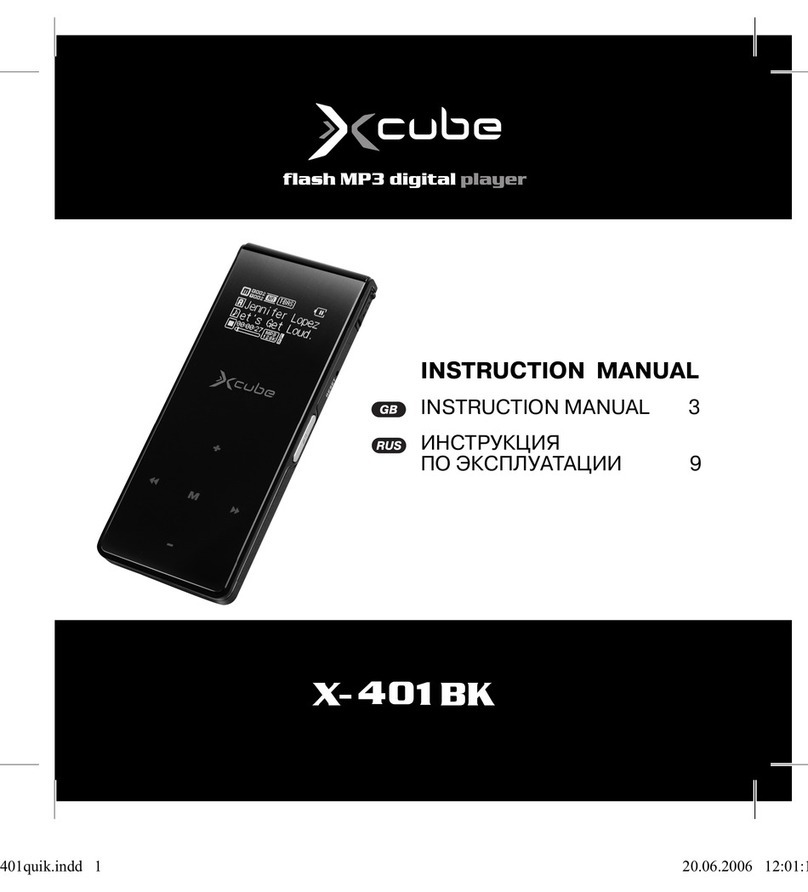
Xcube X-302 BK User manual

INSTRUCTION MANUAL
INSTRUCTION MANUAL 3
ИНСТРУКЦИЯ
ПО ЭКСПЛУАТАЦИИ 11
302short.qxd 01.06.2006 17:33 Page 1

2
302short.qxd 01.06.2006 17:33 Page 2

Player Overview
A. USB port
B. Earphone jack
C. AB / Menu Button
D. Skip Next / Fast Forward
E. Skip Previous / Fast Rewind
F. Power off/Stop
G. Power on/Play/Pause
H. Hold switch
I. Volume up
J. Volume down
K. Microphone
L. Reset
English
3
302short.qxd 01.06.2006 17:33 Page 3

Transferring files
1. Installing the driver
1.1 Windows® 98 SE users: Please install the driver from the
bundled CD disc. After installation is finished, please restart
your computer;
1.2 Windows® Me/2000/XP/Mac® OS X 10.2.6 users:
You need not to install driver.
2. Connecting the player into USB port
2.1 Remove the USB port cover of the player.
2.2 Connect the player into your PC USB port via one USB
cable.
2.3 The builtin displays "USB Connected", indicating that the
player is in USB mode. The player is then automatically rec
ognized (in 'My Computer') as one removable media
device.
3. Transferring files
3.1 Transfer files to or from the internal Flash RAM using
Windows explorer.
3.2 When the displays "USB Connected" again for a while,
unplug the player from your computer.
English
4
302short.qxd 01.06.2006 17:33 Page 4

Listening to music
4. Installing the earphone
4.1 Connect the earphone to the earphone socket.
5. Turn on the player
5.1 Unlock the player.
5.2 Press on the Play button for a while to turn on the player.
5.3 Use the player controls to adjust playback and volume
level.
5.4 Press on the Play button to start music playback.
5.5 To listen to a part of the music repeatedly, press once
Menu button while playing the music to set the start point
of AB loop repeat. Press once again to set the end point,
and the player starts playing the music from start point to
the end point repeatedly.
Press once again to cease AB loop repeat.
6. Turn off the player
6.1 Press and hold the Stop button for about 3 seconds to turn
off the player.
English
5
302short.qxd 01.06.2006 17:33 Page 5

Video play & Photo show
7. Video play
7.1 Select Video in the Main Menu list and press Play button to
enter Video play.
7.2 Use the Skip buttons to choose the Video and press Play
button to paly.
8. Photo show
8.1 Select Photo in the Main Menu to enter Photo show.
8.2 Select Manual, Slide show, Thumbnail and press Play but
ton to show the Photo.
Voice Recording
9. Start Voice Recording
9.1 Select Record in the Main Menu list and press Play button
button to enter Record menu, select Microphone and press
Play button to begin recording.
9.2 Press the Stop or AB/Menu button to stop the recording
and enter Voice mode.
The voice recording will be saved as a file named Vxxx.WAV
in the Voice folder.
English
6
302short.qxd 01.06.2006 17:33 Page 6

Note that the display will read MEMORY FULL when all
available memory has been used.
10. Playback a Voice Recording file
10.1 Select Voice in the Main Menu to enter Voice mode.
10.2 Select a recording to listen to by pressing the Skip buttons.
10.3 Press the Play button to playback the recording.
FM Tuner
11. Start FM Tuner
11.1 In music mode, press and hold the Menu button for a while
to enter the menu.
11.2 Use the Skip buttons to select FM.
11.3 Press the Play button. FM Tuner starts.
11.4 The player starts to seek all FM radio stations. Please wait.
11.5 The player would stop seeking at the first FM radio station.
12. Listening to FM radio
12.1 Press on Play or Stop buttons to skip to other FM radio sta
tions which are found and locked by the player automatically.
12.2 To seek a FM radio station manually, press and hold the
Skip buttons.
12.3 To exit FM radio, press and hold the Menu button for a while
and release it when in FM mode.
English
7
302short.qxd 01.06.2006 17:33 Page 7

13. FM radio Recording
13.1 In FM mode, press and hold the Play button for a while and
release it. The player starts to record current FM radio.
13.2 Press on Menu button again to stop FM radio recording.
14. Playback a FM radio recording file
14.1 Exit to Music mode by pressing and holding the Menu button.
14.2 Use Skip buttons to select the file (e.g. F001.WAV).
14.3 Press the play button to start playback.
Menu Settings
15. Setting Menu
15.1 In Music mode, press and hold the Menu button for a while
and release it. The Main menu appears.
15.2 Select Settings from the menu and press Play button.
15.3 Press the Skip buttons to choose a setting and press Play
button.
15.4 There are several settings, such as Equalizer, Repeat,
Contrast, Backlight, Power Savings and Record in the
Setting menu.
15.5 Select a setting and use Skip buttons to change the setting.
15.6 To exit the menu, press the Menu button.
English
8
302short.qxd 01.06.2006 17:33 Page 8

Navigation
16. Navigation
Use AB/Menu button to enter Menu
16.1 Select Navigation and press Play button to enter navigation
mode.
16.2 Press Skip buttons to select a file or folder and use Play
button to play the music or enter the folder.
16.3 Select the Back icon at first row in Navigation Menu and
press AB/Menu button to backward to upper level.
Note: When a folder is selected in navigation mode, press on
Menu button, a submenu window will popup. To enter the fold
er, select Enter. To play music located in the folder, select Play.
When a file is selected in navigation mode, press on Menu but
ton, a submenu window will popup. To play this file, select
Play. To erase, select Delete.
English
9
302short.qxd 01.06.2006 17:33 Page 9

User's Manual
See the User's Manual on the bundled CD for details on trans
ferring music, Screen display, erase files, setting menus, trouble
shootings, technical specifications, etc.
Service life – no less than 3 years.
Guarantee
Details regarding guarantee conditions can be obtained from the
dealer from whom the appliance was purchased. The bill of sale
or receipt must be produced when making any claim under the
terms of this guarantee.
This product conforms to the EMCRequirements as laid
down by the Council Directive 89/336/EEC and to the
Low Voltage Regulation (23/73 EEC)
New Media Entertainment(NME) Inc.
25 Greystone Manor Lewes, Delaware 19958
County of Sussex USA
English
10
302short.qxd 01.06.2006 17:33 Page 10
Table of contents
Languages:
Other Xcube MP3 Player manuals