
Wildix WSG08POE User manual

User Manual
Version: 01/01/2011
WSG08POE Switch

Introduction!4
Product Overview!4
Web Management Features!4
Specifications!5
Mechanical!5
Performance!5
Package Contents!6
Hardware Description!6
Physical Dimensions/ Weight!6
Front Panel!6
LED Indicators!7
Rear Panel!8
Hardware Installation!8
Software Description!8
Login!8
Configuration!9
Administrator!9
Port Configuration!11
VLAN Setting!12
Trunking!14
Link Aggregation!15
Raid Spanning Tree!16
IGMP Snooping!18
Port Mirroring!19
QoS Setting!20
PoE (Power over Ethernet) Configuration!23
Wildix WSG08POE User Manual 2

Storm Control!24
Monitorning!25
Statistic Overview!25
Detailed Statics!25
LACP Status!25
RSTP Status!26
IGMP Status!28
VeriPHY!28
Ping!30
Maintenance!32
Reboot Device (Warm Restart)!32
Load Default Setting (Factory Default)!32
Firmware Updating (Software upload)!33
Backup/Recovery (Configuration File Transfer)!33
Logout!33
Wildix WSG08POE User Manual 3

Introduction
Product Overview
This switch is equipped with 8-ports PoE + 10/100/1000BaseT(X) with 2 combo gigabit SFP open
slots. It is designed for easy installation and high performance in an environment where traffic is on
the network and the number of users increases continuously. The compact rigid 19” rack-mount size
is specifically designed for small to medium workgroups. It can be installed where the space is
limited; moreover, it provides smooth network migration, the network capacity can be upgraded
easily.
In addition, the switch has comprehensive features such as QoS (Quality of Service), Spanning
Tree, VLAN, Power over Ethernet (PoE), Link Aggregation, SNMP, IGMP Snooping capability via
the intelligent software. It is suitable for both metro-LAN and office application.
Web Management Features
Configuration
Administrator
Ports Configuration
VLAN Setting
Trunking
Link Aggregation
Raid Spanning Tree
IGMP Snooping
Port Mirroring
QoS Setting
PoE Configuration
Storm Control
Monitoring
Statistics Overview
Detailed Statistics
LACP Status
RSTP Status
IGMP Status
VeriPHY
Ping
Maintenance
Reboot Device (Warm Restart)
Load Default Setting (Factory Default)
Firmware Updating (Software Upload)
Backup/Recovery (Configuration File Transfer)
Wildix WSG08POE User Manual 4

Logout
Specifications
➤Standard
IEEE 802.3 10BaseT
IEEE 802.3u 100BaseTX
IEEE 802.ab 1000BaseT
IEEE 802.af Power over Ethernet
IEEE 802.3at
IEEE 802.3z 1000BaseSX/LX
IEEE 802.3x Full-duplex Flow Control
IEEE 802.3ad Link Aggregation
IEEE 802.1Q VLAN
IEEE 802.1d Spanning tree protocol
IEEE 802.1w Rapid Spanning tree protocol
IEEE 802.1p QoS
➤Number of Port
8-port PoE+ 10/100/1000BaseT(X) with 2 Gigabit SFP Open Slots
Mechanical
➤LED Indicator
Port 1~8: Link/ Act, 1000M, PoE
Port 7FX, 8FX: Link
Per Unit: Power
➤Power Consumption: 130 Watts (Max) for 8-port share, Max. 30 per port
➤Power Input: 100~240V/AC, 50~60HZ
➤Product Dimensions/ Weight
44 ×220 ×440 mm (H ×D x W) / 3.2kg
Performance
MAC Address: 8K
Buffer Memory: 176 KB
Jumbo Frames: 9K
Transmission Method: Store and Forward
Wildix WSG08POE User Manual 5

Package Contents
Before you start to install this switch, please verify your package that contains the following items:
➤One PoE Gigabit Ethernet Switch
➤One AC Power Cord
➤User Manual CD
➤One Rack-mount kit
Hardware Description
This part primarily presents hardware of the web-smart switch, physical dimensions and functional
overview would be described.
Physical Dimensions/ Weight
44 ×220 ×440 mm (H ×W ×D) / 3.2KG
Front Panel
The front Panel of the managed switch consists of 8 gigabit RJ-45 ports with 2 Combo gigabit SFP
open slot. The LED Indicators are also located on the front panel.
Wildix WSG08POE User Manual 6

LED Indicators
The LED Indicators present real-time information of systematic operation status. This table
provides description of LED status and the meaning.
Table 1-1 LED Indicators
Wildix WSG08POE User Manual 7

Rear Panel
The 3-pronged power plug is placed at the rear panel of the switch right side shown as below.
Hardware Installation
Set the switch on a large flat space with a power socket close by. The flat space should be clean,
smooth, level and sturdy. Make sure there is enough of space to attach the cables, power cord and
allow air circulation. Use twisted pair cable to connect this switch to your PC.
Software Description
This part provides you with the information about how to set up and manage the switch through the
web user interface.
Open the web browser, and type in the URL: 192.168.2.1. You see the login screen. The factory
default did not set up a password, so you can just click the Apply button. The login process is
completed and “Password successfully entered” appears on the screen.
Login
Wildix WSG08POE User Manual 8

After the user login, the right side of website shows all functions (Fig. 1-2).
Figure 1-2
Configuration
Administrator
System Configuration
This page shows system configuration information.
Wildix WSG08POE User Manual 9
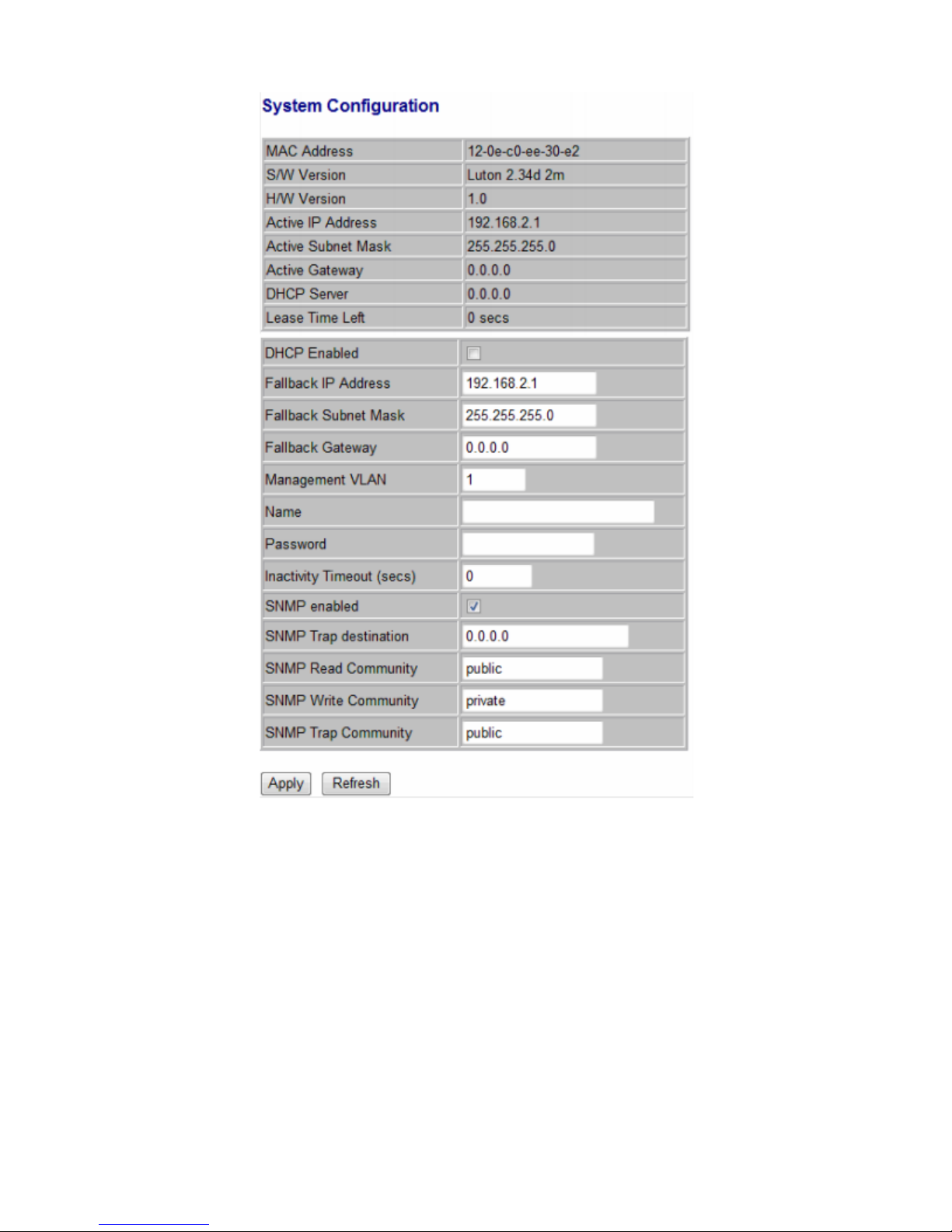
Figure 1-3
➤MAC Address: hardware address assigned by manufacturer (default).
➤S/W Version: switch’s firmware version.
➤H/W Version: switch’s Hardware version.
➤DHCP Enabled: click to enable DHCP
➤Fallback IP address: assign the IP address manually, the default IP is 192.168.2.1
➤Fallback Subnet Mask: assign the subnet mask to the IP address
➤Fallback Gateway: assign the network gateway, the default gateway is 0.0.0.0.
➤Management VLAN: ID of the configured VLAN (1-4094) to manage the switch. By default, all
ports on the switch are members of VLAN 1. However, if the management VLAN is changed, the
management station should be attached to a port belonging to this VLAN.
Wildix WSG08POE User Manual 10
Table of contents
Other Wildix Switch manuals


