Westfalia Auto Code User manual

Auto Code
Getting Started Guide
This guide provides you with details of how to use your Auto Code
and how to access Saved Screens through the
Auto Code Application


Contents
Updating your Auto Code Handset...........................................................................................................2
Features:..................................................................................................................................................3
Specifications:..........................................................................................................................................3
Kit Contents..............................................................................................................................................4
Auto Code Navigation...............................................................................................................................4
Menu & Icons ...........................................................................................................................................5
Main Menu............................................................................................................................................5
System Setup Menu..............................................................................................................................6
Additional Icons used............................................................................................................................7
First Time Use Procedure.........................................................................................................................8
Web Site Registration...............................................................................................................................9
Quick Start Guide...................................................................................................................................10
Saved Screens.......................................................................................................................................11
Overview of Saved Screens................................................................................................................11
Saving screens on the Auto Code handset.........................................................................................11
Accessing screens saved on the Auto Code handset..........................................................................12
Saving multiple screens......................................................................................................................15
Viewing a single screen......................................................................................................................16
Deleting a single screen......................................................................................................................16
Deleting multiple screens....................................................................................................................17
Printing screens..................................................................................................................................18
Print preview.......................................................................................................................................19
Page setup .........................................................................................................................................20

2
900001400199 –Auto Code - Towing coding solution
Please read this information carefully before using your new Auto Code Handset
Thank you for purchasing your Auto Code Towing coding solution. We at Westfalia believe that
you will have many years of successful business as a result of your investment and it is our aim
to ensure that you will remain as up-to-date as possible. Please refer to these instructions when
using the tool, if you experience any difficulty then please contact the technical help line on the
number below:
TECHNICAL HELP LINE NO. 0844 561 7861
Please register your product with Westfalia by completing the registration on-line by selecting
the following link: www.Westfalia-Autocode.co.uk which will also give you exclusive access to
the Westfalia Auto Code support area!
By registering your product you can take advantage of the following:
Westfalia product and technical updates via email
Westfalia will keep you up to date with new vehicle coverage and products, special
offers and technical information
Notification of application updates for your new Auto Code
Your new Auto Code tool is updateable. When updates are available notifications
will be sent to all registered users and a posting will be made on the Westfalia Auto
Code support website www.Westfalia-Autocode.co.uk
Updating your Auto Code Handset
When you receive notification of an update, you can launch your Westfalia Auto Code
Application and follow the instructions. Updates are easy to install and keep you up to date with
the very latest software available at all times.
We are always keen to hear back from customers regarding our products, and what you would
like to see included. If you have any specific thoughts, please feel free to contact our Technical
Support Help line on 0844 561 7861 and discuss them with the team. Also, don‟t forget to log in
to the Westfalia Auto Code Support Forum where you can share experiences and ask
questions to Westfalia technical staff and other Westfalia customers. Check the Westfalia Auto
Code Support website www.Westfalia-Autocode.co.uk for regular updates and product news.

3
Features:
Use of just one J1962 harness to cover all applications
Just 1 SD Card
Integrated Applications List
High Visibility Back Lit Display
Regular Internet updates
Soft touch case with improved ergonomic design
Easy to navigate keypad and menu systems
Full product support helpline backup
ZigBee wireless ready, enables communications with optional add-on modules
Future Proof design incorporates upgradeable communications protocol hardware allowing for cost
effective updates if and when required.
Fully updateable multiplexed vehicle communications eliminating the need for additional adaptors and
cables for 16Pin vehicles.
High performance processor and re-programmable hardware, via the internet or SD Card.
Upgradeable to additional software packages allowing the user additional areas to increase revenue
(Key Programming, Engine, ABS & Airbag Diagnostics)
Specifications:
J1850 VPW / PWM
ISO High & Low Speed
CAN
Single Wire CAN
LIN
Fault Tolerant CAN
5v Rosco Systems
Subscription Number:
Serial Number & PIN:
Vehicle Harness
Connector
USB Connector
Status LED
LCD Display
Multi-Functional
Keypad
SD Card Slot

4
Kit Contents
1. Auto Code Handset (900001400199)
2. Auto Code 16Pin Diagnostic Cable
3. PC/Auto Code USB Data Cable
4. Auto Code Applications CD
Auto Code Navigation
2. 16Pin Diagnostic
Cable
1. Auto Code Handset
4. PC/Auto Code
USB Cable
Arrows control the
cursor around the
screen
OK Button confirms
the selected option
ESC Button cancels an
operation or returns
from a menu
Button used for special
functions
5. Auto Code
Applications CD

5
Menu & Icons
Main Menu
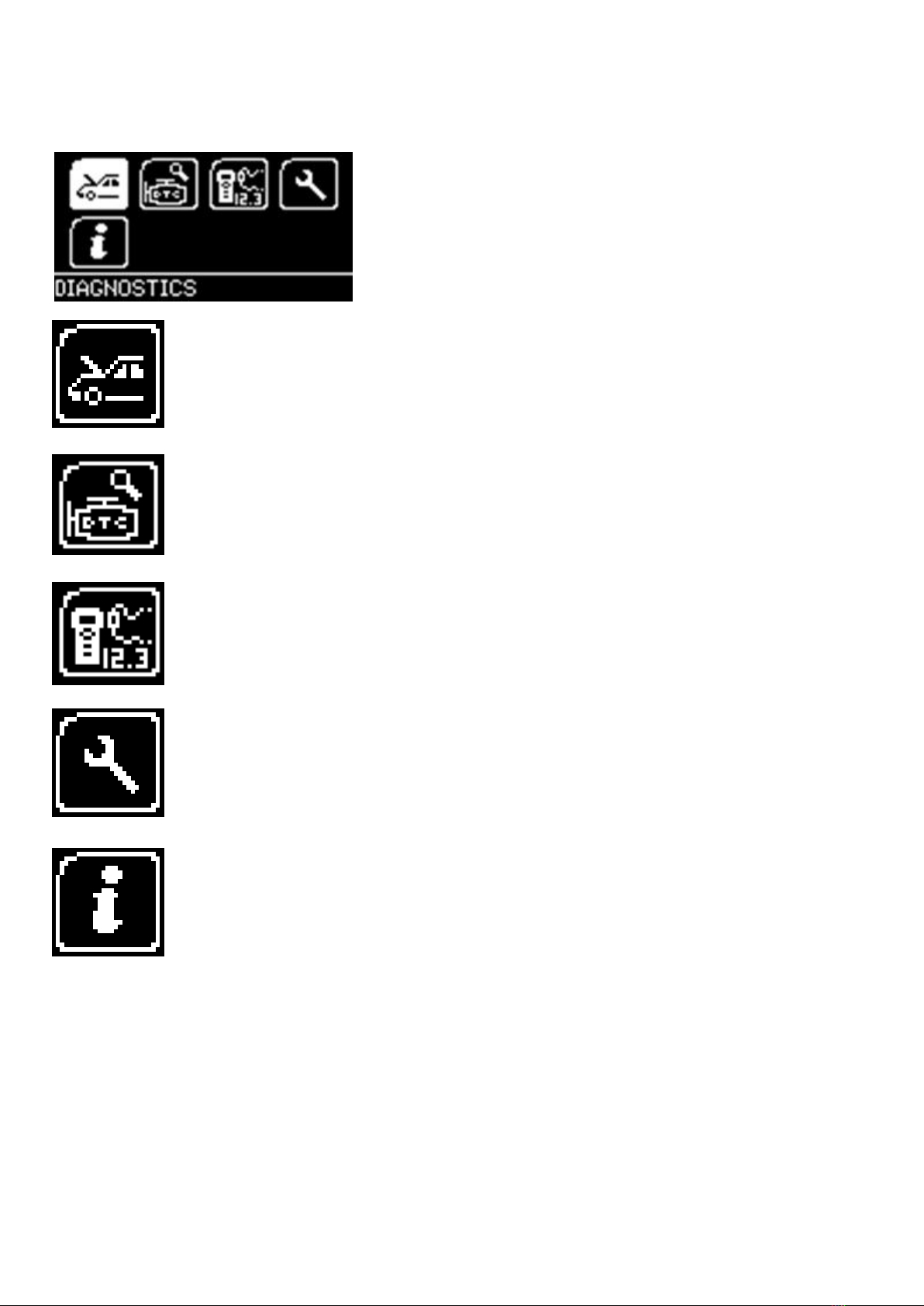
Manufacturer Icon –Select this to start Vehicle
Specific Serial Diagnostics
System Setup Icon –Select this to configure the
various settings of the Service Scan
Information Icon –Select this to display
software and hardware version information
D.T.C Lookup –Select this to search for error codes that potentially come up
as unknown within your system.
Wireless Devices –Select this to search and connect wireless
devices to the Service Scan

6
System Setup Menu
Contrast Icon –Select this to adjust the display
contrast. Use the up and down arrows to adjust
and press OK to save the settings
Clock Icon –Select this to change the date and
time of the Service Scan
Garage Information Icon –Select this to display
your user details. This is changed through the
PC Suite
Auto Code Test Icon –Select this to carry out
hardware tests on the Service if requested by
Westfalia Support
Volume Icon –Select this to adjust the sounder
volume using the left and right arrow keys and
press OK to save the setting
Application Unlock Icon –Select this to unlock
application packages available to you
depending on your subscription
„Back‟ Icon –Select this to return to the
previous menu

7
Additional Icons used
Live Data Icon –Select this to display Live Data (Components) for the
vehicle you are currently diagnosing.
Diagnostic Trouble Codes Icon –Select this to read the Diagnostic
Trouble codes on the vehicle you are currently diagnosing.
Erase Diagnostic Trouble Codes Icon –Select this to clear the
Diagnostic Trouble codes on the vehicle you are currently diagnosing.
Actuator Icon –Select this to run actuators for the vehicle you are
currently diagnosing.
Injector Programming Icon –Select this option to program injectors
to the vehicle that you are currently working on.
Program Keys Icon –Select this to program keys into the vehicle you
are currently on.
Erase Programmed Keys Icon –Select this to erase programmed
keys from the vehicle you are currently on.
Service Functions Icon –Select this to perform service related
functions on the vehicle you are currently working on.

8
First Time Use Procedure
Your Auto Code arrives to you in a locked state. This is for security and registration purposes.
To use your new Auto Code first you are required to unlock your unit. Please follow the
instructions below to obtain your “Registration Code”:
Plug the Auto Code in to the diagnostic socket on any available
car with a 16Pin socket, or if you have purchased a mains
power supply you can use this. The handset will now boot up
and you will be presented with the main menu.
Using the arrow keys, navigate to the “System Setup Icon” and
press OK to enter the “Setup” menu.
Using the arrow keys again, navigate to the “Application
Unlock” icon and press OK to enter the unlock screen.
Record the Serial Number and the Registration Code on the
screen and then call Technical Support on 0844 561 7861.
You will be asked to provide your customer details including
an up to date email address. This is important so we can keep
you informed of any software updates.
Technical Support will now use this information to generate an
“Unlock Code” and when asked please press the OK button to
proceed to the next step.
Other manuals for Auto Code
1
Table of contents
Other Westfalia Diagnostic Equipment manuals