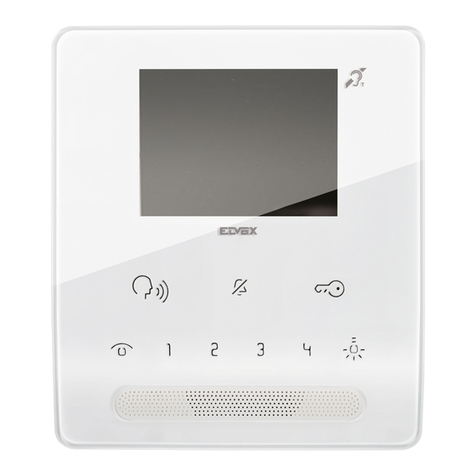
Web Direct Estate Swing User manual

Estate Swing GSM Intercom and
Access Control System
Web Direct Brands, Inc., parent corporation of Estate Swing, warrantees all parts of t e
Estate Swing GSM Intercom / Access Control System for a period of 1 year from t e
date of purc ase. T e warranty applies to t e original purc aser and is non-transferable.
T e warranty applies only to defects in components and workmans ip and NOT to dam-
age due to causes beyond t e control of Estate Swing; suc as but not limited to incor-
rect voltage, lig tning damage, mec anical s ock, water damage, fire damage, damage
arising out of abuse and improper application of t e equipment, or any acts of nature.
To address a warranty issue please call 1-800-640-4283 between 9-5 EST M-F to re-
ceive tec nical assistance and if deemed needed an RA number from a tec nician to
send t e product or component in for evaluation. All RA must be returned wit t e RA
number on t e outside of t e package and wit pre-paid postage.
Estate Swing
13100 State Road 54
Odessa, FL 33556

Introduction and Features
Call Button for visitors: T e Estate Swing GSM intercom comes wit a reception box
t at a guest can call t e resident from. T e call button on t e box, w en pressed, directs
t e system to dial t e p one number of first administrator. If t ere is no answer t e sys-
tem will proceed to call t e second and t en t ird administrator numbers (if second and/
or t ird administrators exist).
Can hold 1000 authorized numbers: T e Estate Swing GSM intercom can be pro-
grammed wit up to 1000 p one numbers t at are aut orized users. T ese users will be
able to call t e gate GSM p one number and w en t eir p one number is recognized by
caller id as an aut orized user t e gate will open. T e call is never answered by t e
GSM so no minutes are used in t is process.
Open the gate with your phone: As an administrator you ave many opening options
for your gate.
• W en you receive a call from a visitor you can open your gate from your p one.
• W en entering t e property yourself you can open t e gate t roug a p one call to
t e gate or an SMS text message to t e gate.
• W en entering t e gate, if you wis to old t e gate open longer t an its normal
pause time, for long trailers or trucks for example, you text a 1 time longer delay and
after t e one opening it will go back to normal operation automatically.
• If you want to leave t e gate open, you can enter party mode and text t e gate to stay
open until it is texted again to close it.
Remote programming from phone: T e Estate Swing GSM intercom can be pro-
grammed by an administrator from t eir p one t roug a call or text message. You can
do t is from any location. T e system will return conformation of successful program-
ming t roug an audible confirmation by p one or a text conformation if programmed
by text message.
Visual Diagnostic creen Plug-in: T e Estate Swing GSM intercom comes wit a di-
agnostic screen you can plug into t e control board to see battery c arge, signal strengt
and see visual confirmations of programming being performed.
Battery Backup: T e Estate Swing GSM intercom comes wit a built in battery
backup. In t e event of a loss of incoming power t e system will automatically switc to
battery backup. T e administrators can also ave an option turned on to be notified
t roug text message of t e system switc ing to battery back up so t ey can address t e
lack of incoming power issue. T e back up battery will last approximately 8 ours.

Installation of Components
peaker/Microphone box:
• Take t e screw out of t e bottom of t e box.
• T e face of t e speaker/mic box lifts straig t off, it does not slide down.
• One t e face is off you will see two screws olding t e mid plate to t e rear ousing. Remove t ose
screws.
• T ere are 4 mounting oles in t e rear ousing, use flat ead screws (not provided) to mount t e rear
ousing to a pillar, post or fence (not provided).
It is suggested to put a dab of silicone over and around t e eads of t e screws to keep insects and
moisture out.
• Run t e 4 colored wires t roug to a junction box (not provided) and splice or use wire nuts to
lengt en t e wire to reac your intercom control box (wire is not provided—use up to 22 gauge wire
up to 200’)
Reassemble t e mid plate and t e face plate.
Intercom Control Box:
• Inside t e box you will find a wire wit a coaxial connector and a red rubber cap.
Remove t e rubber cap, nut and was er. [A]
Feed t is t roug t e ole on t e lower rig t side of t e box.
Put t e nut and was er on t e t reads until it is secure against t e side of t e box.
Screw t e antenna on t e t reads; t ere will be some visible t read on t e coaxial connector even af-
ter t e antenna is secured.
• You were provided two water tig t wire connectors. Remove t e back nut on t e connectors and feed
t roug t e two large oles on t e bottom of t e board.
Tig ten t e nuts back on t e t reads until it is snug against t e box wall.
W en you run your wire, do so t roug t ese connectors and tig ten t e connector down on t e wire
to keep water and insects out.
• In t e upper left and corner, under t e board, t ere is a backup battery. Find t e red and black wires
wit t e connector on t e end. [B]
Plug t e backup battery into t e board w en you are done wit your wiring, it is easier to fis t e
wires out owever before mounting t e box.
• Mount t e control box in a secure location near t e gate opener control box.
• T e intercom control box will ave 4 wires coming into it from t e speaker/mic box, 2 wires coming
in for power and 2 wires going out to t e gate opener. (t is is for minimum installation—additional
wires may be used in more advanced installations)
ee the chart on the next pages for wire locations and power instructions.
[A] [B]

Wiring
peaker/Microphone box to Control Box:
• Black wire to terminal 10
• Red wire to terminal 11
• Green wire to terminal 12
• Yellow wire to terminal 13
• Run between speaker/mic box and control box should not exceed 16’
Control Box to Gate Opener:
• E- 1100, E- 1102, E- C 1102, E- L1200
Terminal 4 of intercom to Terminal 13 of gate opener
Terminal 16 of intercom to Terminal 1 of gate opener
• E- 1600, E- 1602, E- C 1600, E- C 1602, E- U2200, E- U2202, E- L 1800
Terminal 4 of intercom to Terminal COM of gate opener
Terminal 16 of intercom to Terminal OPE A of gate opener
• E- 300, E- 302, E- 500, E- 502
Terminal 4 of intercom to Terminal P1of gate opener
Terminal 16 of intercom to Terminal V+ of gate opener

Power Connection & Sim Card:
Low voltage power connection:
• Verify t e On/Off switc is in t e OFF position (LEFT)
• In t e bottom of t e box you will see a red and black wire attac ed to a round connector. You will
utilize t is connector for your low voltage connection. Cut t e red and black wire about 2 - 3 inc es
from t e round connector.
• Using low voltage wire (16-20 gauge stranded direct burial 2 conductor) up to 500 feet connect t e red
wire of t e connector to t e positive and t e black to a negative of a 12 - 24V DC transformer. T e
wire connections can be made using wire nuts inside t e control box.
• Plug in t e back up battery (upper rig t side of board, w ite connector) and plug in t e round low
voltage connector.
• Do not turn t e On/Off switc
to On until specified by t e
directions.
IM Card:
• Slide back t e SIM door and lift
it up
• Slide t e SIM card into t e
SIM door making sure t at t e
clipped corner of t e SIM card
lines up wit t e clipped corner of
t e SIM older

Powering up/Verification of system ready:
Digital Diagnostics Board:
T e plug in LED board t at comes wit t e unit is for diagnostic purposes. It is recommended t at you
ave t e installed w en you first turn on t e system so you can c eck your system statuses. After you feel
confident with programming or when you close the control box; take the diagnostic display off the
board and store it in a safe dry location.
Turn ystem on:
• Flip t e On/Off switc to t e rig t.
• ATT: When you first turn the system on the system will actuate the gate. tand clear of the
gate.
Once you turn on t e system you will see t e following
Now t e system is ready for programming.

Programming Administrator umbers:
Administrator codes:
Administrators can program t e system, open t e gate via cell p one and receive t e p one calls from t e
gate call box.
Programming via phone call:
T e administrator numbers can be programmed individually or all in
one call
using t e following [Example numbers are (1111558888),
(2222669999), and (3333770000) - substitute real phone num-
bers in your programming]. Only
one administrator needs to be establis ed to begin using t e system.
Example:
Once t e call as connected… (Wit a s ort beep ~ prompt t e ad-
ministrator to enter password, t e initial set up password is 123456
by default)
After enter password… (Anot er s ort beep ~ Password Correct)
Press *3# (you s ould ear a s ort beep ~ success)
Continue press 1# to add t e first administrator number (anot er
s ort beep ~ success)
T en enter t e administrator number 1111558888# (you will ear a
s ort beep ~ t e administrator number is setup successfully)
Continue...
Press *3# (you s ould ear a s ort beep ~ success)
Continue press 2# to add t e second administrator number (anot er s ort beep ~ success)
T en enter t e administrator number 2222669999# (you will ear a s ort beep and t e number as been
c anged to 2222669999
Continue...
Press *3# (you s ould ear a s ort beep ~ success)
Continue press 3# to add t e t ird administrator number (anot er s ort beep ~ success)
T en enter t e administrator number 3333770000# (you will ear a s ort beep and t e number as been
c anged to 3333770000
If the change has not been successful you will hear 3 beeps and must re-enter again.
Programming via Text Message (SMS) on next page.
Diagnostic display read out below

Programming Administrator umbers (cont):
Programming via Text Message ( M )
end the following 3 M Commands:
1) *TEL1#1111558888
2) *TEL2#2222669999
3) *TEL3#3333770000
As t e first 2 numbers will be t e customers own numbers you would program in t e Installers number in
*TEL3#
T is number can be c anged once t e system as been installed.
W en t e system received t e message and t e number is programmed successfully, it will display “OK”
on t e screen and t e administrator will receive a reply message from t e unit.
Example of Return Message:
TEL1=1111558888
TEL2=2222669999
TEL3=3333770000
To c ange an administrator number you can simply SMS or call and write over t e TEL#. You ave to be
an administrator to do t is.

Phone Call From Gate
W en a person presses t e call button at t e gate t e #1 administrator will receive a p one call from t e
front gate.
If t ey do not answer it will roll to t e #2 and t en to t e #3.
______________________________________________________________________________________
In order to open the gate through Relay 1 (this is the primary relay that is normally hooked to the
gate opener) the administrator should press:
*0#
_________________________________________________________________
In order to open a secondary device t roug Relay 2 (t is is t e relay t at is normally ooked to a pedes-
trian gate lock or ot er device) t e administrator s ould press:
*1#
In order to disconnect t e call from t e gate wit out opening t e gate (t is would be if you did not want to
let t e person in) t e administrator s ould press:
*4#
T is can also be used before anging up after opening t e gate to be sure t at t e network doesn’t old t e
call from t e gate and waste minutes.

Changing Administrator Pass Code from Default:
Programming via phone call:
T e system only allows t e 3 administrator numbers as aut orized user to c ange t e 6 digits password.
To c ange t e password from t e factory default 123456 to 654321 (Example) you can just call t e unit and w en t e unit replies,
you can use t e following commands using t e keypad prompts on your telep one.
Once t e call as connected … (Wit a s ort beep ~ prompt t e administrator to enter password, t e initial set up password is
123456 by default)
After enter password… (Anot er s ort beep ~Password Correct)
Press *2# (A s ort beep ~ success)
T en input t e current password 123456# (you s ould ear a s ort beep ~success)
Continue to enter new password 654321# for 2 times (anot er s ort beep if password entered correctly)
If the change has not been successful you will hear 3 beeps and must re-enter again.
Programming via Text Message ( M )
Example:
Sends a SMS Command: *PAWO#654321
If t e c ange is successfully, t e system will display “OK” on t e screen and t e administrator will receive a reply message from
t e unit.
Returned Message:
PAWO-OK
Resetting forgotten password
In t e event t e password is forgotten or cannot be accessed, you can send t e following SMS to t e unit and t e system will be
reset to factory default as *123456#
Sends t e SMS Command *RE T#615858 and t e unit will reply RE T-OK and t e password is now back at factory default as
*123456#
To manually reset t e unit, you can press and old on t e “Call” button and turn on t e unit for 10 seconds. T e unit will displays
Wait… and t en OK, t e unit is reset.
Table of contents