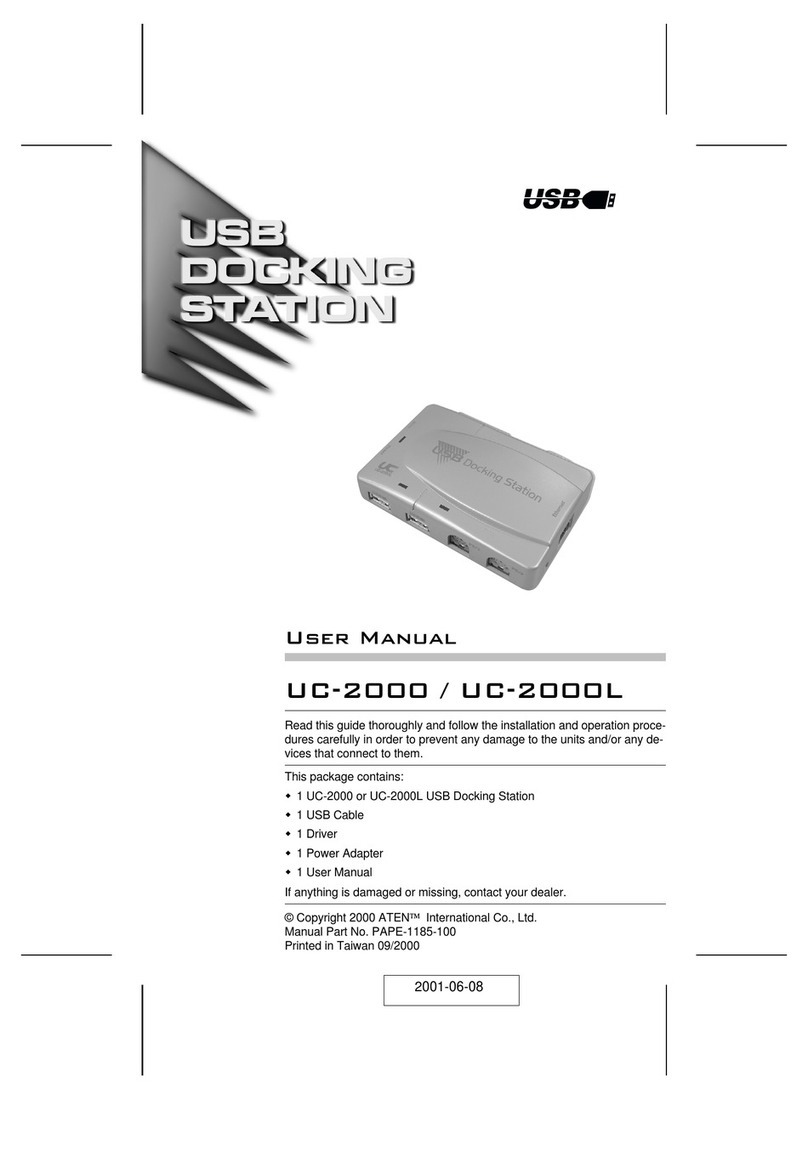
Wavlink WL-UG69DK1 User manual

WL-UG69DK1/WL-UG69DK7
USB-C Ultra 5K Universal Docking Station
O
wavlink
QUICK START GUIDE
o
WAVLINK (@WavlinkOfficial)
WAVLINK
SUPPORT
(@WavlinkTechSupport)

Safety Instructions
Always read the safety instructions carefully.
Keep this Quick Guide
for future
reference.
Keep this equipment away from humidity.
If
any
of
the following situation arises,
get
the equipment checked by
a
service technician:
The equipment has been exposed to moisture.
The equipment has been dropped and damaged.
The equipment has obvious
sign
of
breakage.
The equipment has not been working well
or
you cannot
get
it
work according to User’s Manual.
Copyright
Statement
No part of this publication may be reproduced in any form by any means without the prior written permission.
Other trademarks or brand names mentioned herein are trademarks
or
registered trademarks
of
their respective
companies.
Disclaimer
Information in this document is subject to change without notice. The manufacturer does not
make
any
representations or warranties (implied or otherwise) regarding the accuracy and completeness
of
this document
and shall in no event be liable for any loss of
profit
or
any
commercial damage, including but not limited to special,
incidental, consequential,
or
other
damage.
WEEE Directive & Product Disposal
At the end of
its
serviceable life, this product should not be treated as household
or general waste. It should be handed
over
to the applicable collection
point
for
the recycling
of
electrical and electronic equipment,
or returned to the supplier
for disposal.

1.
Introduction -------------------------------------------------------------------------------------------------------------------------- 01
Features --------------------------------------------------------------------------------------------------------------------------------
02
In theBox --------------------------------------------------------------------------------------------------------------------------------
03
System Requirements ---------------------------------------------------------------------------------------------------------------- 03
WL-UG69DK7 -------------------------------------------------------------------------------------------------------------------------- 04
Application ----------------------------------------------------------------------------------------------------------------------------05
Front Panel ----------------------------------------------------------------------------------------------------------------------------07
Rear
Panel ----------------------------------------------------------------------------------------------------------------------------08
WL-UG69DK1 --------------------------------------------------------------------------------------------------------------------------
09
Application ------------------------------------------------------------------------------------------------------------------------------
10
Front Panel ------------------------------------------------------------------------------------------------------------------------------
12
Rear
Panel ------------------------------------------------------------------------------------------------------------------------------
13
2. Driver Installation ------------------------------------------------------------------------------------------------------------------ 14
3.
Configurations (Windows 10) ---------------------------------------------------------------------------------------------------
14
Audio Setting --------------------------------------------------------------------------------------------------------------------------
14
Video Setting
----------------------------------------------------------------------------------------------------------------------------
16
Advanced Display Mode ------------------------------------------------------------------------------------------------------------ 18
Uninstalling
theDriver
---------------------------------------------------------------------------------------------------------------- 19
4. Configurations (Mac
OSX) ------------------------------------------------------------------------------------------------------ 20
Introduction ---------------------------------------------------------------------------------------------------------------------------- 20
Setup Guide ---------------------------------------------------------------------------------------------------------------------------- 21
ConnectingDisplays
to
Your
Mac -----------------------------------------------------------------------------------------------
22
Mac
OS
X
Setting -------------------------------------------------------------------------------------------------------------------- 24

Introduction
The new
USB
Type-C
connector
works
seamlessly
with
thisUltra HD
5K Universal Dockingstation.It
can connect
to
any host
withStandard A
or
Type C
connectors providing
a
fully backward-compatible
andfuture-proof
docking
solution.
Allow
youto connect
up
to two additionalmonitors
and
14
accessoriesincluding
througha single USB
cable.Including
thelatest
drivers
for
compatibility
with
Windows
10,
8.1
and7 or
Apple Mac
OS
The
USB-C
Ultra 5K UniversalDockingStation Softwareallows
full
configuration of
alladditionalUSB
displays,including:
•Support
for
up
to 6 additionalUSB
Displays (Windows)
■Support
for
up
to
4
additionalUSB
Displays (Mac
OS
X)
•
Expand
USB
3.0 connectivity
•Supports dualDP
ordual
HDMIdisplays
•Gigabit Ethernet
•
Mic In and
Audio out
•
Extended, Mirrored,Primary Display
•
Extend left,right,above,or
below
•
Rotation
page• 01

-Compa�ble with both Type-C and Type-A Laptop/Desktop Computer
-Supports resolu�ons up to 5K(5120×2880@60HZ)when connec�ng dual DP ports simultaneously to
a 5K monitor
-Dual 4K HDMI/Dual 4K DisplayPort/4K HDMI+4k DisplayPort output
-Supports Extended and Mirrored Video Mode
-Supports 5.1 Channel Surround Sound through HDMI/DP ports
-Built-in USB 3.0 GPU,Plug and Display
-Separate microphone input and audio output
-SuperSpeedUSB 3.0,speed up to 5Gbps and backward compa�ble with 2.0/1.1
-Built-in 10/100/1000BASE-T Gigabit Ethernet RJ45 for increased network perance
-15 Ports of Incredible Connec�vity
Features
WL-UG69DK1
- Built-insix SuperSpeed
USB
3.0 (up
to 5Gbps)
Type-A
ports, backward compatible
with
2.0/1.
1
- Built-in one
ON/OFF
power
switch
WL-UG69DK7
-
Aluminum alloy body
- Built-in four
SuperSpeed
USB
3.0 (up
to
5Gbps)
Type-A
ports, backward compatible
with
2.0/1.
1
- Built-in two SuperSpeed
USB
3.0Gen
1
(up to 5Gbps)
Type-Cports
PAGE • 02

Start
- Windows 7/8/8.1/10 or higher
- Mac os 10.9 or higher
In
theBox
Before installation,please check
theitemsin thepackage. The package should be contained the
following
items
:
-
1
x
USB-C
Ultra 5K Universal DockingStation
-
1
x
USB
3.1
C
to C
Cable
- lx USB3.1AtoC
Cable
-lxQuick Guide
-
1
x
DC20V
Certified Power
Adapter
System Requirements
Windows
XP
SP2
and Vista
are
supported by
older
versions of
theDisplayLink
software:http://www.displaylink.com/downloads
page
• 03

WL-UG69DK7
PAGE • 04

USB Type-A peripherals
Ethernet
device
DP
/
HDMI monitor
NOTE:
- On
DISPLAY1,
Connecting
HDMI andDISPLAYPORT
to monitors
at
the
same
time,DISPLAYPORT
will
be
worked priorly.Select
onlyHDMI or
DISPLAYPORT.
-
OnDISPLAY2, it
works
sameas onDISPLAY
1.
5K
5K DP Monitor
(Dual DP simultaneously)
DP
/
HDMI monitor
USB-C port
DC Power
Jack
Application
PAGE •05

USB-C
peripherals
-
USB
Type-A
peripherals
•
—
[
o
o'
P
Earphone
&
microphone ©?
PAGE • 06

Front Panel
2
USB-C
downstream ports:
For
connection
to
USB-C
peripherals.
0
2
USB
3.0 Type-A
downstream ports:
For
connection
to
USB
Type-A peripherals.
Two
inOne 3.5mm stereo audio output
port:
For
connectionto stereo headphones
or
speakers.
PAGE • 07
This manual suits for next models
1
Table of contents