Waves ELEMENT 2.0 User manual

WAVES
ELEMENT 2.0
USER GUIDE

Waves Element 2.0 User Guide
2
TABLE OF CONTENTS
CHAPTER 1 – INTRODUCTION ..................................................................................... 3
1.1 Welcome ............................................................................................................. 3
1.2 Product Overview ................................................................................................ 3
1.3 Concepts and Terminology .................................................................................. 4
1.4 Components ........................................................................................................ 5
CHAPTER 2 – QUICK START GUIDE ............................................................................ 6
CHAPTER 3 – INTERFACE AND CONTROLS .............................................................. 7
3.1 Interface .............................................................................................................. 7
3.2 Controls ............................................................................................................... 7
3.2.1 Oscillators ............................................................................................................ 8
3.2.2 Additional Oscillators & Mix Section ..................................................................... 9
3.2.3 Voltage-Controlled Filter (VCF) .......................................................................... 11
3.2.4 Voltage-Controlled Amplifier (VCA) .................................................................... 13
3.2.5 Low-Frequency Oscillators (LFOs) .................................................................... 14
3.2.6 Envelope 3 ........................................................................................................ 15
3.2.7 Modulation Matrix .............................................................................................. 16
3.2.8 Arpeggiator/Sequencer ...................................................................................... 17
3.2.9 Effects ............................................................................................................... 18
3.2.10 EQ ..................................................................................................................... 20
3.2.11 Global and Out Sections .................................................................................... 21
CHAPTER 4 – STANDALONE APPLICATION ............................................................ 22
CHAPTER 5 – ELEMENT 1 AND ELEMENT 2 MODES ............................................... 22
5.1 Element 1 Mode ................................................................................................ 23
5.2 Element 2 vs. Element 1 .................................................................................... 24
CHAPTER 6 – WaveSystem Toolbar............................................................................ 25

3
CHAPTER 1 – INTRODUCTION
1.1 Welcome
Thank you for choosing Waves! In order to get the most out of your new Waves plugin,
please take a moment to read this user guide.
To install software and manage your licenses, you need to have a free Waves account.
Sign up at www.waves.com. With a Waves account you can keep track of your products,
renew your Waves Update Plan, participate in bonus programs, and keep up to date
with important information.
We suggest that you become familiar with the Waves Support pages: www.waves.com/
support. There are technical articles about installation, troubleshooting, specifications,
and more. Plus, you’ll find company contact information and Waves Support news.
1.2 Product Overview
Waves Element 2.0 is a subtractive polyphonic virtual analog synthesizer, designed to
provide fat analog sound in the tradition of the classic analog synths, with all the control
and flexibility of modern digital units. Element 2.0’s control panel combines tradition with
intuitive interaction, so you can easily customize existing presets or build custom
patches from the ground up. Special care and attention have been given to the synth’s
sound quality in order to recreate the fatness and depth of its analog ancestors.
Drawing inspiration from the classics, Element 2.0 lets you create seemingly complex
sounds using very simple settings, and then add “bells and whistles” using its built-in
modulators, effects and sequencer/arpeggiator. All Element 2.0 parameters are
accessible via a single page interface, conveniently laid out so you can see the entire
patch at all times. Fully MIDI-controllable, with easy-to-use MIDI Learn for all controls,
Element 2.0 is designed for quick integration with any connected MIDI control device
and can be used either as a plugin within your DAW host, or as a standalone
application.
Waves Element 2.0 User Guide

Waves Element 2.0 User Guide
4
1.3 Concepts and Terminology
Element 2.0 is powered by Virtual Voltage™ technology, which connects its various
generators, transformation filters, envelopes and modulators. Element 2.0 therefore uses
many of the same concepts used by its hardware forerunners: VCF (Voltage Controlled
Filter), VCA (Voltage Controlled Amplifier), and so on.
Anyone acquainted with synthesis – especially classic ’80s-style polyphonic subtractive
synthesis – should feel right at home with Element 2.0. You’ll be able to dive right in and
start programming immediately. For novice synthesists, Element 2.0 is an ideal place to
learn the basics of synthesis theory. The learning curve will pay off when encountering
other synthesizers, whether software or hardware, analog or digital.
All users can partake in the instant gratification of Element 2.0’s vast selection of factory
presets. Element 2.0’s team of experienced preset developers created hundreds of
presets, sorted by category, so you can quickly find just the sound you need: leads,
pads, basses, sound effects, sequences, gated rhythmic lines and motions. Or simply
browse until something catches your ear – or imagination.
Whether in the studio or live on stage, many musicians like to control synthesizer
parameters in real time for enhanced creativity and expression. Element 2.0 supports
the basic automation features of plugin hosting technologies like VST, but it also
supports MIDI Learn. Assigning an Element 2.0 control to a knob on your MIDI controller
is as easy as right click > Learn, knob turn, done!
Analog modeling and sound quality do come at a price. Element 2.0 can be rather CPU-
hungry compared to other software synthesizers. During the days of analog hardware,
less expensive oscillators were often considered “dirty,” while accurate oscillators cost
more than was practical for music making. Ironically, in today’s digital world, creating a
pristine oscillator is comparatively easy; it’s the “dirtiness” that takes more CPU
calculations to recreate.
To conserve CPU power, Element 2.0 lets you select the maximum number of
simultaneous voices.

Waves Element 2.0 User Guide
5
1.4 Components
Element 2.0 has one component: Element 2.0 Stereo
Element 2.0 is a virtual instrument plugin and will appear under the related selection
menus for virtual instruments under all supported DAW host applications.
Waves Element 2.0 also works as a standalone application, using ASIO (Windows) or
Core Audio (Mac) drivers to play through your audio device of choice. Element 2.0
receives MIDI data to trigger notes and control changes.

Waves Element 2.0 User Guide
6
CHAPTER 2 – QUICK START GUIDE
1. Open Element 2.0 on an instrument track in your DAW of choice, or launch the
Element 2.0 standalone application.
2. Select a preset from Element 2.0s factory presets.
3. Play!
Use the next/previous preset arrow controls on the toolbar to scroll through
presets. If you’re looking for a certain type of sound, click the load button to reveal the
factory presets, sorted by category.

Waves Element 2.0 User Guide
7
CHAPTER 3 – INTERFACE AND CONTROLS
3.1 Interface
3.2 Controls
The Element 2.0 interface is arranged into four sections grouped according to function,
each highlighted in a different color:
Voice generation and subtractive elements (blue)
Modulation sources and patches (purple)
Effects, EQ, global and output sections (green)
Arpeggiator/sequencer (red)
Waves Element 2.0 User Guide
8
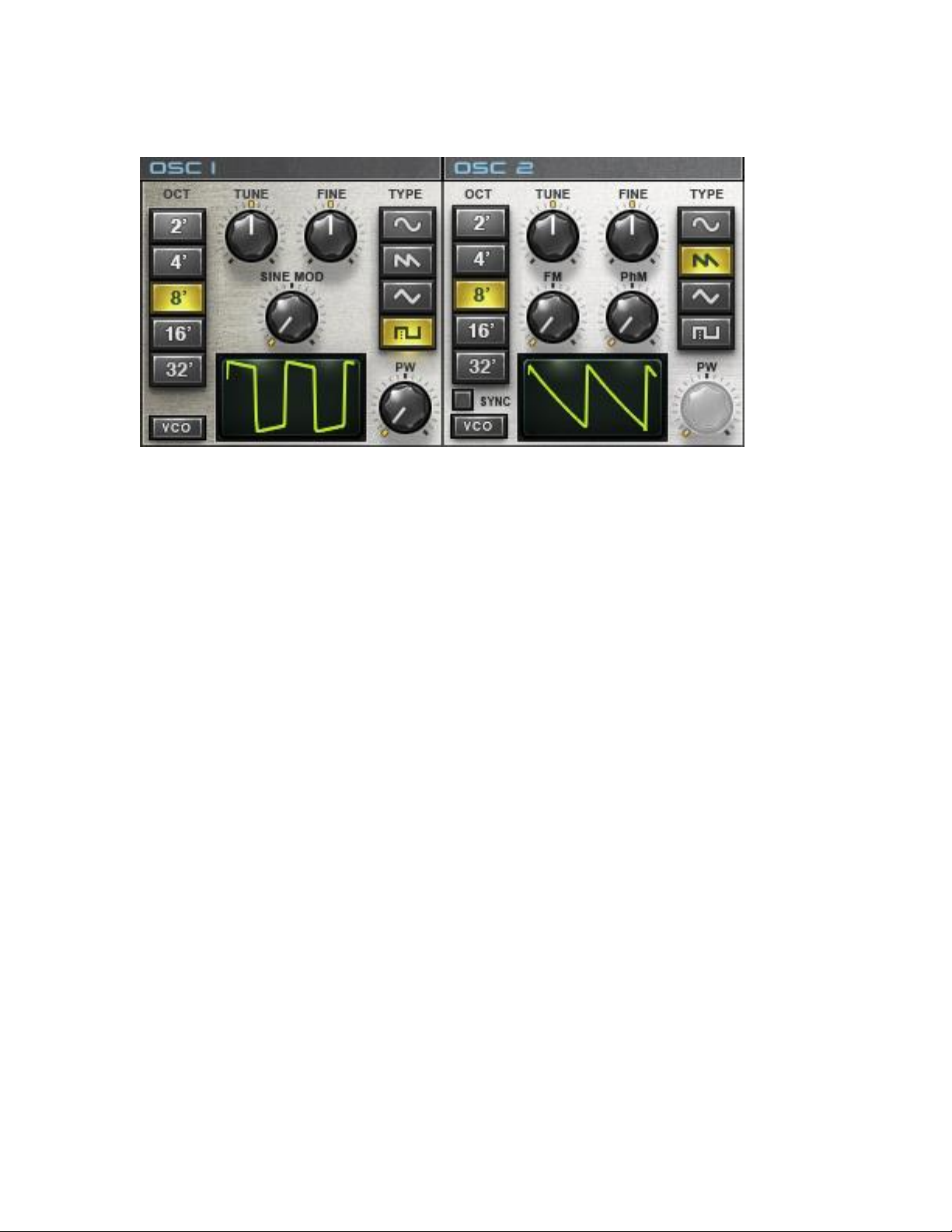
3.2.1 OSCILLATORS
Element 2.0 has two modeled analog oscillators which are labeled OSC 1 and OSC 2.
OCT determines the pitch range.
Options: 2, 4, 8, 16, 32 (from highest to lowest pitch)
TUNE determines the pitch.
Range: -12 to +12 semitones
FINE fine-tunes the pitch.
Range: -100 to +100 cents
TYPE determines the waveform type.
Options: Sine, Saw, Triangle, Pulse
PW determines the pulse width. (Pulse waves only.)
Range: 0–99
VCO selects between virtual Voltage-Controlled Oscillation (VCO) and virtual Digitally
Controlled Oscillation (DCO). VCO starts the oscillation at a random phase and jitters
the pitch within a contained range; DCO starts the oscillation when triggered by a note
and is more consistent.
Options: VCO, DCO

Waves Element 2.0 User Guide
9
SINE MOD controls the modulation of OSC 1 using a sine oscillator. (OSC 1 only.)
Range: 0–100
FM (Frequency Modulation) controls the degree to which the frequency of OSC 2 is
modulated by OSC 1. (OSC 2 only.)
Range: 0–100
PhM (Phase Modulation) controls the degree to which the phase of OSC 2 is modulated
by OSC 1. (OSC 2 only.)
Range: 0–100
SYNC synchronizes OSC 2’s pitch to that of OSC 1. When SYNC is activated, OSC 2’s
pitch controls (OCT, TUNE, FINE) affect only OSC 2’s timbre, not its pitch.
Options: On, Off
3.2.2 ADDITIONAL OSCILLATORS & MIX SECTION
This section is used to combine OSC 1 and OSC 2, as well as add noise, sub-oscillation
and ring modulation.
SUB mixes in a triangle wave one octave below OSC 1.
Range: 0–100
NOISE mixes in white noise.
Range: 0–100
RING controls the ring modulation of OSC 1 and OSC 2.
Range: 0–100

Waves Element 2.0 User Guide
10
OSC 1 / OSC 2 activate each oscillator.
Options: In, Out
MIX balances the mix between OSC 1 and OSC 2.
Range: -50 to +50
MONO toggles between monophonic and polyphonic modes.
Options: On (mono), Off (polyphonic)
RTRG controls envelope re-triggering. When activated, every note restarts the
envelopes. (Mono mode only.)
Options: On, Off
UNISON stacks multiple voices for a richer sound.
Options: Off, 2 Voices, 4 Voices
PORT determines the glide time (portamento) between notes.
Range: 0.5–2500 ms (0–2.5 seconds)
LEGATO determines whether glide will always occur, or only when the previous note is
still held.
Options: Legato, Always
Table of contents
Other Waves Recording Equipment manuals

Waves
Waves Maserati B72 User manual

Waves
Waves WSG-Y16 User manual

Waves
Waves SUB Align User manual

Waves
Waves DiGiGrid MGB User manual

Waves
Waves IONIC 16 User manual

Waves
Waves Scheps Omni Channel User manual

Waves
Waves CA1000 User manual

Waves
Waves EMO D5 User manual

Waves
Waves LIVE Calrec SoundGrid User manual

Waves
Waves JJP User manual

Waves
Waves Hear Back PRO SoundGrid Card User manual

Waves
Waves NLS User manual

Waves
Waves CLA Nx User manual

Waves
Waves DigiGrid D User manual
Waves
Waves API 560 User manual

Waves
Waves VOCAL RIDER User manual

Waves
Waves DiGiGrid MGR User manual

Waves
Waves DiGoGrid IOX User manual

Waves
Waves Roland XI-WSG User manual

Waves
Waves SoundStudio STG-2412 User manual