VVCAR MT55 User manual

Motorcycle Smart Screen
Smart Travel Device
MT55
USER MANUAL
Warm Tips:
Thank you for purchasing. To provide you with a better experience, we kindly suggest
reading this manual carefully. If you have any questions during the use or would like to
seek more detailed information, please contact our brand support team. VVCAR is
dedicated to serving you.

INDEX
Overview
Product Overview
Installation
Function
Common Problems

Overview
Item Detail Instructions Quantity
Holder
Accessories
Host device
Cameras
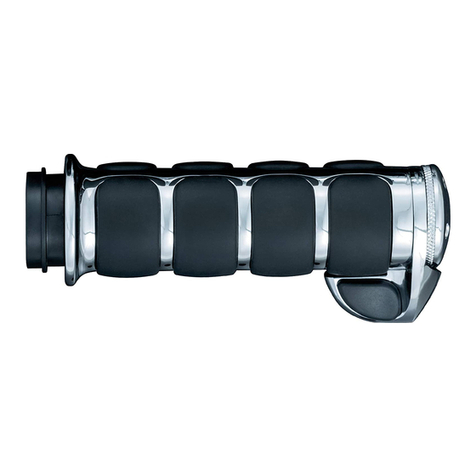
Wire controller
Hexagonal screw
Take pictures, switch pages, turn on /
up the phone, etc
To install the wire controller
Holder
Attach the main part to motorcycle
The power cord
Cross head for screw installation/
from regular channels, not lower than

Item Detail Instructions Quantity
Accessories
Film kit
cleaning cloth, and dust removal stickers
host display screen
Cable tie
installation
diameter hex screws
Hexagonal
Host Front
supply waterproof interface

Installation
electric motorcycles or electric vehicles.
the battery or the normal circuit. Open the fuse box, and measure the safety or
state.
negative electrode is connected to the iron.
safety bit in the state of ACC/ start the vehicle, it can be used as ACC power.
Note: Please ensure that all the above three cables are correctly connected
before connecting the host to avoid problems.
The power cord:
fuse of the constant power supply in the car fuse box.
ACC: Connect the red wire to the ACC fuse slot.
part of the vehicle.

Host
frame.
operation.
Rear Camera
Front view of
wire controller
wire controller Installation diagram
of left handle
Front Camera
Holder
Reducer Ring

the previous interface
touch screen function
/
Key At Work Incoming Call
Note:
hang up and answer calls.
Host
Rear Camera
Front Camera

Function
① Home: Click to return to the Home Page.
② Brightness:
③ Audio Output: Click to enter the Audio Output interface, and follow the
earphone.
④ DVR: Click to enter the video recording interface.
⑤ Apple CarPlay:
⑥ Android Auto:
⑦ Wi-Fi Video:
download the app for viewing and recording videos on your smartphone.
⑧ Video playback: Click to view recorded videos/captured images/locked videos.
⑨ Settings: Click to enter the function settings interface.

The icons here only indicate the working status display of the host device
related functions.

Indicates that the recording is in progress
recognized by the host
recognized by the host
Icon Instructions
To prevent the screen from being accidentally touched by raindrops on a rainy
seconds to turn on the rain mode. When this mode is turned on, the screen
Table of contents