Add Device Mode
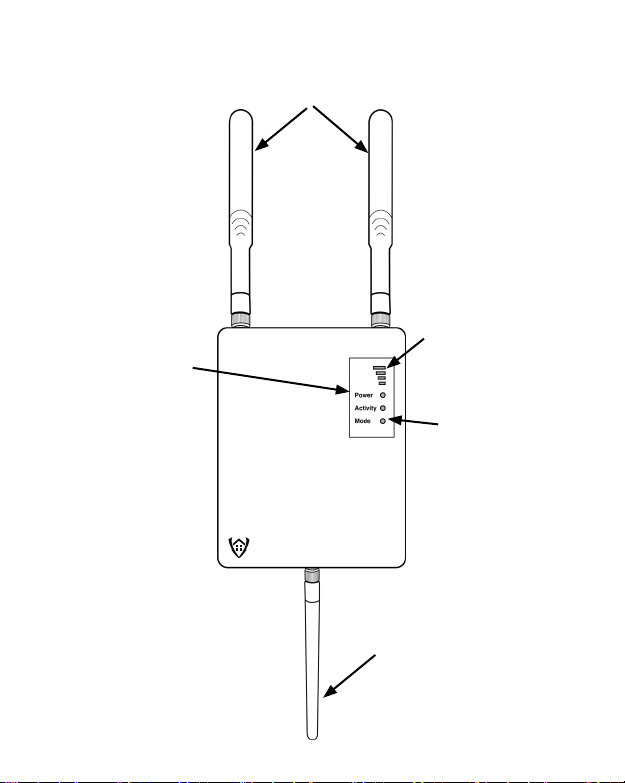
Press and hold the button on the side of the panel for 5
seconds. Note, the Mode light on the front of the panel will
be blinking and mostly on. Press and release the sensor
button inside the case. (See pic above) If the Panel is turned
on and in range the TWS, HTWS and VC100 will all respond
with multiple beeps. The AWS and Door Sensors will only
beep once on the button press. ADD VC100 DEVICES
FIRST. Go to the Panel Overview Page on the AWSAMCloud
website and match the Sensor ID on the bottom of the device
to the Sensor type and ID on the Panel Overview section.
If no ID shows up after a minute or two you may be out
of Add Device Mode out of sensor range or out of cellular
range. If correcting these does not solve the problem see
“Troubleshooting” on the AWSAMCloud.com Support Tab.
Device ID will be here and will
show on the Panel Overview
Page on AWSAMCloud.com
when paired with the Control
Panel. You can change the
name on the Device settings
page.
Once added to the Control Panel on the AWSAMCloud you
can go to the device settings page and change the name,
alarm thresholds, or link it to specic valves. NOTE: All
environmental will automatically link to VC100 valve
controllers. You can unlink specic sensors or link specic
sensors to specic VC100 valve controllers. For Example you
would not want a AC sensor to shut off the water in the event
of a drain backup. Page 9