Velocity NoteMagix M10 User manual

NoteMagix™ M10
User’s Guide

2www.velocitymicro.com/support
NoteMagix M10 User’s Guide
Notice
Version (1.1) (2009.1)
Principle
Marks and tags used in this user’s manual are as follows:
This indicates possible issues related to data loss, equipment damage or human safety caused by improper operation. Please read
carefully.
Notes operations which may cause damage to you or your M10.
Indicates important information, general notices, word explanations, information for your reference, and general knowledge about
how to use your M10.
Changes may be made periodically to the information in this publication. Velocity Micro makes no representation or warranties, either expressed
or implied, with respect to the contents hereof and specially disclaims the implied warranties of merchantability or fitness for a particular
purpose.
No part of this publication may be reproduced, stored in a retrieval system, or transmitted, in any form or by any means, electronic, mechanical,
photocopy, recording, or otherwise, without the prior written permission of Velocity Micro, Inc.
Trademark
Intel®, Pentium®, Centrino™, Celeron®, and Atom™ are registered trademarks of Intel Corporation.
Windows 2000®, Windows XP® , and Windows Vista® are registered trademarks of Microsoft Corporation.
All other brand and product names in this manual are trademarks or registered trademarks of their respective companies and are used by
Velocity Micro legally.

3
Welcome to the New PC Experience
CONTENTS
CHAPTER 1 GETTING TO KNOW THE M10 .......................7
1.1 FRONT VIEW .................................................................................. 8
1.2 LEFT VIEW ...................................................................................... 9
1.3 RIGHT VIEW .................................................................................10
1.4 BACK VIEW ...................................................................................10
1.5 BOTTOM VIEW ............................................................................11
1.6 STATUS INDICATORS ............................................................... 12
CHAPTER 2 LEARNING THE BASICS ................................13
2.1 ATTACH BATTERY PACK ......................................................... 13
2.2 CONNECT AC ADAPTER ......................................................... 14
2.3 TURN ON/TURN OFF THE M10 ........................................... 15
2.4 CONNECTION TO THE INTERNET ................................... 16
2.5 USING THE TOUCHPAD ..........................................................17
2.6 USING THE KEYBOARD ..........................................................18
CHAPTER 3 USING YOUR M10 .............................................25
3.1 AC ADAPTER ................................................................................25
3.2 LITHIUM ION ( LI-ION) BATTERY PACK .......................... 25
3.3 CONFIGURING YOUR SCREEN DISPLAY ........................ 28
3.4 POWER SAVING FEATURES ................................................... 29
3.5 USING FLASH MEMORY CARDS .......................................... 30
CHAPTER 4 USING MULTIMEDIA ...................................... 33
4.1 MULTIMEDIA FEATURES ........................................................33
4.2 AUDIO SOUND SYSTEM FEATURES .................................. 33
4.3 PLAYING AUDIO AND SOUND ............................................ 34
4.4 PLAYING VIDEO AND MPEG FILES .................................. 35
CHAPTER 5 CONNECTING PERIPHERALS ...................... 37
5.1 USING THE USB PORT ............................................................. 37
5.2 USING AN EXTERNAL MONITOR ...................................... 38
5.3 USING THE EXTERNAL AUDIO SYSTEM ........................ 39
CHAPTER 6 TROUBLESHOOTING ......................................41

4www.velocitymicro.com/support
NoteMagix M10 User’s Guide
Congratulations on the purchase of your Velocity Micro NoteMagix M10. Since
1992, we have made it our mission to create the very fi nest ultra performance
notebooks and desktop PCs on the planet. Your M10 has been designed and
assembled by master craftsmen obsessed with perfection to create a notebook
unlike any other you’ve ever owned. Welcome to the New PC Experience.

5
Welcome to the New PC Experience
BASIC CARE AND TIPS FOR USING YOUR M10
Taking care of your M10
With proper care and maintenance, your NoteMagix M10 will provide years of operation.
DO NOT place the M10 on uneven or unstable work surfaces. Contact Velocity Micro if the casing becomes damaged.
DO NOT expose or use the M10 near liquids, rain, or moisture. Avoid using the LAN connection during an electrical
storm.
AVOID overly dirty or dusty environments.
DO NOT expose the M10 to strong magnetic or electrical fi elds.
DO NOT expose your M10 to extreme temperatures (below 32◦F or above 120◦F) or to direct sunlight for a prolonged
period.
DO NOT block the air vents located on the sides of your M10.
DO NOT press on or touch the display panel.
AVOID using abrasive cleaners or other materials that may scratch or damage your display panel.
Taking care of your LCD panel
Always open and close the panel gently to avoid damage.
Never place anything directly on the panel.
AVOID using abrasive cleaners or other materials that may scratch or damage your display panel. Clean the panel with a
special cloth only.

6www.velocitymicro.com/support
NoteMagix M10 User’s Guide
Taking care of your AC Adapter
DO NOT connect the adapter to any other devices.
Carefully route the power cord and any cables away from foot traffic to avoid a tripping hazard and damage to the cord
itself.
When using an extension cord, be sure the total amp ratings of all plugged in equipment does not exceed the cord’s
amp rating.
Taking care of your battery pack
Using only Velocity Micro Li-Ion batteries. Always turn the power off before removing or replacing batteries.
DO NOT tamper with batteries in any way. Keep away from children.
Dispose of used batteries according to local regulations.
Cleaning and servicing
When cleaning the M10, always:
1. Power off and remove the battery pack.
2. Disconnect the AC Adapter.
3. Use a soft cloth moistened with water. Do not use liquid or aerosol cleaners.

7
Welcome to the New PC Experience
Chapter 1 Getting to Know the M10
Your NoteMagix M10 is a slim, sleek, ultra-portable, fully Windows® compatible computer, ready to
meet your needs, right out of the box. From personal productivity to entertainment and professional
applications, the NoteMagix M10 has been specially designed to be the perfect ultra mobile system
both at home and on the road.
Pictures supplied are for reference purposes only. Your M10 may have features or colors that
differ slightly from those pictured.
Did you know…Velocity Micro also makes some of the fi nest custom PCs in the world.
Visit VelocityMicro.com to make your next PC a fi nely engineered Velocity Micro.

8www.velocitymicro.com/support
NoteMagix M10 User’s Guide
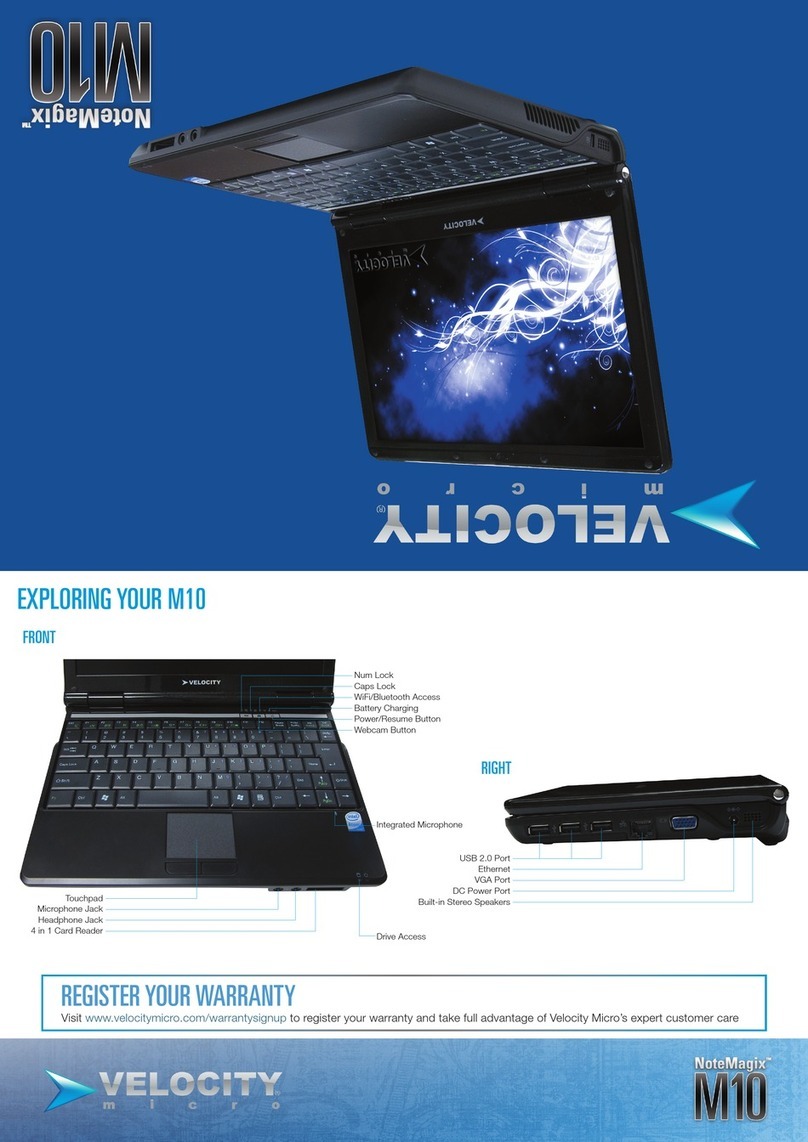
1.1 Front View
Icon Item Description
1 Web Camera Built-in 1.3 Mega pixel camera lets you to snap a photo or create a video chat or video conference
with just click.
2 Display Panel Color LCD panel with back lighting for crystal clear text and graphics.
3 Shortcut key 1 Press this key to use the M10’s USB ports for charging your digital accessories, even when the
power is off.
4 Shortcut key 2 This button turns the webcam camera on and snaps photos.
5 vPower Button This button turns your M10 on and off and puts it to sleep. (See Suspend/Power On Button in the
Power On section for more information.)
9
Welcome to the New PC Experience
6 Array Microphone Built-in array microphone is an omni-directional audio input device., allowing for the stereo recep-
tion and transmission of voice and/or other audio data to any program capable of accepting such
input.
7 Touch Pad Touch Pad device is a mouse-like cursor control with two buttons and touch sensitive movement
pad.
8 Status Indicator Lights The Status indicator lights correspond to specifi c operating modes. See the“ Status Indicators” for
more info.
9 Keyboard Fully functioning keyboard.
10 Left and right pad keys Choose keys, offer the same functionalities as the left/right mouse keys.
1.2 Left View
Icon Item Description
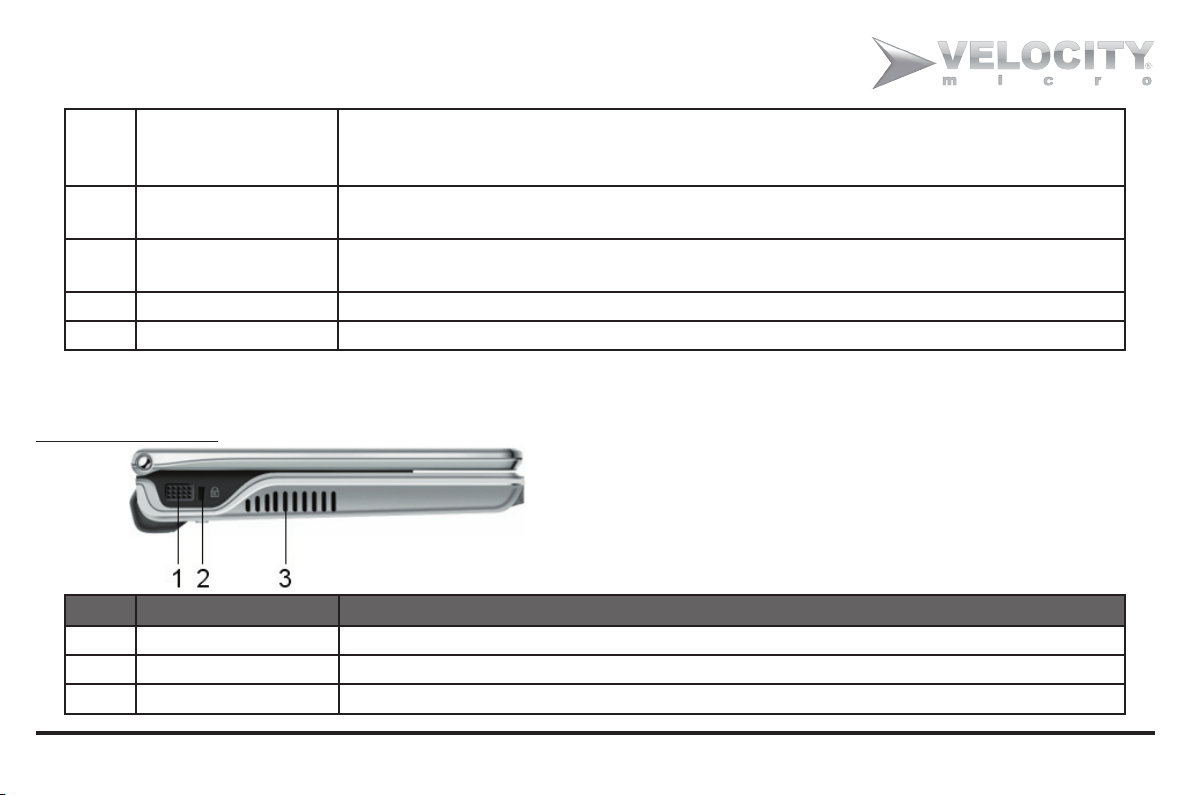
1 Stereo speaker Output sound
2 Kensington lock hole To connect compatible kensington lock device for added security
3 Air Vent Vents heat from the M10

10 www.velocitymicro.com/support
NoteMagix M10 User’s Guide
1.3 Right View
Icon Item Description
1 USB port Connect peripheral equipment
with a universal USB 2.0 interface.
2 LAN RJ45 jack Connects your M10 to the inter-
net via LAN.
3 VGA Port To connect to a VGA monitor.
4 Power Adapter
Port
To connect the AC Adapter
5 Stereo speaker Output sound
1.4 Back View
Icon Item Description
1 MIC jack To connect an external MIC for
inputting audio.
2 Earphone
jack
To connect external headphones.
3 Card reader To read from a compatible SD /
MS / MMC card.
Other manuals for NoteMagix M10
1
Table of contents
Other Velocity Laptop manuals