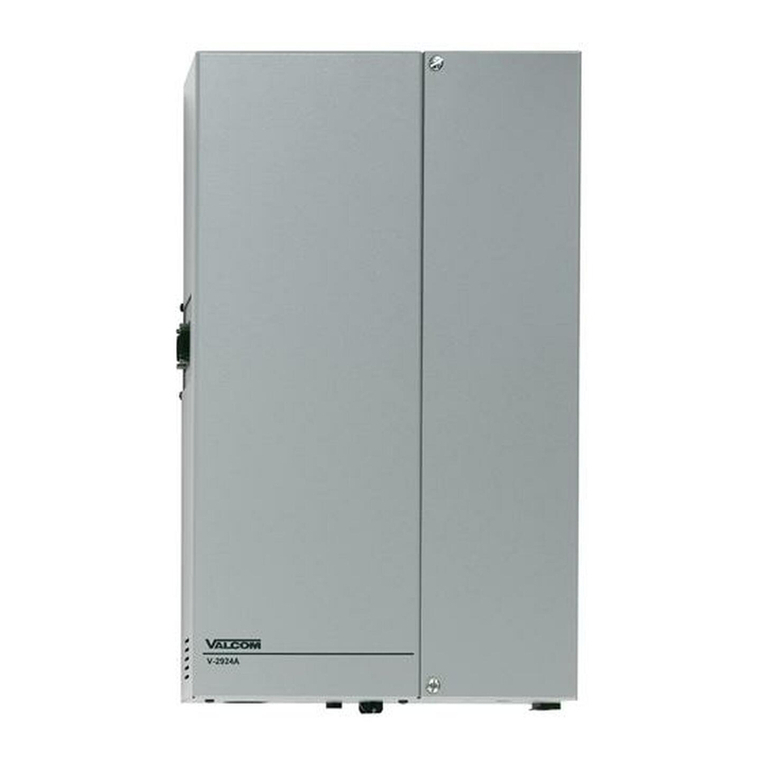
Valcom V-2926 User manual

Issue 7
1 947213
TALKBACK INTERCOM SYSTEM
V-2926 OPTION BOARD
The V-2926 Option Board is an add-on feature for the V-2924A Expandable Zone Talkback Intercom System. The
addition of this board provides the following supplemental features:
•Time sync output
•Custom page groups
•Enhanced Caller ID
•Flexible Architectural numbering plan
•Interface to the PC Programming Tool
•Store user data to EEROM
•Real time clock for SMDR printer
•Auto detect for Com Port or Modem
•Auto adjust for Daylight Savings Time
•Evacuation tone to specified groups
•Time tones to specified groups
•Read software/firmware revision numbers
Dimensions/Weight
•5.3” L x 3.0” W x 1.1” D
(13.5cm L x 7.6cm W x 2.8cm D)
•0.9 lbs (0.4 kg)
The V-2924A Programming Tool is a windows based
software tool designed to interface with the V-2926 Option
Board. The Option Board and the Programming Tool must both be installed to access the additional features
provided by the Option Board. All features must be set with the Programming Tool when the Option Board and
Programming Tool are installed.
CONTENTS
INSTALLATION OF THE OPTION BOARD 2
INSTALLATION OF THE PROGRAMMING TOOL 2
Figure 1 - Option Board Location on the Control Board 3
USING THE PROGRAMMING TOOL 4
System Configuration 4, 5
Architectural Number and CLID Programming 6, 7
Audio Connection 7, 8
Class of Service 8
Custom Page Groups 9
System 9,10
Save Programmed Data to File 11
COMMUNICATING WITH THE V-2924A 11
Initiating Communications 11
•Direct Connect, Modem Connect 11, 12
Select Dialing Method
•Modem Connect, Manual Connect 12, 13
Send Data to V-2924A/Receive Data from V-2924A 13
Set System Date and Time 14
Read Software and Firmware Revision Number 14
Ending Communications 14
SETUP OF THE V-2924A MODEM 15-18
MENU OPTIONS 18, 19
Print, Window, Help, Exit
TECHNICAL ASSISTANCE, WARRANTY 20

2 947213
INSTALLATION OF THE OPTION BOARD
The Option Board must first be installed on the Control Unit Board (See Figure 1).
WARNING: Disconnect main power before servicing.
•Remove the side plate and top cover of the Control Unit and set aside.
•Slide small side plate upward to provide opening for Option Board connector (See Figure 1).
•Align J3 on the Option Board directly over J1 on the Control Board
•Align J4 on the Option Board directly over JP2 on the Control Board.
•Press Option Board firmly in place to make sure connectors are seated properly.
•Replace the top cover and side plate of the Control Unit and plug in the power supply.
•Plug PC Communication Cable (included) into P1, PC Programming Port (located on the Option Board - See
Figure 1).
The V-2926 Option Board requires the use of the PC Programming Tool to access the various features it provides.
INSTALLATION OF THE PROGRAMMING TOOL
Minimum Computer Requirements for the Valcom V-2924A Programming Tool:
Hardware:
•80486 (higher is recommended)
•Hard drive with 30 Mbytes free
•Mouse
•8 Mbytes of RAM (more is recommended)
•1 available serial communication port
Operating System:
•The Programming Tool is 32-bit and requires Windows 95, Windows 98, or Windows NT 4.0.
The Rev 2 Programming Tool is compatible with previous versions of hardware, however, the current hardware
is not compatible with previous versions of the Programming Tool.
The programming tool software is furnished on 1.4 MB disks and must be installed to the hard drive. To install the
software:•On the taskbar, click the Start button
•Insert disk 1
•Select Run
•Type a:\Setup (Assuming a: is the disk drive being used)
•Follow on-screen instructions for full installation, changing disks as the prompt requests
•The Valcom V-2924A Programming Tool will automatically appear in the Programs list

3 947213
HIGH VOLTAGE AREA
DISCONNECT POWER
BEFORE SERVICING
J1
JP2
Option
Board
Location
Align J3 on the Option Board directly over J1 on the Control Board
Align J4 on the Option Board directly over JP2 on the Control Board
Press Option Board firmly into place.
FIGURE 1 - OPTION BOARD LOCATION ON THE CONTROL BOARD
Side View
Top View
P10 P1
RS232 Serial Port
for SMDR (DB9
Connector)
PC Programming
Port (located on
Option Board)
Slide plate covering
connector ports up
to provide opening
for connector
J3 and J4 are located on the
under side of the Option Board.

4 947213
USING THE PROGRAMMING TOOL
•On the taskbar, click the Start button, point to Programs, select Valcom V-2924A Programming Tool.
•The V-2924A Programming Tool splash screen appears momentarily and then the Programming screen
comes into view
System Configuration
To begin the programming process, click on File. A pull-down menu appears allowing selection of a previously
programmed file (click on Open) or the ability to create a new file (click on New). The following instructions
assume a New configuration file is being created. Click on New from the pull-down menu. A System
Configuration screen is displayed to allow selection of the installed components within the system.
Select one of the following from the list:
•For a 24 station system select Main Board.
•For a 48 station system select Main Board + Expansion 1.
•For a 72 station system select Main Board + Expansion 1, 2.
•For a 96 station system select Main Board + Expansion 1, 2, 3.
Press OK to accept the present selection or Cancel to re-select. When selection is complete, the Programming
Window Screen will be displayed. (To display the configuration of the system press the Details button).
V-2924A

5 947213
When OK is selected from the System Configuration screen, the Programming Window appears - see below. The
Programming Window allows each option to be accessed by selecting the option and pressing Open or by double
clicking on the selected option. All functions can be listed at once by pressing Open All. (All of the options
accessed through the Programming Window can also be accessed from the pulldown menus).
V-2924A

6 947213
Architectural Number and CLID (Caller ID) Programming
The first function to configure is the Architectural Number and CLID Programming.
The Architectural Number is a 1 to 4 digit number that is dialed by the phone to connect to a specific speaker.
Flexible architectural numbering is often selected to allow speakers and room numbers to match. The CLID
Programming allows a name or up to 15 character description to be entered for each station.
The information entered in the CLID description field will be displayed on the phone or Caller ID unit if provided as
part of the system.
The Edit Station Entry allows a CLID description to be entered for each station. Example: 105 would be the
Arch # and MR. HALL would be the CLID description (15 character limit).
The Delete Station Entry allows removal of selected architectural and CLID descriptions.
Auto Numbering assigns the Arch # in sequential order. The beginning number is the currently selected station; an
ending number must be specified.
To Auto Number – Highlight station where architectural numbering begins.
Select Edit Station Entry. Enter beginning architectural number and select OK.
Select Auto Numbering and enter last architectural number (must be a higher number).
Select OK.
Enter information for the Main Board as well as each Expansion Unit being used and press OK to accept.
V
-2924
A

7 947213
Audio Connections
This screen allows selection of groups to receive Background Music, Time Tones and Emergency Tones. This
sample system consists of a “Main Board + Expansion 1” so eight groups are available to receive audio connections.
(Each group contains six stations).
Group 1 Stations 1, 2, 3, 4, 5, 6 Main Board
Group 2 Stations 7, 8, 9, 10, 11, 12 Main Board
Group 3 Stations 13, 14, 15, 16, 17, 18 Main Board
Group 4 Stations 19, 20, 21, 22, 23, 24 Main Board
Group 5 Stations 25, 26, 27, 28, 29, 30 Expansion 1
Group 6 Stations 31, 32, 33, 34, 35, 36 Expansion 1
Group 7 Stations 37, 38, 39, 40, 41, 42 Expansion 1
Group 8 Stations 43, 44, 45, 46, 47, 48 Expansion 1
Click on the tab of the desired feature to program zones. Click on each group button to receive the audio
connection. If all groups are to receive an audio connection for the specific feature, select Include All.
The zones for each feature:
BGM, Time Tone and Emergency, are selected in the same manner.
Defaults: BGM - All Off
Time Tone - All On
Emergency - All On
After zones for each feature have been selected, press the OK button.

8 947213
The Audio Connections screen disappears, with the Programming Window still being active to allow selection of
other options.
Class of Service.
Class of Service defines how a call originated by a button press will be queued for answer by the attendant.
•Emergency Only - Top priority. Stations programmed as Emergency Only are moved to the top of the priority
list to be answered first.
•Normal/Emergency - Calls from stations programmed as Normal/Emergency are received in the queue as they
are made. 1 button press from the station, the call is received as a normal call; 4 button presses from the station,
the call is received as an emergency call.
•Normal Only - Calls from stations programmed as Normal Only are received in the queue as Normal priority
whether 1 or 4 button presses are made at the calling station.
Set the Class of Service for all Groups on the Main Board as well as any Expansion Boards. Press the down arrow
at the end of the Class of Service field to display the available types of service for selection.
When finished, press the Close button.
Default option of all stations, with or without the Option Board installed, is Normal/Emergency.

9 947213
Custom Page Groups
When Custom Page Groups is selected, the following screen is displayed.
There are 4 Custom Page Groups available.
Select the Page Groups to receive custom paging by clicking on the desired box. Each Custom Page Group can
contain all groups or a combination of groups. (Example: Custom Page Group 50 could contain page groups 1, 2,
and 3 and Custom Page Group 52 could contain page groups 1, 2, 7, and 8).
Select OK after all desired page groups are defined.
System
Next select System from the Programming Window. A check in the box means ON (selected); an empty box means
OFF (not selected). Select the desired options and click on OK to exit this screen. The options are described in
more detail in the Control Unit (V-2924A) document or select Help from the pull-down menu for on-screen details.
The Dip Switch button displays the dip switch equivalent (see next page) of the options selected with the
programming tool.
IMPORTANT: Options set using the programming tool override options selected manually using the Control
Unit dip switches.

10 947213
Dip switch equivalent of programmed options.
Table of contents
Other Valcom Intercom System manuals

Valcom
Valcom VIP-893 User manual

Valcom
Valcom V-2904 User manual

Valcom
Valcom V-2924A User manual

Valcom
Valcom VIP-9895-IC User manual

Valcom
Valcom VIP-581A-IC User manual

Valcom
Valcom V-136RT User manual

Valcom
Valcom VIP-160A-IC User manual

Valcom
Valcom PagePro IP VIP-172L-Brass Manual

Valcom
Valcom VIP-422A-IC User manual

Valcom
Valcom VIP-176A-IC User manual

Valcom
Valcom V-1074 User manual

Valcom
Valcom V-2925 User manual

Valcom
Valcom V-1074 User manual

Valcom
Valcom VIP-9890-CB User manual

Valcom
Valcom V-119RT User manual

Valcom
Valcom V-2928 User manual

Valcom
Valcom V-2901A User manual

Valcom
Valcom V-2924A User manual

Valcom
Valcom V-2900 User manual

Valcom
Valcom V-2900 User manual