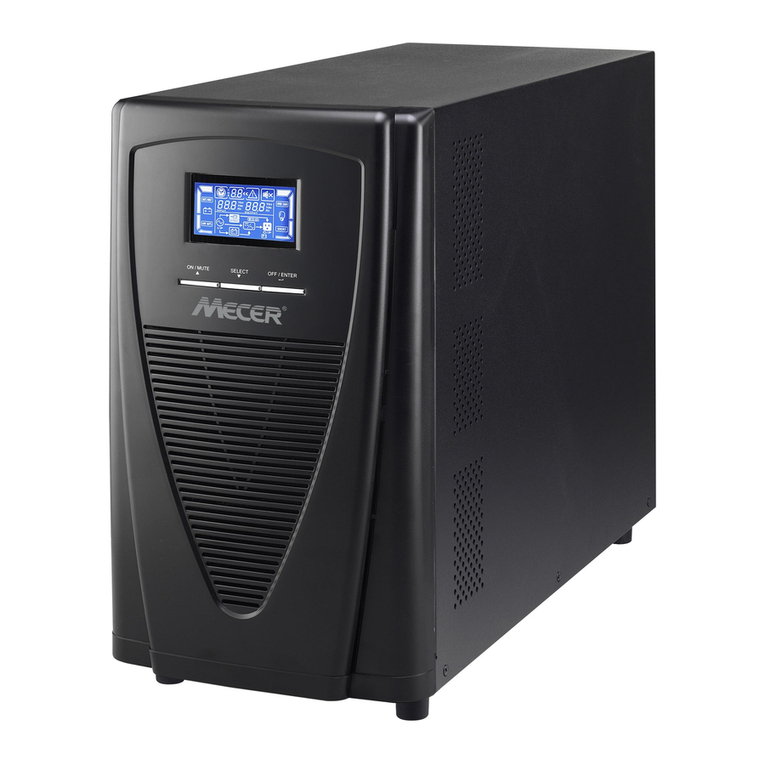
V7 UPS3000RM2U User manual

UPS 3000VA RACK MOUNT 2U
2-HE-USV MIT 3000 VA ZUR RACKMONTAGE
ONDULEUR À MONTAGE SUR RACK 2U, 3000VA
UPS 3000VA - PARA INSTALACIÓN EN BASTIDOR - 2 UNIDADES
UPS DA 3000 VA MONTAGGIO RACK 2U
UPS 3000VA RACK MOUNT 2U
UPS3000RM2U
2U UPS 3000VA RACK MOUNT •2-HE-USV MIT 3000VA ZUR RACKMONTAGE • ONDULEUR À MONTAGE SUR RACK 2U, 3000VA
2 UNIDADES UPS 3000VA PARA INSTALACIÓN EN BASTIDOR • UPS2U DA 3000VA PER MONTAGGIO IN RACK•2U UPS 3000VA RACK MOUNT

INSTALLATION
Note: Before installation, please inspect the unit. Be sure that nothing inside the package is damaged.
Please keep the original package in a safe place for future use.
1.1 Rear Panel View
IEC Type NEMA Type
1. Programmable outlets: connect to non-critical loads
2. Output receptacles: connect to mission-critical loads
3. AC input
4. Network/Fax/Modem surge protection
5. Emergency power o function Connector (EPO)
6. USB communication port
The UPS is composed of mains input, EMI/RFI Filters, Inverter, Battery charger, DC-to-DC converter, battery,
AVR TX and UPS output
1.2 Operation
EMI/RFI
Filters
Battery
Charger Battery
DC-to-DC
Converter
Inverter
AVR
TX
Output
For safety consideration, the UPS is shipped out from factory without connecting battery wires. Before
installation of the UPS, please follow the steps below to re-connect the battery wires.
1.3 Installation
Remove Front Panel Connect the AC Input and re-connect
battery wires
Put the front panel back
on the unit

Rack-Mount Installation
Caution! – DO NOT use the mounting brackets to lift the unit. The mounting brackets are only
for securing the unit to the rack.
Tower Installation
1 2 3
Note: When installing the
UPS or battery pack with feet,
please keep 70mm distance
from the edge of the unit
M6
Screws
3 Cage
Nuts
3 Cage
Nuts
Fixing
Studs
Cage
Nuts (6) Fixing
Studs (4) M6
Screws (8)

1.4 Setup
1. UPS input connection
Plug the UPS into a grounded receptacle only. Avoid using extension cords, power strips or surge protectors
2. UPS output connection
There are two kinds of outputs: programmable outlets and general outlets. Please connect non-critical devices to the
programmable outlets and critical devices to the general outlets. You may extend the backup time to critical devices by
setting shorter backup time for non-critical devices
3. Communication connection (Optional)
USB Port
4. Network connection
Network/Fax/Phone surge port
Method 1
Remove two top screws Pull out metal pin
Method 2
Remove two front screws Pull out the entire green connector
To allow for unattended UPS shutdown/start-up and status monitoring, connect the included USB cable from the
computer to the UPS system
Note: USB port and RS-232 port can’t work at the same time.
5. Disable and enable EPO function
This UPS is equipped with EPO function. Pin 1 and Pin2 are closed by default for normal UPS operation.
Note: The EPO function logic can be set up via LCD setting. Please refer to program 16 in UPS setting for the details
Connect a single modem/phone/fax/network line into surge-protected “IN”outlet on the back panel of the UPS unit.
Connect from“OUT” outlet to the equipment with another modem/fax/phone/network line cable.

5. Disable and enable EPO function
This UPS is equipped with EPO function. Pin 1 and Pin2 are closed by default for normal UPS operation.
Note: The EPO function logic can be set up via LCD setting. Please refer to program 16 in UPS setting for the details
1.5 Battery Replacement
Note: This UPS is equipped with internal batteries and only a trained technician should replace the batteries.
Note: When battery is disconnected, equipment is not protected from power outages.
Caution! – Adhere to all warnings, cautions, and notes before replacing batteries.
1 2
3 4
Remove front panel Disconnect battery wires
Pull out the battery box by removing two screws
on the front panel
Remove the top cover of battery box and replace
the inside batteries
5 6 7
Remove the top cover of battery
box and replace the inside
batteries
After replacing the batteries,
put the battery box back to the
its original location and screw it
tightly
Put the front panel back on the unit
6. Turn on the UPS
Press the ON/Mute Button on the front panel for two seconds to power on the UPS.
Note: The battery charges fully during the rst ve hours of normal operation. Do not expect full battery run
capability during this initial charge period
7. Install software (Optional for advanced users)
For optimal computer system protection, install UPS monitoring software to fully congure the UPS system. Please
follow steps below to download and install monitoring software.
1. Go to the website http://www.V7-world.com/downloads
2. Select ViewPower software for your operating system to download the software.
3. Follow the on-screen instructions to install the software.

2.1 Button Operations
Display Function
Backup Time Information
Indicates the estimated backup time.
H= Hours M= Minutes S= Seconds
Conguration and Fault Information
Indicates the conguration items, listed in detail in section 2.5
Indicates the warning and fault codes. Codes are listed in details in section 2.7 and 2.8
Mute Operation
Indicates the UPS alarm is disabled
Input, Battery, Temperature, Output & Load information
Indicates the input voltage, input frequency, battery voltage, battery capacity, ambient
temperature, output voltage, output frequency, load current and load percentage
K= Kilo W= Watt V= Voltage A= Ampere %= Percent °C = Degrees Centigrade Hz
= Frequency
Load Information
Indicates the load level by 0-24%, 25-49%, 50-74% and 75-100%
Indicates Overload
Programmable Outlets Information
Indicates that programmable management outlets are working
INSTALLATION

Mode Operation Information
Indicates the UPS connects to the mains
Indicates the battery is working
Indicates charging status
Indicates the bypass circuit is working
Indicates the ECO mode is enabling
Indicates the UPS is working in boost mode
Indicates the UPS is working in buck mode
Indicates the AC to DC circuit is working
Indicates the PFC circuit is work
Indicates the inverter circuit is working
Indicates the UPS is working in converter mode
Indicates the Output is working.
Battery Information
Indicates the battery level by 0-24%, 25-49%, 50-74%, and 75-100%
Indicates low battery
2.3 Audible Alarm
Battery Mode Sounds every 10 seconds
Low Battery Sounds every 2 seconds
Overload Sounds every second
Fault Continuously sounds

2.4 LCD Display Wording Index
Abbreviation Display Content Denition
ENA Enable
DIS Disable
ESC Escape
ON ON
OK OK
EP EPO
AO Active Open
AC Active Close
TP Temperature
CH Charger
SF Site Fault
EE EEPROM Error
BR Battery Replacement
2.5 UPS Setting
Parameter 1 Parameter 2
There are 2 parameters to set up the UPS
1. For program alternatives (Refer to table below)
2. Setting options or values for each program
Interface Setting
01 Output Voltage Setting
For EU Models you may choose 208/220/230/240 VAC settings
230VAC is the default. (Changing this setting is not recommended)
For US Models you may choose 110/115/120/127 VAC
120VAC is the default. (Changing this setting is not recommended)
02 Programmable outlets enable/disable
ENA > Programmable outlets enabled
DIS > Programmable outlets disabled
03 Programmable outlet settings
Set up the backup time limits in minutes from 0-999 for programmable out-
lets which connect to non-critical devices on battery mode. (Default = 999)

04 Maximum charger current setting
Set up the maximum charger current
You can change the charger setting to 1/2/4/6/8 ampere
(Default setting is 8A)
Note: this setting is only eective for super charger
06 Autonomy limitation setting
Set backup time on battery mode for general outlets.
Set the back up battery time from 0-999 minutes for general outlets on battery
mode
DIS > Disable the autonomy limitation: back up time will depend on the battery
capacity (Default setting)
Note: when setting is “0”, the back up time will only be 10 seconds
07 Battery total AH setting
Set up the battery total AH of the UPS
Set the battery total capacity from 7-999 in AH
*Set the correct battery total capacity if there is a connected battery bank
08 EPO Logic Setting
Set up the EPO function Control Logic
AO > Active Open (Default): When AO is selected as EPO Logic, it will activate EPO
function with Pin 1 and Pin 2 in open status
AC > Active Close: When AC is selected as EPO logic, it will activate EPO function
with Pin1 and Pin 2 in closed status
00 Exit Setting
Exit the Setting mode
Step 1
Before entering setting mode, the UPS should be in Stand-by mode (o-
charging) and make sure the battery is connected. The LCD display is shown
on the right.
Step 2
Press and hold the“Select”button for 3 seconds to enter Setting Mode.
Step 3
Press the“Up”button (ON/MUTE) to switch to“02” of program list. Then press
“Enter” button to enter value setting of parameter 2. Press the “Up” button to
change the value to“ENA”to enable the programming outlet function. Then
press“Enter” button again to conrm the setting.
Step 4
Press the“Up”button (ON/MUTE) again to switch to“03” of program list. Then
press“Enter” button for setting programmable outlet time. Push“Up”button to
change the value of backup time. Then press “Enter”to conrm the setting.
Step 5
Press“Up”button (ON/MUTE) to switch to“00” of program list. Then press“Enter”
button to exit setting menu.
Step 6
Disconnect AC input and wait until the LCD display is o. The new setting will
be activated when turning on the UPS again.

Operating Mode Description LCD Display
ECO Mode When the input voltage is within voltage regulated
range, UPS will power the output directly from the
mains. ECO is an abbreviation of Eciency Corrective
Optimizer. In this mode, when the battery is fully
charged, the fan will stop working to save energy
Buck Mode when
AC is normal
When the input voltage is higher than the voltage
regulation range but lower than high loss point, the
buck AVR will be activated
Boost mode when
AC is normal
When the input voltage is lower than the voltage
regulation range but higher than low loss point, the
boost AVR will be deactivated
Battery Mode When the input voltage is beyond the acceptable range
or power failure and alarm is sounding every 10 seconds,
UPS will backup power from battery
Standby Mode UPS is powered o and no output supply power, but can
still charge batteries
Fault Mode When a fault occurs, the ERROR icon and the fault code
will be displayed
2.6 Operating Mode Description
Fault Event Fault Code Icon
Bus start fail 01 x
Bus over 02 x
Bus Under 03 x
Inverter soft start fail 11 x
Inverter voltage high 12 x
Inverter voltage low 13 x
Fault Event Fault Code Icon
Inverter output short 14 x
Battery voltage too high 27 x
Battery voltage too low 28 x
Over temperature 41 x
Over load 43
Charger failure 13 x
2.7 Faults Reference Codes
Warning Icon (Flashing Code Alarm
Low battery Sounds every 2 seconds
Overload Sounds every second
Battery is not connected Sounds every 2 seconds
Over Charge
Sounds every 2 seconds
Site wiring fault Sounds every 2 seconds
2.8 Warning Indicator
This manual suits for next models
2
Table of contents
Languages:
Other V7 UPS manuals