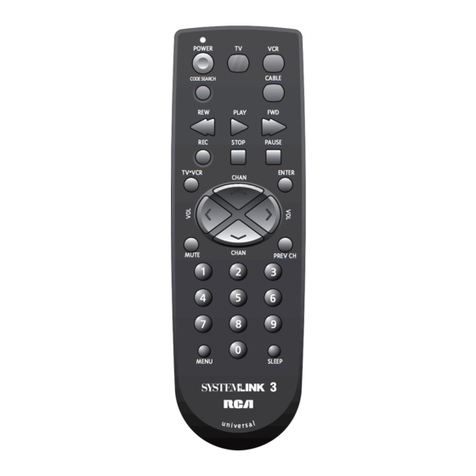
URC TRC-1080 User manual

TRC-1080
Owner’s Manual
Total Control TRC-1080
Owner’s Manual

Total Control TRC-1080
Owner’s Manual
Rev 1.0
Table of Contents
Introducing the TRC-1080
Thank you for purchasing URC’s TRC-1080 Wi-Fi remote control. Its easy an
intuitive use helps to simplify your life while a ing control of more things than
you thought possible.
Online Support
Total Control is sol irect only an must installe /program by a certie
custom integrator.
End-User Support
Visit the URC Home Page for pro uct information, owner’s manuals, an
support contact information.
Contact Support
Total Control is a URC pro uct sol irect only. For questions or assistance
contact your Custom Installer/Programmer.
y Installer/Programmer
Technical Suppor t
Toll Free: 800-904-0800
Main: 914-835-4484
techsupport@urc-automation.com
H o u r s : 9 : 0 0 a m - 5 : 0 0 p m E S T M - F
Congratulations!...............................................................................................................1
Features & Benefits................................................................................................... 1
Requirements & Compatibility.......................................................................................2
Parts............................................................................................................................. 2
Connecting the Battery Pack .................................................................................. 3
Using the Charging Cradle....................................................................................... 3
Two-way via Wi-Fi (2.4 GHz) ................................................................................... 3
Using the TRC-1080 ..........................................................................................................4
Displaying the Setup enu ............................................................................................6
Sleep Timers............................................................................................................... 7
Network ...................................................................................................................... 7
Brightness................................................................................................................... 8
System ......................................................................................................................... 8
Button Light ................................................................................................................ 9
Power .......................................................................................................................... 9
Date & Time .............................................................................................................. 10
Sound......................................................................................................................... 10
Pickup........................................................................................................................ 11
Software Update...................................................................................................... 11
Factory Default......................................................................................................... 12
Specifications .................................................................................................................13
Limited Warranty Statement.........................................................................................13

1
Total Control TRC-1080
Owner’s Manual
Congratulations!
Thank you for purchasing the TRC-1080 Wi-Fi remote control for your Total Control
system. The TRC-1080 connects to the local wireless network to control evices
throughout your home/business automation system.
Use the TRC-1080 to navigate through Total Control’s menus to control your system’s
au io/vi eo evices, climate, lighting, an more.
The Total Control Rooms Menu makes controlling evices in other areas (up to 32 zones)
easy an intuitive!
Features & Benefits
• Quick Connect Wi-Fi: When woken up, the remote connects to the
wireless network (2.4 GHz only) almost instantly for control of your
system an evices.
• Two-way etadata Feedback: Experience fee back irectly on the
TRC-1080’s isplay when use with an ever expan ing line of 3r Party
mo ules (HEOS, Ecobee, Sonos an many more).
Consult with your certie URC integrator to learn more about
3r party integration.
• Pick-up Sensor: Lifting the TRC-1080 imme iately wakes it up, turns
on the button backlight, an quickly connects the evice to the local
wireless network.
• Rechargeable Lithium Polymer Battery & Charging Cradle: Save
money an protect the environment by using the inclu e charging cra le
an rechargeable lithium polymer battery.

2
Total Control TRC-1080
Owner’s Manual
Requirements & Compatibility
• Total Control: When use with an MRX A vance System Controller, the
TRC-1080 is capable of controlling evices aroun the home/business without
being within “line-of- sight” of the equipment. The TRC-1080 sen s comman s
over the system’s local area network (Wi-Fi).
Parts
• TRC-1080 Wi-Fi Remote Control
• Rechargeable Battery
• Charging Cra le
• AC Power A apter for Charging Cra le
TRC-1080
Rechargeable Battery
Charging Cradle
AC Power Adapter

3
Total Control TRC-1080
Owner’s Manual
Connecting the Battery Pack
A battery is inclu e in the box when shippe from the factory. Press the spring lock
own to unlock an remove the cover. Place the battery into the battery
compartment, making sure to align the contacts on the battery with the contacts
within the TRC-1080’s battery compartment. The battery snaps into place when
aligne properly. Replace the battery cover.
Using the Charging Cradle
Plug the 5V DC a apter into a power outlet an into the rear of the charging cra le.
Gently place the TRC-1080 into the cra le, so that the remote automatically aligns
itself to the contacts on the charging cra le. The status light imme iately
illuminates.
There are two (2) status light con itions:
• Red: In icates the the remote’s battery is charging.
• Blue: In icates that the remote’s battery is fully charge .
Two-way via Wi-Fi (2.4 GHz)
The TRC-1080 has the capability of provi ing two-way control on supporte evices
irectly on the 2” LCD isplay. These evices must be congure into the Total
Control program le, consult your custom integrator for a itional etails.

4
Total Control TRC-1080
Owner’s Manual
Using the TRC-1080
The Main Menu pages isplay the activities an evices in the system. Press the Main
button to access the Main Menu. Larger systems may have more than one (1) page.
Press either of the Page buttons to view a itional Main Menu pages.
Although the TRC-1080 is programme with custom layouts an evices, there are
persistent buttons that maintain a stea y function:
A. Rooms enu: This button isplays a list of rooms an allows the user to swap
between them for control.
B. Room Off/House Off: With a single press of this button, the Total Control
system turns off all the evices of the current room. Press-n-hol this button for
greater than three (3) secon s to isplay the system’s Power Menu. This menu
allows the user to turn off the room, the entire system, or any custom activity
programme by the custom integrator.
C. LCD Buttons: The specic function of each button is linke to the screen icon
associate to the LCD button. These buttons are use to select activities,
evices, functions, navigate, an more. Speak with your custom integrator for
more etails.
D. Page Left/Right: These buttons are use to navigate through the various Main
Menu an Device/Activity Menu pages.
E. ain: By efault, this button returns the user to the previous menu.
F. Vol+, Vol-, & ute: Use to increase, ecrease, or toggle the mute status of
the active au io evice.
G. CH+, CH-, & Prev: Use to change a Cable/Sat channel up or own or to
navigate through a evice’s on-screen menus. The Prev button returns to the
evice’s previous channel or can be use to return the user to a previous menu.

5
Total Control TRC-1080
Owner’s Manual
H. Shortcuts: Comprise of up, own, left, right, an select. These buttons are
use to navigate through the menus of a evice.
There are four (4) buttons available that serve ifferent functions for
ifferent evices:
• enu: Displays the on-screen menu of the active evice.
• Guide: Displays the channel gui e for the evice’s on-screen isplay.
• Info: Displays channel information for the evice’s on-screen isplay.
• Select: Center button of irectional keypa , use to conrm selections
isplaye on a viewing evice.
• Exit: Closes out any open menus or gui es on the isplay or return to
the previous menu.
I. Transport Buttons: Primarily use with vi eo or au io activities (Blu-ray,
Netix, Pan ora, etc.):
• Play
• Pause
• Stop
• Recor
• Skip+
• Skip-
• Rew
• Fw
• Re
• Green
• Yellow
• Blue
J. Color Keys: Can provi e a itional functionality to specic evices such as
cable boxes an /or satellite boxes:
K. Numerical Keypad: Numbere buttons to change channels.

6
Total Control TRC-1080
Owner’s Manual
Displaying the Setup enu
The Setup Menu allows users to congure or change certain behaviors of the TRC-1080.
Enter the Setup Menu by pressing an hol ing the ain and Enter (see image at the
right) buttons for greater than ve (5) secon s.
Use the up an own navigation buttons to maneuver between the two Setup pages. To
select an option, highlight the esire setting an press the “Select” key at the center of
the navigation keys.
To return to a previous page press the left page button (at the left of Main Menu). Press
the Main or Exit button to return the remote to the Main Menu.
The Setup Menu times out after
sixty (60) secon s an returns
the TRC-1080 to the system’s
Main Menu.
• Sleep Timers
• Network
• Brightness
• System
• Button Light
• Power
• Date & Time
• Soun
• Pickup
• Software Up ate
• Factory Default
Image on isplay presents all the
options available on the two (2)
Settings Menu pages.

7
Total Control TRC-1080
Owner’s Manual
Sleep Timers
A just the amount of time the screen remains on when the remote is not in use. The
time can be set in epen ently base on whether the remote is using battery power
or sitting on the charging cra le.
Once the settings are a juste , press the Save button. Pressing Cancel reverts the
remote to the last save setting.
Network
The following options are isplaye :
• Preferred List: Displays all store wireless networks. This option allows
the user to connect to any network store on the remote.
• Wireless Search: Select to connect to an available wireless network.
SSID an Passwor may be require .
• Network Settings: Allows the user to congure the remote’s network
properties such as IP a ress, Gateway, DNS, an more.
WARNING! Only use this option when instructe by URC’s Technical Support
team or your custom install professional.
Leaving the remote’s isplay on
for long perio s of time may
re uce your evice’s battery life.
Do not make changes on this screen.
Changing network settings may lea
to issues controlling the system.

8
Total Control TRC-1080
Owner’s Manual
Brightness
A just the screen brightness by pressing the a jacent LCD buttons to increase or
ecrease the brightness level.
Once the brightness has been a juste , press the Save button. Pressing Cancel
reverts the remote to the last save setting.
High brightness levels may re uce
the TRC-1480’s battery life.
System
Displays information about the remote’s operating system, memory, etc. Press the
ore button to view further system information. Pressing the Cancel button exits
to the remote’s Setup Menu.
Other manuals for TRC-1080
2
Table of contents
Other URC Remote Control manuals

URC
URC MX-1400 User manual

URC
URC TRC-780 User manual

URC
URC MX-780 User manual

URC
URC AC-1 User manual

URC
URC Complete Control MRF-260 User manual

URC
URC MX-990 User manual

URC
URC MX-990I User manual

URC
URC COMPLETE CONTROL MX-4000 User manual

URC
URC RM-2 User manual

URC
URC Total Control TRC-1280 User manual