Universe Future ZWG2000AG User manual

Universe Future Technology Co.,LTD
Introduction of Gateway
Introduction
of
Gateway
ZWG2000AG

Universe Future Technology Co.,LTD
2
Introduction of Gateway
Catalogue
Catalogue........................................................................................................................................... 2
1 Description................................................................................................................................... 3
2 Diagram........................................................................................................................................... 4
3 Specification............................................................................................................................... 5
4 LED Status..................................................................................................................................... 6
5 Installation................................................................................................................................. 7
6 Operation....................................................................................................................................... 7
6.1 Power on/off.....................................................................................................................7
6.2 Web Setting....................................................................................................................... 7
6.3 Base Information.............................................................................................................8
6.4 Network Information.......................................................................................................8
6.5 Network Settings.............................................................................................................9
6.6 Z-Wave Reset...................................................................................................................10
6.7 Password Modify.............................................................................................................10
6.8 Z-Wave device information.........................................................................................11
6.9 Inclusion.........................................................................................................................11
6.10 Exclusion.......................................................................................................................12
6.11 Remove fail device.....................................................................................................13
6.12 Replace fail device...................................................................................................14
6.13 Rebuilt Router.............................................................................................................15
6.14 Learn Mode.....................................................................................................................15
6.15 Shift............................................................................................................................... 16
6.16 Refresh Frequency Settings.................................................................................... 17
6.17 System Time Settings.................................................................................................17
6.18 Log File.........................................................................................................................18
6.19 IP Reset.........................................................................................................................18
6.20 Password Reset.............................................................................................................19
7 Router Settings.........................................................................................................................19
8 APP................................................................................................................................................. 20
9 Quick Manual............................................................................................................................... 20
10 Glossary..................................................................................................................................... 22
Release Record............................................................................................................................... 22

Universe Future Technology Co.,LTD
3
Introduction of Gateway
1 Description
Thanks for Purchasing Universe Future Technology Co,.LTD products.
Gateway(ZWG2000AG) which based on z-wave technology is professionally designed
for Internet of Things.It work like a bridge between the internet and the appliance
or the office device,user can remotely control the Light,Curtain Motor,Air
Condition,TV,Projector and so on,via the APP which designed and worked with
gateway,it also can deal with the data which received from sensor ,to support the
smart control.Meanwhile our gateway integrated security system,user can remotely
monitor online via the IP camera,when alarm happen,our system can send message to
user in the first time.Our gateway adopt z-wave technology which is bidirectional
communication,that make it possible to know the status of device anytime,wireless
communication is convenience for constructing,no need wiring.Humanized logic and
User Interface designed make user feel very comfortable when using our products.
Products that are Z-Wave certified can be used and communicate with other Z-Wave
certified devices.
Feature:
• ARM9-S™ ARM® Thumb® Processor running at up to 400 MHz,high quality assurance.
• Modular Design for Hardware,easy for future update and modify.
• Simple Linux kernel for Software system,easy for maintain and APP
Update.
• Support multiple communication protocol:Z-wave,TCP/IP,UPNP,DDNS,
HTTP,DNS.
• Redundant design for the communication between the gateway and control
terminal,make the alarm message send in time.
• Support web for configuration,convenience for setting and modify.
• Internal log file design,safer for fault analyses.
• Separating Reset mode design,user can chose to reset only password or
HomeID or Gateway IP.
• Support Encipher Transmit Mode and non-Encipher Transmit Mode.
• Support TSL between the gateway and terminal.

Universe Future Technology Co.,LTD
4
Introduction of Gateway
2 Diagram
Figure 2-1: Gateway
Figure: 2-2 Front
Figure:2-3 Right
Figure: 2-4 Back
1
2
3
4
5
6
7
8
10
9
11
15
13
14
12

Universe Future Technology Co.,LTD
5
Introduction of Gateway
Table 2-1
No. Name Function
1 Power Button and Power LED Power on/off、Power status
2 Download LED Data download status
3 Inclusion/Exclusion LED Inclusion/Exclusion status
4 Z-Wave LED Radio status
5 WAN LED WAN Link status
6 LAN LED LAN Link status
7 Z-Wave Logo Z-Wave Logo
8 Product Name Product Name
9 Inclusion/Exclusion Button Inclusion/Exclusion operation button
10 Power Plug Power plug
11 Reset Button Reset IP and password
12 USB Manual update new version
13 Mini USB ISP
14 Ethernet Port Network interface
15 Antenna Antenna for wireless
3 Specification
Table 3-1
Items Specification
DRAM 128M
Flash 256M
Voltage 5DCV
Current 0.5A
Consumption <2.5w
Frequency
Range ≤30m(inside),100m(outside)
Node 232
Protocol TCP/IP、UPNP、DDNS、HTTP、DNS、Z-Wave
Temperature 10-45℃
Humidity 10%-70%RH
Power Adapter(5V 1.5A)
Weight 350g
Dimension 165mm*165mm*30mm
908.4MHz

Universe Future Technology Co.,LTD
6
Introduction of Gateway
4 LED Status
Table4-1
LED Status Description
Power Supply LED: On/Blue Power on right now
Ethernet Port LED: On/Orange Ethernet port power on
Ethernet Port LED: On/Green Ethernet port physics link is ok
Ethernet Port LED:Blink/Green Gateway is communicating right now
Down load LED:Blink/Green Gateway is updating new version
Inclusion/Exclusion LED:
Blink/Blue
Gateway is on Exclusion mode
Inclusion/Exclusion LED:Blink/Green Gateway is on Inclusion mode
Inclusion/Exclusion LED:Blink/Blue
and Green
Gateway is rebuilding z-wave router
Inclusion/Exclusion LED:On/Green→Off
IP reset(when holding for 3s)
Inclusion/Exclusion LED:On/Blue→Off Password reset(when holding for 10s)
Download and Inclusion/Exclusion
LED:Blink/green
Gateway is starting
z-wave LED:Blink/Green Gateway is communication with other device
WAN LED:On/Green Gateway link with Internet OK
WAN LED:Blink/Green Gateway is checking the internet status
WAN LED:Off Gateway do not link to Internet
LAN LED:On/Green Physical Link between Gateway and router is ok
LAN LED:Blink/Green Gateway is communicating right now(tcp/ip)
LAN LED:Off Physical Link between Gateway and router is not ok

Universe Future Technology Co.,LTD
7
Introduction of Gateway
5 Installation
The product does not require installation.After breaking package,assembling
antenna,putting gateway on a desk which is 0.8m - 1.0m high,then power on, connecting
to router with network table.
NOTE:
* DO NOT PUT GATEWAY ON THE GROUND OR LOWER PLACE.
* DO NOT USE AC POWER ADAPTER WHICH DO NOT CONFORM TO THE REQUIREMENTS OF PRODUCTS
SPECIFICATION.
* GATEWAY IS A STATIC CONTROLLER WHICH IS NOT PORTABLE,PLEASE DO NOT MOVE IT
AFTER RE-BUILTING ROUTER.
* IT IS BETTER AWAY FROM OTHER RADIO SOURCE.
* RF JIMMING IS NOT PERMIT WHEN USING GATEWAY.
6 Operation
6.1 Power on/off
Power on
Function:power supply,start system
Step:
Step-1:Plug in AC adapter
Step-2:Press power button
(Power LED will turn on with BLUE.After 10s,the Download LED and
Inclusion/Exclusion LED will blink for 13s,then Download LED and
Inclusion/Exclusion LED will turn off,then system is ready)
Power off
Function:power off and shutdown the system
Step:
Step-1:Press power button
(Button will pop-up,then the Power LED will turn on)
6.2 Web Setting
Web Setting
Function:view system setting
Step:
Step-1:Running Browse
Step-2:Input Gateway IP at address field,format is“IP:8080”,for example
“192.168.0.88:8080”,“192.168.0.98”is gateway IP,“8080”is port number.

Universe Future Technology Co.,LTD
8
Introduction of Gateway
(Gateway default IP:192.168.0.88,port:8080,password:888888)
Step-3:Enter (Then screen turn to login page,figure 6.2-1)
Step-4:Input gateway ID in “控制器 ID”field,Input gateway in“密码”field.
Step-5:Click“登陆”
(If ID and password are right ,will turn to web manage page,figure 6.2-2)
Figure 6.2-1 Figure 6.2-2
6.3 Base Information
Base Information
Function:view base information,contain gateway ID、product ID、version
Step:
Step-1:Login Web manage page(refer to 6.2 web setting)
Step-2:Click“基本信息” (figure 6.3-1)
Step-3:Click“控制器基本信息” (figure 6.3-2)
Figure 6.3-1 Figure 6.3-2
6.4 Network Information
Network Information
Function:view network information,contain gateway IP、sub mask、router IP、Time
server IP
Step:
Step-1:Login Web manage page(refer to 6.2 web setting)
Step-2:Cilck“基本信息” (figure 6.4-1)

Universe Future Technology Co.,LTD
9
Introduction of Gateway
Step-3:Click“网络信息” (figure 6.4-2)
Figure 6.4-1 Figure 图 6.4-2
6.5 Network Settings
Network Settings
Function:network settings
Step:
Step-1:Login Web manage page(refer to 6.2 web setting)
Step-2:Click“控制器管理” (figure 6.5-1)
Step-3:Click“网络配置” (figure 6.5-2)
Step-4:Input gateway IP、sub mask、router IP and time server IP according to user’
s network environment.(server IP MUST be 202.120.2.101)
Step-5:Click“确认”
Step-6:Power off
Step-6:Power on (切记网关要重启之后新的配置才会生效)
NOTE:
* advice user to remember the network setting information after modifying
* the new setting will be valid ONLY after restarting gateway
Figure 6.5-1 Figure 6.5-2
Universe Future Technology Co.,LTD
10
Introduction of Gateway
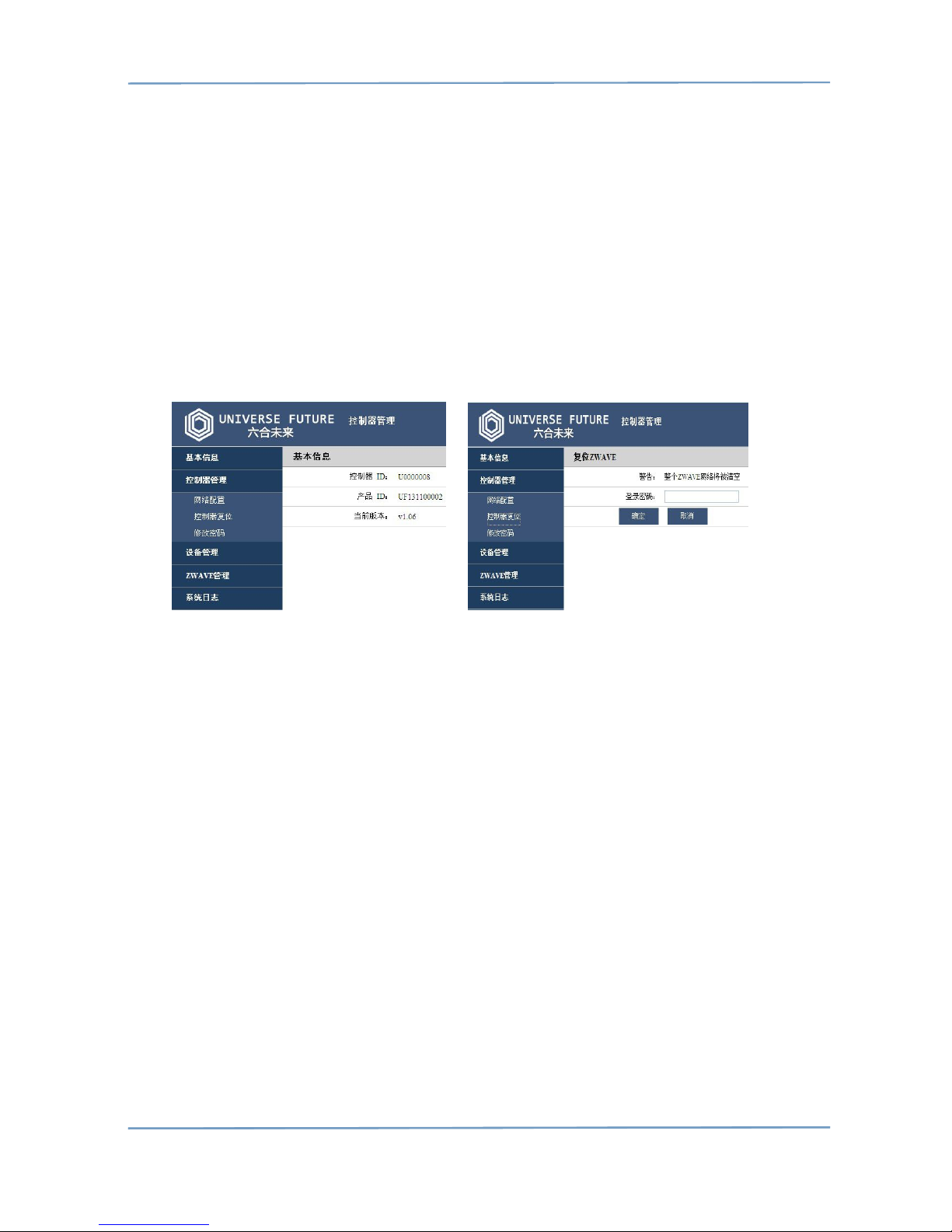
6.6 Z-Wave Reset
Z-Wave Reset
Function : initialize z-wave environment,clear z-wave node information ,
re-generate HomeID
Step:
Step-1:Login Web manage page(refer to 6.2 web setting)
Step-2:Click“控制器管理” (figure 6.6-1)
Step-3:Click“控制器复位” (figure 6.6-2)
Step-4:Input password in“登陆密码”field
Step-5:Click“确定”
(after about 60s,gateway will reboot automatically)
Figure 6.6-1 Figure 6.6-2
6.7 Password Modify
Password Modify
Function:modify gateway password
Step:
Step-1:Login Web manage page(refer to 6.2 web setting)
Step-2:Click“控制器管理” (figure 6.7-1)
Step-3:Click“修改密码” (figure 6.7-2)
Step-4:input old in“当前密码”field,input new password in“新密码”,input new
password in“确认新密码”field again
Step-5:Click“确定”
(new password will be valid at once,no need to reboot)
NOTE:
* advice user to remember the new password
* for the security,the password should not be too simple
Table of contents
Popular Gateway manuals by other brands

LST
LST M500RFE-AS Specification sheet

Kinnex
Kinnex Media Gateway quick start guide

2N Telekomunikace
2N Telekomunikace 2N StarGate user manual
Mitsubishi Heavy Industries
Mitsubishi Heavy Industries Superlink SC-WBGW256 Original instructions

ZyXEL Communications
ZyXEL Communications ZYWALL2 ET 2WE user guide

Telsey
Telsey CPVA 500 - SIP Technical manual