
Tripp Lite TLNETCARD User manual
1
Owner’s Manual
TLNETCARD Management
Accessory Card
Español 9 • Français 17 • Русский 25
1111 W. 35th Street, Chicago, IL 60609 USA • www.tripplite.com/support
Copyright © 2016 Tripp Lite. All rights reserved.
PROTECT YOUR INVESTMENT!
Register your product for quicker service and ultimate peace of mind.
You could also win an ISOBAR6ULTRA surge protector—a $100 value!
www.tripplite.com/warranty
Read this manual carefully before installation. This
manual can be accessed and downloaded from the
Tripp Lite website—in the Support section, enter
“TLNETCARD” in the search field. Refer to the User's
Guide for additional information about configuration and
operation.
16-01-412-933525.indb 1 1/28/2016 3:02:05 PM
2
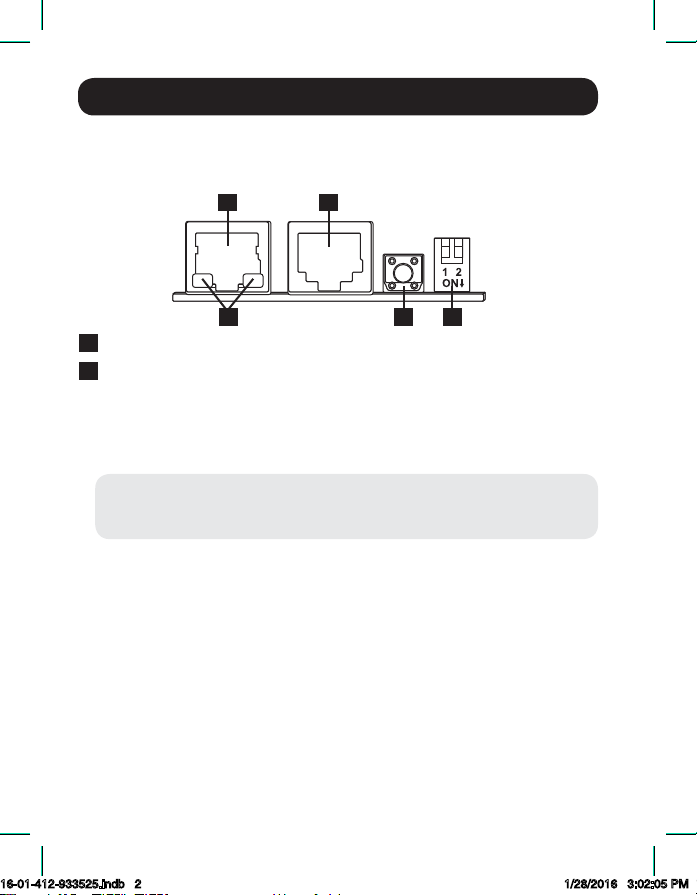
ANetwork Port: Connects to the Ethernet Network.
BLED Indicators: When the TLNETCARD is initializing or upgrading
firmware, the two LED indicators simultaneously flash to show its status.
• Rapid simultaneous flashing (every 50ms): Initialization or firmware
upgrade in progress.
• Slow simultaneous flashing (every 500ms): Initialization failed.
WARNING: Do NOT remove the TLNETCARD or disconnect the UPS
system’s input power during initialization or firmware upgrade!
This could result in data loss or damage to the TLNETCARD.
The green (left) LED indicator shows the network connection status:
• ON: Network connection established and the IPv4 address is
useable.
• OFF: Not connected to a network.
• Flashes slowly (every 500ms): Faulty IP address.
The yellow (right) LED indicator shows the linking status between the
TLNETCARD and the UPS:
• Flashes rapidly (every 50ms): UPS linked.
• Flashes slowly (every 500ms): UPS not linked.
Features
A
A
B D E
C
The TLNETCARD allows users to operate any compatible Tripp Lite UPS
System as a managed device on the network, accessible via Web browser,
Network Management Station or telnet/SSH.
16-01-412-933525.indb 2 1/28/2016 3:02:05 PM
3
Features
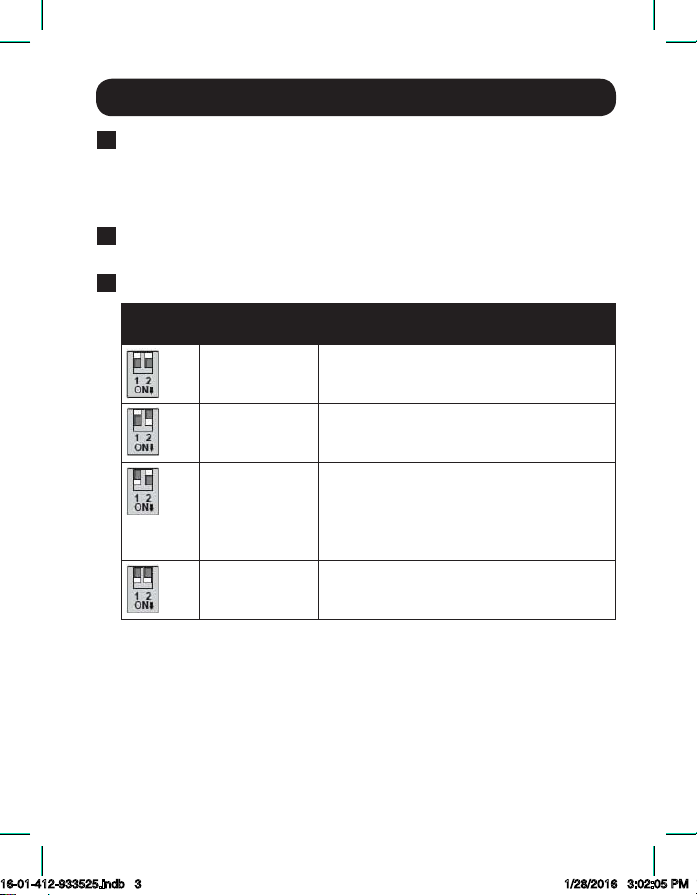
CConsole (COM) Port:
1. Connects to a workstation with the provided RJ45 to DB9 cable for
system configuration.
2. Connects to a TLNETEM environmental monitoring device (optional).
DReset Button: Resets the TLNETCARD. This does not affect the
operation of the UPS.
EDIP Switches: Set up operation modes.
DIP
Switches
Operation
Mode Description
Normal Mode The TLNETCARD provides the UPS
system’s status information and
parameters over the network.
Pass Through
Mode
The TLNETCARD stops polling the UPS
but transfers the communication data
between the console port and the UPS.
Sensor Mode
(with TLNETEM)
The TLNETCARD collects data from an
optional TLNETEM. It provides not only the
UPS system’s status and parameters, but
also the TLNETEM’s status information
and environmental parameters.
Configuration
Mode
In this mode, the user can login through
the console port and configure the
TLNETCARD’s settings.
For additional information on the Operation Modes, consult the TLNETCARD
User's Guide.
16-01-412-933525.indb 3 1/28/2016 3:02:05 PM
4
1
Confirm Package Contents: In addition to this manual, your package
should include the accessory card in an anti-static bag, a configuration
cable (7315E1) and several faceplates. If anything is missing, contact
your supplier immediately.
2
Install UPS: Install your UPS system and turn it on before installing
the TLNETCARD. Ensure the accessory card slot is accessible.
3
Locate MAC Address: The 12-digit MAC address (000667xxxxxx) is
printed in two locations: a label attached to the underside of the card
and a duplicate label inside the box. Attach the duplicate label to the
UPS system or keep it in a secure location for easy reference.
4Download TLNET Configurator: TLNET Configurator is a utility that
simplifies configuration and firmware update of one or more
TLNETCARDs. Its Discover function identifies the IP Addresses
assigned to the TLNETCARDs. The utility can be found at
tripplite.com/support and typing TLNETCARD in the search field.
Note for Network Management System Users Only: Two MIB files -
Tripplite.mib and RFC1628.mib - must be loaded on each Network Management
Station that will monitor the UPS system via SNMP. The files can be found by
going to tripplite.com/support and typing TLNETCARD in the search field.
Preparation
WARNING: When handling the TLNETCARD, follow
standard ESD (electrostatic discharge) precautions to
avoid damaging the card. For your safety, you should also
read the documentation that came with your UPS system
to familiarize yourself with precautions against electric
shock.
16-01-412-933525.indb 4 1/28/2016 3:02:05 PM

5
Installation
1Access the TLNETCARD Accessory Slot: Use a screwdriver to
remove the accessory slot cover from the UPS. Retain the screws for
securing the appropriate faceplate for your UPS.
2
Insert TLNETCARD into Accessory Slot: Ensure that the two DIP
switches on the TLNETCARD are in the OFF position (Normal Mode).
While the UPS is turned on, align the TLNETCARD with the guides in
the accessory slot and push the card into the slot until the ports are
nearly even with the rear side of the UPS.
3
Attach Faceplate: Align and attach the faceplate that matches your
UPS system, using the screws from the accessory slot cover.
16-01-412-933525.indb 5 1/28/2016 3:02:05 PM

6
IP Address Assignment
Please refer to the TLNETCARD User's Guide for instructions on
configuring other TLNETCARD attributes. This manual can be accessed
and downloaded at tripplite.com/support and typing TLNETCARD in the
search field.
1
On-Network, Dynamic: Connect a standard Ethernet patch cable to
the RJ45 Ethernet port on the card.
Note: This port does not support PoE (Power over Ethernet) applications.
The card will attempt to obtain an IP address via DHCP. This may take
as long as several minutes, depending on your network environment.
Use the TLNET Configurator utility to Discover the TLNETCARD in order
to identify the assigned IP Address; it will be associated with the
TLNETCARD's MAC address that you recorded in the Preparation
section, step 3. The TLNET Configurator can then be used to
re-assign the IP Address to a static one, if required; access will require
the Adminstrator login credentials: admin / password.
2
On-Network, Default: Connect a standard Ethernet patch cable to
the RJ45 Ethernet port on the card.
Note: This port does not support PoE (Power over Ethernet) applications.
If a DHCP Server is unavailable, the TLNETCARD can be accessed via
web browser or telnet/SSH using its default IP address:
192.168.1.100. The Administrator login credentials are:
admin / password.
3
Off-Network: Refer to TLNETCARD's User Guide for instructions on
how to access and configure a TLNETCARD through its serial COM
port.
16-01-412-933525.indb 6 1/28/2016 3:02:05 PM

7
Warranty and Product Registration
2-YEAR LIMITED WARRANTY
Seller warrants this product, if used in accordance with all applicable instructions, to be free from
original defects in material and workmanship for a period of 2 years (except internal UPS system
batteries outside USA and Canada, 1 year) from the date of initial purchase. If the product should
prove defective in material or workmanship within that period, Seller will repair or replace the
product, in its sole discretion. Service under this Warranty can only be obtained by your delivering
or shipping the product (with all shipping or delivery charges prepaid) to: Tripp Lite, 1111 W. 35th
Street, Chicago, IL 60609, USA. Seller will pay return shipping charges. Visit
www.tripplite.com/support before sending any equipment back for repair.
THIS WARRANTY DOES NOT APPLY TO NORMAL WEAR OR TO DAMAGE RESULTING
FROM ACCIDENT, MISUSE, ABUSE OR NEGLECT. SELLER MAKES NO EXPRESS
WARRANTIES OTHER THAN THE WARRANTY EXPRESSLY SET FORTH HEREIN. EXCEPT
TO THE EXTENT PROHIBITED BY APPLICABLE LAW, ALL IMPLIED WARRANTIES,
INCLUDING ALL WARRANTIES OF MERCHANTABILITY OR FITNESS, ARE LIMITED IN
DURATION TO THE WARRANTY PERIOD SET FORTH ABOVE; AND THIS WARRANTY
EXPRESSLY EXCLUDES ALL INCIDENTAL AND CONSEQUENTIAL DAMAGES. (Some states
do not allow limitations on how long an implied warranty lasts, and some states do not allow
the exclusion or limitation of incidental or consequential damages, so the above limitations or
exclusions may not apply to you.This Warranty gives you specific legal rights, and you may have
other rights which vary from jurisdiction to jurisdiction).
WARNING: The individual user should take care to determine prior to use whether this device is
suitable, adequate or safe for the use intended. Since individual applications are subject to great
variation, the manufacturer makes no representation or warranty as to the suitability or fitness of
these devices for any specific application.
Not compatible with PoE (Power over Ethernet) applications.
PRODUCT REGISTRATION
Visit www.tripplite.com/warranty today to register your new Tripp Lite product. You'll be
automatically entered into a drawing for a chance to win a FREE Tripp Lite product!*
* No purchase necessary. Void where prohibited. Some restrictions apply. See website for details.
Technical Support
Technical Support can be found at: www.tripplite.com/support
16-01-412-933525.indb 7 1/28/2016 3:02:05 PM

8
Warranty and Product Registration
FCC Notice, Class A
This device complies with part 15 of the FCC Rules. Operation is subject to the following two
conditions: (1) This device may not cause harmful interference, and (2) this device must accept
any interference received, including interference that may cause undesired operation.
This equipment has been tested and found to comply with the limits for a Class A digital device,
pursuant to part 15 of the FCC Rules. These limits are designed to provide reasonable protection
against harmful interference when the equipment is operated in a commercial environment.
This equipment generates, uses, and can radiate radio frequency energy and, if not installed
and used in accordance with the instruction manual, may cause harmful interference to radio
communications. Operation of this equipment in a residential area is likely to cause harmful
interference in which case the user will be required to correct the interference at his own
expense. The user must use shielded cables and connectors with this product. Any changes or
modifications to this product not expressly approved by the party responsible for compliance could
void the user's authority to operate the equipment.
Regulatory Compliance Identification Numbers
For the purpose of regulatory compliance certifications and identification, your Tripp Lite product
has been assigned a unique series number. The series number can be found on the product
nameplate label, along with all required approval markings and information. When requesting
compliance information for this product, always refer to the series number. The series number
should not be confused with the marketing name or model number of the product.
WEEE Compliance Information forTripp Lite Customers and Recyclers (European Union)
Under the Waste Electrical and Electronic Equipment (WEEE) Directive and
implementing regulations, when customers buy new electrical and electronic equipment
from Tripp Lite they are entitled to:
• Send old equipment for recycling on a one-for-one, like-for-like basis (this varies
depending on the country)
• Send the new equipment back for recycling when this ultimately becomes waste
Use of this equipment in life support applications where failure of this equipment can reasonably
be expected to cause the failure of the life support equipment or to significantly affect its safety
or effectiveness is not recommended. Do not use this equipment in the presence of a flammable
anesthetic mixture with air, oxygen or nitrous oxide.
Tripp Lite has a policy of continuous improvement. Product specifications are subject to change
without notice.
1111 W. 35th Street, Chicago, IL 60609 USA • www.tripplite.com/support
16-01-412-933525.indb 8 1/28/2016 3:02:07 PM

9
Manual del propietario
Tarjeta de Administración
TLNETCARD
English 1 • Français 15 • Русский 22
1111 W. 35th Street, Chicago, IL 60609 USA • www.tripplite.com/support
Copyright © 2016 Tripp Lite. Todos los derechos reservados.
Antes de la instalación, lea cuidadosamente este manual.
Este manual se puede acceder y descargar desde el sitio
web de Tripp Lite—en la sección de Soporte, ingrese
“TLNETCARD” en el campo de búsqueda. Para obtener
más información sobre la configuración y operación,
consulte la Guía del Usuario.
16-01-412-933525.indb 9 1/28/2016 3:02:09 PM
10
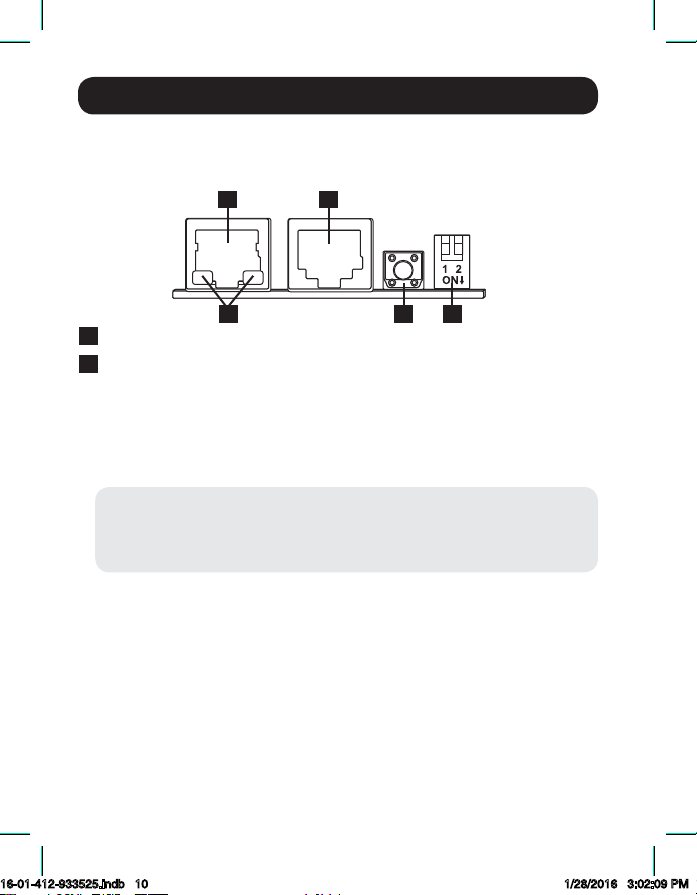
APuerto de Red: Se conecta a la Red Ethernet.
BIndicadores LED: Cuando la TLNETCARD se está iniciando o
actualizando firmware, los dos indicadores LED destellan
simultáneamente para mostrar su estado.
• Destello rápido simultáneo (Cada 50 ms): Inicialización o
actualización de firmware en progreso.
• Destello lento simultáneo (Cada 500 ms): Inicialización fallido.
ADVERTENCIA: ¡NO retire la TLNETCARD ni desconecte la energía
de alimentación del sistema UPS durante el inicio o la
actualización del firmware! Esto pude causar pérdida de datos o
daños a la TLNETCARD.
El indicador LED verde (izquierdo) muestra el estado de la conexión de
red:
• ENCENDIDO: La conexión de red establecida y la dirección IPv4 es
utilizable.
• APAGADO: No conectado a una red.
• Destella lentamente (Cada 500 ms): Dirección IP fallida.
El indicador LED amarillo (derecho) muestra el estado de enlace entre
la TLNETCARD y el UPS:
• Destella rápidamente (Cada 50 ms): UPS enlazado.
• Destella lentamente (Cada 500 ms): UPS no enlazado.
Características
A
A
B D E
C
La TLNETCARD permite a los usuarios operar cualquier sistema UPS
compatible de Tripp Lite, como un dispositivo administrado en la red,
accesible mediante navegador web, Estación de Administración de Red o
telnet/SSH.
16-01-412-933525.indb 10 1/28/2016 3:02:09 PM
Other manuals for TLNETCARD
1
Table of contents
Languages:
Other Tripp Lite PCI Card manuals

Tripp Lite
Tripp Lite PCE-1G-01 User manual

Tripp Lite
Tripp Lite PCE-D9-04-CBL User manual

Tripp Lite
Tripp Lite TLNETCARD User manual

Tripp Lite
Tripp Lite U234-005-R User manual

Tripp Lite
Tripp Lite F200-003-R User manual

Tripp Lite
Tripp Lite PCE-1M2-PX4 User manual

Tripp Lite
Tripp Lite PCI-D9-02 User manual
Popular PCI Card manuals by other brands


Conrad Electronic
Conrad Electronic 97 46 71 operating instructions

Micro Innovations
Micro Innovations USB650A Quick installation guide

KTI Networks
KTI Networks KF-310 user guide

Asus
Asus SpaceLink WL230 user manual

SIIG
SIIG SC2475 Quick installation guide

TRENDnet
TRENDnet TEW-703PI Quick installation guide


