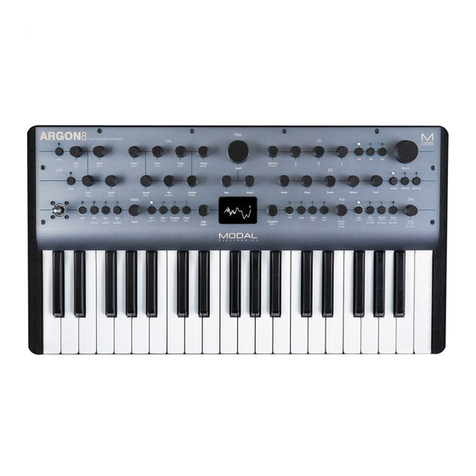
TORAIZ AS-1 User manual

TORAIZ AS-1
SoundEditor LE User Guide
1

TORAIZ AS-1 SoundEditor
Table of Contents
1. Introduction 3
1.1
About this Manual ……………………………………………………………………………………………………………………………………………
3
1.2
Support …………………………………………………………………………………
3
2. Starting Up 4
2.1
AS-1 Setup ……………………………………………………………………………………………………………………………………………………
4
2.2
Getting Connected …………………………………………………………………………
4
2.3
The MIDI Setup ……………………………………………………………………………………
4
2.4
Getting Banks from the AS-1 ……………………………………………………………………………………
5
3. Editing Program 6
3.1
Adjusting Parameters ……………………………………………………………………………………
6
3.2
Editing Sequencer ……………………………………………………………………………………
7
3.3
Writing Program to the AS-1 ……………………………………………………………………………………
9
3.4
Saving Program to the Computer ……………………………………………………………………………………
8
3.5
Loading Program from the Computer ……………………………………………………………………………………
9
4. Editing Banks 10
4.1
Copying Program between Banks ……………………………………………………………………………………
10
4.2
Transmitting Banks to the AS-1 ……………………………………………………………………………………
11
4.3
Receiving Banks from the AS-1 ……………………………………………………………………………………
11
4.4
Saving Banks to the Computer ……………………………………………………………………………………
12
4.5
Loading Banks from the Computer ……………………………………………………………………………………
13
5. Additional information 14
5.1
Troubleshooting ……………………………………………………………………………………
14
5.2
File Extensions ……………………………………………………………………………………
14
5.3
MIDI Setup for use with other MIDI Sequencer (windows PC) ……………………………………………………………………………………
15
2

TORAIZ AS-1 SoundEditor
1. Introduction
Welcome to SoundEditor, a full-featured Editor and Sound Development tool for the
Pioneer DJ TORAIZ AS-1 ANALOG SYNTHESIZER.
SoundEditor LE can be used to perform the operations listed below.
- Adjust program parameters and edit sequence patterns
- Write programs to AS-1 and save/load programs to computer
- Replace programs and edit banks
- Send banks to AS-1 and save/load banks to computer
- Change AS-1 GLOBAL SETTING
We hope you enjoy using SoundEditor for your AS-1 ANALOG SYNTHESIZER!
1.1 About This Manual
This manual is a simple manual for the SoundEditor LE version.
As for the details, please check the YouTube video.
Throughout the manual, we will use screenshots of the SoundEditor application for
illustrative purposes. These screenshots are based on SoundEditor for PCs, although
you should see similar views if you are using SoundEditor on a Mac. When any
significant discrepancy in the appearance or operation of SoundEditor occurs
between theMac and PC platforms, we will describe the differences.
1.2
Support
Online support for this product is available at:
http://www.soundtower.com/toraiz
3

TORAIZ AS-1 SoundEditor
2. Starting Up
2.1
AS-1 Setup
Before establishing a connection between SoundEditor and the AS-1,
configure the AS-1 GLOBAL SETTING as shown below.
Proper operation may not be possible without these settings.
GLOBAL SETTING
8 MIDI Param Send : NRPN
9 MIDI Param Rcv
: NRPN
10 MIDI Control Enble : On
11 MIDI Sysex Cable : USB or MIDI (depending on the connection)
12 MIDI Out Select : USB or MIDI (depending on the connection)
13 MIDI Out/Thru : Out
2.2
Getting Connected
Connect the AS-1 to your computer by the USB cable or the MIDI interface.
If you are using the MIDI interface, it must connect with both MIDI In and MIDI Out
connectors.
After making the connections between the AS-1 and your computer,
power up the AS-1 and launch SoundEditor.
2.3
MIDI Setup
If you are working with SoundEditor for the first time, you will need to configure
the program for MIDI communication with the AS-1 hardware.
SoundEditor will remember the configuration until you change it.
Click on the MIDI menu and select [MIDI Setup].
The MIDI Setup window will appear, displaying the available MIDI Port connections
on your computer.
4

TORAIZ AS-1 SoundEditor
In the MIDI Setup window, select the MIDI IN and OUT ports o which the AS-1 is
connected. Set the MIDI Channel to match the MIDI channel on the AS-1.
Once the proper ports and MIDI channel are selected, the screen below should appear.
2.4
Getting Banks from the AS-1
When using SoundEditor for the first time, we recommend that the bank data in
SoundEditor matches that of the AS-1. Click on the MIDI menu, select [Receive Bank],
and specify [All User Banks] to get all user bank programs from the AS-1.
5

TORAIZ AS-1 SoundEditor
3. Editing Program
You can edit the program that is shown in the Program Name Display.
A different program can be selected by using the PROGRAM knob on the AS-1
or in the Banks window in SoundEditor.
3.1 Adjusting Parameters
Select [VOICE] to display the Parameters window.
Use the knobs, buttons, checkboxes, and other controls to adjust the parameters.
In the Controls Window, you can change the ADSR parameters for AMPLIFIER ENVELOPE or
FILTER ENVELOPE by using the ADSR knobs or by grabbing and dragging the associated
parameter handle in the envelope display as shown below:
6

TORAIZ AS-1 SoundEditor
In [Preferences] in the File menu, you can change how the knob controls and
mouse wheel behave by adjusting the values.
After a parameter is changed, you can select [Undo] or [Redo] in the Edit menu.
3.2
Editing Sequencer
Select [SEQUENCER] to display the Sequencer window.
7

TORAIZ AS-1 SoundEditor
a) Note : Right-click to insert a note. Double-click to delete a note (insert a rest).
b) Velocity : Click and drag to adjust the velocity. When set to 0, a rest is added.
c) Tie : Tie is set when the right edge of a note is dragged,
or when the checkbox is set to ON.
d) Slew : Slew is set when the checkbox is set to ON.
e) Length
: Slide the bar left or right to change the number of sequencer steps.
You can click the Edit menu and select [Copy Sequencer] to copy the sequence pattern
of the current program. Select [Paste Sequencer] to paste it into another program.
After a sequence pattern is changed, you can select [Undo] or [Redo] in the Edit menu.
a
b
c
d
e
8

TORAIZ AS-1 SoundEditor
3.3
Writing Program to the AS-1
After changing the parameters or sequence pattern, make sure to select
[Write Program] in the Edit menu to save the changes to the AS-1. This is
the equivalent to the WRITE function (SHIFT+GLOBAL) on the AS-1.
Please note that if you select a different program without performing [Write Program],
the changes will be discarded.
3.4
Saving Program to the Computer
To save an edited program to the computer, click the File menu and select
[Save Single Program]. The program is saved with the "*.tas1_program" file extension.
3.5 Loading Program from the Computer
To load a program to the computer, click the File menu and select
[Load Single Program]. You can also perform this operation to replace a program.
When loading, use files with the "*.tas1_program" extension.
9

TORAIZ AS-1 SoundEditor
4. Editing Banks
Select [BANKS] to display the Banks window.
4.1
Copying Program between Banks
You can use any of the methods below to replace a program with another program
from a different bank.
a) Select [Copy Program] in the Edit menu to copy a program, then select
[Paste Program] to paste it over another program.
b) Select [Load Single Program] in the File menu to overwrite another program.
c) Right-click on a program and select [Copy ****] to copy it, then select
[Paste ****] to paste it over another program.
a
b
10
Table of contents