
Topcom Skyr@cer WBR 254G User manual

Skyr@cer WBR 254G
QUICK INSTALLATION GUIDE
INSTALLATIE GIDS
GUIDE D’INSTALLATION RAPIDE
SCHNELLE INSTALLATIONSANLEITUNG
SNABBINSTALLATIONSGUIDE
HURTIG INSTALLATIONSGUIDE
HURTIGINSTALLASJON
PIKA-ASENNUSOHJEET
MANUAL DE USUARIO
MANUAL DO UTILIZADOR
V1.1

GB The features described in this manual are published with reservation to modifications.
NL De in deze handleiding beschreven mogelijkheden worden gepubliceerd onder voorbehoud
van wijzigingen.
FLes possibilités décrites dans ce manuel sont publiées sous réserve de modifications.
DDie in dieser Bedienungsanleitung umschriebenen Möglichkeiten, werden vorbehaltlich
Änderungen publiziert.
SFunktionerna i denna bruksanvisning publiceras med reservation för ändringar.
DK Vi forbeholder os retten til ændringer af de specifikationer, der er beskrevet
i denne brugsanvisning.
NFunksjoner beskrevet i denne manualen kan endres uten nærmere informasjon.
SF Tässä ohjekirjassa julkaissut tiedot voivat muuttua ilman ennakkoilmoitusta.
ES Las características descritas en este manual pueden ser objeto de futuras modificaciones.
PAs características descritas neste manual são publicadas sob reserva de poderem ser modificadas.
This product is made by Topcom Belgium

FOR USE IN: BELGIUM, HOLLAND,
GERMANY, SWEDEN, DENMARK, NORWAY,
FINLAND, SPAIN, ITALY, PORTUGAL, GREECE,
TURKEY
This product is in compliance with the essential requirements and other relevant provisions of the R&TTE directive 1999/5/EC.
The Declaration of conformity can be found on :
http://www.topcom.net/support/cedeclarations.php
0560

4 Topcom Wireless Broadband Router WBR 254G
Topcom Wireless Broadband Router WBR 254G
1. THE CONNECTION PANEL 5
2. CONFIGURING THE PC TO CONNECT TO THE CABLE/DSL
ROUTER 5
3. VERIFY YOUR PC’S IP CONFIGURATION 6
4. SETUP THE BROADBAND ROUTER 7
5. CONNECTION STATUS 11
6. ROUTER ADVANCED SETTINGS 12
7. FIRMWARE UPDATE 12
8. TOPCOM WARRANTY 13
SECURITY WARNING
To avoid that uninvited users will access your wireless network it is strongly recommended to activate WEP
(or WPA if available) encryption of your wireless network.
Topcom Wireless Broadband Router WBR 254G 5
ENGLISH
Topcom Wireless Broadband Router WBR 254G
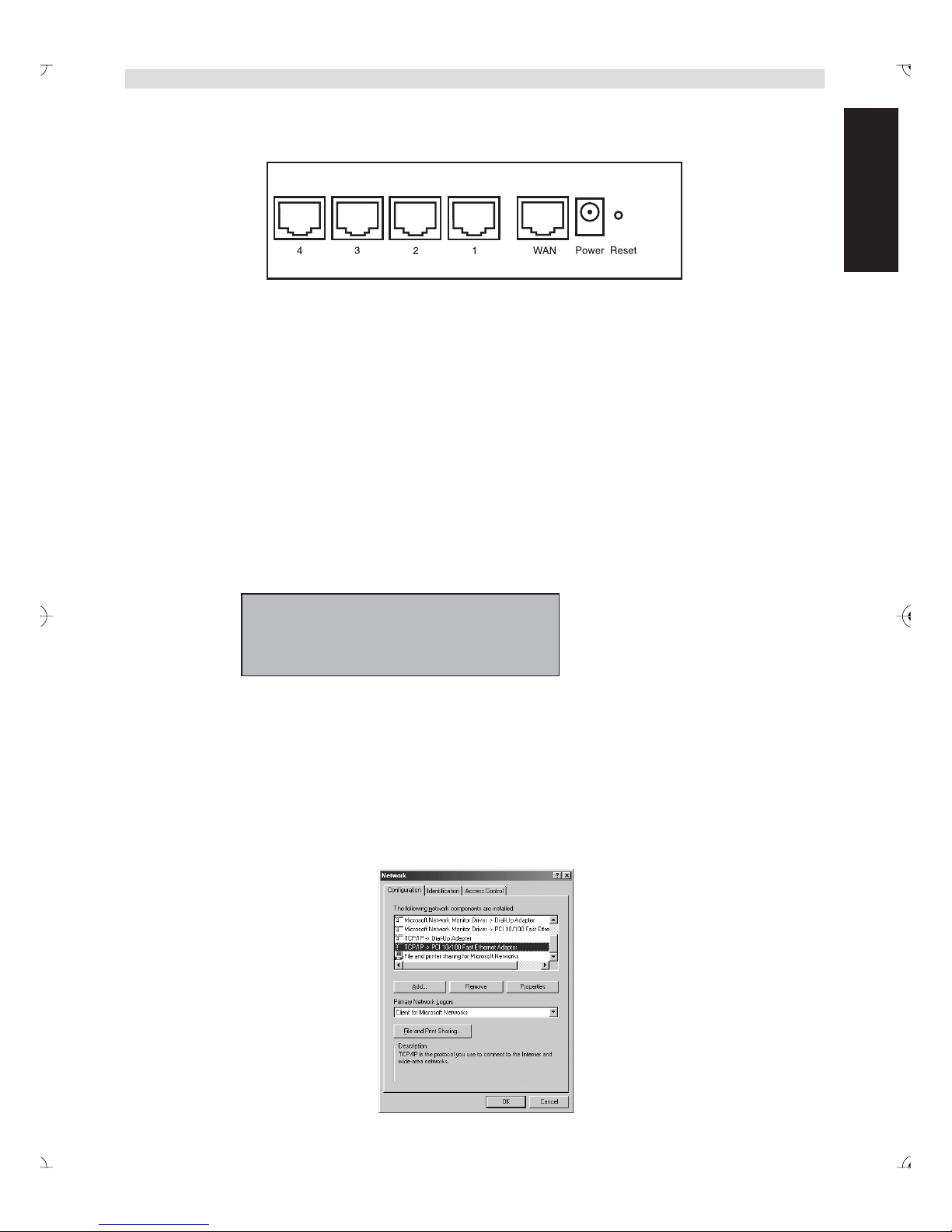
1. THE CONNECTION PANEL
•POWER: The power port is to connect the 5V DC power adapter.
- The power LED on the front panel will go ON when the power adapter is connected.
•WAN: The WAN Ethernet port is to connect your ASDL/Cable modem.
- The WAN LED will go ON if the network Ethernet cable is properly connected.
•Ports 1- 4: This is to connect networked devices, such as PCs, ftp servers or anything else you want to put on
your network.
- The LAN LED’s will indicate the connection status.
•Reset Button: If you would like to load default settings, press the reset button and hold it for 5 ~ 6 seconds. It will
load the factory default settings for the device. Do not press the reset button unless you want to clear the current
data.
2. CONFIGURING THE PC TO CONNECT TO THE CABLE/DSL
ROUTER
Remark
- The routers default IP address is: 192.168.1.1
- DHCP server is ON
If you do not wish to set a static IP address on your PC, you will need to configure your PC to accept the IP address
that the router will provide.
1. Click Start button, select Settings, then Control Panel
2. Double-click the Network Icon
3. In the configuration windows, select the TCP/IP protocol line that has been associated with your network card/
adapter.

6 Topcom Wireless Broadband Router WBR 254G
Topcom Wireless Broadband Router WBR 254G
4. Click the Properties button, then choose the IP ADDRESS tab. Select Obtain an IP address automatically.
5. Then select DNS configuration tab to add DNS IP address. Select Disable DNS function. Press OK. You have
completed the client settings.
6. After clicking OK, windows will ask you to restart the PC. Click Yes.
3. VERIFY YOUR PC’S IP CONFIGURATION
There are some tools which are great for finding out a computer’s IP configuration: MAC address and default gateway.
• WINIPCFG (for windows 95/98)
Inside the windows 95/98/ME Start button, select Run and type winipcfg. In the example below this computer has a IP
address of 192.168.1.100 and the default gateway is 192.168.1.1. The default gateway should be the broadband router
IP address. The MAC address in windows 95/98 is called the Adapter Address.
NOTE:You can also type winipcfg in the DOS command.

Topcom Wireless Broadband Router WBR 254G 7
ENGLISH
Topcom Wireless Broadband Router WBR 254G
• IPCONFIG (for windows 2000/NT)
In the DOS command type IPCONFIG and press Enter. Your PC IP information will be displayed as shown below.
- IPCONFIG / RENEW will renew the IP address, gateway and DNS.
• Windows XP
Click the right mouse key on your network adapter and select Status
The support screen will display the IP information.
4. SETUP THE BROADBAND ROUTER
When your PC has a valid IP address, you should be able to go to the router setup web page.
Open Internet Explorer or Netscape Navigater and goto address: 192.168.1.1
Now the login screen will appear.

8 Topcom Wireless Broadband Router WBR 254G
Topcom Wireless Broadband Router WBR 254G
• Enter the username and password.
- By default the username is admin and the password is admin.
Now you enter the web management of your Broadband Router.
• The setup wizard will automatically appear:
- Click Next to proceed
• In next screen you can change the login password (admin) to your own password.
- Click Next to proceed
• In next screen you can select your Time Zone
- Click Next to proceed

Topcom Wireless Broadband Router WBR 254G 9
ENGLISH
Topcom Wireless Broadband Router WBR 254G
• Now you can change the LAN settings:
- The LAN IP address and Subnet mask can be changed.
- The router DHCP server can be Disabled / Enabled
- The DHCP range can be set.
- Click Next to proceed
- Select your Connection Type
- Click Next to proceed
- Obtain IP automatilally (DHCP client): this connection is mostly used for connecting the WBR 254G to a cable
modem.
- Fixed IP address: for connections with fixed WAN IP address.
- enter the WAN IP, Subnet Mask, Gateway and DNS addresses.
- Click Next to proceed.
- PPPoE to obtain IP automatically: mostly used for connecting the WBR 254G to an ADSL-Ethernet Bridge with
PPPoE dial up.

10 Topcom Wireless Broadband Router WBR 254G
Topcom Wireless Broadband Router WBR 254G
- enter username and password (twice)
- Click Next to proceed.
- PPPoE with a fixed IP address: PPPoE connection with fixed WAN IP address.
- enter username, password (twice) and WAN IP address
- Click Next to proceed.
-PPTP: for setting up a VPN connection: in this case the WBR 254G WAN port is connected at the LAN site of an-
other
existing network !
- enter the VPN IP address, Subnet Mask and Gateway.
- enter the VPN Server IP address, PPTP Account and Password (twice).
- Click Next to proceed.
• Now you can setup the basic settings for the Wireless part.
- Select Enable to enable the Wireless LAN
- Choose an SSID and a Channel for your wireless network. Please make sure that the wireless
clients will operate on the same SSID and the same channel to make wireless data
communication possible.
- Click Next to proceed.
Table of contents
Languages:
Other Topcom Wireless Router manuals


