S
w
a
p
S
w
a
p
Customize your TiVo®Premiere remote
Some buttons on your TiVo Premiere
remote are programmable:
TV POWER
TV INPUT
VOLUME & MUTE (can control sound
on your TV or A/V receiver)
To program your TiVo Premiere remote,
press the TiVo button to go to the TiVo
Central®screen and select ‘Messages &
Settings,’ then ‘Settings,’ then ‘Remote,
CableCARD, & Devices,’ then ‘Remote
Control.’ Follow the easy on-screen
instructions.
If you have a Premiere XL remote control,
it has the ability to “learn” functions from
other remotes. See page 74 for more
information.
Due to the wide variety of brands and
models available, some TVs and A/V
receivers are not compatible with your
TiVo Premiere remote. See page 74 of this
guide for more information on
programming your TiVo remote control.
To navigate the TiVo®Premiere’s on-screen menus,
use the remote control’s arrow buttons
to move to the option you want, then press SELECT.
The LEFT arrow button often takes you to the
previous screen.
Two Types of On-Screen Arrows
On-Screen Menus and the Remote Control
The arrows that appear beside or near
the highlight bar show the directions it
can move. For example, on this screen,
you could press the RIGHT arrow to view
details about the highlighted title, or the
LEFT arrow to go back to the previous
screen.
When you see page up or page
down arrows at the top or bottom
of the screen (or a list), press the
CHAN UP/DOWN button to jump
an entire page at a time.
CHAN UP/DOWN
Button
Highlight Bar
Arrows near the
Highlight Bar
Page Up
Arrow
Page
Down
Arrow
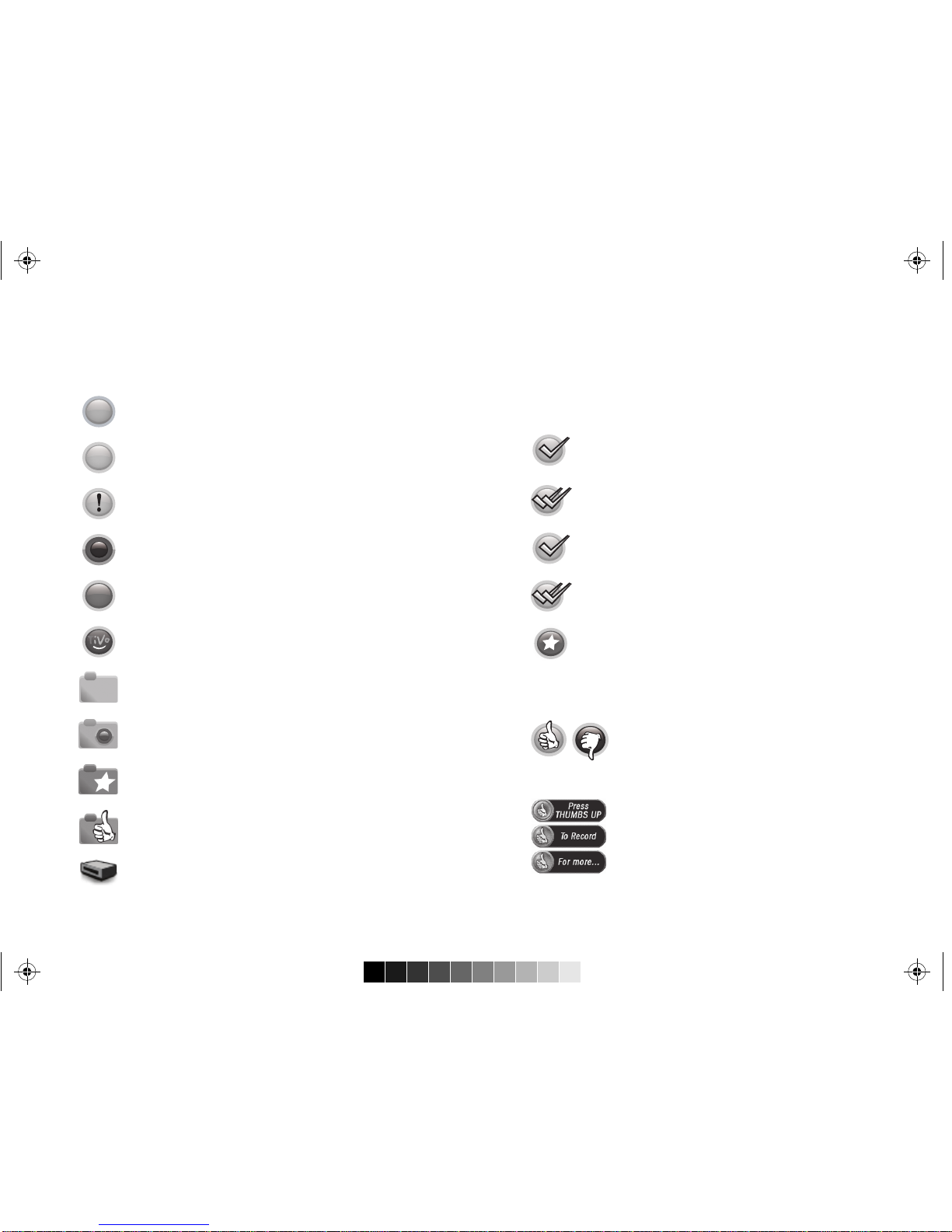
(Green) This program will be saved until you delete it.
(Yellow) In less than one day, this program may be deleted to make room
for other recordings you have requested, but only if space is needed.
(Yellow with exclamation mark) In less than one day, this program will be
deleted due to copyright restrictions.
(Yellow) In less than three days, this program may be deleted to make
room for other recordings you have requested, but only if space is needed.
(Yellow with exclamation mark) In less than three days, this program will
be deleted due to copyright restrictions.
(Red) This program is currently being recorded.
(Blue) This program is currently downloading or transferring.
My Shows (TiVowith HD menus)
Plain folder – contains more than one episode of the same series.
Folder with red or blue dot – contains a program that is currently
recording (red) or downloading/transferring (blue).
Folder with white star – contains one or more programs recorded
by a WishList®search.
Folder with Thumbs Up – contains all programs recorded as TiVo
Suggestions.
This program is a TiVo®Suggestion. TiVo Suggestions are recorded
only if space is available, and are the first to be deleted when space
is needed.
TiVo box – for a TiVo box connected to your network.
To Do List and View Upcoming Episodes (TiVo with HD menus)
(These icons appear beside programs scheduled to be recorded or downloaded.)
Glossary of icons
(Red) Program will be recorded as an individual recording (not part of a
Season Pass®recording or WishList™ search).
(Red) Program will be recorded as part of a Season Pass recording.
(Blue) Program will be downloaded as an individual download (not
part of a Season Pass®download).
Program will be recorded as part of a WishList search.
(Blue) Program will be downloaded as part of a Season Pass
download.
C
M
Y
CM
MY
CY
CMY
K
NeutronXLBravoCoverInside-r2.pdf 1 12/7/2009 5:26:07 PM