TimePilot Extreme Blue II User manual

TimePilot Extreme Blue II Enhanced Quick Start Guide
1. Unpack the box.
Here’s what’s inside:
Detailed instrucons are available online: www.TimePilot.com/SupportCenter.htm Having problems? Contact TimePilot tech support at 630-879-6400 or [email protected]om
© TimePilot Corporaon. All rights reserved.
iBuons (10)
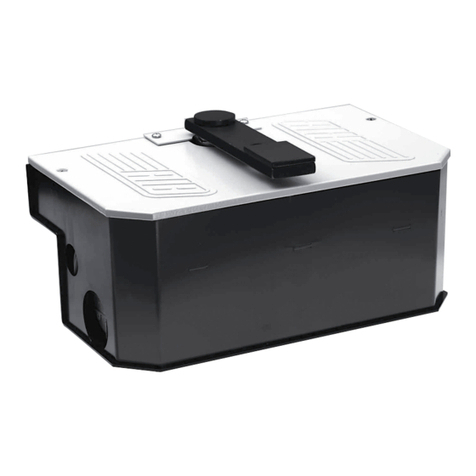
Extreme Blue II
me clock Padlock
Mounng
plate
4 AA
baeries
Soware CD
Blue Dot
Receptor
USB Drive
Management
iBuon
2. Prepare
the padlock.
Set a combinaon
on the padlock
using the
instrucons in the
lock package.
4. Download
the app.
Go to your app
store—iTunes’ App
Store for iPhones
and Google Play for
Android phones—
and download the
app. It’s free.
To nd the
app, search
for “TimePilot
Extreme.” Look for
the icon below.
Screw the mounng plate to the wall (or wall stud
or anywhere the clock will be used).
The weatherproof Extreme Blue II clock can be
mounted anywhere, but it’s always best to mount
it vercally where it will be shielded from the
elements as much as possible, but sll accessible
to your employees.
Hook the clock onto the mounng plate and use
the padlock to lock the assembly through the
loop at the boom of the clock.
Note that with the clock locked down, access to
the screws holding the mounng plate to the wall
are blocked. This feature was designed to deter
the of the clock.
3. Mount your clock.
Tap the icon (shown at right) to start your app for the rst me and you’ll start the Quick Setup, which will guide you
through the process of preparing your app for use. You can make changes later by tapping the “Sengs” icon (in the upper
le corner) in the app.
5. Set up
the app.
Important advice from our Support Sta: Don’t “dive in” and switch everything immediately to your TimePilot system. Our customers
have the best results when they start slowly and run TimePilot alongside their current system for a pay period or two.
If you have Extreme
Blue—without the PC
soware on a CD—you
need our Extreme Blue
Quick Start Guide,
available at
TimePilot.com/
Support Center
Dropbox is a free Cloud service that
acts as a “middleman” between
your smartphone at the TimePilot
soware on your PC. Aer you use
your iPhone to collect data from
your Extreme Blue II clock(s) and
make any necessary correcons,
you’ll send the data to Dropbox.
The data is stored in your Dropbox
account unl you retrieve it with the
TimePilot Central soware.
Enter a name for your phone and
its phone number, then tap the
“Extreme Blue Enhanced” buon. Tap
the “Link to Dropbox” buon that
appears.
If you already have a Dropbox
account, log in by entering your email
address and password. If you don’t have
one, tap the “New to Dropbox” link at
the boom of the screen and follow the
instrucons that appear.
When the linking process is complete,
you’ll be returned to the app setup
screen.
On the next page you’ll set up your
PC soware and add employees to
the soware and to the phone.

TimePilot Extreme Blue II Enhanced Quick Start Guide—Part 2
9. Set up the soware and link to the Cloud.
When installaon is complete, you’ll see the TimePilot Central
icon (right) on your PC’s desktop. Click it to start the Setup
Wizard, which will guide you step-by-step through seng up
the soware on your computer.
You’ll need your soware’s serial number; it’s on a scker
aached to the printed warranty informaon that came with
your product.
During the setup process, you’ll be asked to “Add Employee Proles.” This is
where Extreme Blue II Enhanced users will add their employees and assign
iBuons, using the Blue Dot Receptor.
At the end of the process, you’ll be asked if you want to connect to the
Cloud. Click “Yes.” The soware will nd your Dropbox account and ask you
to create a TimePilot Cloud folder in the account that will be used by your
phone and your PC.
8. Install TimePilot soware.
Place the CD in your computer’s CD/DVD drive. When
the opening screen appears, click “Install TimePilot
Soware,” then “TimePilot Installaon Wizard.”
When you’re asked if you want to install TimePilot
Central, click “Yes.” TimePilot Central is the core of
the TimePilot system.
The driver for the Blue Dot Receptor, which enables
you to assign iBuons right at your PC, will be
included in the TimePilot Central installaon.
10. Send employee proles to the phone.
Next, the wizard will ask if you want to set up your me clocks. Click “Yes.”
Clock Manager (shown at right) will start. Clock Manager’s job is to connect your me
clock(s) to the TimePilot Central soware. You’ll use Clock Manager to send your
employees’ proles to your phone and later retrieve the transacons downloaded from
the clocks to the phone.
1. If you’re prompted, log in with the same password you use for TimePilot Central.
When Clock Manager starts, you’ll see the icon represenng your phone.
2. Right-click the icon and click “Send Proles to Phone.” You can send all the proles
or just individual ones.
3. You’ve nished the process at TimePilot Central, and the proles are sing in
Dropbox waing for your phone to download them. Start the app on your phone.
4. Tap the Sengs menu (the three horizontal lines) at the top le side of the phone
screen, then tap “Extreme Blue Enhanced” and “Get Proles from Cloud.” The
employees’ names and iBuon numbers will download to your phone.
Important note: You’ll also see “Pay Period,” “Overme” and “Rounding” in the
Sengs menu. Don’t use these menus—in Extreme Blue II Enhanced, those sengs
are controlled in TimePilot Central.
This completes your setup. You can start using your Extreme Blue Enhanced system.
See Page 3 for instrucons on how to use the app.
When you send proles to a phone, you can
send all your proles, groups or just individuals.
Clocking in and out.
Touch your iBuon to the
center of the “In” or the “Out”
iBuon probe.
You’ll hear two “beeps” and
the orange or green light in the
probe will ash to indicate the
transacon has been recorded.
The metal part of the iBuon
must touch both the inner at
surface of the probe as well as
the rim of the probe.
Detailed instrucons are available online: www.TimePilot.com/SupportCenter.htm Having problems? Contact TimePilot tech support at 630-879-6400 or [email protected]om
7. Install Dropbox
on your PC.
If you don’t already have
Dropbox on your computer,
go to www.Dropbox.com/
basic, download and install
the free version (not a paid
version) of the soware and
log in to the same account
as the one that’s on your
phone.
No CD/DVD drive? No problem. You can download
the soware at our Support Center at TimePilot.com.
Each phone or clock that has been set up in the
system appears as an icon in Clock Manager.

“Made for iPhone” means that an electronic accessory has been designed
to connect specically to iPhone, and has been cered by the developer
to meet Apple performance standards. Apple is not responsible for the
operaon of this device or its compliance with safety and regulatory
standards. Please note that the use of this accessory with iPhone may
aect wireless performance.
How to use the Extreme Blue II Enhanced app
This document uses screenshots from TimePilot’s iPhone App; our Android app is very similar.
The Main Screen of the app.
Collecng data from the clock.
You can download clock-ins and clock-outs
from the clock at any me. In addion, the
act of collecng the transacons will also
reset the me on the Extreme Blue II clock to
match the me on your phone. Here’s how to
collect the transacons:
1. Tap the gray Management iBuon that
came with your clock to the clock’s “Out” probe.
The lights on the clock will ash.
2. Tap the “Clock” icon at the boom of the app’s
Main screen on your iPhone, then the “Get New
Transacons” buon.
3. The transacons will download to your phone.
Want to see an individual employee’s clock-ins and clock-
outs (also known as “transacons”)? Just double-tap the
employee’s name.
Want to edit an individual employee’s prole? Tap the
employee’s name to highlight it, tap “Menu” in the top right
corner and then choose “Edit Employee.” Tap “Save” when
you’re done.
Want to add or delete an employee? Tap “Menu” and then
choose “Add Employee” or “Delete Employee.” Tap “Save”
when you’re done.
Want to clock in (or out) an employee right in the app? Tap
the employee’s name to highlight it, tap “Menu” and then
choose “Clock In” or “Clock Out.” Tap “Save” when you’re
done. The me of the transacon will match the me on the
phone.
Want to edit an exisng transacon? Tap the employee’s
name to highlight it, tap “Menu” and choose “Edit
Transacon.” Tap “Save” when you’re done.
How to send data from the phone to the PC.
1. Tap the “Sengs” menu, then “Extreme Blue Enhanced” in the menu that appears.
2. You’ll see that you’re connected to your Dropbox account and two blue buons. Tap
“Send Data to Cloud.”
3. Now start Clock Manager on your PC. (In TimePilot Central, click the “Setup” menu,
then “Clock Manager...”). The name of the phone that sent the data in the previous
step will be shown in red. This is an indicator that there is data in Dropbox waing to
be retrieved.
4. Right-click the phone and select “Get Transacons from Phone.” The data will ow
into the TimePilot database and you’ll see it in TimePilot Central.
Dropbox
Data travels from
your smartphone to
your Dropbox folder,
and is retrieved by
TimePilot Central.
How to name
your clocks.
If you have more
than one Extreme
Blue II clock, it can
be helpful to give
each clock a name
so you can see in
TimePilot Central
exactly which
clock an employee
used.
To do so, start
the app, tap the
“Clock” icon,
then “Menu” and
choose “Set Clock
Name.”
“Employees” returns you to the Main Screen if you’re on another page.
“Clock” downloads to your iPhone the clock-ins and clock-outs collected by the
Extreme Blue II clock.
“Past” is not used by those using Extreme Blue II Enhanced.
The icons at the boom.
Detailed instrucons are available online: www.TimePilot.com/SupportCenter.htm Having problems? Contact TimePilot tech support at 630-879-6400 or [email protected]om
The three horizontal lines at the top le of the screen are the icon for the
Sengs Menu, which is used when seng up the app, sending data to TimePilot
Central or retrieving employee proles from TimePilot Central.
When you tap “Menu,” at the top right, the menu that appears varies depending
upon what you’re doing at the me.
The red arrows next to some employees’ names indicate that the employee was
clocked in when you last collected the data; no arrow means they were clocked
out. The me displayed below each employee’s name is calculated from their last
collected clock-out.
This manual suits for next models
1
Other TimePilot Lock manuals