
TimeLink IWB All-In-One User manual

!!!!!!!!!!!!!!!!!!!!!!!!!!!!!!!!!!!!!!!!!!!!TimeLink USA, Inc.! ! !
Add: 5171 Glenwood Ave., Suite 321 Raleigh, NC 27612
Tel: +1 (919) 747-9556 Web: www.timelinkusa.com Email: info@timelinkusa.com
!
!
TimeLink!Cloud!Education!Solution
User!Guide!for!V2

!!!!!!!!!!!!!!!!!!!!!!!!!!!!!!!!!!!!!!!!!!!!TimeLink USA, Inc.! ! !
CONTENTS
1 Introduction...............................................................................................................1
2 The composition of cloud education solution.........................................................3
2.1Microrecordsoftware.......................................................................................................................3
2.2 Fenke website.................................................................................................................................3
2.3 Classification of user......................................................................................................................4
2.4 Fenke resource management platform...........................................................................................5
3 The personal user instructions................................................................................5
3.1The way of recording course...........................................................................................................5
3.2 The rights of personal user.............................................................................................................8
3.2.1 My lecture...............................................................................................................................8
3.2.2 My learning............................................................................................................................10
3.2.3 My Oder.................................................................................................................................10
4.The school user instructions....................................................................................11
4.1 Pre-entry school information........................................................................................................11
4.1.1 School management...............................................................................................................11
4.1.2 Teacher management.............................................................................................................12
4.1.3 School Setting........................................................................................................................13
4.2 Install and active Microrecord sofware.........................................................................................13
4.3 The recording way of school user.................................................................................................14
4.4 Check course by school user.........................................................................................................16
4.5 Relevance way of school user and personal user......................................................................... 17
!!!!!!!!!!!!!!!!!!!!!!!!!!!!!!!!!!!!!!!!!!!!TimeLink USA, Inc.! ! !
1
1 Introduction
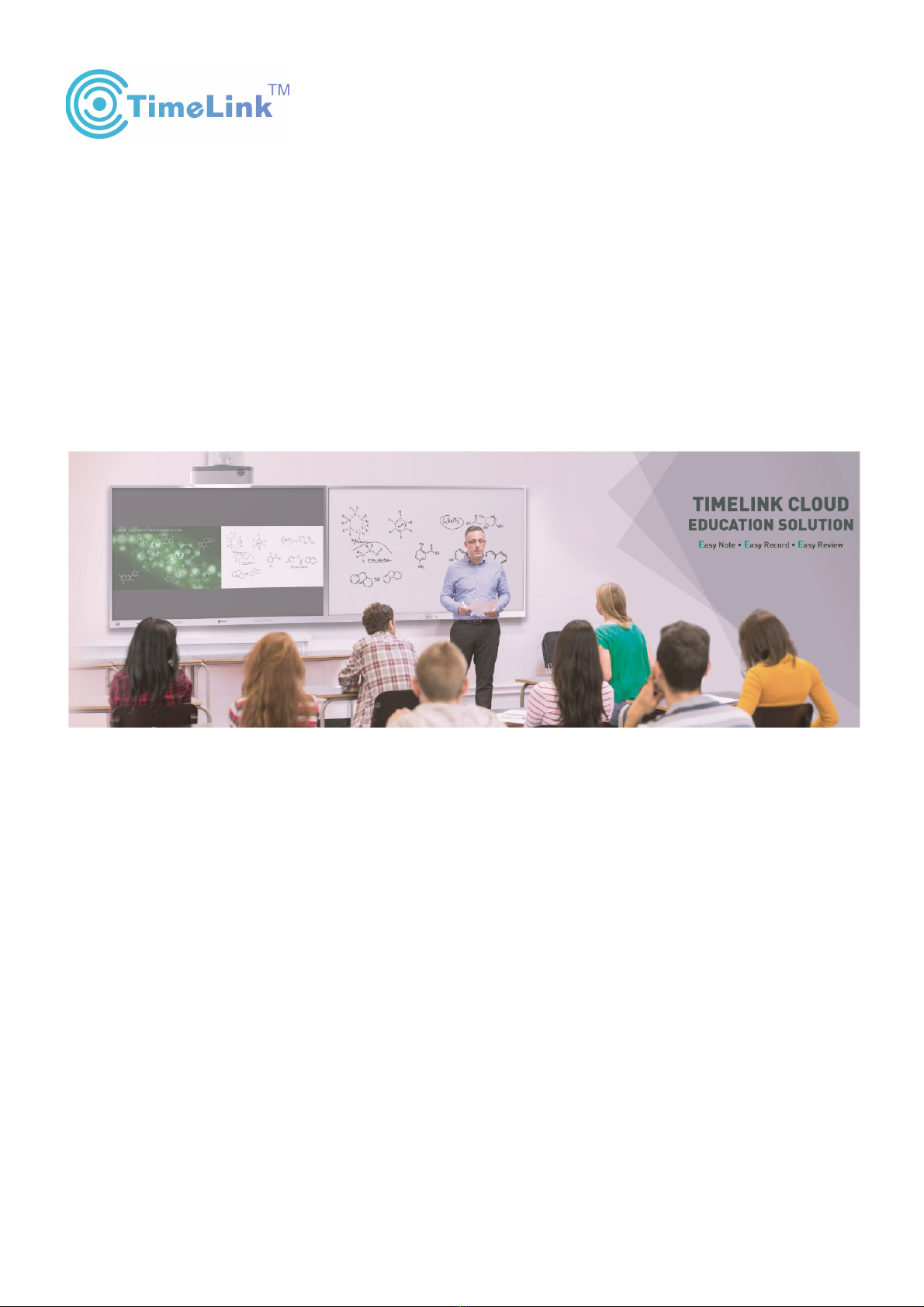
TimeLink Cloud Education Solution is large scale, fully automatic record the entire teaching
process. It can autonomously and comprehensively record the courseware, voice, notes in class
and save into cloud sever when class is over. It provides a comprehensive and efficient system
that make student can do targeted and productive review of their lessons online.
This file describes the method of the whole operation of TimeLink Cloud Education.
A set of hardware devices:
IWB&IWB All-In-One or any other display+ Timelink Note
(Timelink Note is independent researched and developed by TimeLink)
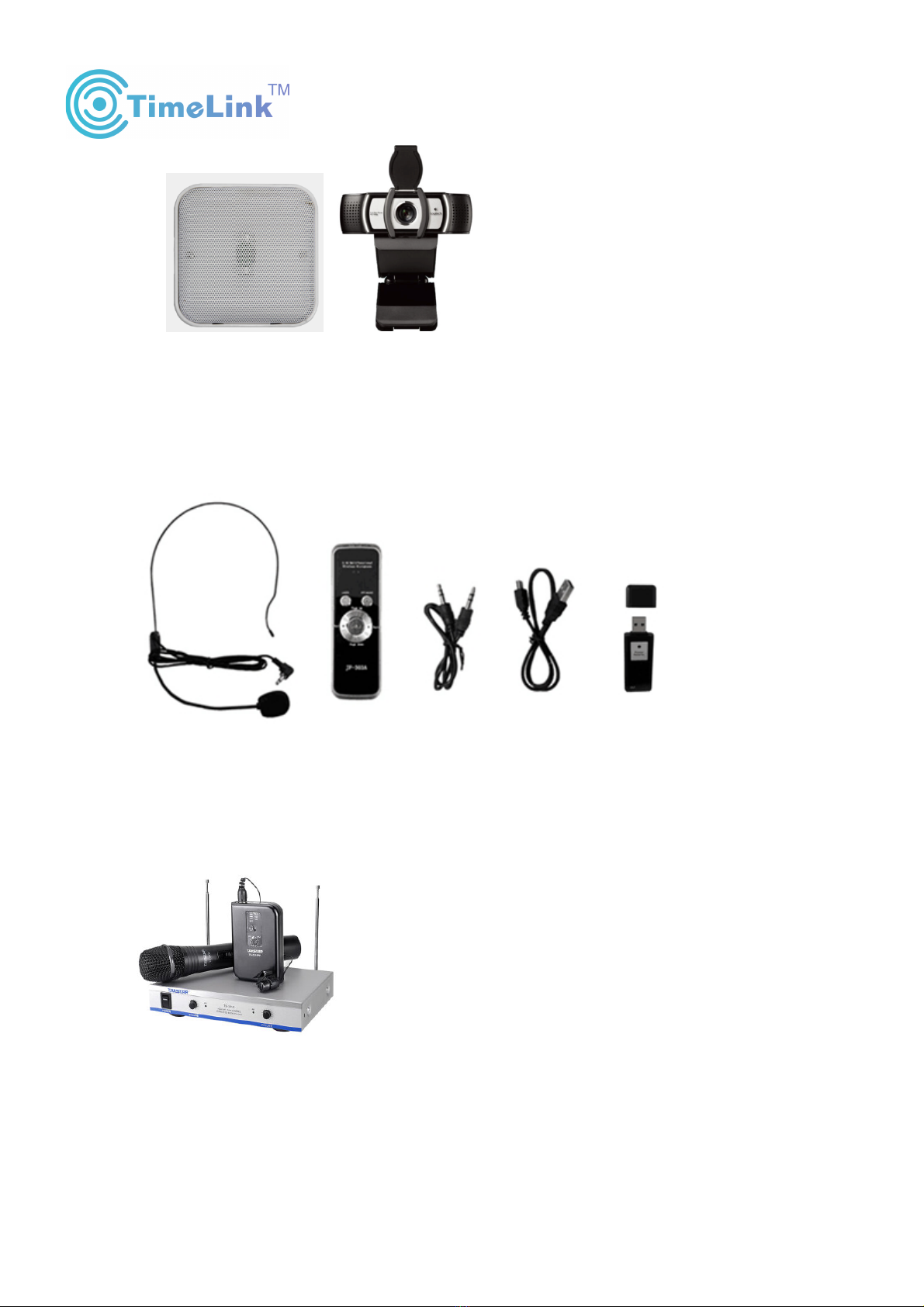
A set of wireless MIC
In order to record the teacher’s voice, teacher needs have a record device.Now pick up
equipment selection as follows:
①
Omni-directional Type
!!!!!!!!!!!!!!!!!!!!!!!!!!!!!!!!!!!!!!!!!!!!TimeLink USA, Inc.! ! !
2
②
Head-wearing microphone
③
Clipper Microphone/Handheld Microphone
!
!
!
!

!!!!!!!!!!!!!!!!!!!!!!!!!!!!!!!!!!!!!!!!!!!!TimeLink USA, Inc.! ! !
3
!
!
!
!
!
!
!
!
!
2 The composition of cloud education solution
Hardware: IWB&IWB All-In-One or any other display+ Timelink Note
Software: Microrecord software
Check and share lessons on fenke.timelink.cn& FENKE APP
Manage courses on fenke resource management platform
2.1 Microrecord software
!
Firstly install it in the computer and it can help you record your course
l Have two modes: personal user & school user that can meet the needs of diverse scenarios.
l Bound wechat or RFID card can log in quickly and unbind anytime.
l Pre-entry syllabus can realize full automatic record course, and teacher does not any
operation when have a class.
l Automatically grab document title in the record process and denominate the name of
recording files.
l Comprehensively record courseware+ notes+voice together, and upload to cloud server
and save it.
l The recording file is about 70MB per class with 45-minute
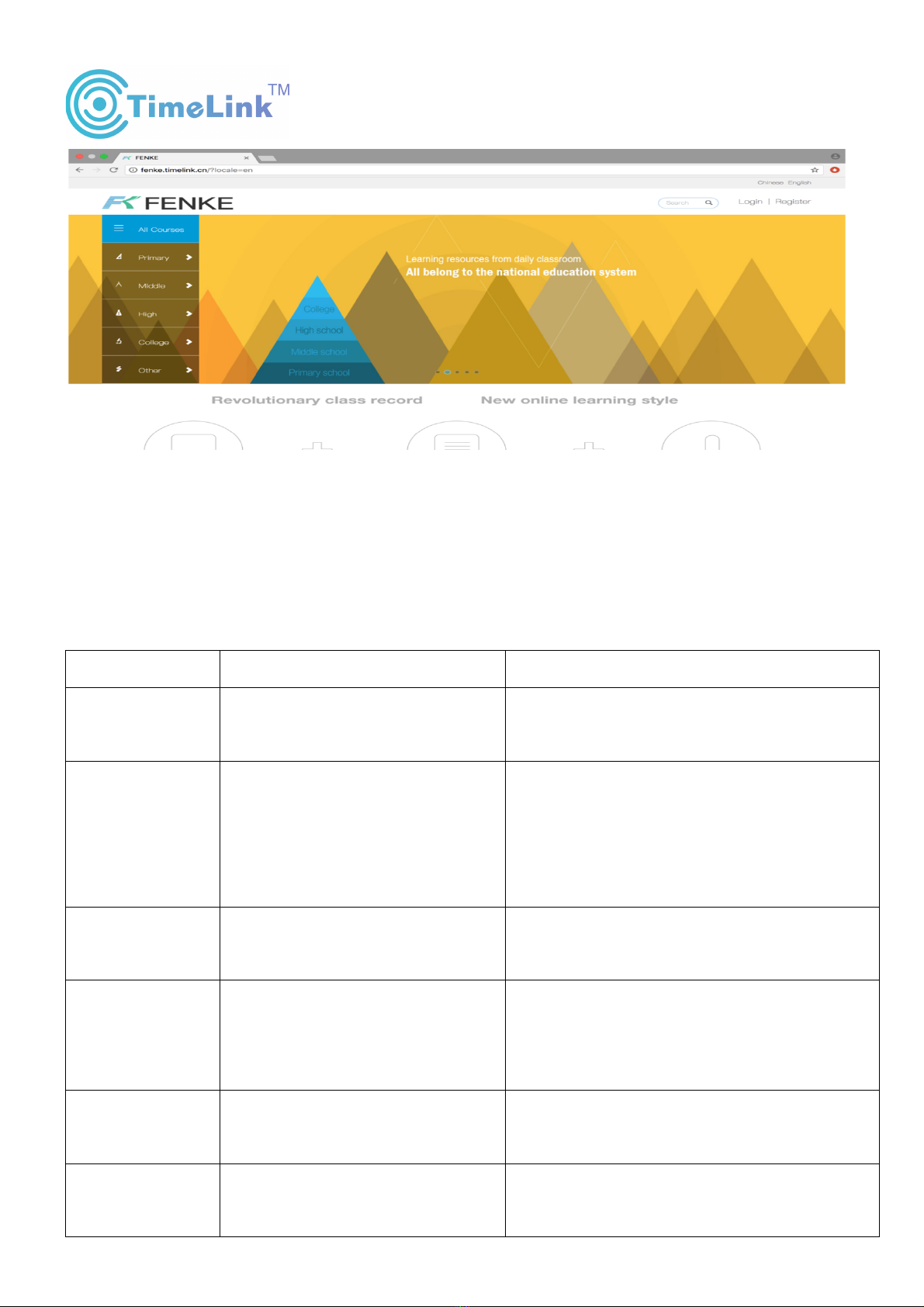
2.2 Fenke website
u The website:http://fenke.timelink.cn
u It is platform that can efficiently review and study f for teachers, students and learners.
u Have school user and personal user, compatible the needs of K12, college, personal user.
!!!!!!!!!!!!!!!!!!!!!!!!!!!!!!!!!!!!!!!!!!!!TimeLink USA, Inc.! ! !
4
!
2.3 Classification of user
The user of Fenke website has personal user and school user, the difference is as below:
Personal user
School user
The register way
Register directly in fenke
website
Register batch by school administrator and
hand out to teachers and students.
User definition
One ID can be a student to join
in a class to learn knowledge and
also can be a teacher to record
course.
One ID just can be a teacher or a student,
cannot be dual identity
Activate way
Do not need to activate
microrecord software
Need administrator id to activate
microrecord software
Record course
way
initiative to log in microrecord
software and then record course
Pre-entry syllabus in resource management
platform and then realize full automatic
record course
Application
range
Apply to person, college,
Vocational school
Apply to k12, college.
Operation
difference
Can check, edit, modify, cut and
delete course, also can label the
Just can check course
!!!!!!!!!!!!!!!!!!!!!!!!!!!!!!!!!!!!!!!!!!!!TimeLink USA, Inc.! ! !
5
course then sell it.
Relevance way
School user id can bind with personal user id, and then the course of school
user id can synchronize with the personal account to realize the edition, order
of course.
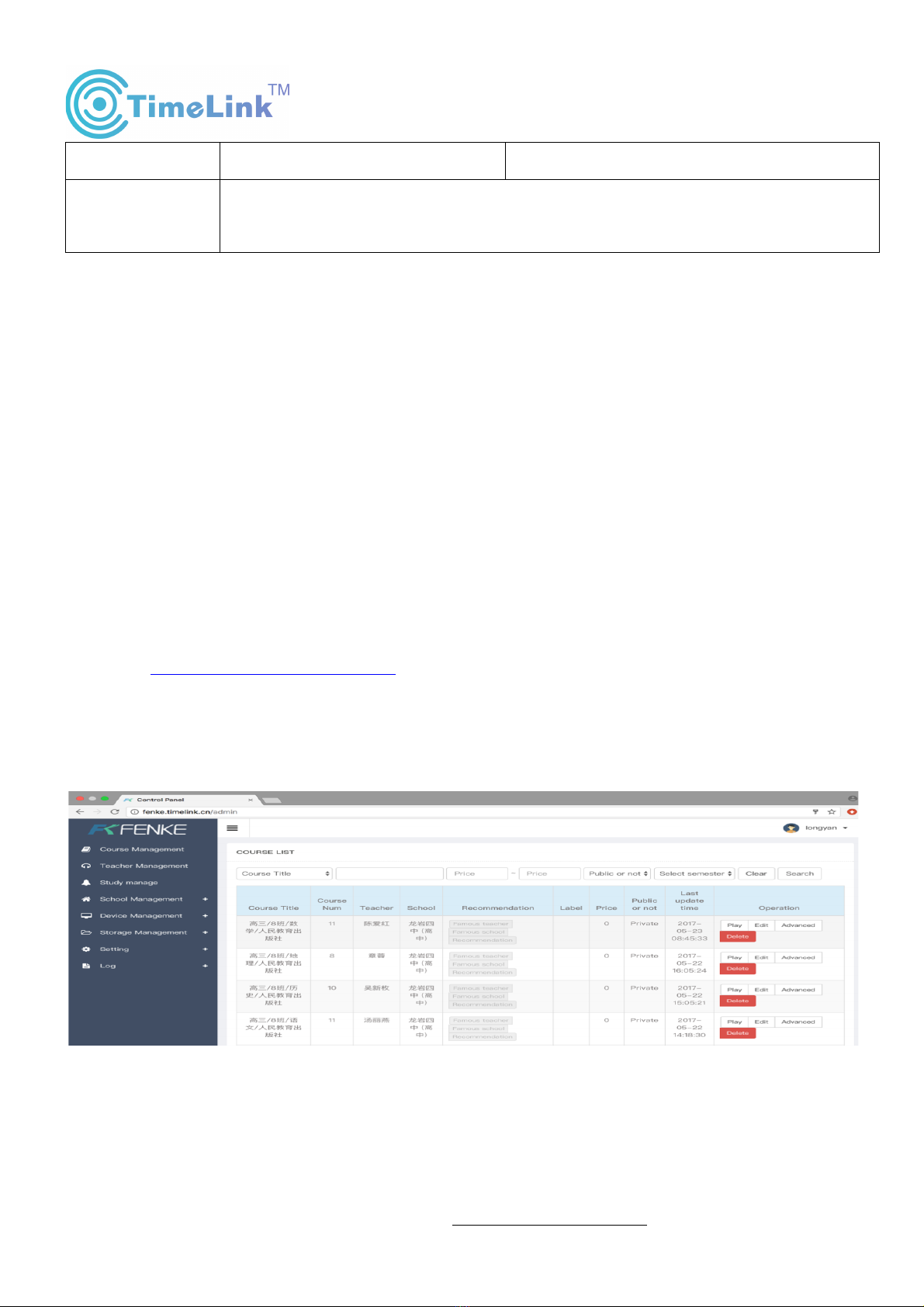
2.4 Fenke resource management platform
Website:http://fenke.timelink.cn/admin
The resource management platform is an efficient management system for school education
resource management. And provide a big space operation for system administrator and school
administrator. It is good to school to manage courseware, school information, ID information,
devices.
!
3 The personal user instructions
3.1The way of recording course
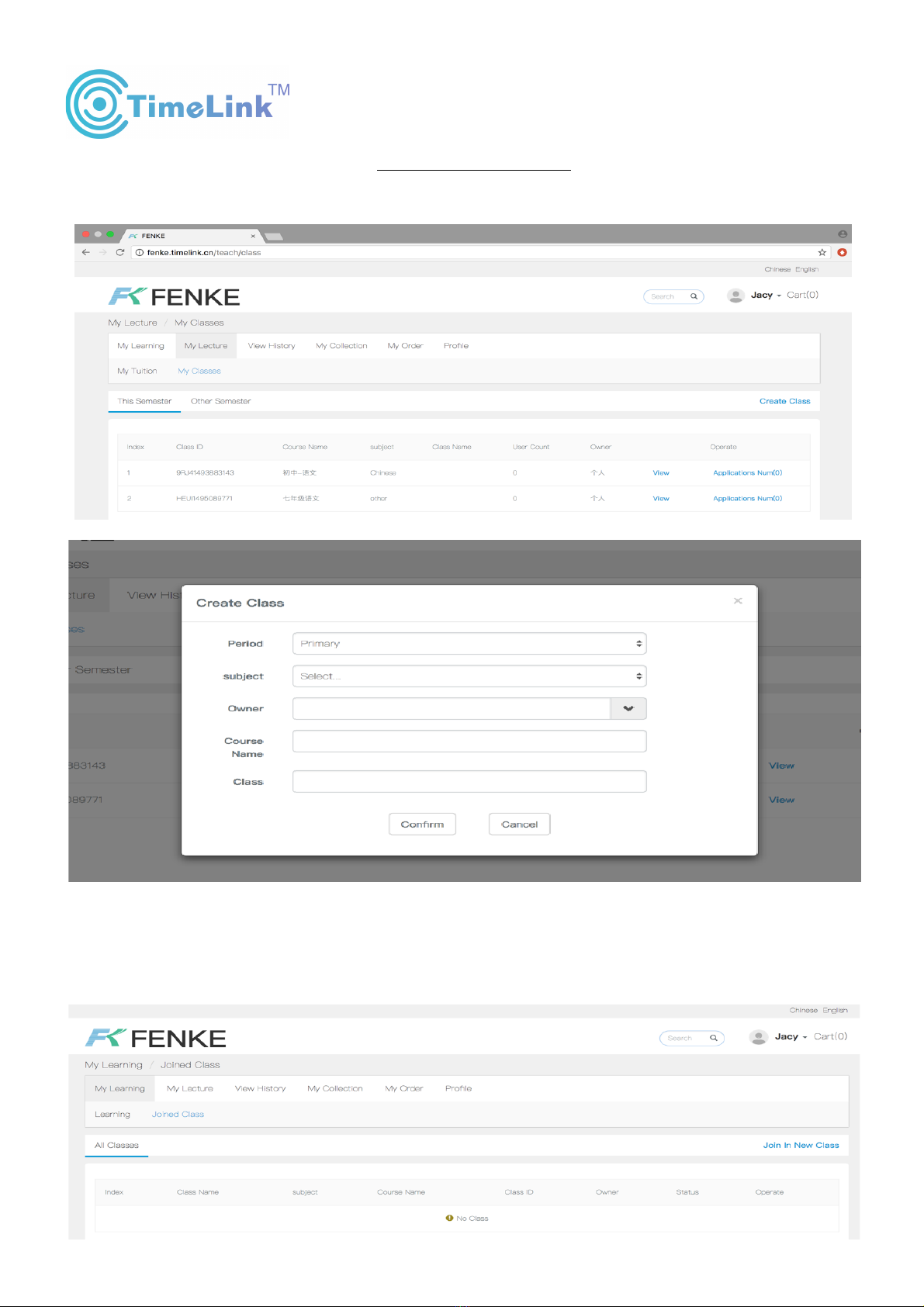
①Register an ID by phone number or email on http://fenke.timelink.cn, then find My lecture-My
!!!!!!!!!!!!!!!!!!!!!!!!!!!!!!!!!!!!!!!!!!!!TimeLink USA, Inc.! ! !
6
Classes to create class and course on http://fenke.timelink.cn.And also can create class and
course by microrecord software.
!
!
!
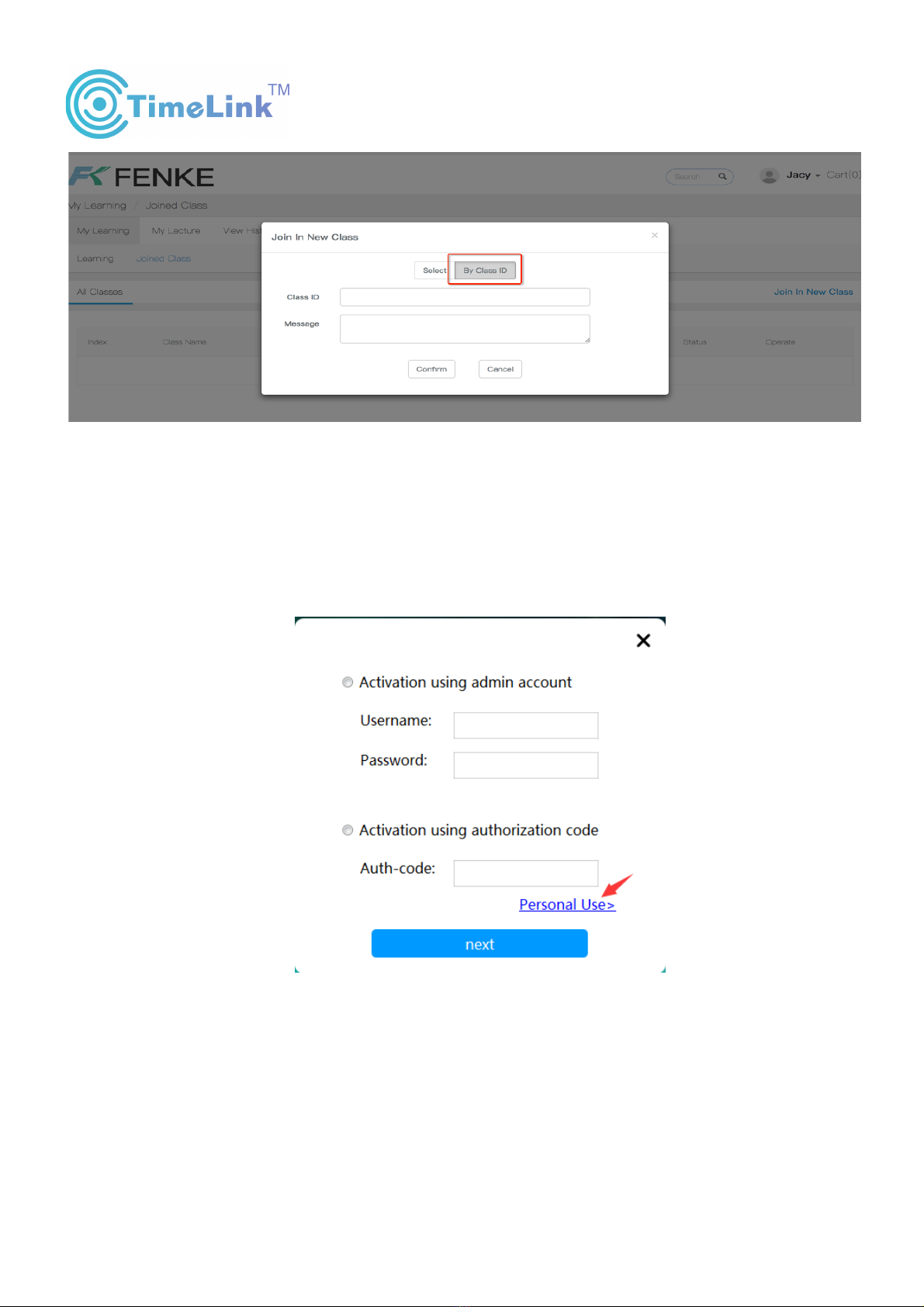
②After you create class, will automatically generate class ID, other users can join in this class
through this class id on My learning page on fenke website.
!
!!!!!!!!!!!!!!!!!!!!!!!!!!!!!!!!!!!!!!!!!!!!TimeLink USA, Inc.! ! !
7
!
!
!
!
③After creating class and course, then log in microrecord software to record course by
personal id.
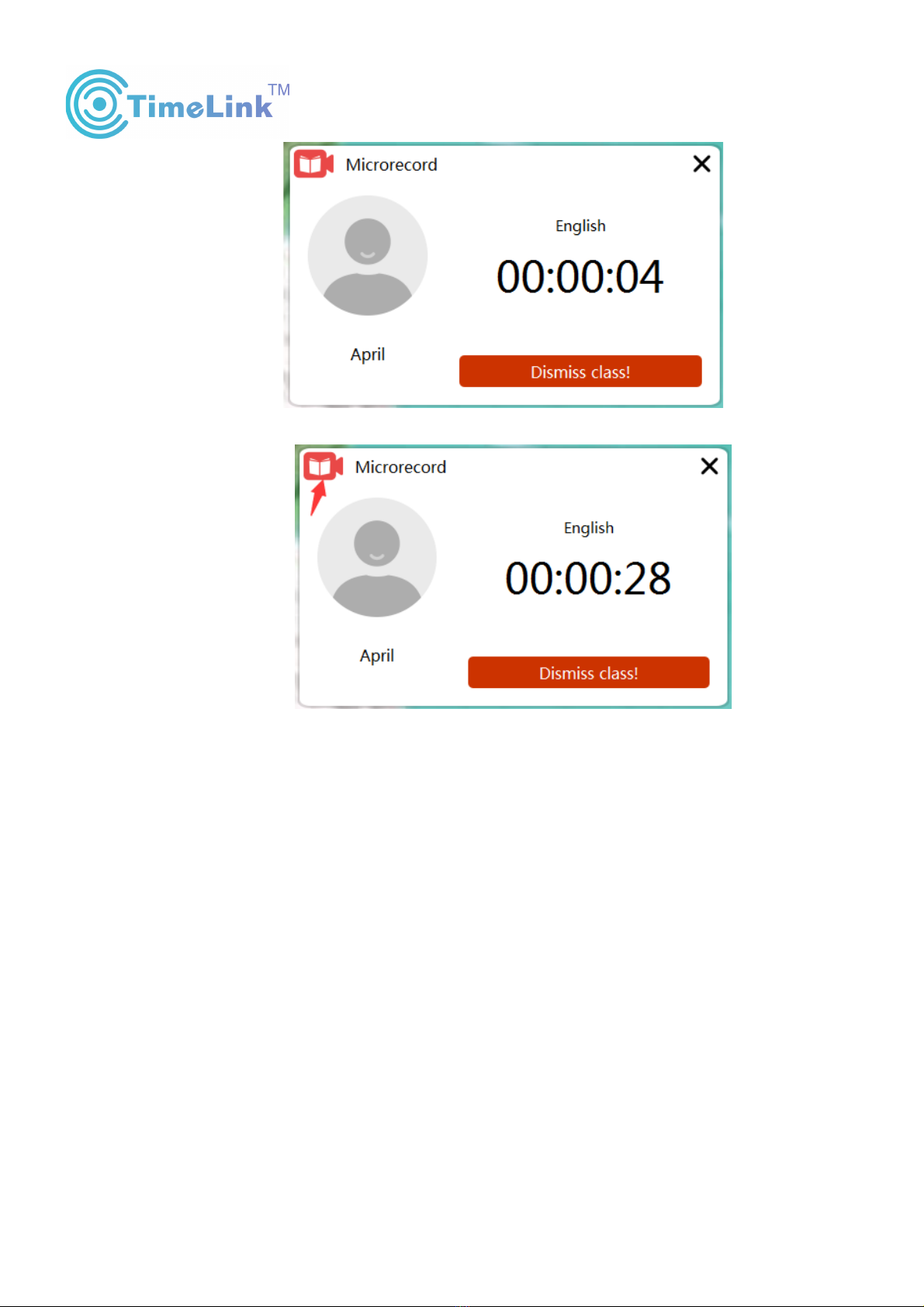
④Open the microrecord software, Click the personal use, then use the username and password to
log in it, then can have a class, picture as below:
!!!!!!!!!!!!!!!!!!!!!!!!!!!!!!!!!!!!!!!!!!!!TimeLink USA, Inc.! ! !
8
⑤Click the logo of microrecord software, then can see preview the handwriting.
⑥The method of binding RFID card with record course ID:
Ø The function applies to the IWB All-In-One, if the device is not IWB All-In-One, can not
realize the function.
Ø Binding method:Click the corn of microrecord software, and then click” Binding” ,
according to the hint to finish binding.
Table of contents
Other TimeLink Whiteboard manuals


