Thinkcar X10 User manual

Version: V1.00.001
Statement: the THINKCAR has full intellectual property rights to the software used in this
product. For any act of reverse or cracking the software, the Company will stop the product
and reserve the right to pursue the legal liability.
THINKCAR

www.thinkcar.com
THINKTOOL X10
I
Copyright Information
Without the written consent of THINKCAR TECH CO., LTD (hereinafter referred to as "THINKCAR"), no
company or individual may copy or backup this manual in any form (electronic, mechanical, photocopying,
recording or other forms). This manual is specially designed for the use of THINKCAR products. The
company will not be responsible for any consequences caused by using it to guide the operation of other
equipment. This manual and all examples included are subject to change without notice. THINKCAR and
its branches shall not be liable for any costs and expenses incurred in damage or loss of the equipment
caused by the user's personal or third party's accident, misuse or mal-operation of the equipment,
unauthorized modification or repair of the equipment, or failure to comply with the operation and
maintenance requirements of THINKCAR. THINKCAR does not assume any responsibility for the damage
or problems caused by the use of other selected accessories or consumables other than THINKCAR
original products or approved products of THINKCAR. Formal statement: the purpose of the other product
names mentioned in this manual is to explain how the equipment is used, and the registered trademark
ownership remains with the original company.
This equipment is used by professional technician or maintenance personal.
Registered Trademark
THINKCAR has been registered in China and a number of overseas countries, its logo is THINKCAR. In
countries where the trademark, service mark, domain name, symbols and company name of THINKCAR
are not registered, THINKCAR states that it retains ownership of the trademark, service mark, domain
name, symbols and company name. Trademarks of other products and company names mentioned in
this manual retain the ownership of original registered companies. No one may use the trademark, service
mark, domain name, symbols and company name of THINKCAR prior to written consent of the owner.
You can visit the website: http://www.thinkcar.com for information about THINKCAR products; you can also
write to: Shenzhen Thinkcar Tech Co., Ltd., No. 2606, F26, Building 4, Phase II of Tian'an Yungu Industrial
Park, Longgang District, Shenzhen City, Guangdong Province, China, to contact Think to obtain written
consent to the use of the manual.
Important Security and Operation Information
To avoid personal injury, property loss or accidental damage to the product, please read all information in
this chapter before using the product.
Handle the Equipment with Care
Do not drop, bend, puncture, insert foreign objects, or place heavy objects on the equipment, or else,
vulnerable components inside may be damaged.
Do not Disassemble or Modify the Equipment
It is a sealed device without part that can be repaired by user inside. All internal repairs must be carried out
by authorized maintenance agencies or technicians. Attempts to disassemble or modify the equipment will
void the warranty.
Do not Attempt to Replace Internal Battery
The internal rechargeable battery must be replaced by authorized maintenance organization or technician.

www.thinkcar.com THINKTOOL X10
II
Adapter information
Do not wet the equipment and adapter. Do not soak the equipment into water or place it in position where it
may absorb water or other liquids. The charging device may be hot in normal use. Ensure good ventilation
around the charging device.
Unplug the charging device if any of the following occurs:
• The charging device is exposed to rain, liquid, or excessive humidity.
• The charging device shows signs of physical damage.
• You attempt to clean the charging device.
Protect Data and Software
Do not delete unknown files or change names of files or directories created by others, otherwise, the
equipment software may fail to run.
!Note: access to network resources may make devices vulnerable to computer viruses, hackers, spyware, and
other malicious acts, which may damage devices, software, or data. You should ensure that your computer is
adequately protected with fi rewalls, anti-virus software, and anti-spyware software, and that these software is
always up to date.
Precautions for Use
The ignition switch should be in the OFF position when the diagnosis line is removed or inserted.
Precautions for Vehicle ECU Operation
• When the ignition switch is on, please do not disconnect the internal electrical device of the car at will, so
as to avoid damage to the ECU or equipment.
• Do not place magnetic objects near the computer to avoid circuit and component failure in the ECU.
• Disconnect the ECU system power supply when welding is carried out on the vehicle.
• When performing repairs near the computer or sensor, pay particular attention to avoid damage to the
ECU and sensor.
• The connector of the ECU wire harness should be connected reliably to avoid damage to the integrated
circuit and other electronic components inside the ECU.

www.thinkcar.com
THINKTOOL X10
III
Content
1. Overview............................................................................................................................................... 1
1.1 Instruction............................................................................................................................................ 1
1.2 Recognize diagnosis host.................................................................................................................... 1
1.3 Performance parameter....................................................................................................................... 2
1.4 Equipment operation ........................................................................................................................... 2
1.5 Shortcut setting.................................................................................................................................... 2
2. Rapid use introduction ....................................................................................................................... 3
2.1 First use............................................................................................................................................... 3
2.1.1 Start............................................................................................................................................ 3
2.1.2 Language Setting....................................................................................................................... 3
2.1.3 Connect Wi-Fi ............................................................................................................................ 3
2.1.4 Choose Time Zone..................................................................................................................... 4
2.1.5 User agreement ......................................................................................................................... 4
2.1.6 Account creation......................................................................................................................... 5
2.1.7 Diagnosis equipment activation ................................................................................................. 5
2.2 Diagnosis procedure............................................................................................................................ 5
2.3 Function menu..................................................................................................................................... 6
2.4 Recharge the host ............................................................................................................................... 6
2.5 Battery use .......................................................................................................................................... 7
2.6 Diagnosis equipment connection......................................................................................................... 7
3. Diagnosis ............................................................................................................................................. 8
3.1 VIN automatic identifi cation................................................................................................................. 8
3.2 Manual diagnosis................................................................................................................................. 8
3.3 Select diagnosis system.................................................................................................................... 10
4. Remote diagnosis.............................................................................................................................. 16
4.1 Remote diagnosis fl ow ...................................................................................................................... 16
4.2 Connect and start remote diagnosis.................................................................................................. 16
5. Maintenance....................................................................................................................................... 18
5.1 Oil Reset............................................................................................................................................ 18
5.2 Elec. Throttle Rlrn.............................................................................................................................. 18
5.3 SAS Reset......................................................................................................................................... 19
5.4 BAT. Match ........................................................................................................................................ 19
5.5 Bleeding............................................................................................................................................. 19
5.6 Brake Reset....................................................................................................................................... 19
5.7 DPF Reg............................................................................................................................................ 20
5.8 Gear Learn ........................................................................................................................................ 20
5.9 Immo.................................................................................................................................................. 20
5.10 Injector............................................................................................................................................. 20
5.11 TPMS Reset .................................................................................................................................... 20
5.12 Sus Reset........................................................................................................................................ 20
5.13 AFS Reset ....................................................................................................................................... 21
5.14 GearBox Learn ................................................................................................................................ 21
5.15 Sun Roof.......................................................................................................................................... 21
5.16 EGR Adaption.................................................................................................................................. 21
5.17 ODO Meter ...................................................................................................................................... 21
5.18 Airbag Reset .................................................................................................................................... 21
5.19 Transport Mode ............................................................................................................................... 21
5.20 A/F Reset......................................................................................................................................... 21
5.21 Stop/Start Reset .............................................................................................................................. 22
5.22 NOx Sensor Reset........................................................................................................................... 22
5.23 AdBlue Reset................................................................................................................................... 22

www.thinkcar.com THINKTOOL X10
IV
5.24 Seats Calibration ............................................................................................................................. 22
5.25 Coolant Bleed.................................................................................................................................. 22
5.26 Tyre Reset ....................................................................................................................................... 22
5.27 Windows Calibration........................................................................................................................ 22
5.28 Language Change........................................................................................................................... 22
5.29 AC System Relearn/Initialization ..................................................................................................... 22
5.30 Intelligent Cruise Control System .................................................................................................... 22
5.31 Engine Power Balance Monitoring .................................................................................................. 22
5.32 Gas Particulate Filter Regeneration ................................................................................................ 22
5.33 Motor Angle Calibration ................................................................................................................... 23
5.34 High Voltate Battery Diagnostics ..................................................................................................... 23
5.35 IMMO PROG (optional) ................................................................................................................... 23
6. Other functions.................................................................................................................................. 23
6.1 TPMS................................................................................................................................................. 23
6.2 Feedback........................................................................................................................................... 24
6.3 Repair Info......................................................................................................................................... 25
6.3.1 OBD fault code base................................................................................................................ 25
6.3.2 Coverage List........................................................................................................................... 25
6.3.3 Video ........................................................................................................................................ 25
6.3.4 Learning materials.................................................................................................................... 25
6.4 ThinkFile ............................................................................................................................................ 26
6.5 ADAS................................................................................................................................................. 26
7. ThinkStore.......................................................................................................................................... 27
8. Upgrade.............................................................................................................................................. 27
9. Personal ............................................................................................................................................. 28
9.1 VCI..................................................................................................................................................... 28
9.2 Activate VCI ....................................................................................................................................... 28
9.3 Activate TPMS VCI ............................................................................................................................ 28
9.4 Firmware Fix...................................................................................................................................... 28
9.5 Data Stream Sample ......................................................................................................................... 28
9.6 My order ............................................................................................................................................ 28
9.7 Remote Order.................................................................................................................................... 28
9.8 Profi le ................................................................................................................................................ 28
9.9 Change Password ............................................................................................................................. 28
9.10 Wi-Fi ................................................................................................................................................ 29
9.11 Business management .................................................................................................................... 29
9.12 Customer management................................................................................................................... 29
9.13 Setting ............................................................................................................................................. 29
10. FAQ ................................................................................................................................................... 29
Warranty Terms...................................................................................................................................... 34
www.thinkcar.com
THINKTOOL X10
1
1. Overview
1.1 Instruction
The THINKTOOL X10 video remote diagnosis equipment (hereinafter referred to as THINKTOOL X10)
has the strongest dual diagnosis mode, which can not only realize the local diagnosis function, but
also complete the remote vehicle diagnosis through real-time communication of equipment, so that the
diagnosis is not bound by space.
THINKTOOL X10 supports voice and video communication, and provides massive technical
maintenance expert support anytime. THINKTOOL X10 remote service merchants and certified
technicians can initiate remote diagnosis services online according to maintenance needs, and remotely
solve auto repair problems for you.
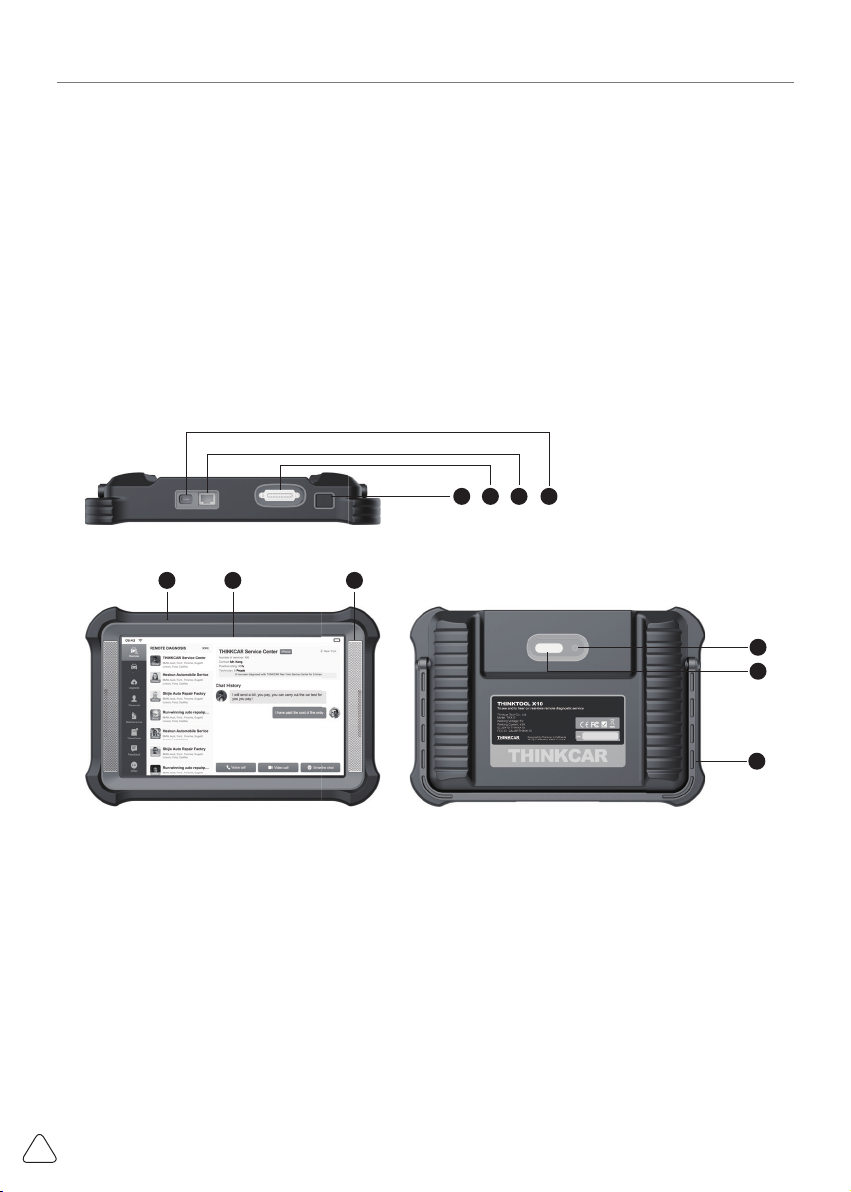
1.2 Recognize diagnosis host
432
1 910
5
8
6
7
①Screen
②Power/Button
Long press the button to start or shut down.
Simply press the key to sleep or wake up.
③Diagnosis interface
④Ethernet interface
⑤Type C charge jack
For connecting attached charger for charging.
⑥Rear camera
⑦LED lamp
⑧Adjustable bracket
Adjustable for 180°, support three modes of
lifting, support and normal.
⑨Loudspeaker
⑩Microphone

www.thinkcar.com THINKTOOL X10
2
1.3 Performance parameter
Operating system Android 10
Memory 4 GB
Memory capacity 128 GB
Battery 12600mAh/ 3.7V
Display screen 10 inches
Camera Rear 13 megapixel camera
Network connection Wi-Fi/Ethernet interface
Bluetooth Bluetooth 5.1
Work temperature 0℃ ~ 50℃
Storage temperature -20℃ ~ 60℃
1.4 Equipment operation
The equipment interface shows return key " ", and gesture return is available.
1.5 Shortcut setting
Drop-down menu shortcut keys, including Wi-Fi, screen recording, screen capture, screen flip, LED
switch, and Ethernet switch (the red bottom indicates enabled). The screen brightness and volume can
be also adjusted.
After the screen capture function is enabled, the screen displays the screen capture button
capture the screen by clicking the button. Check screenshot from "Personal" -> "Photo Album".
Long press the Wi-Fi to enter the Wi-Fi setting interface rapidly.

www.thinkcar.com
THINKTOOL X10
3
2. Rapid use introduction
2.1 First use
The following setting should be made in fi rst use.
2.1.1 Start
Long press the power key to start the machine, and the screen displays as follows:
2.1.2 Language Setting
Select the tool language from the languages displayed on the interface.
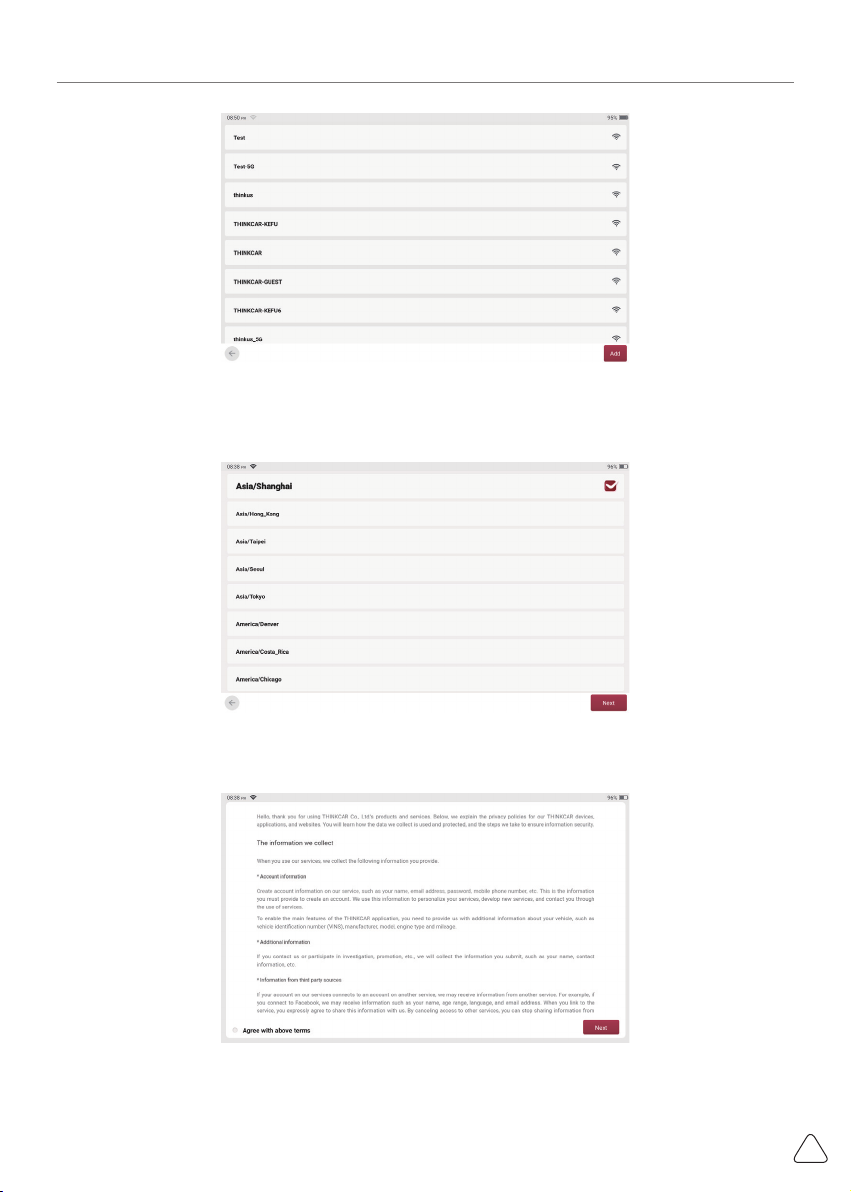
2.1.3 Connect Wi-Fi
The system will automatically search all available Wi-Fi networks and you can choose the Wi-Fi needed. If
the chosen network is open, you can connect it directly; If the chosen network is encrypted, you must enter
the correct password.
!Tips: Wi-Fi must be set. If no Wi-Fi network is available nearby, you can enable "Portable Mobile Hotspot".
www.thinkcar.com THINKTOOL X10
4
2.1.4 Choose Time Zone
Choose the time zone of the current location, then the system will automatically cofigure the time
according to the time zone you chose.
2.1.5 User agreement
Read all the terms and conditions of the user agreement carefully and select "Agree to the Terms".

www.thinkcar.com
THINKTOOL X10
5
2.1.6 Account creation
You need to enter your email address to register an account. If you already have other THINKCAR
products and have registered, you can directly use the existing account to log in.
2.1.7 Diagnosis equipment activation
Enter the serial number and activation code of the equipment to activate it. If no activation operation is
performed, you can also tap [Personal] on the home screen to enter to select [Activation VCI] to carry
out operation.
!Note: the activation code consists of 8 digits, pasted on the "Password Letter".
2.2 Diagnosis procedure
Register / create account
Login
Connect equipment with vehicle
Activate equipment
Intelligent diagnosis / manual
vehicle model selection
Select diagnosis system
Table of contents
Other Thinkcar Diagnostic Equipment manuals

Thinkcar
Thinkcar THINKTPMS G1 User manual

Thinkcar
Thinkcar THINKOBD 500 User manual

Thinkcar
Thinkcar THINKSCAN Max User manual

Thinkcar
Thinkcar TK-IMT602 User manual

Thinkcar
Thinkcar ADAS User manual

Thinkcar
Thinkcar THINKOBD 100 User manual

Thinkcar
Thinkcar TKTT3 Instruction manual

Thinkcar
Thinkcar ThinkTool PD8 User manual