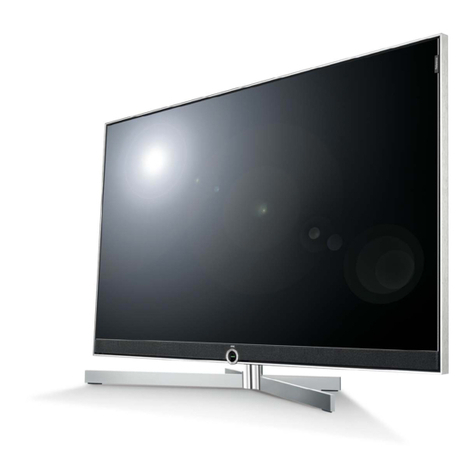
Ten-Haaft Oyster User manual

„Oyster® TV“
OPERATOR MANUAL
www.ten-haaft.com

2 3
CONTENTS
1. General information
1.1 Introduction 04
1.2 Scope of supply 04
1.3 Intended use 04
1.4 Safety precautions 04
2. Control elements
2.1 Remote control 05
2.2 Interfaces / control elements at device (19.5”, 21.5”, 24”) 08
2.3 Interfaces / control elements at device (27”, 32”) 10
3. Operating the "Oyster® TV"
3.1 Initial setup 14
3.2 General TV settings 15
3.3 Channel settings and search (DVB-T / T2) 19
3.4 Channel settings and search (DVB-S / S2) 22
3.5 Favourite list (satellite TV) 27
3.6 Further functions 27
4. Appendix
4.1 Protection of the environment 31
4.2 Technical data of the “Oyster® TV” 32

4 5
1. GENERAL INFORMATION
1.1 Introduction
This manual describes the functions of the „Oyster® TV“ and how to operate it.
1.2 Scope of supply
Scope of supply: „Oyster® TV“ with remote control, cable for connection to on-board system.
1.3 Intended use
Intended use: This product is designed to be used as TV set or monitor in recreational vehicles such as motorho-
mes or camper trailers. The vehicle manufacturer‘s specifications must be observed when mounting the product
to the wall. Only mounting elements complying with the VESA standard maybe used.
Setting up the device on its base is only permissible while the vehicle is parked and secured against rolling away.
Power to the system must be supplied by a standard vehicle electric system with a rated voltage of 12/24 V DC.
Do not use a switching-mode power supply if the system is to be installed in a camper trailer.
Using the equipment for any other than its intended purpose is not permissible.
1.4 Safety precautions
Your satellite system is approved by the manufacturer for connection to standard commercially available re-
chargeable lead batteries with a rated voltage of 12/24 V DC and a rated capacity of at least 50 Ah.
The manufacturer accepts no liability for direct or indirect damage or for consequential damage to the system
itself, to battery systems, motor vehicles or other equipment or goods resulting from the connection of unsuita-
ble battery systems or installation/wiring errors.
2. CONTROL ELEMENTS
2.1 Remote control
Button Function
POWER: In standby mode, this button will switch the
“Oyster®TV” with integrated receiver into operating mode.
0 - 9
0 – 9 NUMBER BUTTONS: Press one of the number but-
tons (0 – 9) to directly select a channel or enter a number
via the menu.
EPG
EPG / ELECTRONIC PROGRAMME GUIDE Press this button
to show the current and upcoming programmes for each
channel. A 7-day preview is available as well.
EXIT: Press this button to exit the menu without saving
any changes.
MUTE: Press this button to mute all audio outputs of the
receiver. Press the button again to restore audio playback.
Without function
TIME
SHIFT Time-shifted TV playback via USB memory
RECALL: Press this button to return to the previous
channel.
For Personal Video Recorder function – via USB
For Personal Video Recorder function – via USB
For Personal Video Recorder function – via USB
For Personal Video Recorder function – via USB
SOURCE Selection of input signal / source
Recording directory
OK
OK / ENTER: Press this button to save your selection or
menu settings.
Press this button to open the channel list
EXIT
SWAP
FILE
CHANNEL

6 7
2. CONTROL ELEMENTS 2. CONTROL ELEMENTS
Button Function
NAVIGATION UP: Press this button to navigate one menu
item up.
NAVIGATION LEFT: Press this button to switch between
available options.
NAVIGATION RIGHT. Press this button to switch between
available options.
NAVIGATION DOWN: Press this button to navigate one
menu item down.
SETUP
Press this button to open the TV set’s main menu /
navigate one step back in the menu.
RED RED: This button has various functions in the menu.
GREEN GREEN: This button has various functions in the menu.
YELLOW YELLOW: This button has various functions in the menu.
BLUE BLUE: This button has various functions in the menu.
TEXT Teletext
START Channel search DVB-T / T2, terrestrial TV
SUBT SUBT - subtitles
INFO INFORMATION about current channel
PAGE+ Page up / in channel list
PAGE- Page down / in channel list
FAV FAVOURITES: Press this button to open the previously
saved list of favourite channels / favourite list.
TV/ Press this button to switch between TV and radio mode
AUDIO Press this button to select the language for audio
playback
AQT
Button Function
Volume up
Volume down
CH Channel up
CH Channel down
STOP Press to stop antenna motion.*
START Press to start antenna motion.*
PARK Press to retract antenna.*
COUNTRY Press to enter position. Useful after travelling any major
distance.*
BATT Press to open a window showing details of the supply
voltage.
S/Q Press to open a window showing details of the antenna
signal.
PICTURE Switches the saved image modes.
SOUND
Switches the saved sound modes.
* Only if used as control unit for satellite systems.
VOL
VOL

8 9
2. CONTROL ELEMENTS
2.2 Interfaces / control elements at device (19.5”, 21.5”, 24”)
13 14 15
11
12
10
09
08
07
06
05
04
2. CONTROL ELEMENTS
Inputs/outputs (19.5”, 21.5”, 24”)
01) CI / CI+ module slot
with dust cap
02) USB 1 port
03) USB 2 port
04) Satellite input DVB-S/S2; F-jack
05) RF antenna port DVB-T/T2; IEC port
06) Headphone jack 3.5-mm stereo jack
07) AV input
08) Audio output (coaxial) S/PDIF output
09) HDMI
10) HDMI ARC
11) 12 Volt / 24 Volt DC input
12) On/Off switch
13) Standby Press to switch the TV set into sleep mode / standby
14) Control buttons Source / Programme change/ Volume
15) AQT
TV – Press to open or close the setup menu. Press and hold for more than
three seconds to start the channel search (terrestrial DVB-T2 HD/H.265 only)
03 02 01

10 11
2.3 Interfaces / control elements at device (27“, 32“)
2. CONTROL ELEMENTS 2. CONTROL ELEMENTS
Teile-Identifikation
10
3
4
1
2
5
1 Ein / Ausschalten Drücken Sie, um das Fernsehgerät einzuschalten.
Wenn das Fernsehgerät eingeschaltet ist,
halten Sie die Taste gedrückt
(länger als 2 Sekunden), um das
Bildschirm-Wahlmenü zu aktivieren
oder das OSD-Menü zu verlassen.
2 Vol - / Setup Lautstärke verringern.
Wählen Sie, wenn das Bildschirmwahlmenü aktiviert ist,
um auf das OSD-Menü zugreifen.
3 Up / AQT Bewegen Sie den Cursor im OSD-Menü nach oben, wenn das E-Dial-Menü auf dem
Bildschirm aktiviert ist, und starten Sie die automatische Suche in DTV.
4 Vol + / Input Lautstärke erhöhen. Wenn das Bildschirm-Wahlmenü aktiviert ist, können Sie die
Eingangsquelle ändern.
5 Down / STAND BY Bewegen Sie den Cursor im OSD-Menü nach unten, wenn das E-Dial-Menü auf dem
Bildschirm aktiviert ist, und aktivieren Sie den TV-Standby-Modus.
Vorder-, Seitensicht und Sicht von oben
01 02 03 04
06
07
09
15-19
05
10
11
12
13
15
16
17
18
19
14
08
Input and control elements (27“, 32“)
01) USB 1 port
02) USB 2 port
03) CI/CI+ module slot
04) Ext I/R Port for external IR control
05) Satellite input DVB-S/S2; F-jack
06) RF antenna port DVB-T/T2; IEC-port
07) Headphone jack 3,5 mm stereo jack
08) Audio–input For the 32“ without function
09) Audio–output (koaxial) S/PDIF output
10) HDMI 1
11) HDMI 2 ARC
12) 12 Volt / 24 Volt (DC) input
13) Cinch AV Audio L and R , Video only for the 32“
14) Power
15) Power on / off Press to turn on TV. When TV is on press and hold (more than 2 sec.) to
activate on-screen E-dial menu.
16) VOL- / Setup Decrease volume. When on-screen E-dial menu is activate, choose to
access OSD menu.
17) Up / AQT Move the curser up in OSD menu. When on-screen E-dial menu is activa-
te, choose to start autoscan in DTV.
18) VOL+ / Input Increase volume. When on-screen E-dial menu is activate, choose to
change input source.
19) Down / Power Move the curser down in OSD menu. When on-screen E-dial menu is
activate, choose to go into TV standby mode.

12 13
2. CONTROL ELEMENTS
COMMON INTERFACE (CI+) SLOT
The CI+ slot holds a Conditional Access Module (CAM) with a SmartCard, allowing you to watch programmes
and use offerings provided by pay-TV stations. Contact your provider for more information about agreements
and modules.
Note: Conditional Access Module and SmartCards are available separately.
Caution! Switch your TV set off before inserting a module into the CI+ module slot.
The CI+ module slot is located on the rear of your device. Push the CA module correctly into the slot and then
insert the SmartCard into the CA module.
• Wait some minutes for the SmartCard to activate.
• Select the channel to be used with your SmartCard.
• The details of your SmartCard are shown.
• Press
OK
to open the SmartCard menu. Observe the instructions for manual settings supplied with your CI+
module.
• If the module is removed, the following message displays: "CI module removed"
• Switch the TV set on and select input signal "Digital TV".
• When the CA module is detected, the following message displays: "CI module identified"
2. CONTROL ELEMENTS
SIGNAL INPUTS
HDMI / AV Setup
The menus for HDMI or AV connections are similar to those of the standard TV reception, with the exception that
you cannot change the channel settings.
If there is no signal when HDMI is selected as input source, the following screen is shown:
If no signal is found within 30 minutes, the system automatically switches into standby mode.
AUDIO INPUT
Select AV as input if you wish to use e.g. an MP3 player. The display will switch off after 30 minutes while the
speakers remain active.

14 15
3. OPERATING THE “OYSTER®TV”
3.1 Initial setup
Your Oyster TV set is configured at the factory with a standard channel list and, depending on specifications,
with favourite lists. (See section 3.5, Favourite lists (satellite TV) if you wish to create further lists.) Should any
channels be missing or if you wish to add further channels, you need to start the automatic channel scan.
Select a signal source. If using a ten Haaft satellite system, DVB-S must be selected.
Press SOURCE to open the signal input menu.
Press to select the input, then press
OK
to confirm. If no source is selected using the
OK
button, the
system will automatically switch back to the current signal source after a few seconds.
Press EXIT to exit the menu. The following signal inputs can be selected. Press the corresponding buttons on the
remote control:
• Digital TV
• Satellite TV
• AV
• HDMI 1
• HDMI 2
• USB
3.2 General TV settings
TV SETUP MENU
The setup menu is used to adjust the TV set to your personal preference.
• Press the SETUP button to select a display menu.
• Press to navigate in the menus.
• Press Exit or Setup to exit the setup menu.
IMAGE
In this menu you can change the picture settings of the "Oyster®TV". The following settings are available:
SOUND
In this menu you can change the sound settings of the "Oyster®TV". The following settings are available:
3. OPERATING THE “OYSTER®TV”

16 17
3. OPERATING THE “OYSTER®TV”
DIGITAL TV SETUP
In this menu you can adjust the general settings for the reception of digital TV. The following options are avail-
able:
Audio Language
Select your preferred primary and secondary language.
Subtitle Language
Set your preferred subtitling language.
Time zone
Here you can set the time zone.
CI Information
This menu option allows you to access the SmartCard in the Common Interface.
Antenna power (for amplified antennas)
This option enables or disables the power supply to the antenna.
3. OPERATING THE “OYSTER®TV”
LOCK
Here you can restrict the access to specific functions of the TV set. If the lock is enabled, you need to enter a
password before you can make changes in locked areas.
Lock System
Locks the system. Changing the settings requires a password.
Block programme
Locks the content and channels selected.
Parental Guidance
Restricts the programme according to viewer age. Only content suitable for the viewer age selected will then be
offered. Various viewing ages are available.
Note: This option is not supported by all programme providers.
Change Password
Here you can edit your password.
Note: The default password is 0000.

18 19
3. OPERATING THE “OYSTER®TV”
FUNCTIONS
In this menu you can change the following options.
OSD Language
Changes the language of the display menus.
Aspect Ratio
The following options are available:
• Auto
• Zoom 1
• Zoom 2
• 16.9
• 4.3
Noise Reduction
Reduce or change image distortion and signal noise.
Sleep Timer
Here you can set the time at which you want the TV set to go off automatically. Use to select a time. Then
press EXIT .
Auto Sleep
Allows you to enable or disable automatic standby after 4 hours (EC energy conservation option, enabled by
default).
Reset
Resets the device to its default settings.
3. OPERATING THE “OYSTER®TV”
3.3 Channel settings and search (DVB-T / T2)
CHANNEL
This menu contains the channel settings.
DVB-T channel settings
Here you can adjust the channels and their settings.
Channel
Select the channel you wish to adjust.
Frequency
Cannot be changed.
Country
Cannot be changed.
Manual Search
Search and set the channel manually.
Auto Search
Here you can sort, delete and add entries to the favourite list.
Channel Edit
Here you can sort and delete channels or add them to the DVB-T favourite list.
Other manuals for Oyster
7
This manual suits for next models
9
Table of contents