Tecknet M001 User manual

MODEL:M001
User Manual
EN
System Requirements
To use this mouse, your computer must meet the following hardware
requirements and run one of the operating systems listed below.
Hardware
• PC with a Pentium processor or equivalent AMD processors
• One free USB 2.0 port
Operating System
• Windows 2000, 2003, XP, Vista, Win7, Win8, Mac OSX
Note: The scroll wheel only works under the operating systems listed
above. If you use the mouse under a different operating system, the
mouse may either not work or may lose its enhanced features.
Supplied with the Product
• 1 × Cordless Mouse
• 1 × USB Nano Receiver
• 1 × User Manual

3-Button Mouse
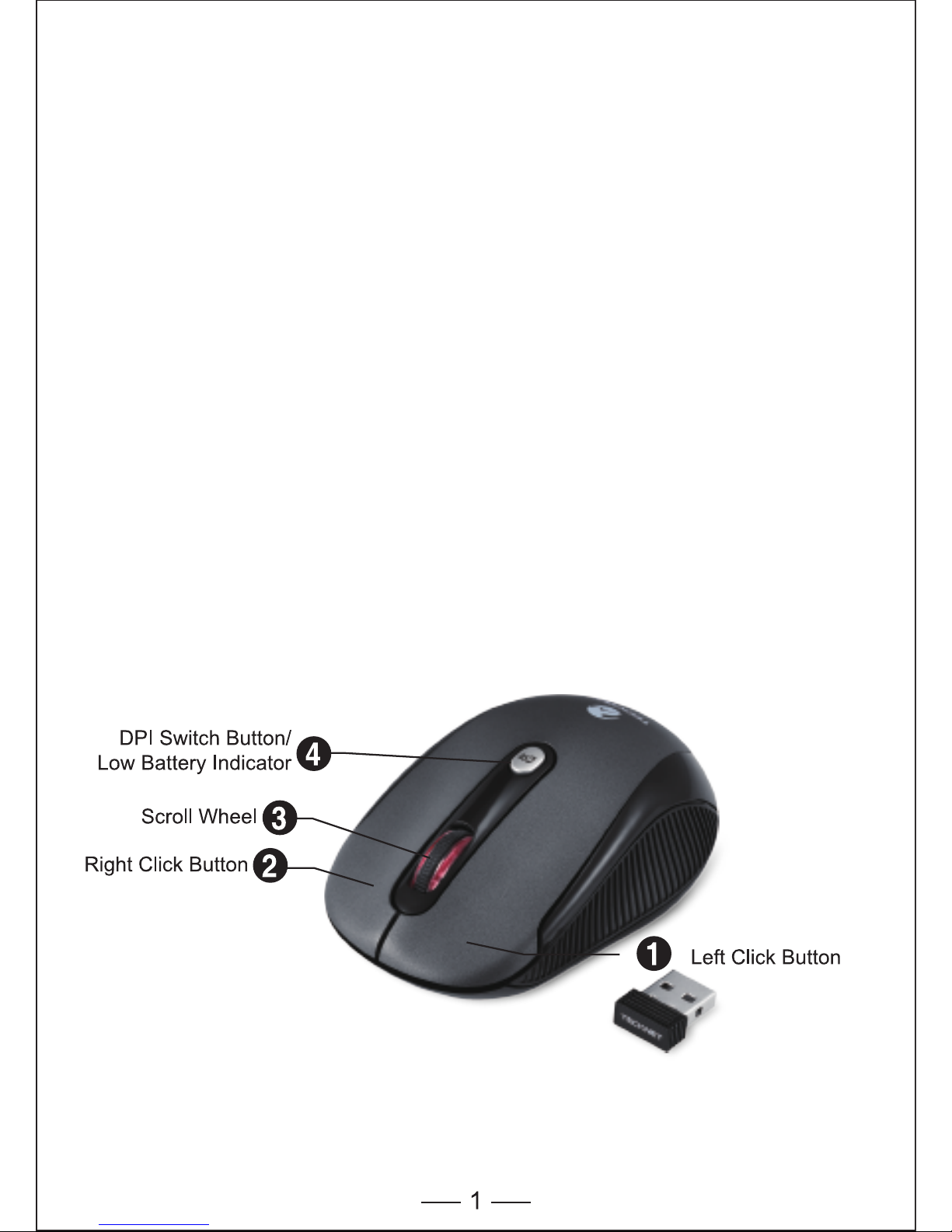
The mouse is featured with three buttons and one scroll wheel
as shown in the picture below.
1. Left Click Button
2. Right Click Button
3. Scroll Wheel
4. DPI Switch Button/Low Battery Indicator
12 Months Battery Life
The mouse consumes very little power and offers a long battery life of
up to 12 months without changing the battery. However please note that
the actual battery life may vary based on user and computing
conditions.
Connecting the Receiver
Take out USB Nano receiver and plug it into a free USB port in your
computer.
The Plug & Play function of your system will detect that a new device
has been connected and will install it automatically.
Install the Batteries
The RF 2.4GHZ optical mouse uses one AA battery (Battery not
included).
1. Open the battery cover.
2. Insert the batteries into the compartment, ensuring they correspond
with the polarity marking.
3. Replace the battery cover.
Note: Make sure that the polarity of the batteries is correct. The positive
(+) and negative (-) ends of each battery must match the positive (+)
and negative (-) markings in the battery housing.

USB Nano Receiver
While not in use, the receiver can be removed and safely stored in the
battery compartment.
Auto saving function
If the mouse is not used for 8 minutes it will enter sleep mode. Press
any button to restart. Please turn the mouse off when not in use.
Note: Remove the battery if the mouse is not going to be used tor
prolonged period of time
DPI Switch
The mouse supports 2000DPI, 1500DPI and 1000DPI.
To switch to either setting, press the DPI button.
• The default setting is 1000DPI.
• Short-press the DPI button on the top of the mouse once to switch
from 1000DPI to 1500DPI, the scroll wheel LED will flash twice.
• Short-press the DPI button on the top of the mouse once again to
switch from 1500DPI to 2000DPI, the scroll wheel LED will flash three
times.
• Short-press the DPI button on the top of the mouse once again to
switch from 2000DPI to 1000DPI, the scroll wheel LED will flash once.
Take out the receiver
Store the receiver

Low Battery Reminder Function
The mouse is equipped with low power
capacity indicator. When the battery power
gets low during use, the Low Power
Capacity Indicator (the DPI Switch Button)
on the top of the mouse will flash. Please
replace the battery.
Note: We recommend using AA alkaline
dry cell battery, which supplies longer
battery life.
Reconnection
There is a connection code for this Mouse. High temperatures,
electro-magnetic fields or vibration may influence the code signal and
the Mouse may need to be reconnected.
Both Mouse and Nano Receiver have a built-in code and one Mouse
can be connected to one receiver, or several Mice to one Nano
Receiver. The Mouse and Nano Receiver may need to be reconnected
if subjected to high temperature, electro magnetic fields or strong
vibrations.
1. Unplug the Nano receiver from USB port, and plug it back in.
2. Move the Mouse to within 50cm of the Nano receiver or re-install the
battery or press any key to reconnect; the above process must be
completed in 15 seconds.
3. Mouse will ready for use after reconnection.
Low Power Indicator

Attention
1. To maximize battery life, it is recommended you use the mouse on a
white or light-coloured surface.
2. If not used, the mouse will enter auto-sleep mode within 60 seconds,
press any button or scroll wheel to activate the mouse.
3. Never use the mouse on a glass or mirrored surface as these
surfaces will cause the mouse to fail temporarily. An uneven,
reflective or light-coloured and 3D mouse pads will affect mouse
performance.
4. This mouse uses optics for shift detection and is subject to the
relevant safety regulations.
5. The 2.4G radio transmission works up to 10 metres. The transmission
distance will be affected by obstructions.
6. Please avoid using the mouse on metal surfaces. Metals, such as
iron, aluminium or copper, shield the radio frequency transmission
and may slow down the mouse cursor response time or cause the
mouse to fail temporarily.
7. If your PC has a metal case that contains aluminium or magnesium,
use the mouse to the side. The display panel may interfere with the
radio frequency signal if you use the mouse directly in front of the PC.
8. Please remove the batteries if you are not going to use the mouse for
a period of weeks or months.
Note on Handling Batteries
• Keep batteries out of the reach of children.
• Replace old or weak batteries promptly.
• Remove the batteries if the mouse is not going to be used for a
prolonged period of time.
Safety Measures
• Any attempt to disassemble, adjust or repair the mouse may result in
exposure to danger and other safety hazards.

Specifications
Button Count: 3 buttons
Operating Frequency: 2.4GHz
Resolution: 1000/1500/2000DPI
Receiver interface: USB version 2.0
Operating Voltage: 1.5V
Operating Current: 6.8mA
Operating Distance: up to 10m
• Ensure that the Mouse is within the operational working distance
(ideally 1.5m) from the USB Nano Receiver and restart your PC.
• Increase the distance between the Nano Receiver and the base units
of other cordless devices.
• Turn off any cordless device and their base units that are near the
mouse Nano Receiver.
• If you are using the Mouse on a metal surface, move the Mouse and
the receiver to a non-metallic surface. Metals, such as iron,
aluminium or copper shield the radio frequency transmission and may
slow down the Mouse cursor’s response time or cause the Mouse to
Every effort has been made to ensure that the information and
procedures in this guide are accurate and complete, no liability can be
accepted for any errors or omissions and we reserve the right to make
any changes without further notice to any products mentioned herein.
We warrant that product from authorized distributors will meet the
applicable product specifications and be free from all defects in design,
assembly, material and workmanship. Please contact TeckNet retailers,
or visit www.tecknet.co.uk for more information about the product.
Troubleshooting
What do I do if the mouse does not work?
• Ensure that the polarity of the batteries is correct. The positive (+) and
negative (-) ends of each battery must match the positive (+) and
negative (-) markings in the battery housing.
• Make sure the batteries are not discharged.
• Remove the batteries and reinstall the batteries again.
• Verify that your computer's power management feature is turned off.
• Ensure the Nano Receiver’s USB connector is firmly attached to the
PC’s USB port.
The USB Nano Receiver is recognized by Windows
(Windows2000, 2003,XP,Vista,Win7,Win8,Mac10.x) but
the cursor does not move
• Check whether the low power indicator on the top of the Mouse keeps
flashing. If the sensor lights up, it is likely that the batteries are
discharged. Please replace them.
• If replacing the batteries does not help, it is likely that the Mouse is
not connected to the Nano Receiver. Please remove the Nano
Receiver and plug in again or remove the battery and re-install.
When I use the Mouse other 2.4G cordless devices work
more slowly or fail temporarily – what should I do?
• The mouse may cause interference with any cordless, radio-based
device that operates at 2402MHz - 2480MHz, such as a 2.4G
telephone, 2.4G baby monitors, 2.4G cordless routers and toys. To
reduce interference, move the Nano Receiver and the base unit of the
affected device as far away from each other as possible. Alternatively
try to change the 2.4G frequency of the affected devices.

7
What do I do if the response time of the Mouse is slow or
the Mouse intermittently stops working?
• Ensure that the Mouse is within the operational working distance
(ideally 1.5m) from the USB Nano Receiver and restart your PC.
• Increase the distance between the Nano Receiver and the base units
of other cordless devices.
• Turn off any cordless device and their base units that are near the
mouse Nano Receiver.
• If you are using the Mouse on a metal surface, move the Mouse and
the receiver to a non-metallic surface. Metals, such as iron,
aluminium or copper shield the radio frequency transmission and may
slow down the Mouse cursor’s response time or cause the Mouse to
Disclaimer
Every effort has been made to ensure that the information and
procedures in this guide are accurate and complete, no liability can be
accepted for any errors or omissions and we reserve the right to make
any changes without further notice to any products mentioned herein.
Warranty
We warrant that product from authorized distributors will meet the
applicable product specifications and be free from all defects in design,
assembly, material and workmanship. Please contact TeckNet retailers,
or visit www.tecknet.co.uk for more information about the product.

MODEL:M001
User Manual
DE

Linksklicktaste
Rechtsklicktaste
Scrollrad
DPI-Schalter-Taste/Anzeige
für niedrigen
Batteriestand
Systemvoraussetzungen
Um diese Maus verwenden zu können, muss Ihr Computer die
folgenden Hardware-Voraussetzungen erfüllen und mit einem der
untenstehenden Betriebssysteme ausgestattet sein.
Hardware
• PC mit Pentium-Prozessor oder einem gleichwertigen AMD-Prozessor
• USB 2.0
Betriebssystem
• Windows 2000, 2003, XP, Vista, Win7, Win8, Mac OSX
Hinweis: Das Scrollrad funktioniert nur unter den obenstehenden
Betriebssystemen. Wenn Sie die Maus unter einem anderen
Betriebssystem verwenden, könnte die Maus entweder nicht
funktionieren oder ihre erweiterten Funktionen verlieren und damit nur
als standardmäßige 3-Tasten-Maus dienen.
Verpackungsinhalt
• 1 x Kabellose Maus
• 1 x USB-Nano-Empfänger
• 1 x Benutzerhandbuch
Other manuals for M001
3
Table of contents
Languages:
Other Tecknet Mouse manuals

Tecknet
Tecknet M002 User manual

Tecknet
Tecknet UM013 User manual

Tecknet
Tecknet GM299 User manual

Tecknet
Tecknet M008 User manual

Tecknet
Tecknet M268 User manual

Tecknet
Tecknet M001 User manual

Tecknet
Tecknet M002 User manual

Tecknet
Tecknet X9800 User manual

Tecknet
Tecknet TK-MS001 User manual

Tecknet
Tecknet M002 User manual

Tecknet
Tecknet EWM01576BA01 User manual

Tecknet
Tecknet EUM01888 User manual

Tecknet
Tecknet WM389 Operating and safety instructions

Tecknet
Tecknet M011 User manual

Tecknet
Tecknet M268 User manual

Tecknet
Tecknet TK-WM389 User manual

Tecknet
Tecknet WM289 User manual

Tecknet
Tecknet M001 User manual

Tecknet
Tecknet M021 User manual

Tecknet
Tecknet M001 User manual