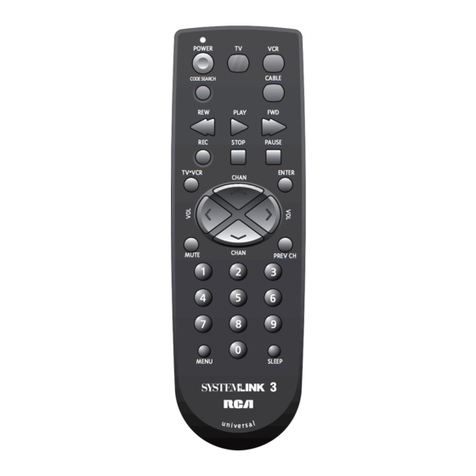
Targus AMP09LA User manual

User Guide
410-1680-00xA / AMP09LA
©2012 Manufactured or imported by Targus International
Ltd.,. All rights reserved. Targus is either a registered trade-
mark or trademark of Targus Group International, Inc. in the
United States and/or other countries. Features and speci-
cations are subject to change without notice. All trademarks
and registered trademarks are the property of their respec-
tive owners. N2953
AMP09LA

Targus Multimedia Presentation Remote
2
Targus Multimedia Presentation Remote
3
Table of Contents
GB – English
Targus Multimedia Presentation Remote .......................................................3
ES – Español
Presentador Mutimedia de Targus ....................................................15
PT – Português
Apresentador Multimédia Targus .............................................................25
GB – Introduction
Thank you for your purchase of the Targus Multimedia Presentation
Remote. This combination remote, with laser pointer and cursor control,
works with both Microsoft PowerPoint® and Apple Keynote®. This cordless
remote also offers true plug and play capability with no need for software
drivers, while the long-range 2.4 GHz technology allows for effective
presentations up to 50 feet (15 m).
System Requirements
Hardware
• USB port
Operating System
• Microsoft Windows® 2000
• Microsoft Windows® XP
• Microsoft Windows Vista®
• Microsoft Windows® 7
• Mac OS® X 10.4 or later
Contents
• Targus Multimedia Presentation Remote
• Mini USB Receiver
• 1 x AAA Battery
• User Guide

Targus Multimedia Presentation Remote
4
Targus Multimedia Presentation Remote
5
Setting Up Your Remote
Installing the Batteries
Press the battery cover release button to open the battery cover and
carefully lift the cover as shown.
Battery cover
Insert the supplied batteries, making sure the positive (+) and negative
(-) ends of the batteries match the polarity indicators inside the battery
compartment.
Battery cover release button
Remove the mini USB receiver stored inside the center compartment.
Slide the battery cover back into position until it “clicks” rmly into place.

Targus Multimedia Presentation Remote
6
Targus Multimedia Presentation Remote
7
Using Your Remote
Before using the remote, please select your computer type and preferred
presentation software. Locate the switch inside the battery compartment
as shown.
PC PowerPoint®
Mac KeyNote®
Mac PowerPoint®
This remote is a plug and play device. It will automatically operate when
the USB receiver is connected to the computer. Plug the mini USB
receiver into any available USB port on your computer.
NOTE: SELECT “PC POWERPOINT” IF YOU USE A COMPUTER MADE BY:
HP/COMPAQ, DELL, TOSHIBA, GATEWAY, PANASONIC, FUJITSU, SONY,
IBM/LENOVO, ACER, ASUS, ETC.
Turn on the remote by pressing and holding the On/Off power button for
3 seconds.

Targus Multimedia Presentation Remote
8
Targus Multimedia Presentation Remote
9
1
2
3
4
5
6
7
8
9
10
11
12
Keys and Functions
This device can function as a presenter or a wireless mouse by using the
mode switch (12).
1Power button
Press and hold for 3 seconds to turn on the remote.
LED ring will turn green.
Press and hold for 3 seconds to turn off the remote.
LED ring will shut off.
Using the Device — Presenter Mode
2Blank screen button The screen will become blank/dark.
3Slide show
Start - Press once to begin.
Stop - Press and hold for 2 seconds to stop the slide
show.
4Page Forward/Next slide Press once to go to next slide.
5Page
Backward/Previous slide Press once to go back one slide.
6Laser pointer Laser light is emitted from the opening.
7LED ring Power and KeyLockTM indicator.
8KeyLock button
Press once to enable KeyLock function.
- Disables all keys except the laser, page forward/ next
slide and page backward/previous slide buttons.
- LED ring will become RED.
Press once to exit the KeyLock function.
- LED ring will return to GREEN.
9Laser pointer button Press and hold to activate the laser pointer.
10 Volume up button Press to increase the volume.
11 Volume down button Press to decrease the volume.

Targus Multimedia Presentation Remote
10
Targus Multimedia Presentation Remote
11
4Right mouse click Right mouse click.
5Left mouse click Left mouse click.
7LED ring Power indicator.
8KeyLock button Disabled in mouse mode.
9Joystick Pressing the joystick resembles left mouse click.
Moves the mouse cursor.
10 Volume up button Press to increase the volume.
11 Volume down button Press to decrease the volume.
Using the Device — Mouse Mode Safety Measures
• To avoid possible eye damage, never point the remote’s laser at people,
especially their faces, or look directly into the remote’s laser beam.
• Avoid pointing the remote’s laser beam at a mirror or other highly-reective
surface.
• Keep the remote away from young children.
• Never view the remote’s laser beam using telescopic devices, such as a
microscope or binoculars.
• Any attempt to disassemble, adjust or repair the remote may result in exposure
to laser light or other safety hazards.
Troubleshooting
What do I do if the response time of the remote is slow or it intermittently
stops working?
• Make sure that the remote is within 50 feet (15 m) of the mini USB receiver and
computer.
• Increase the distance between the remote’s receiver and the base units of other
wireless devices.
• Turn off any wireless devices and their base units that are near the remote’s
receiver.
• Replace the battery.

Targus Multimedia Presentation Remote
12
Targus Multimedia Presentation Remote
13
AVOID EXPOSURE — HAZARDOUS ELECTROMAGNETIC RADIATION EMITTED FROM THIS
APERTURE.
LASER RADIATION. DO NOT STARE INTO THE BEAM OR VIEW DIRECTLY WITH OPTICAL
INSTRUMENTS. CLASS 2 LASER PRODUCT.
NEVER POINT A LASER BEAM INTO A PERSON’S EYES OR VIEW A LASER BEAM DIRECTLY,
AS PROLONGED EXPOSURE CAN BE HAZARDOUS TO THE EYES. MOMENTARY EXPOSURE
FROM A LASER POINTER, SUCH AS AN INADVERTENT SWEEP OF THE LIGHT ACROSS A
PERSON’S EYES, MAY CAUSE TEMPORARY FLASH BLINDNESS SIMILAR TO THE EFFECT OF A
CAMERA FLASH BULB. ALTHOUGH THIS CONDITION IS TEMPORARY, IT CAN BECOME MORE
DANGEROUS IF THE EXPOSED PERSON IS ENGAGED IN A VISION-CRITICAL ACTIVITY SUCH
AS DRIVING.
CAUTION: ANY CHANGES OR MODIFICATIONS NOT EXPRESSLY APPROVED BY THE PARTY
RESPONSIBLE FOR COMPLIANCE COULD VOID THE USER’S AUTHORITY TO OPERATE THE
EQUIPMENT.
THIS DEVICE AND ITS ANTENNA(S) MUST NOT BE CO-LOCATED OR OPERATING IN
CONJUNCTION WITH ANY OTHER ANTENNA OR TRANSMITTER. YOUR DEVICE CONTAINS
A LOW POWER TRANSMITTER. WHEN DEVICE IS TRANSMITTED IT SENDS OUT RADIO
FREQUENCY (RF) SIGNAL. NOTE: THE MANUFACTURER IS NOT RESPONSIBLE FOR ANY RADIO
OR TV INTERFERENCE CAUSED BY UNAUTHORIZED MODIFICATIONS TO THIS EQUIPMENT.
SUCH MODIFICATIONS COULD VOID THE USER’S AUTHORITY TO OPERATE THE EQUIPMENT.
Regulatory Compliance
This device complies with Part 15 of the FCC Rules. Operation is subject to the following
two conditions: (1) This device may not cause harmful interference, and (2) This device
must accept any interference received, including interference that may cause undesired
operation.
Technical Support
For technical questions, please visit:
Product Registration
Targus recommends that you register your Targus accessory shortly after purchasing it.
Go to:
http://www.targus.com/registration.asp
You will need to provide your full name, email address, country of residence and product
information.
Warranty
Targus warrants this product to be free from defects in materials and workmanship
for one year. If your Targus accessory is found to be defective within that time, we will
promptly repair or replace it. This warranty does not cover accidental damage, wear
and tear, or consequential or incidental loss. Under no conditions is Targus liable for
loss of, or damage to devices; nor loss of, or damage to, programs, records, or data; nor
any consequential or incidental damages, even if Targus has been informed of their
possibility. This warranty does not affect your statutory rights.
US Internet: www.targus.com/support.asp

Targus Multimedia Presentation Remote
14
Targus Multimedia Presentation Remote
15
ES – Introducción
Le agradecemos la adquisición del Presentador Multimedia de Targus.
Este Presentador combinado, con puntero láser y control del cursor,
funciona con Microsoft PowerPoint® y Apple Keynote®. Este Presentador
inalámbrico con prestación plug-n-play no requiere la instalación de
ningún tipo de software, y la tecnología de largo alcance de 2.4 GHz
permite realizar ecientes presentaciones a 15 m (50 pies) de distancia.
Requisitos del sistema
Hardware
• Interfaz USB
Sistema Operativo
• Microsoft Windows® 2000
• Microsoft Windows® XP
• Microsoft Windows Vista®
• Microsoft Windows® 7
• Mac OS® X 10.4 o versión más reciente
Contenido
• Presentador Multimedia de Targus
• Mini receptor USB
• 1 pila AAA
• Manual de instrucciones
FCC Statement
Tested to Comply
This equipment has been tested and found to comply with the limits of a Class B digital
device, pursuant to Part 15 of the FCC Rules. These limits are designed to provide
reasonable protection against harmful interference in a residential installation. This
equipment generates, uses, and can radiate radio frequency energy and if not installed
and used in accordance with the instructions, may cause harmful interference to radio
communications. However, there is no guarantee that interference will not occur in a
particular installation. If this equipment does cause harmful interference to radio or
television reception, which can be determined by turning the equipment off and on,
the user is encouraged to try to correct the interference by one or more of the following
measures:
• Reorient or relocate the receiving antenna;
• Increase the separation between the equipment and receiver;
• Connect the equipment into an outlet on a circuit different from that to which the receiver
is connected;
• Consult the dealer or an experienced radio/TV technician for help.
Changes or modications not authorized by the party responsible for compliance could
void the user’s authority to operate this product.
Declaration of Conformity
Hereby, Targus, declares that this device is in compliance with the essential
requirements and other relevant provisions of Directive 1999/5/EC.
Microsoft, Windows, and Windows Vista are either registered trademarks or trademarks of Microsoft Corporation in the United
States and/or other countries. All trademarks and registered trademarks are the property of their respective owners. All rights
reserved. Features and specications are subject to change without notice. © 2011 Targus Group International, Inc. and Targus,
Inc.

Targus Multimedia Presentation Remote
16
Targus Multimedia Presentation Remote
17
Retire el mini receptor USB guardado en el interior del compartimento
central.
Vuelva a introducir la tapa de las pilas en su posición hasta escuchar que
está rmemente cerrado.
Conguración del Presentador
Instalación de las Pilas
Pulse el botón de apertura de la tapa de las pilas para abrirla y extraiga
la tapa con precaución, según indica la ilustración.
Tapa de las Pilas
Instale las pilas suministradas, comprobando que los bornes positivos
(+) y negativos (-) de las pilas coinciden con las indicaciones de polari-
dad del interior del compartimento.
Botón de apertura de la tapa de
las pilas

Targus Multimedia Presentation Remote
18
Targus Multimedia Presentation Remote
19
Encienda el mando a distancia pulsando y manteniendo pulsado el botón
de conexión encender/apagar durante 3 segundos.
Uso del Presentador
Antes de utilizar el Presentador seleccione el tipo de ordenador y el
software de presentación deseado. Localice el interruptor en el interior
del compartimento de las pilas, según se indica.
PC PowerPoint®
Mac KeyNote®
Mac PowerPoint®
Este Presentador es un dispositivo plug-n-play. Funcionará
automáticamente al conectar el receptor USB al ordenador. Conecte el
mini receptor USB a cualquier puerto USB libre del ordenador.
NOTA: SELECCIONE “PC POWERPOINT” SI UTILIZA UN ORDENADOR FABRICA-
DO POR: HP/ COMPAQ, DELL, TOSHIBA, GATEWAY, PANASONIC, FUJITSU, SONY,
IBM/LENOVO, ACER, ASUS, ETC.
Table of contents
Languages:
Other Targus Remote Control manuals

Targus
Targus Targus Laser Presentation Remote User manual

Targus
Targus LASER User manual

Targus
Targus Targus Laser Presentation Remote User manual

Targus
Targus Stow-N-Go Notebook Mouse User manual

Targus
Targus Targus Laser Presentation Remote User manual

Targus
Targus LASER User manual

Targus
Targus Targus Laser Presentation Remote User manual

Targus
Targus Targus Laser Presentation Remote User manual

Targus
Targus AMP09US User manual

Targus
Targus BLUETOOTH MEDIA REMOTE User manual