Sytech HELIOS SY-Z18M4 User manual

HELIOS Tablet
SY-Z18M4
8” Personal Android Tablet
User Manual
Use of the Manual
To ensure proper use of the tablet, read this user manual carefully before first use.
These instructions are based on the factory settings of the device.
It may be possible that some of the images and screenshots in this manual do not match the final product.
It is possible that the contents in this user manual do not match the final performance of the unit due to firmware upgrades.
Please visit www.sytech.es for the latest version of the user manual and firmware upgrades.

WELCOME
Sytech thanks you for buying the HELIOS SY-Z18M4 8” multi touch screen display tablet which has been specially designed
to fulfil your needs and allow you to experience the new portable entertainment generation with just a few touches!
Thanks to the Android operating system you can gain access to the internet, check your e-mail or even watch or listen to
multimedia content anywhere at anytime. Furthermore, download and enjoy one of the thousands of applications and
games available to get the most out of your HELIOS SY-Z18M4.
CARE AND MAINTENANCE
-Do not expose your tablet to direct sunlight, humidity, high temperatures, dirt or anything that can cause its malfunction.
-Do not use abrasive liquids or cleaners to clean the unit.
-Always maintain the device free from dust using a soft and dry cloth.
-When the battery level is low, please charge the unit avoiding it to discharge completely.
-Do not service the unit by yourself, please contact Sytech Service Centre for any assistance.
SPECIFICATIONS
-Portable Internet Tablet designed for Android 4.0
-Multi-touch 5 point capacitive screen
-8” TFT-LCD (800x600 pixels)
-Allwinner A10 1.0 GHz processor + 3D engine, 512kb L2 Cache, GPU Mali-400
-512MB DDR3 RAM
-Integrated Wi-Fi
-Supports Wi-Fi USB 3G modem
-Front Camera 0.3MP (640x480)/ Rear Camera 2MP (1600x1200)
-Integrated Omni-directional microphone
-Integrated speaker
-Motion Sensor (accelerometer)
-USB-OTG –easy access to the memory of the tablet through the computer (cable included)
-4GB built in memory
-Memory expandable via Micro SD-HC/XC cards (up to 32GB)
-3.5mm earphone jack connector
-Charger: 5V, 2A
-5000 mAh Battery : up to 150 hours standby time
-Weight: ~480g
-Dimensions: 194.5x118.3x11.9mm
-Allows to install thousands of Applications and games available for Android operating system.
-Applications installed:
oAldiko (books)
oFiles
oGoogle Search
oGoogle Maps
oGoogle Chrome
oGoogle Latitude
oCalculator
oCalendar
oCamera
oContacts
oClock
oEmail
oGallery
oRecording
oMusic
oWeb Browser
oYouTube
oTwitter
oSkype
oSlide me
oTask Killer
oGmail
oFlash Player
oDocuments to go

NOTE: Sytech recommends the use
of a screen protector in order to
maintain the tablet in perfect
conditions.
NOTE: Some applications may not
work on the HELIOS tablet as they
are specially created for Mobile
phones or for tablets with larger
screens.

CONTENTS OF PACKAGE
HELIOS SY-Z18M4 Tablet 4GB
User Manual
USB OTG 2.0 High speed Cable for PC connection
AC/DC power adaptor –100-240V AC 50-60Hz
Leather pouch
In ear Earphones
PICTURE DESCRIPTION
1. Volume –/ +
2. Return
3. Front Camera
4. On/Off button
5. Earphone Jack
6. Mini USB interface
7. AC Adaptor input
8. Reset
9. SD card slot
10. Rear Camera
11. Loudspeaker
TURNING ON AND OFF THE UNIT
To switch on your HELIOS SY-Z18M4 tablet, press the On/Off button (1), located on the top right hand side of the unit, for a
few seconds. Before being able to use the unit you will have to unlock the device. Drag the padlock towards the right (wave
icons will be shown to indicate in which direction to move the padlock).
To turn off the unit, press the On/Off button (1) for a few seconds and the unit will turn off completely. If you press the
On/Off button (1) once, the unit will enter into power saving mode.
NOTE: To turn off the unit, you must
press and hold the On/Off button. If
it is only pressed the unit will only
turn off the screen.

BATTERY AND POWER MANAGEMENT
The HELIOS SY-Z18M4 tablet comes with an integrated rechargeable lithium ion battery. Before the first use of the unit, you
may notice that the battery is relatively charged, however please perform a complete charge of the unit before using for
the first time. In order to recharge the battery use the AC / DC 5V adaptor included. The usual time for a complete charge is
around 3 –4 hours approximately, this depends whether the unit is being charged while using or while it is turned off.
There are certain settings which can be manipulated to prolong the battery life of the unit.
GESTURES KEY
Press Flick Press and Hold
MAIN SCREEN
1. Search
2. Return
3. Home
4. Tabs
5. Volume Down
6. Volume Up
7. Settings/Menu
8. Applications/Widgets on desktop
9. Time
10. Battery level
NOTE: Sytech recommends turning off
the unit always before charging in
order to improve and extend the
battery lifetime.

11. Applications/Widgets menu
GENERAL SETTINGS
Set your HELIOS tablets parameters to fit your needs. Enter into the settings menu and a list of options will appear.
Wireless & Networks
Wi-Fi Turn the Wi-Fi on or off.
Data Usage Press this option to see the data usage of your HELIOS tablet
More Press this option to see more options under the Wireless and Networks settings.
Device
Sound Configure the volume levels and sound options
Display Configure the different display settings (brightness, auto rotation, font size etc…)
Storage Check the amount of space which is available on your HELIOS tablet.
Battery Check to see which application is using the most battery and check the current battery level
Apps Check to see which applications have been downloaded, where they are stored, and which ones
are currently running.
Personal
Accounts & Sync Manage your accounts through this section. You may add a new account if you do not have one
already.
Location Services Manage your location settings.
Security Manage your security information through this option. (Passwords, user information etc…)
Language & Input Set the device language and keyboard language through this option.
Backup & Reset Backup the data on your HELIOS tablet or perform a reset of the unit.
System
Date & Time Set the date and the time, manage the time zones, and select the formats for the time and date to
be displayed.
Accessibility Manage the system settings through this option.
Developer Options Configure different options for the device when connected to a PC; configure User Interface, and
configure Apps settings.
About Tablet Verify all the settings and hardware information of your HELIOS tablet through this option.

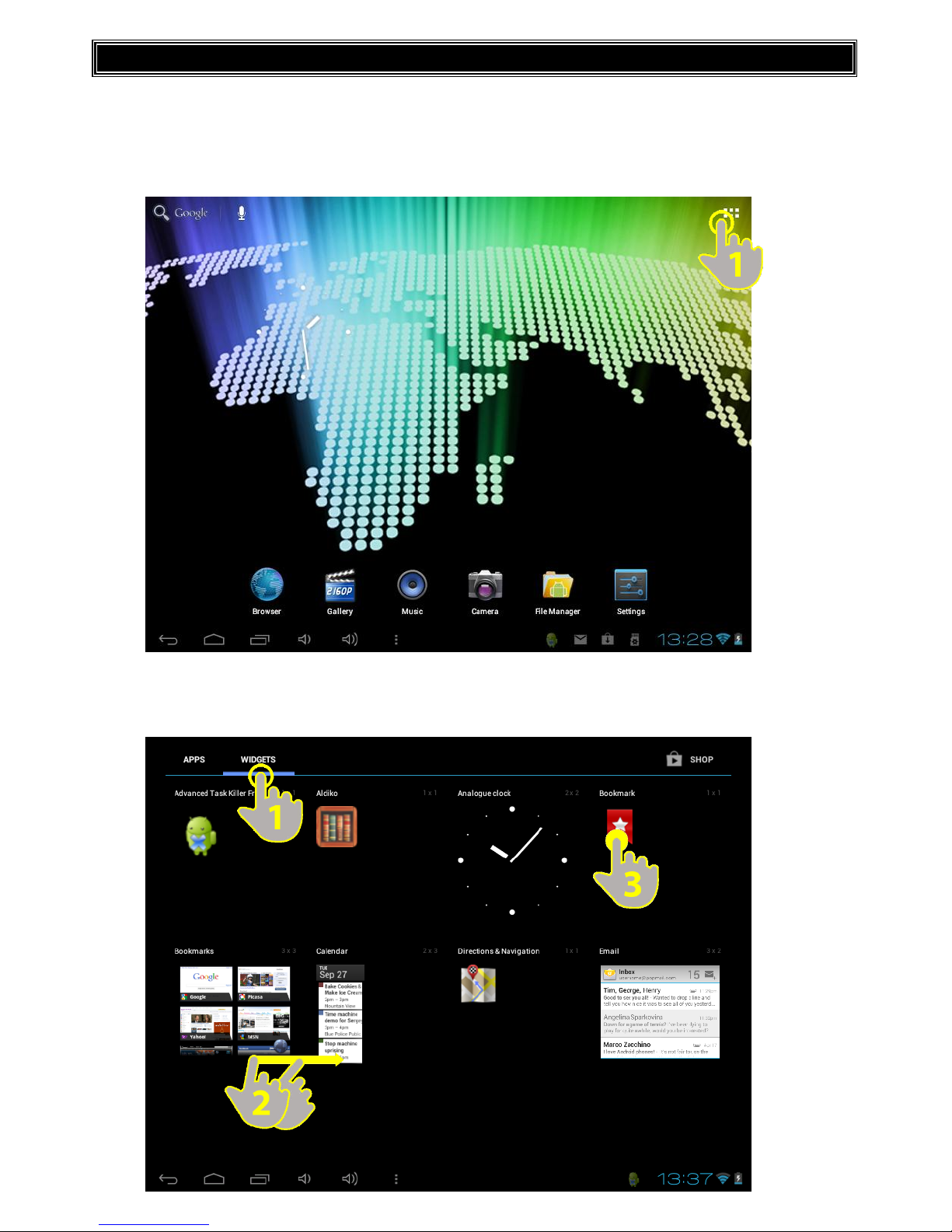
WIDGETS
Widgets are applications, which allow easy access to some applications. In fact, it is more than a shortcut to an application
as when you place them on your home screen like icons, they can show you the time, current weather or even your e-mail
inbox without launching the application. To add widgets onto the desktop follow the steps below:
1. Press the “Applications and Widgets” icon situated on the top right hand side of the screen (1)
2. Press on the “Widgets” tab (1) which is situated on the top of the screen
3. Flick (2) through the widgets installed
4. Press and hold on the desired widget. (3)

5. After a few seconds the desktop screen will appear (Continue pressing the icon at this point)
6. Drop and place the icon in the desired position on the desktop. The icon will now appear on your desktop as
shown below.
Once the widget is on the desktop, you can move it around or delete it. To do this you must press and hold on the widget
until it is highlighted. You may then move it around, or delete it by dragging it to the “X” icon which appears on screen.
SETTING UP THE Wi-Fi NETWORK
1. Tap on the Settings icon on the main screen (1)

2. Under the “wireless and networks” section, flick the Wi-Fi switch to “ON”(1)
3. Select the desired Wi-Fi network from the list of available networks and enter the password, if required.
Once the authentication process has been completed; the device will save the data so that the next time you turn on the
device it will automatically establish connection with the network (when in range) without having to repeat the
authentication process. Your HELIOS SY-Z18M4 tablet is now ready to surf the internet!
NOTE: The HELIOS SY-Z18M4 is
compatible with the following
security and encryption standards:
WEP, WPA, WPA2, TKIP and AES.

INTERNET BROWSER
Your device comes with a powerful Web Browser which has already been pre-installed. The browser will allow you to surf
the internet quickly and easily. When the device is connected to a Wi-Fi network, tap on the browser application icon (1)
from the desktop or from the applications menu to begin using the internet. The default homepage will be displayed on
screen; however, it is possible to modify the homepage and other parameters through the settings.

Homepage
Tap on the address bar once (1). The current address will be highlighted and the keypad screen will appear.
Type the desired webpage address and press enter (2).
Tabs
The different tabs will be shown on the top part of your browser. In order to view all the pages that are currently opened,
simply press on the desired tab (1). You may shift from one website to another by simply pressing on any of the opened
tabs.
Table of contents
Other Sytech Tablet manuals
Popular Tablet manuals by other brands

Laser
Laser MID-1060 Quick operation guide

MUNBYN
MUNBYN IRT09J Easy setup guide

Motorola
Motorola MC3090R - Win CE 5.0 Professional 520 MHz quick start guide

Dell
Dell Latitude ST Setup and features information

Lenovo
Lenovo IdeaTab S6000L Hardware Maintenance Manual

Venturer
Venturer WT9L11 quick start guide