Supersonic SC-4032WKB User manual

USER MANUAL

1
Introduction
Thank you for your choosing the new Tablet PC.
This guide serves to enable users to get to know and familiar with our product as
soon as possible. Here we have made a brief introduction to the key layout and
definitions in figures and words.
. Precautions before use
This production is suitable for use in non-tropic areas below 2,000 meters, and the
mark in the nameplate indicates the product is suitable for use in non-tropic
areas.
2. Prevent the Tablet PC from falling to the ground or being strongly impacted
otherwise.
3. Do not use it in the long term in any environment where the air is too cold, too
hot (<35℃), too humid or with too much dust. Do not expose the Tablet PC to
sunlight.
4. Avoid using it in the strong magnetic and strong static environment as much as
possible.
5. Once any water or other liquid splashes onto the Tablet PC close it immediately
and do not use it until it dries out.
6. Do not clean the Tablet PC with any detergent containing chemical element or
other liquid to avoid causing damage due to corrosion and becoming damp. If
cleaning is really necessary, clean it with dry soft cloth tissue paper.
7. Our company shall not bear any and all responsibilities for loss or deletion of
material inside the machine caused due to abnormal software and hardware
operation, maintenance or any other accident.
8. Please back up your important material at any time to avoid loss.
9. Please do not disassemble the Tablet PC by yourself; otherwise you will lose the
right to warranty.
10. This product supports the overwhelming majority of mainstream brands of 3G
DONGLE network cards. The cases for 3G Dongle may be different. It is
suggested that you test it to make sure it is OK before buying it.
11. Replacement with incorrect type batteries may cause explosion. Make sure to
use original batteries.
I
1 2
10
10
9
8
7
6
12
5 5 5
3
4
11

2
1. Power button: Press and hold for 5-7 seconds to start up or close the touch
screen panel. You can also press power once for computer to enter in sleep mode
press power button one time again and it will wake from the dormancy (Sleep
mode) mode.
2. Sound-/sound+: Lower/raise volume
Loudspeaker: The built-in loudspeaker enables you to hear the sound without
having to link additional device
3. Front CCD camera: take photos, and record pictures
4. Windows key: Press this button to return to the Start screen.
CCD camera indicator: The CCD camera indicator will be “ON”when the built-in
CCD camera is used.
5. Movable base keyboard interface: This interface is magnetic, which is
convenient for alignment and firmly linking the Table PC and the keyboard.
6. Socket for earphone: This socket can transmit the audio signals of Tablet PC to
loudspeaker or earphone.
7. Micro USB Interface: You can read and transfer data through USB.
8. Mini HDMI Interface: High-Definition Multimedia Interface
9. DC Indicator: Led light gets brighter when charging.
10. Microphone: This socket can transmit the audio signals of Tablet PC to
loudspeaker
11. Back CCD camera: take photos, and record pictures
12. Micro SD card slot: The built-in storage card reader slot supports Micro SD
and Micro SDHC format.
Ⅱ. The keyboard
Attention: Keyboard is optional, and configure the product according to the
specific type of the tablet PC you have bought.
○
1Movable base keyboard interface: This interface is magnetic, which is
convenient for alignment and firmly linking the Table PC and the keyboard.
○
2Keyboard group: The keyboard group provides full size QWERTY key and
best typewriting comfort ability.
○
3Touch Tablet: Used to control the cursor on the Tablet PC, with the same
function as a mouse.
○
4Left key
○
4Right key
b
k
b
d
i
h
i
i
i
1 1
2
3
4 4
5
CCD camera indicator: The CCD camera indicator will be “ON” when the built-in
CCD camera is used.
4.Windows key: Press this button to return to the Start screen.

3
ĻBase: Folding base of Tablet PC.
҉. Introduction to Desktop
1. Windows 10 Startup Menu: On the start screen, you can see many application
programs you can select (touch) the programs you need to open.
You will need to log on to your Microsoft account for some application program to
completely run.

4
2. Slide Window Area;
On Desktop Mode Slide to the (Left) to select “+new Desktop” and Slide to left
(Right) to see “Action Center” or “Notifications” side Windows.
Slide to the right to see “Notification” or “Action Center”
You can expand the tabs and select a preference tabs. Switch to tablet mode,
Rotation lock, note, all settings, Connect to wireless display, Battery Saver, VPN,
Bluetooth, Brightness, Connect to Wi-Fi, Quiet Hours, Locations,Airplane mode.
Etc…

5
In Tablet mode;
Slide Upwards or downwards to see all Apps on the menu.

6
View your Calendar, Mail, Explorer, Photos, play store, and many more apps. Play
and explore games, Xbox live, music, movies & TV.
Go to your Office applications.
3ˊIntroduction to app Interface
Besides the application programs already fixed on the start screen, you can also
add and start other software application programs.
“Tablet Mode” App Interface:

7
If you want to fix more application programs on the start interface, see the
operation in the figure below, (1) Click the properties icon (2) press and hold the
application program for about one second and then let go (3) Click to pin to start.
Conversely, if you want to cancel or delete a certain application in the start screen,
(1) lightly touch, press and hold the application program for about one second and
then let it go, then select to unpin.

8
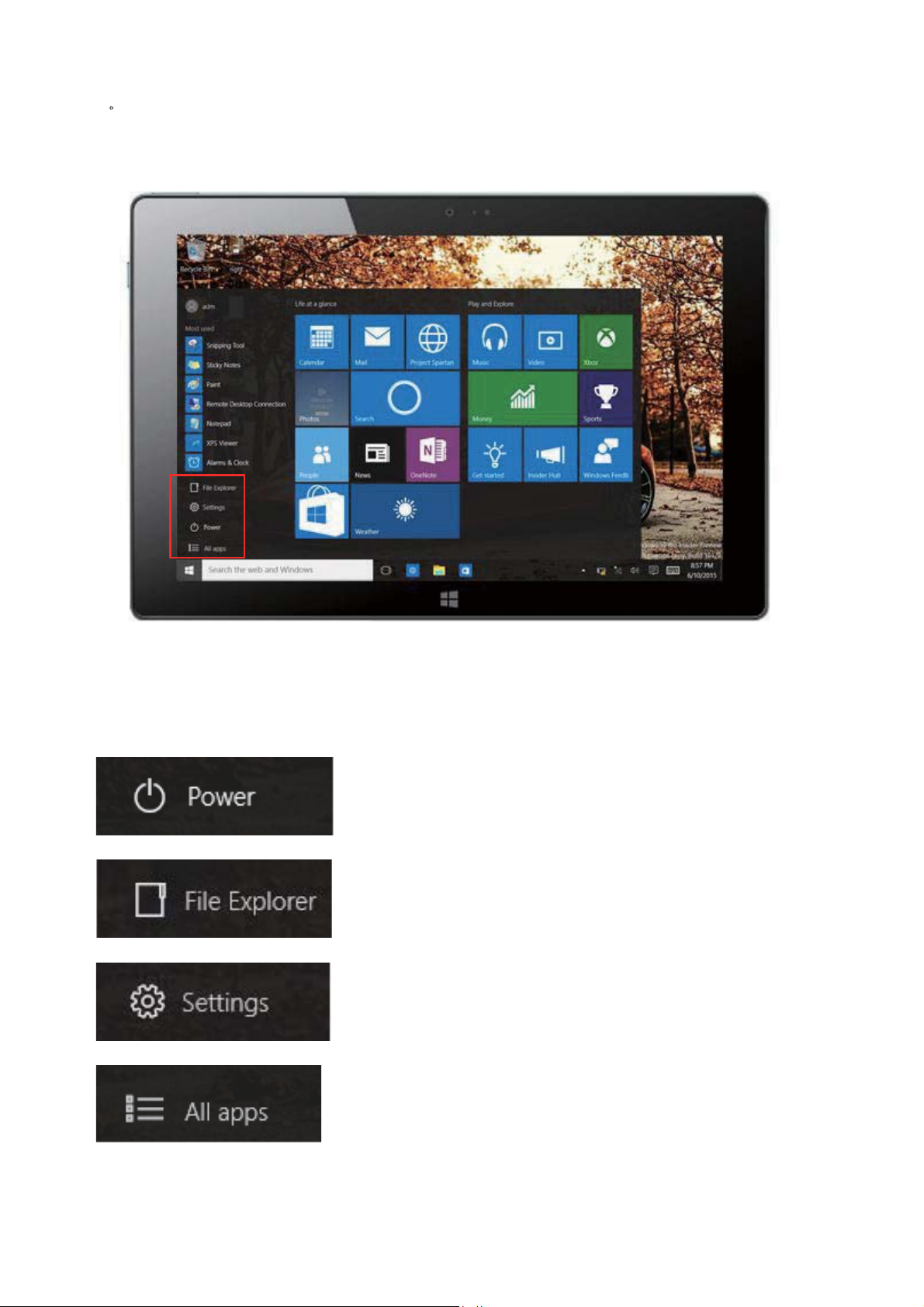
4ˊStartup menu column
Slide it to the left from the right side of the screen to start Startup menu
column, including: Start, Device, Setup, Share, and Search Program.
Slide it to the left from the right side of the screen to start Startup menu column,
usually: File Explorer, Settings, Power, and All apps
Sleep/Shut down/Restart the Tablet PC
Search the files and application programs in the Tablet PC.
Set up the Table PC.
See all Apps in order.

9
Search menu: Desktop MODE
Bring up the keyboard, or use the External Keyboard connected to your Windows
Tab and Type on the Search box for Apps, Settings, Documents, photos, Music,
WEB, etc...
Voice Search Features:
You can use Cortana as your search engine voice command tool.
Cortana can give you suggestions, ideas, reminders, alerts, and more.
Turn on this Settings press the Search index tool to enable Cortana.
Make sure you turn on “Locations” on your notification area then you can enable
Cortana in the settings from your search box.
Turn ON Hey Cortana, to start the setup.
Table of contents
Other Supersonic Tablet manuals
Popular Tablet manuals by other brands

Laser
Laser MID-1060 Quick operation guide

MUNBYN
MUNBYN IRT09J Easy setup guide

Motorola
Motorola MC3090R - Win CE 5.0 Professional 520 MHz quick start guide

Dell
Dell Latitude ST Setup and features information

Lenovo
Lenovo IdeaTab S6000L Hardware Maintenance Manual

Venturer
Venturer WT9L11 quick start guide