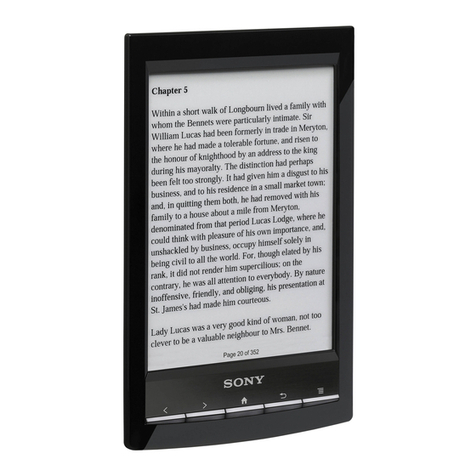
Sunstech EBI4GB2 User manual

EBI4GB2
Quick Start Guide
6" E-ink e-book reader

User Manual for E-Ink Paper Book Reader
SUNSTECH
Introduction
Congratulate you on your purchase of the Sunstech E-ink paper book products with
the most advanced E-ink paper technology .This style of products is super portable. It
has an E-reader with high resolution which is energy-saving, and its reading effect
can be comparable with the real paper.The E-ink paper books support a variety of
reading format, available for users to read various documents. In addition, its light
and simple appearance can bring customers the excellent reading experience.
Relevant components EBI4GB.
Hardware:
* E-book reader 6” Resolution 800 x 600.
* USB cable
* Instructions
* Warranty card
*Earphone
Supported file formats
This e-book supports the following file formats:
* TXT files-- ordinary computer text files
* PDF files -- files in PDF format
*HTML files -- files in HTML format
*EPUB files – files in epub format
*FB2 files .
Audio
*MP3
*WMA
*WAV
Photo
*JPEG
*BMP
*PNG
This device supports Windows XP and Windows Vista
User manual
This manual will guide you to gradually master all kinds of methods of operating the
E-ink paper book products The PDF version of this manual can be read in your
computer or directly in your E-book.
More information
Our company has provided users with more help information. If you need more help,
please log in the website of Sunstech : http://www.Sunstech.es
Preparations prior to use
1

Please read the following instructions carefully before use.
Please charge the batteries and insert the Micro SD card after you buy this product
.After that, you can begin to transfer files and do some reading.
Charging the E-book
The EBI4GB uses rechargeable lithium batteries. Charge the batteries fully before
using. The batteries can reach the best state after two to three times of charges. It is
recommended that each charge last 3-4 hours or the charge is stopped when the LED
light goes out. There are the following methods of charging the batteries:
RESET
LED FOR CHARGING MICRO SD CARD
1. Connect the e-book to your computer via the USB connection cable. This method
requires about four– hour charging;
2. Plug the bigger end of the USB cable into the adapter, plug the smaller end into
the corresponding socket in the EBI4GB E-book, and plug the adapter into the power.
So you can begin charging. Such a method requires about three– hour charging.
Notes:
2

The EBI4GB E-book will automatically turn off if the power is too low to operate.
If the EBI4GB E-book is unable to operate when it is connected to a computer,it will
automatically enter the state of " synchronization " and wait for the file uploading.
Use of the micro SD-card
The capacity of the reader can be enlarged by plugging the Micro SD card into the
card slot on the top of the side of the e-book. If you want to plug in or pull out the
Micro SD card,please follow the steps below :
1. In face of the screen of the E-book, you open the label of the Micro SD card facing
yourself and then plug the card into the E-book.
2. If you will hear a “click” sound when you plug the Micro SD card into the E-book ,
you operate correctly.
3.If you want to take out the Micro SD card, press down the card. It will spring out
automatically, and you can hear a “click” sound.
Max. capacity Micro SD-Card 32GB
Card Compatible with Micro SD HC
Remarks:
This E-book reader supports the Micro SD cards with standard formats, rather than
other forms of flash memory cards.
Make sure that the Micro SD card is plugged correctly into the card slot, because the
faulty plug will damage the card slot.
Never plug any card in a special shape or inconsistent with the specifications into the
card slot.
Never pull out or turn off the E-book when read the texts in the card, otherwise the
data in the card will be damaged.
Power on or power off
zPower on :Press the switch button for a second till the flicker of the screen.
zPower off: Press the switch button for a second or till the prompt of power off
shows on the screen.
Transmission of the files
If the EBI4GB is connected with the computer, you can copy files by operating it in
the same way as operating a U disk. All the operations are very simple. Make sure the
e-books are in the state of power on during the transmission of files.
3

1.Connect the computer with the EBI4GB via the USB cable.
2You can copy, add, move or delete the files directly on the computer .
About the main menu:
After power-on, you will see the main menu intermediately. If you want to choose an
item on the menu, you can choose with the direction keys, and press the OK key for
confirmation.
Recent reading : This option enables you to browse the files read recently.
E-Book : This option enables you to browse the e-books under the e-book directory
in the built-in storage.
Music: This option enables you to play the music under the music directory in the
built-in storage.
4

Picture: This option enables you to browse the pictures under the picture directory
in the built-in storage.
Setting
Press the menu key on the Home page, you can enter the system setting menu,
illustrated as follows:
Refresh method
1.Press the menu key in the main menu, the" system settings " pops up. Select the
" Refresh " in the "system settings " interface by using the direction keys ,and then
press the“confirmation” key, the refresh mode window appears
5

2.The " effect priority ", in the process of reading, if the screen is refreshed, the effect
will be displayed in the first place.
3 The" speed priority ", in the process of reading, if the screen is refreshed, the refresh
rate will be given the priority. The change of page is faster, but the refreshment will happen
every 5 pages.
Language selection menu
This e-book reader can support eight languages: English, Spanish, French
language.You can make the choices of language if you enter language selection
menu .
1. Choose the " language selection" mode by using the direction keys in the setting
menu, and then press the OK key for confirmation, the language selection page
will appear ( as follows )
2. Select the languages you want and press the OK key for confirmation.
3. Press the backspace key to exit the language selection menu.
Setting the play mode:
The " Play Mode " can be used to set the music play mode, and the operation is
shown below:
1. Select the" play mode " option by using the direction keys in the settings menu,
and then press OK key for confirmation. There will be a " play mode " setting page ( as
follows ).
6

2. Choose the play mode your like, and press the OK key for confirmation.
3. Press the backspace key to exit the“play mode” menu.
System information:
The option enables us to check the version, the production date, the memory usage
situation and other information.
Restore the default of the system :
This option enables you to restore the default settings in the system of the e-book
Reading TXT files
This section will show you how to use the TXT e-book reading function .
Open or close the TXT files
Select e-books "in the main menu through the direction keys and it is OK for you to
press the OK button.
7

1. After the e-book is open, you can select the E-books you want to read just by
pressing the upper or lower keys on the direction keys, and then press the OK key for
confirmation.
If you want to close the e-book, press the backspace button. The system will
automatically save your current reading position, and you can re-enter the position
when you enter the e-book later .
TXT option menu
The TXT option menu mainly provides the common operations on reading the TXT or
PDF e-books, such as the use of go to, zoom, bookmarks, landspace ( horizontal
reading ), TTS voice reading and other functions.
Open a file in the TXT format, and press the key on the left side below the menu to
enter the TXT option menu (Notes: If you press the backspace key, you can exit the
menu options and return to the reading mode ), illustrated as follows:
Jump page function
Operate the following steps , and you can jump to certain page:
TXT option menu - select " go to"by pressing the arrow direction keys, and press the
OK key for confirmation -- go to the corresponding page.
8

TXT file amplifying function
Press a confirmation key to enter the zoom menu, choose your desired font, and
confirm with the OK key.
Use the bookmark function:
The bookmark function allows you to quickly jump to the paragraph you want to
read . Use the bookmark function according to the following steps:
zPress the menu key, select the Bookmark – press the confirmation key to enter
the bookmark function.
zIf you want to save the current page, press the Ok key for confirmation.
zIf you want to jump to the current bookmark, select the‘jump page’key after press
the OK key.
zIf you want to delete the bookmark, select the ‘Delete’ key after press the OK key.
zIf you want to replace the bookmark, select the ‘replace key after press the OK key.
9
Table of contents
Languages:
Other Sunstech Ebook Reader manuals