StarTech.com ENTERPRISE CLASS SV1653DXI User manual

Manual Revision: 02/22/2012
For the most up-to-date information, please visit: www.startech.com
DE: Bedienungsanleitung - de.startech.com
FR: Guide de l'utilisateur - fr.startech.com
ES: Guía del usuario - es.startech.com
IT: Guida per l'uso - it.startech.com
NL: Gebruiksaanwijzing - nl.startech.com
PT: Guia do usuário - pt.startech.com
SV1653DXI
SV3253DXI
16 / 32 Port CAT5 Matrix IP KVM Switch
*actual product may vary from photos

Instruction Manual
FCC Compliance Statement
This equipment has been tested and found to comply with the limits for a Class B digital
device, pursuant to part 15 of the FCC Rules. These limits are designed to provide reasonable
protection against harmful interference in a residential installation. This equipment generates,
uses and can radiate radio frequency energy and, if not installed and used in accordance with
the instructions, may cause harmful interference to radio communications. However, there
is no guarantee that interference will not occur in a particular installation. If this equipment
does cause harmful interference to radio or television reception, which can be determined by
turning the equipment o and on, the user is encouraged to try to correct the interference by
one or more of the following measures:
• Reorient or relocate the receiving antenna.
• Increase the separation between the equipment and receiver.
• Connect the equipment into an outlet on a circuit dierent from that to which the receiver
is connected.
• Consult the dealer or an experienced radio/TV technician for help.
Use ofTrademarks, Registered Trademarks, and other Protected Names and Symbols
This manual may make reference to trademarks, registered trademarks, and other
protected names and/or symbols of third-party companies not related in any way to
StarTech.com. Where they occur these references are for illustrative purposes only and do not
represent an endorsement of a product or service by StarTech.com, or an endorsement of the
product(s) to which this manual applies by the third-party company in question. Regardless
of any direct acknowledgement elsewhere in the body of this document, StarTech.com hereby
acknowledges that all trademarks, registered trademarks, service marks, and other protected
names and/or symbols contained in this manual and related documents are the property of
their respective holders.

Instruction Manual
i
Table of Contents
Introduction............................................................................................1
Features ........................................................................................................................................................ 1
Package Contents ..................................................................................................................................... 1
Required Cables and Hardware .......................................................................................................... 2
Installation ..............................................................................................3
Conguration..........................................................................................5
Using the On-Screen Display ............................................................................................................... 5
Using DHCP .............................................................................................7
Web Conguration Using Static IP ......................................................8
Connecting the Host Computer to the Unit ......................................10
Disabling Mouse Acceleration on the Host Computer.....................10
Connecting the SV5CONS Remote User Station (Optional) ............11
Using the Web Interface........................................................................12
The Login Screen....................................................................................13
Web Interface Introduction ..................................................................14
Home........................................................................................................14
Thumbnails.................................................................................................................................................. 15
User Preferences........................................................................................................................................ 16
Logout........................................................................................................................................................... 17
File Transfer.................................................................................................................................................. 17
Admin Functions ....................................................................................................................................... 21
User Accounts............................................................................................................................................. 23

Instruction Manual
ii
System Ident ............................................................................................................................................... 24
Security......................................................................................................................................................... 26
Compatibility.............................................................................................................................................. 26
SNMP ............................................................................................................................................................. 27
RADIUS.......................................................................................................................................................... 27
Modem.......................................................................................................................................................... 28
Time/Date .................................................................................................................................................... 28
Firmware....................................................................................................................................................... 28
Auto Self Upgrade..................................................................................................................................... 29
Manual Upload........................................................................................................................................... 29
Purchase Options...................................................................................................................................... 29
Info Functions.........................................................................................30
Status............................................................................................................................................................. 30
Port Numbers ............................................................................................................................................. 31
Help Menu ................................................................................................................................................... 32
Site map Menu........................................................................................................................................... 32
Copyright Menu......................................................................................................................................... 32
The VNC Interface ..................................................................................32
Native VNC Client ...................................................................................................................................... 33
Using the VNC Menu ............................................................................................................................... 34
Bribar Feature ............................................................................................................................................ 34
VirtKeys Menu ............................................................................................................................................ 40
Video Tuning Menu .................................................................................................................................. 41
Changes/frame .......................................................................................................................................... 41
Picture Positioning.................................................................................................................................... 41
Color Oset ................................................................................................................................................. 42

Advanced .................................................................................................................................................... 42
Sampling Phase ......................................................................................................................................... 42
Noise Filter................................................................................................................................................... 42

Instruction Manual
iii
Flatness Filter.............................................................................................................................................. 43
Getting Peak Video Performance ........................................................................................................ 43
Using the Advanced Video Tuning Feature ..................................................................................... 44
Disk Control Menu .................................................................................45
Accessing KVM Features .......................................................................46
OSD Operations......................................................................................................................................... 46
OSD Function Keys .................................................................................................................................. 47
Using the Modem feature ....................................................................48
Connecting a Modem ............................................................................................................................. 49
Modem conguration ............................................................................................................................ 50
Conguring the Remote Connection ............................................................................................... 51
Accessing the Web Interface ................................................................................................................ 52
Modem Troubleshooting Guide ......................................................................................................... 53
About Security Certicate Warnings ..................................................53
Built-in Terminal Emulation..................................................................55
How to nd the Built-in Terminal Emulator..................................................................................... 55
Navigating the Menus............................................................................................................................. 55
Troubleshooting ....................................................................................59
Serial Interface Pinout...........................................................................61
Technical Specications ........................................................................62
Technical Support ..................................................................................69
Warranty Information............................................................................69

Instruction Manual
1
Introduction
Thank you for purchasing a StarTech.com Enterprise Class KVM. Using the Internet or
your TCP/IP enabled network, you can now monitor and control critical PC servers and
workstations, using an industry-standard Web browser or VNC client, from virtually any
remote location.
Features
• Supports industry-standard networking and management protocols
(e.g.TCP/IP and SNMP)
• Oers secure management options including SSL encryption, SSH
tunneling, and RADIUS authentication
• Fully integrated, multi-user CAT5 switch, with non-blocking access to
16/32 servers by up to 3 users
• Platform independent: can be managed using any Java-enabled Web
browser and connected to virtually any host server or computer that
supports PS/2 or USB input devices
• Allows for disk emulation and le transfers, including completely remote
application and operating system installations.
• On-Screen Display oers convenient control and conguration options
• Integrated ANSI terminal emulator allows local users and user-station
SSH, telnet and serial-port access to other systems on your network
Package Contents
This package should contain:
• CAT5 Multi-user KVM
• Power Cord
• Rack Mounting Hardware
• Instruction Manual

Instruction Manual
2
Required Cables and Hardware
Depending on your needs, you may need one or more of the following cables. Please
note that the corresponding StarTech.com part numbers are listed in brackets:
All applications:
For connection to a LAN: 1 x Straight-through Ethernet patch cable (M45PATCHxxxx)
DB9F to RJ45F Adapter (GC98FF, GC98MF)
PS/2 Server Interface Module for Enterprise Series (SV5PS2M)
USB Server Interface Module for Enterprise Series (SV5USBM)

Instruction Manual
3
Installation
*SV1653DXI front panel
*SV1653DXI rear panel
To connect the KVM Remote Control Unit to the Host Computer and Network:
1. Using a Category 5 Ethernet patch cable, connect the LAN connector
on the rear panel of the SVxx53DXI to a network data jack (usually
on a hub, switch, router, or pre-wired wall jack).
2. Connect a standard PS/2 or USB keyboard to the Local Keyboard port
on the rear panel of the SVxx53DXI.
3. Connect a standard PS/2 or USB mouse to the Local Mouse port on
the rear panel of the SVxx53DXI.
4. Connect an XGA-compliant (or higher) monitor to the Video Out port
on the front panel of SVxx53DXI.
5. Connect the power cord (provided) to an available electrical outlet. Plug
the opposite end of the power cord into the AC power connector on the
rear of the unit.
6. Power up the KVM.
IMPORTANT: SVxx53DXI is cooled by fans and convection. As such, please ensure
the vents on both sides as well as the rear panel are unobstructed.

Instruction Manual
4

Instruction Manual
5
Conguration
SVxx53DXI oers four distinct methods for conguring the unit for your network.
Which method will work best will depend on your level of experience and your specic
network conguration.
Using the On-Screen Display
Upon initial boot, you will require an administrative username and password. By default,
the username and password are both: admin. You will be given the opportunity to
change the password (recommended), once the conguration is complete.
The DHCP assigned IP Address will be visible at this time, at the bottom of the screen.
If no DHCP server is detected, a factory assigned IP address will be displayed in its
place (10.0.0.15 by default). Please make note of the assigned IP address, as you will
need to enter it into your web browser to access the Web Interface.
Once the username and password (admin, admin) have been entered, a status window
will appear. Press “I”to proceed to the Main Menu screen.
Other manuals for ENTERPRISE CLASS SV1653DXI
1
This manual suits for next models
1
Table of contents
Other StarTech.com Network Router manuals

StarTech.com
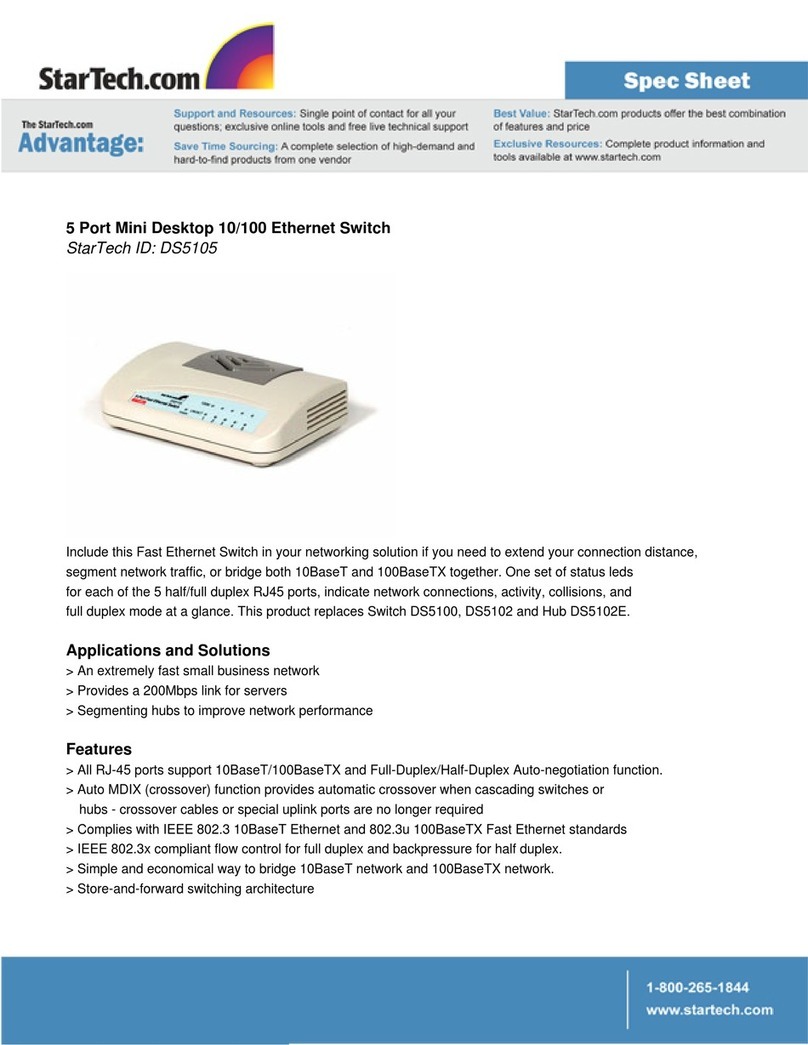
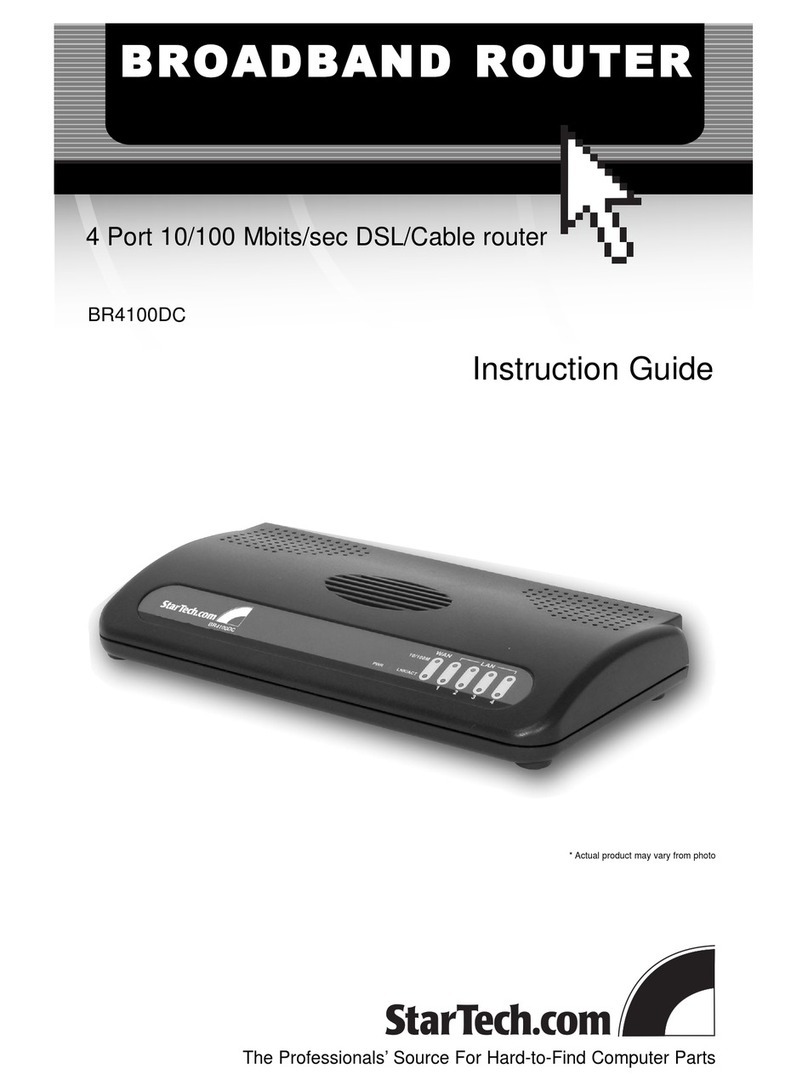
StarTech.com BR4100DC Manual

StarTech.com
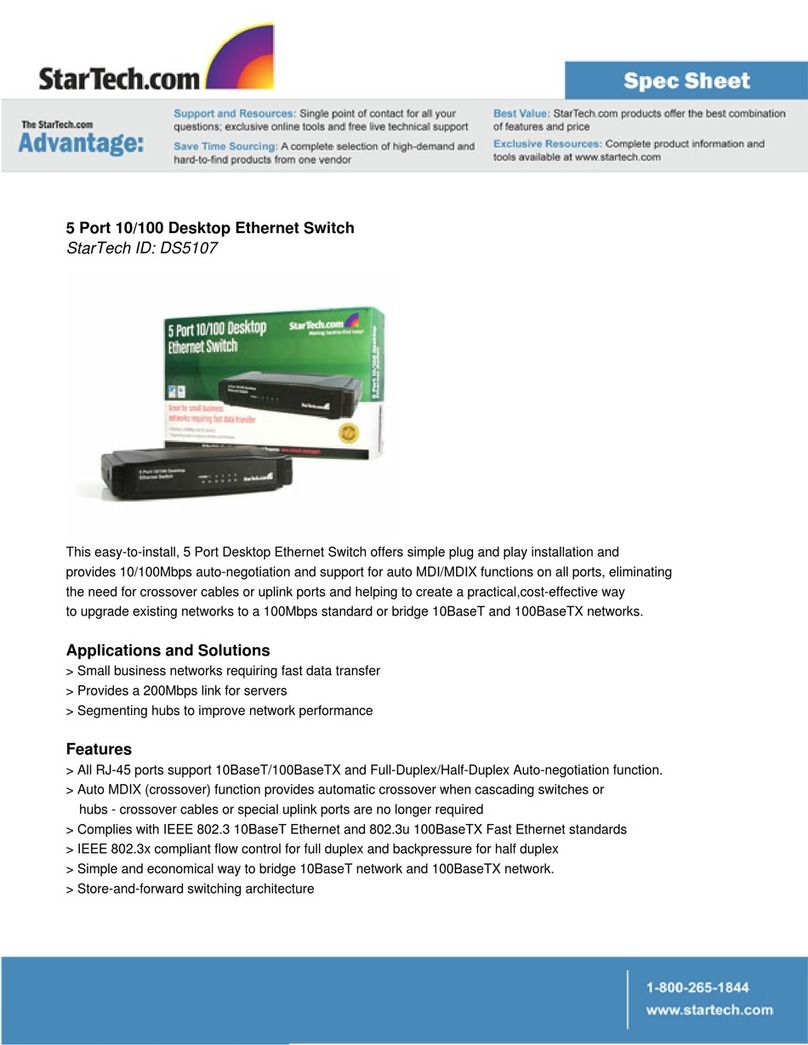
StarTech.com DS5107 System manual

StarTech.com
StarTech.com R150WN1X1T User manual

StarTech.com
StarTech.com IES8100POE User manual

StarTech.com
StarTech.com IES5100 User manual

StarTech.com
StarTech.com ES3124R Manual

StarTech.com
StarTech.com DS5105 System manual

StarTech.com
StarTech.com Starview SV231USBAN User manual

StarTech.com
StarTech.com IES5100 User manual

StarTech.com
StarTech.com IES5100 User manual