
Speedytel PBX220 User manual

1
VoIP communication
Deploying the
PBX220 IP Telephone System
Technical Manual
PBX220

2
Menu
Getting Started ............................................................................................................................................................ 4
Introduction ......................................................................................................................................................... 5
Packing list ........................................................................................................................................................... 6
Specification......................................................................................................................................................... 6
Hardware Setup ................................................................................................................................................... 7
First Login to Wizard ............................................................................................................................................ 8
One touch to deploy* ........................................................................................................................................ 15
Dashboard.......................................................................................................................................................... 15
Wifi Router................................................................................................................................................................. 16
Networks............................................................................................................................................................ 16
WAN/LAN/TimeZone ................................................................................................................................. 17
Wireless ..................................................................................................................................................... 18
Dynamic DNS ............................................................................................................................................. 20
VPN ............................................................................................................................................................ 22
Utilities............................................................................................................................................................... 23
DHCP Server............................................................................................................................................... 23
Wireless Mac Filter .................................................................................................................................... 25
Port Forward .............................................................................................................................................. 25
Firewall/UPNP/DMZ................................................................................................................................... 26
QoS............................................................................................................................................................. 28
Disk and Sharing ........................................................................................................................................ 28
System................................................................................................................................................................ 34
Real Status ................................................................................................................................................. 34
Call Details Report...................................................................................................................................... 35
Logs View ................................................................................................................................................... 35
Admin User ................................................................................................................................................ 35
Reboot ....................................................................................................................................................... 36
Reset Factory ............................................................................................................................................. 37
VoIP............................................................................................................................................................................ 37
PBX General ....................................................................................................................................................... 37
Extensions.................................................................................................................................................. 38
Line Provider.............................................................................................................................................. 45
Advanced ........................................................................................................................................................... 51
Outbound Routes....................................................................................................................................... 51
Inbound Routes.......................................................................................................................................... 54
Conference................................................................................................................................................. 57
Queues....................................................................................................................................................... 57
Simple IVR.................................................................................................................................................. 59
Time Frames............................................................................................................................................... 62
PBX More ........................................................................................................................................................... 63
Sound Files................................................................................................................................................. 64
Option ........................................................................................................................................................ 65

3
Glossary ..................................................................................................................................................................... 71

4
Welcome to
Wi-Fi IP PBX
PBX220
Getting Started
Thank you for purchasing Speedytel PBX220 ( WiFi Router+ IP PBX).It is one cost-efficient
yet easy-to-configure IP PBX in the market today.
Administrating a VoIP system can be a daunting task for administrators unfamiliar with VoIP.
This guide is designed to help you plan and configure Speedytel PBX220 Voice over IP
(VoIP) deployments.

5
Introduction
The Speedytel PBX220 ( 300M WiFi Router+ IP PBX) is the ideal system for small
businesses and home offices requiring a pint-sized yet powerful on-premise wifi router IP
PBX.
The compact solid-state device supports 16 extensions and offers a wide range of IP PBX
telephony features.
Keeping up with the demands of sustainability, the speedytel PBX220 is based on a
low-power, high performance MIPS processor, providing the complicated communication
features including the hardest HD communication protocol, complete router features and
QoS (Ensure the voice quality in a case the bandwidth is not enough).Meanwhile, the
feature of one touch to deploy the phones makes the configuration of phones easy and
enjoyable thing.

6
Packing list
1 unit PBX220
1 Piece Power Supply (12V,1A)
1 piece of 2-meter Network cables
1 Piece 8G MLC USB
Specification
MIPS Processor
64MB RAM/16MB FLASH
1xRJ45 10/100MB Ethernet port WAN
1xRJ45 Debug port
Button: Reset Button, One Touch to auto deploy
Power adapter: AC 100~240V input and DC 12V/1A output
Power consumption: 1.2-2.0W
Net weight: TO BE DiSCUSSED
Dimension: TO BE DiSCUSSED
Operating humidity: 10~95%
Operating temperature: 0~45°C

7
Hardware Setup
You may check the above picture to configurate.
Step 1: Connect the LAN port of PBX220 with your corporate IP network. Before you
connect the PBX220 to the network, please check if your network can work normally.
Step 2: Plug in and open your browser to visit the web address: Http://192.168.1.1
Make sure your PC IP address is 192.168.1.XXX
(If you use IE6 and above, the prefix address http:// can’t be left out)
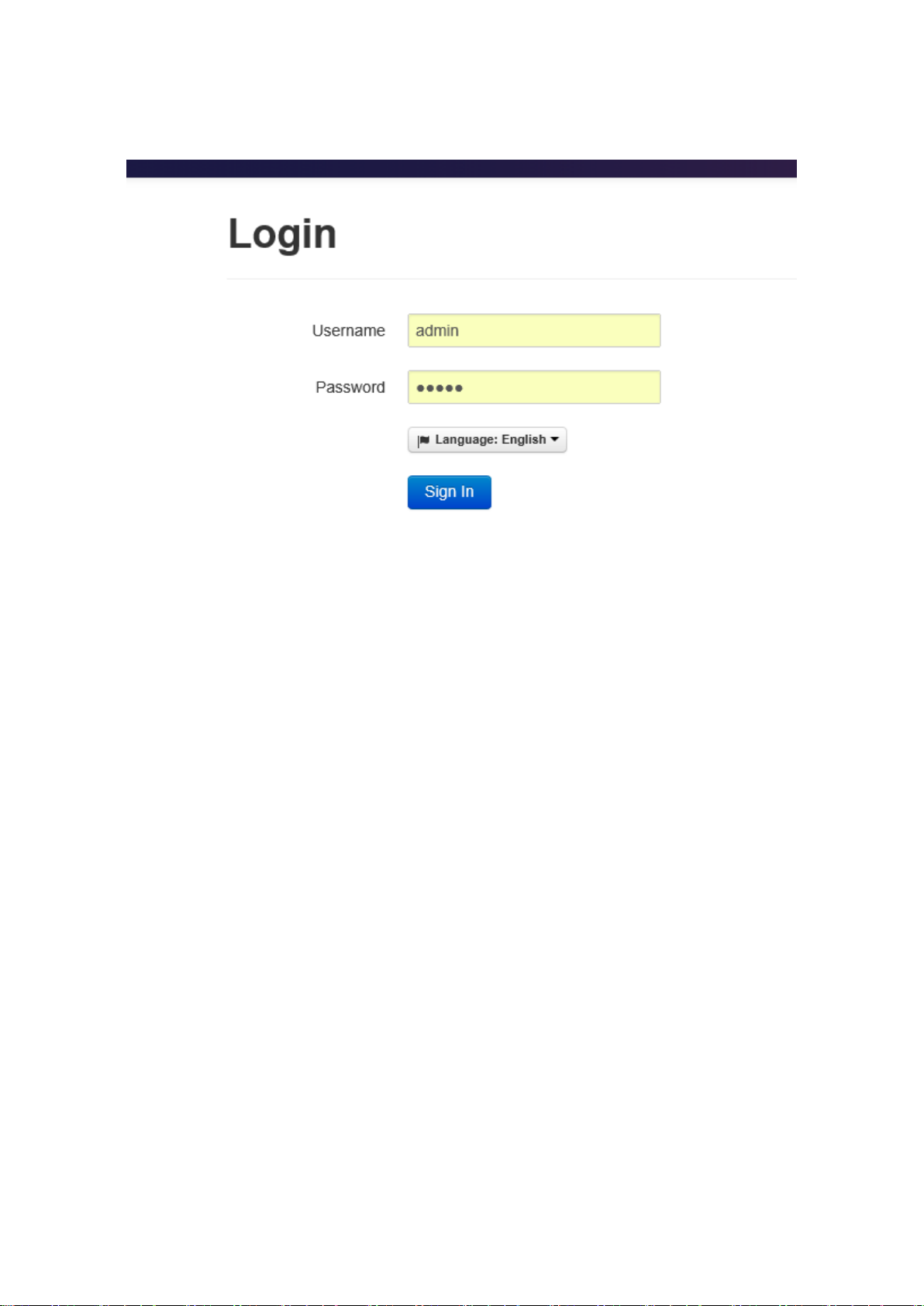
Now we access to the Wizard page.
Username: admin (By default)
Password: admin (By default)
Or you can find the WiFi SSID : WiFi Router and log in. The visit the web : Http://192.168.1.1
8
You can also choose the web language.
First Login to Wizard
This is your first time to log in, it will show Wizard Processing. It is simple and brief to deploy.
In most cases, the default settings can be used for the rest of the configuration.

9
.
If you want to quit the Wizard, just Abort it.And if you want to access Wizard, just click the
Wizad.
You can click Prev to return and Next to do the following steps.
On the Wizard page, you can set the WAN IP and Time Zone, Wireless, Extension, line
provider and PBX.
You can select which part need to set then do the Next.
(You can also follow all the default settings and confirm)

10
Next is the WAN and Time Zone as below:
You can choose the Protocol Static IP, DHCP, PPPOE
Static IP
Using a static IP address is the most reliable way to ensure your server IP address does not
change. To find an IP address that is not in use on your network and will not be used for
another client by the DHCP server or used by some other devices.
DHCP(Dynamic Host Configuration Protocol, DHCP)
PPPoE (Point to Point Protocol over Ethernet)
Fill out the account information from your telecom operator and Next.
Table of contents
Other Speedytel IP Phone manuals


