Sony CRX-1611 User manual

CRX - 1611
CD-R/RW Drive Unit
User’s Guide
Printed in Australia
© 2001 - Sony Australia Limitied.
This manual is subject to change without notice.
CRX - 1611
CD-R/RW Drive Unit
User’s Guide PN: CRX1611-1AUS

DANGER
INVISIBLE LASER RADIATION WHEN OPEN.
AVOID DIRECT EXPOSURE TO BEAM.
VORSICHT
UNSICHTBARE LASERSTRAHLUNG WENN ABDECKUNG
GEOFFNET
NICHT DEMSTRAHL AUSSETZEN
Owner’s Record
The model and serial numbers are located on the top of the drive. Record these
numbers in the spaces provided below. Refer to them whenever you call upon your sales
representative regarding this product.
Model No. Serial No.
Safety Regulations
WARNING
To prevent re or shock hazard, do not expose the unit to rain or moisture.
To avoid electrical shock, do not open the cabinet. Refer servicing to qualied personnel
only.
CAUTION
As the laser beam in this CD writer is harmful to the eyes, do not attempt to disassemble
the cabinet. Refer servicing to qualied personnel only.
The use of optical instruments with this product will increase eye hazard.
The use of controls or adjustments or performance of procedures other than those
specied herein may result in hazardous radiation.
This label is located on the drive unit’s internal
chassis.
This label is located on the top of the drive unit enclosure.
This unit uses CD-RW discs with the following mark.
This unit uses CD-R discs with the following mark.
This unit uses CD-ROM discs with the following mark.
When you use this unit as a CD player, use compact
discs with the following mark.
WARNING —
You are cautioned that any changes or modications not expressly approved in this
manual will void your warranty.
Note:
This equipment has been tested and found to comply with the limits for a Class B digital
device, pursuant to Part 15 of the FCC Rules. These limits are designed to provide reason-
able protection against harmful interference in a residential installation. This equipment
generates, uses, and can radiate radio frequency energy and, if not installed and used
in accordance with the instructions, may cause harmful interference to radio communica-
tions. However, there is no guarantee that interference will not occur in a particular instal-
lation. If this equipment does cause harmful interference to radio or television reception,
which can be determined by turning the equipment off and on, the user is encouraged to
try to correct the interference by one or more of the following measures:
- Reorient or relocate the receiving antenna.
- Increase the separation between the equipment and receiver.
- Connect the equipment into an outlet on a circuit different from that to which the
- Consult the dealer or an experienced radio/TV technician for help.
This CD-R/RW drive unit is classied as a CLASS 1
LASER PRODUCT.
The CLASS 1 LASER PRODUCT label is located at the
top of the enclosure.
CAUTION INVISIBLE LASER RADIATION WHEN OPEN. DO NOT STARE INTO
BEAM OR VIEW DIRECTLY WITH OPTICAL INSTRUMENTS.
VORSICHT UNSICHTBARE LASERSTRAHLUNG, WENN ABDECKUNG GEÖFFNET.
NICHT IN DEN STRAHL BLICKEN, AUCH NICHT MIT OPTISCHEN
INSTRUMENTEN.
ADVARSEL USYNLIG LASERSTRÅLING VED ÅBNING SE IKKE IND I STRÅLEN-
HELLER IKKE MED OPTISKE INSTRUMENTER.
ADVARSEL USYNLIG LASERSTRÅLING NÅR DEKSEL ÅPNES. STIRR IKKE INN I
STRÅLEN ELLER SE DIREKTE MED OPTISKE INSTRUMENTER.
VARNING OSYNLIG LASERSTRÅLNING NÄR DENNA DEL ÄR ÖPPNAD. STIRRA
EJ IN I STRÅLEN OCH BETRAKTA EJ STRALEN MED OPTISKA
INSTRUMENT.
VARO! AVATTAESSA OLET ALTTIINA NÄKYMÄTTÖMÄLLE LASERSÄTEILYLLE.
ÄLÄ TUIJOTA SÄTEESEEN ÄLÄKÄ KATSO SITÄ OPTISEN LAITTEEN
LÄPI.
CLASS 1
LASER PRODUCT
LASER KLASSE 1
PRODUKT

1
Trademarks
• MS-DOS is a registered trademark of Microsoft Corporation.
• IBM PC, PC/XT, and PC/AT are registered trademarks of International Business
Machines Corporation.
• HP Vectra is a registered trademark of the Hewlett-Packard Company.
• Molex is a registered trademark of Molex, Inc.
• AMP is a registered trademark of AMP, Inc.
• Macintosh is a registered trademark of Apple Computer.

3
Contents
Introduction 6
Location and Function of Parts and Controls 7
Front Panel...........................................................................................7
Rear Panel ...........................................................................................8
Precautions 9
System Setup 10
Installing the Drive in Your Computer 10
Preparation.........................................................................................10
Setting the Jumpers ...........................................................................11
Opening the Computer.......................................................................12
Mounting the Drive.............................................................................12
Installing the Software 17
Using Discs 17
Storing Discs......................................................................................17
Care of Discs......................................................................................17
Operating the Drive 18
Starting the Drive ...............................................................................18
Ejecting the Disc ................................................................................20
How to Use the Disc Locks ................................................................21
Specications 23
Technical Support 24
Recommended Sony Media 24

4
5
Parts and Controls
Front Panel
1 Disc tray
Accepts a CD-ROM, CD-R and CD-RW disc on its tray.
2 Emergency eject hole
Insert a ne rod into this hole to eject the tray manually in emergen-
cies.
3 Eject button
Opens and closes the disc tray.
4 Busy indicator
This indicator shows the unit’s status in various phases of operation.
* Green - seek, read and write.
* Flashing Green - Writing CD
5 Volume control
Controls the volume of the analog audio output provided via a
headphones jack.
6 Headphones jack
Provides two channel analog audio output.
2 1
6543
Introduction
Features The CRX1611 is an internal CD-R/RW (Compact Disc Recordable/
ReWritable) drive unit designed for use with personal computers.
General
• Buffer UnderRun Protection.
• 2 Mbyte buffer memory
• 5 1/4 inch half-height drive form factor.
• DSS Vibration Reduction System.
Supported disc formats
• Reads and writes data in each: CD-DA, CD Extra,
CD-Rom (mode 1), CD-Rom XA (mode 2 form 1 & 2),
CD-I (mode 2 form 1 & 2),Video CD (MPEG 1), UDF & CD-text.
• Reads data in Photo CD (Single and Multi session), Karaoke CD,
Enhanced CD & I-Track CD.
• The CRX-1611 conforms to the specications set out in the
“Orange Book Part II and Part III”.
Supported write methods
• Disc At Once, Session At Once, Track At Once, Variable Packet,
Fixed Packet (Max packet size 1200KB) and Track Reservation.
Performance
• Supports CD-R write speeds of 4X 8X and 16X.
• Supports CD-RW write speeds of 4X.
• Supports HighSpeed CD-RW write speeds of 8X, 10X.
• Fast access times ensuring reliable high-speed data access.
Audio
• Outputs 16-bit digital data over the ATA interface.
• Audio line output and headphones jack for audio CD playback.
Software requirements
To use this CD drive you will require two types of software, one
to enable the drive as a CD reader the other to enable the drive as
a CD writer.
Reader: This drive uses a standard ATAPI interface. Most modern
operating systems have driver software built in to enable the use of
this drive as a CD reader. This includes Windows 95, 98, Me, NT 4.0,
2000 and Macintosh computers with an IDE interface.
DOS drivers can be downloaded from:
http://www.sony.com.au/support/itp
Writer: Authoring software will be required. There are many vari-
ties. Please be sure that the version of software you are using is com-
patible with the CRX-1611. You should check this on the software
manufacturers web site or at:
http://www.sony.com.au/support/itp

6
7
Precautions
Installation
• Avoid placing the drive in a location subject to:
– high humidity
– high temperature
– excessive dust
– mechanical vibration
– direct sunlight.
We recommend to use the drive in a horizontal or vertical position. Do
not use it in a tilted position.
Operation
• Do not move the drive during operation. This may cause it to malfunc-
tion during reading or writing.
• Avoid exposing the drive to sudden changes in temperature as conden-
sation may form on the lens inside the drive as a result. Should the
surrounding temperature suddenly rise while the drive is on, wait at
least one hour before you turn off the power. Operating the drive
immediately after a sudden increase in temperature, may result in a
malfunction during reading or writing.
Transportation
• Close the disc drawer before moving the drive.
• Keep the original packing materials for future transport of the drive.
Rear Panel
1 Digital Audio
2 Analogue Audio
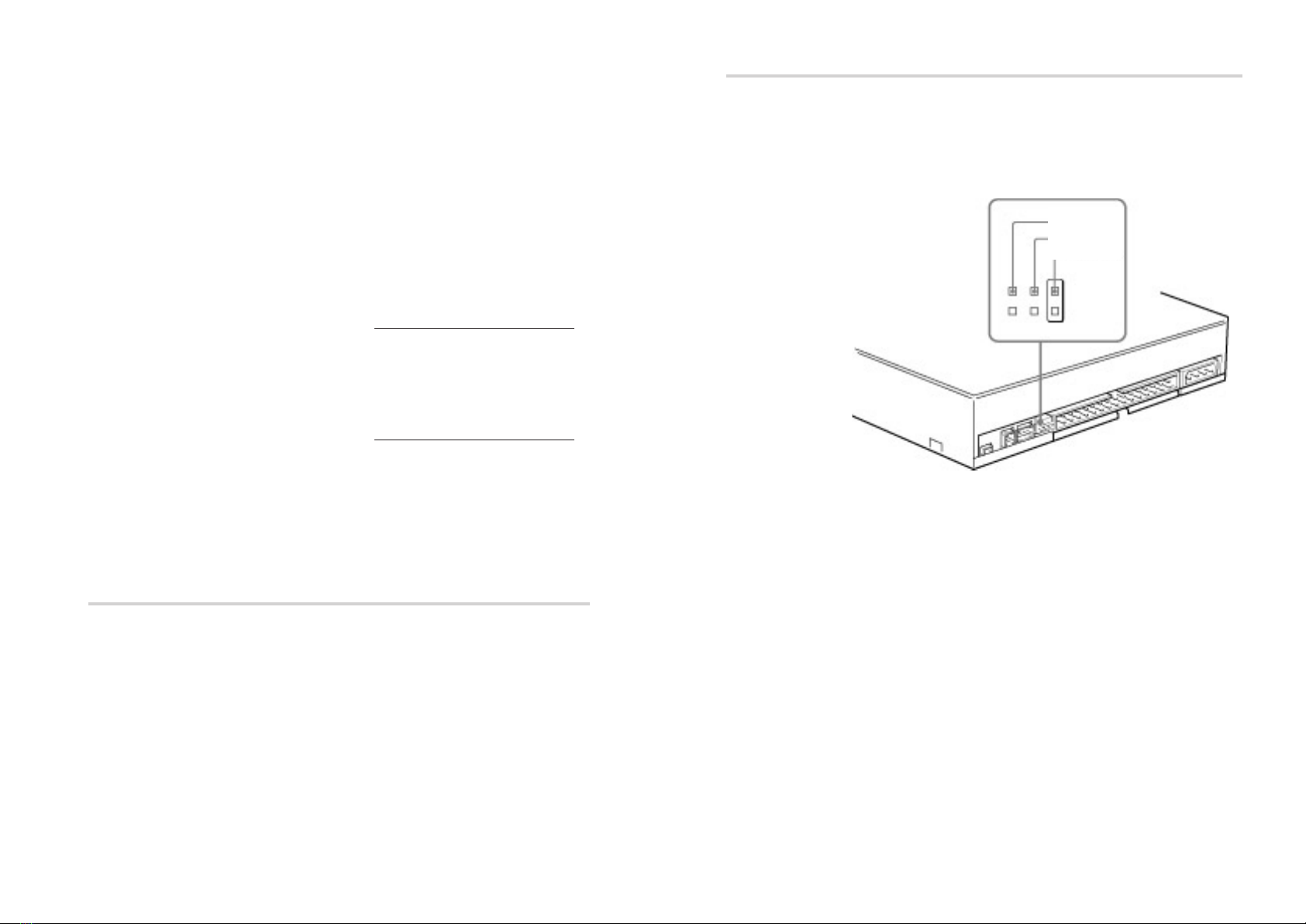
3 Master / Slave Jumpers (refer to page 09 for details)
4 Interface Connector (IDE bus)
5 DC INPUT (power-in) connector
Pin 1
1 2 3 4 5
8
9
Setting the Jumpers
Set the jumpers on the rear of the drive in accordance with the
conguration of your computer system.
The illustration below shows the jumpers set to the “MASTER”
position, this is the default set by the factory.
Your computer should have a PRIMARY IDE bus and a SECONDARY IDE
bus. Each bus can have one MASTER and one SLAVE device connected
to it. Follow the conguration guidlines below for optimum performance
and reliability.
• Set the CRX-1611 as the MASTER device.
• The CRX-1611 can be connected to either the PRIMARY or
SECONDARY bus, however if you have an IDE Hard disk on your
computer the hard disk should be set as the MASTER device on the
PRIMARY bus. Hence the CRX-1611 must be set as the PRIMARY
device on the SECONDARY bus.
• Do not have a CD-ROM reader and a CD writer on the same IDE
bus (ie: both on the SECONDARY bus). This will cause problems if
copying from CD to CD.
Some personal computers may use CSEL in place of the MASTER/
SLAVE selection. In this case, remove the existing jumper from
MASTER or SLAVE, and set it on CSEL. When the CSEL is set high,
the drive is designated as Drive 1.
Consult your PC manufacturer, IDE Card manufacturer or dealer for
further details.
CSEL
SLAVE
MASTER
System Setup
To use this CD-R/RW device, the following components are
required:
• Personal Computer with an IDE bus (ATA compliant)
• IDE Interface cable (40 to 40 pin at cable)
• Software -
Device driver (for reading discs only) -
This is included with most modern operating systems.
DOS device drivers can be downloaded from:
http://www.sony.com.au/support/itp
Authoring Software (for writing discs) -
Check with the software manufacurers web site to ensure
the version of your software supports the CRX-1611.
A list of compatible software can also be found at:
http://www.sony.com.au/support/itp
Installing the Drive in Your Computer
Consult your computers User Manual for instructions on how to add
new hardware. Be sure to follow their anti-static precautions.
Preparation
The following parts and tools will be required to mount the drive in
your computer:
• Four screws 3 mm in diameter and 6 mm in length.
• A screwdriver to suit.
• Two mounting rails if your computer has mounting tracks.
Do not turn on the power of the computer before completing the
entire installation process.

10
11
Connecting the Drive
The drive should be connected to the computer with the following
connectors:
• DC INPUT connector.
• AUDIO OUT connector (if you plan to connect audio equipment).
• IDE INTERFACE connector.
DC INPUT connector
The pin assignment for the DC connector is as follows.
After matching the beveled edges, insert the plug of the power supply
cable to the DC INPUT connector on the rear of the drive and push it
rmly in place.
IDE INTERFACE Connector
DC INPUT connector
AUDIO OUT
connector
+5 V DC +12 V DC
GND
DC INPUT connector
Power supply cable
(4-pin connection cable)
Opening the Computer
Refer to your computers user manual for instructions on how to
open the computer.
Mounting the Drive
Do not mount the drive at an angle, it is only designed to be operated
horizontally or vertically.
Some computers chasis require mounting rails on each side of the
drive when installing new drives. If your system requires these rails
you should contact your computer supplier.

12
13
Closing the Computer
Refer to your computers user manual for instructions on how to close
the computer.
Using Discs
Storing Discs
• Do not store the disc in a location subject to:
– high humidity
– high temperature
– excessive dust
– direct sunlight
Care of Discs
• Hold the disc by its edge. Do not touch the surface.
• Data cannot be recorded if the recording surface is contaminated.
Analogue AUDIO OUT connector
The pin assignment for the audio out connector is as follows:
IDE INTERFACE connector
1 Firmly insert one end of the interface cable into the INTERFACE
CONNECTOR.
2 Attach the other end of the cable to the PRIMARY or
SECONDARY IDE interface connectors on the computers main-
board.
Refer to your computers user manual for more information on
where these connectors will be located.
pin Audio Signal
1 R signal
2 ground
3 ground
4 L signal
INTERFACE
CONNECTOR
Pin 1
INTERFACE cable

14
15
Installing the Software
To use the drive as a CD-Rom Reader.
Windows 95, 98, NT 4.0, Me, 2000 systems or a Macintosh (with a
IDE interface) should detected the drive at start up and the appropri-
ate ATAPI drivers be installed automatically to read discs.
If you wish to use the drive with MS-DOS you will require the
MSCDEX extension (available from Microsoft) and Sony’s ATAPI
device driver available from Sony Australia’s Web Site:
http://www.sony.com.au/support/itp
To use the drive as a CD Writer.
CD Authouring software will be required. There are many varities,
all have different features. Please be sure that the version of software
you are using is compatible with the CRX-1611. This can be checked
on the software manufacturers web site, or for a list of compatible
software refer to Sony Australia’s web site:
http://www.sony.com.au/support/itp
Other manuals for CRX-1611
1
Table of contents
Other Sony CD/CDR Drive manuals


Sony
Sony CDU625 User manual
Sony
Sony SDX-500C Installation instructions

Sony
Sony DRX-120L User manual

Sony
Sony DRU-120A User manual

Sony
Sony CRX320AE User manual

Sony
Sony CDU701 User manual

Sony
Sony CRX230EE User manual

Sony
Sony Spressa CRX100E User manual

Sony
Sony CDU535 Series User manual

Sony
Sony CRX1650L User manual


Popular CD/CDR Drive manuals by other brands




SmartDisk
SmartDisk Firewire CD-R/W user guide

Axis
Axis CD-ROM SERVER Quick installation guide

LG
LG CRD-8322B owner's manual

Memorex
Memorex 32023234 - 52x32x52x External USB2.0 CD... Hardware guide
Yamaha
Yamaha CD Recordable/Rewritable Drive CRW3200 owner's manual
Panasonic
Panasonic KX-LD742 operating instructions