
Softneta MedDream VideoStation Manual

MedDream VideoStation
INSTALL MANUAL
(version 4.00)

Meddream VideoStation v4.00 Install Manual
© 2019, Softneta UAB, K. Barsausko str. 59, LT-51423, Kaunas, Lithuania
All rights reserved in the event of granting of patents or registration as a utility patent.
All names of companies and products mentioned in this user`s manual may be trademarks or registered trademarks.
References to products of other manufacturers are for information purposes only. Such references are intended neither as an
approval nor a recommendation of these products. Softneta UAB accepts no liability for the performance or use of such
products.
Other brand names, software and hardware names used in this user`s manual is subject to trademark or patent protection.
The quoting of products is for informational purposes only and does not represent a trademark misuse.
This user`s manual is protected by copyright. Unless expressly authorized in writing, dissemination, duplication or other
commercial exploitation of this documentation set or communication of its contents or parts of it is not permitted. In case of
infringement, the violator may be liable to pay compensation for damages.
Specifications due to technical developments are subject to change. This user`s manual is not subject to the revision service.
Please contact the manufacturer or authorized dealer to request the latest edition of the manual.

Meddream VideoStation v4.00 Install Manual
Table of Contents
Table of Contents......................................................................................................................................................................5
Explanation of symbols used.....................................................................................................................................................6
Introduction ...............................................................................................................................................................................7
Minimum requirements..............................................................................................................................................................8
General consideration...............................................................................................................................................................8
Installation.................................................................................................................................................................................8
1. Physical installation ...................................................................................................................................................8
2. Software installation / updates...................................................................................................................................9
3. Software uninstalls ..................................................................................................................................................14
4. VideoStation Setup .............................................................................................................................................................15
4.1. Settings............................................................................................................................................................15
4.1.1. General settings ................................................................................................................................................16
4.1.2. Network settings..........................................................................................................................................17
4.2. Recording settings...........................................................................................................................................20
4.3. Storage - disc space and service management...............................................................................................23
4.3.1. Auto delete..................................................................................................................................................23
4.3.2. Manual deleting...........................................................................................................................................24
5. About VS and license.................................................................................................................................................25
6. Image/Video access from hospital network................................................................................................................26
7. Functional test............................................................................................................................................................26
7.3. Create new study.............................................................................................................................................26
7.4. Check connection with PACS..........................................................................................................................26
8. Technical specification...............................................................................................................................................26
9. Pictures......................................................................................................................................................................27

Meddream VideoStation v4.00 Install Manual
Explanation of symbols used
The symbols used in this daily workflow refer to important safety information which warn against possible health risks or fatal
injuries and contain useful notes. Whenever you see these symbols, read the accompanying information carefully and
observe all safety notes and information in the user manual, daily workflow and on the device labels.
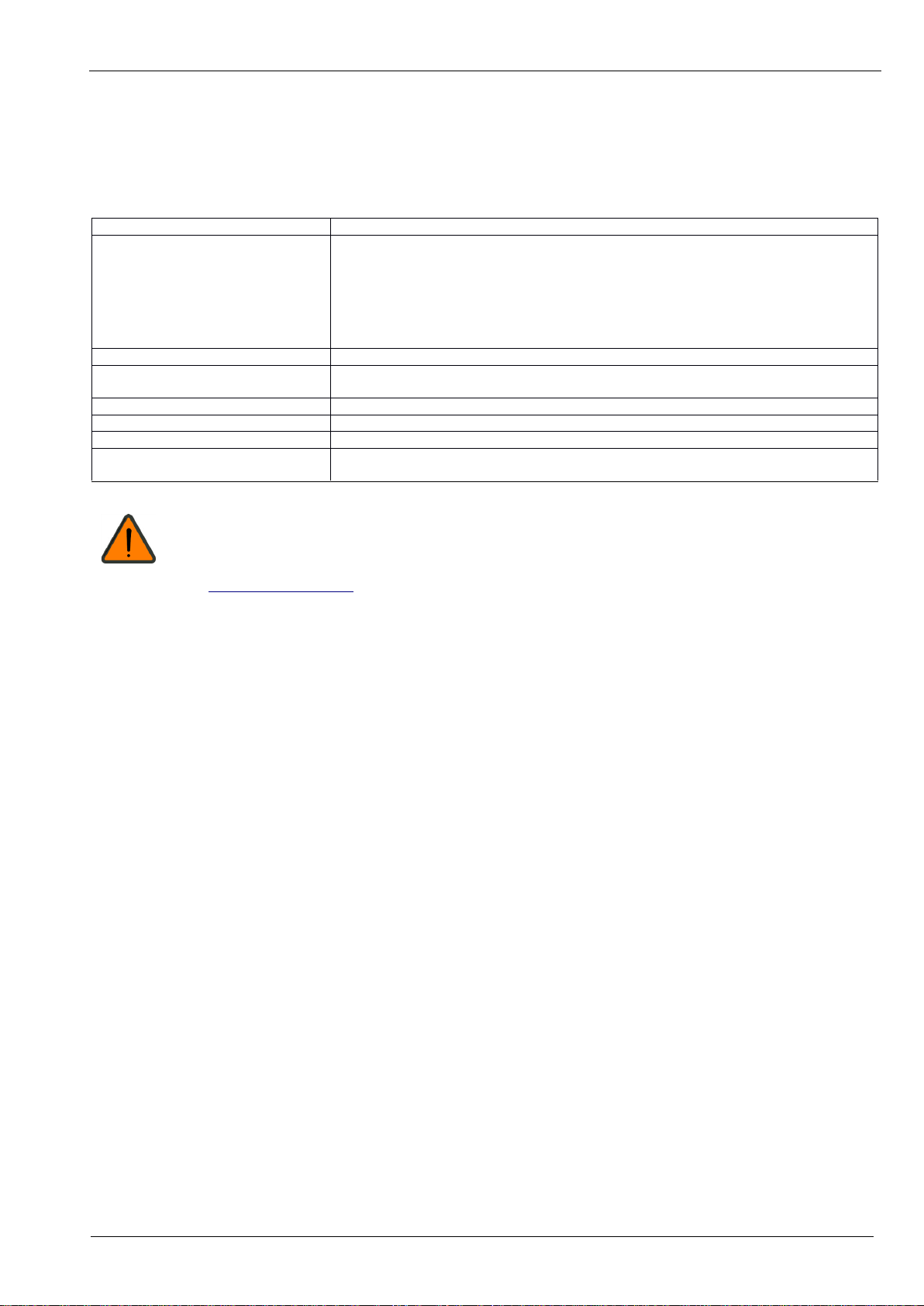
WARNING
Indicates a hazardous situation which may result in a fatal or serious bodily injury
if the appropriate safety precautions are not heeded.
CAUTION
Indicates a hazardous situation which may result in a minor injury if the
appropriate safety precautions are not heeded.
Information, hints and advice for a better understanding of the
instructions to be observed in the operation of the instrument.
Further in text MedDream VideoStation will be referred to as VS.

Meddream VideoStation v4.00 Install Manual
Introduction
Intuitive user interface, simple, but very powerful software controllable by touchscreen Medical Panel PC. Storing locally
more than 125 hours of HD videos and up to 100.000 of still images.
The core functions:
•High-quality video recording into DICOM by using MPEG2 and MPEG-4 AVC/H.264 compression;
•Record/take multiple low and high (full HD) quality video/snapshots during the surgery or other procedures;
•Live stream video during the procedure;
•Record, stream, play video and take snapshots at the same time;
•Record video/take images from multiple connected devices (special video card needed);
•Flexible patient data assignment: selecting already existing patient, manually entering the patient details or
selecting from hospital DICOM worklist server;
•Possibility to start a new study recording, while other video/snapshots is in progress for saving to DICOM or
sending to DICOM archive;
•Review medical images/video during the surgery or other procedures;
•Trim the recorded video;
•Recorded studies can be stored locally, sent to the hospital DICOM archive (PACS) or exported to other storage
devices;
•View saved images/videos with integrated DICOM Viewer.
Customization possibilities:
•Custom video settings.
•Multi languages support: English, Lithuanian, other languages by request.
•Additional foot pedal support.
Picture 1. Connection diagram.
Meddream VideoStation v4.00 Install Manual
Minimum requirements
Minimal hardware and software requirements:
Parameter
Requirements
Processor
Intel® Core™ i5 or i7
When using FHD streaming, recording and playing at the same time:
4 threads, 4 GHz or 8 threads, 1.8 GHZ.
Using intel media SDK (reduce CPU consumption), requires 3rd Generation (or later)
Intel® Core™, selected Intel® Celeron™, Intel® Pentium™ and Intel® Atom®
processors with integrated graphics supporting Intel® Quick Sync Video
Memory
4 GB RAM
Hard drive
SDD 500 GB (SATA)
depends on usage workflow, can be >=256, GB, ~7 days requires 56 GB
Onboard graphics
Intel® HD Graphics
Network Interface
1000 Mbit/s
Screen resolution
1920x1080 pixels (lower resolution not supported)
Supports following operating
systems
Windows 7/8/10 (32 and 64 bit)
We recommend upgrade PC or reduce video quality, if it does no match minimal requirements for
recording, playing and streaming at the same time.
If you faced with such a problem, please contact Softneta UAB Customer support –e-mail
General consideration
VS software based on JAVA, C/C++, ELECTRON (CSS/HTML/JavaScript), PHP built applications, Apache, JAVA WEB
server and MySql database. So, all data is stored into MySql database, program configurations are saved into files and
studies are stored as image/video/DICOM in local PACS system.
Installation
1. Physical installation
VS is working with video devices or capture cards installed on the same PC and can record, make snapshots and stream
one or more signals at the same time.
VS solution mostly used in operating room but also there are possible to use at doctor’s room where need record action with
patient (for example psychiatrist session). Therefore, physical installation depending on who will be recording and from what
kind of equipment you need to take a video signal. We recommend to consult with us before buying and we will present two
main scenarios bellow:
1. Video recording and snapshots without YUAN capture card.
To record and make snapshots need device who supports Microsoft DirectShow API. Most of devices, that can be installed
on Windows OS, supports DirectShow API.
2. Video recording, snapshots and streaming with YUAN capture card.
To record, make snapshots and stream video, requires YUAN USB/PCIe capture card with software compression.
Currently tested capture cards: SA7160 PCI, QP0203 PCI, FH8735 PCI, CY3014 USB.
VS supports YUAN capture card inputs: COMPOSITE, SVIDEO, HDMI, DVI_A, DVI_D, COMPONENTS, SDI.

Meddream VideoStation v4.00 Install Manual
Please contact us for more details about required capture card for your business workflow.
Picture 2. Physical installation scheme.
2. Software installation / updates
VS software setup will install workstation files.
All physically installation must be completed before software installation.
Intel media SDK restriction. Also, there more information about Intel Media SDK installation here:
C:\VideoStation\software\README.md
To install software for the first time, follow steps bellow.
VS use: 80, 3306, 8080, 8081, 4568 ports for main applications to work.
Other ports can be configured via VS application settings.
If you use capture board - install drivers before VS setup.
1. Download VS setup file from Softneta webpage.
2. Run executable file VideoStationSetup-x.xx.exe to start installation.

Meddream VideoStation v4.00 Install Manual
Picture 3. Setup file.
3. VS setup will display license agreement. Select “I accept the agreement” and click “Next”.
Picture 4. License Agreement page.
4. Select the components you want to install: clear the components you do not want to install. Select Language which
you want to install. And click next when you are ready to continue.
Picture 5. Select components you want to install.
5. VS setup will generate passwords, but you can change and set your own known passwords. All data about
passwords will be placed in C:\VideoStation\login.txt file.
After change, click “Next”.

Meddream VideoStation v4.00 Install Manual
Picture 6. VS connections.
6. VS setup display information about installing software. To start installation, click “Install”.
Picture 7. Ready to install page.
7. Wait while setup installation complete (copy files, install and start application services).
Picture 8. Progress page.
8. Complete VS installation:

Meddream VideoStation v4.00 Install Manual
Picture 9. Finished VS installation.
Installation will create shortcut to main application on the Desktop and Windows startup.
To update software, follow steps bellow.
1. Follow 1-3 steps from “To install software for the first time section”.
2. Installation setup ask you select which components should be installed. We recommend leave all components
checked. Click „Next“.
Picture 10. Select components.
3. VS setup detect current passwords from files and test connection, but you can change and set your own known
passwords. All data about passwords will be placed in C:\VideoStation\login.txt file.
After change, click “Next”.
Other manuals for MedDream VideoStation
1
Table of contents
Popular Touch Panel manuals by other brands





IBASE Technology
IBASE Technology ASTUT-152-RE1S user manual

YASKAWA
YASKAWA TP 610C manual

B&R
B&R Power Panel C Series user manual

Beijer Electronics
Beijer Electronics X2 control Hardware and installation manual

AXIOMTEK
AXIOMTEK GOT321W-521 user manual

TRIDONIC.ATCO
TRIDONIC.ATCO x-touchBOX Operation manual


