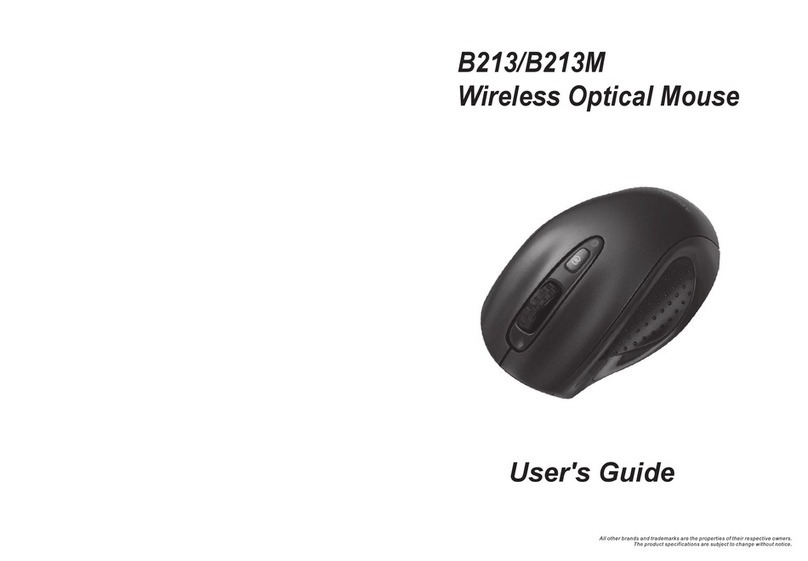
SMK-Link Rechargeable Wireless Long Range Laser Mouse User manual

Page 1
User’s Manual
Rechargeable Wireless Long Range
Laser Mouse

Page 2
Regulatory Compliance
This device complies with Part 15 of the FCC Rules.
Operation is subject to the following two conditions:
(1) This device may not cause harmful interference, and
(2) This device must accept any interference received,
including interference that may cause undesired
operation.
FCC Certication
This equipment has been tested and found to comply
with the limits for a Class B digital device, pursuant
to Part 15 of the FCC rules. These limits are designed
to provide reasonable protection against harmful
interference when the equipment is operated in a
residential installation. This equipment generates,
uses and can radiate radio frequency energy and,
if not installed and used in accordance with the
instructions, may cause harmful interference to radio
communications. However, there is no guarantee that
interference will not occur in a particular installation. If
this equipment does cause harmful interference to radio
or television reception, which can be determined by
turning the equipment off and on, the user is encouraged
to try to correct the interference by one or more of the
following measures:
Reorient or relocate the receiving antenna.
Increase the separation between the equipment and
receiver.
•
•

Page 3
Consult the dealer or an experienced radio/TV
technician for help.
Notice: Any changes or modications not expressly
approved by the party responsible for compliance could
void the user’s authority to operate the equipment.
Extension cables are not recommended, if used, they
must be shielded in order to comply with the emission
limits.
IC Certication
This Class B digital apparatus complies with Canadian
ICES-003 specication. Operation is subject to the
following two conditions: (1) this device may not
cause interference, and (2) this device must accept any
interference, including interference that may cause
undesired operation of the device.
•

Page 4
System Requirements
Hardware: 2 available USB ports: 1 for receiver
dongle, 1 for charging
Operating System: Windows 2000, XP, Vista,
Windows 7, or Mac OS X
Package Contents
If the mouse is purchased as part of the keyboard/
mouse combo set:
Rechargeable wireless laser mouse
2 x AAA rechargeable Ni-MH batteries
Carrying pouch
Shared USB dongle receiver (in the
keyboard box)
Shared USB charging cable (in the keyboard
box)
Shared USB adapter for RF pairing (in the
keyboard box)
User’s manual
If the mouse is purchased as a stand-alone product:
Rechargeable wireless laser mouse
2 x AAA rechargeable Ni-MH batteries
Carrying pouch
USB dongle receiver
USB charging cable
USB adapter for RF pairing
User’s manual
•
•
•
•
•
•
•
•
•
•
•
•
•
•
•
•
•
•

Page 5
Important Notes before You Start
LED status indicator lights:
This mouse is designed with two status
indicator LED lights located at the bottom
of the mouse and on the top of the mouse,
beneath the resolution switch.
•
•

Page 6
Please familiarize yourself with the various LED
indicators below:
Installing Batteries
•

Page 7
Remove the battery cover by pressing the eject
button.
Insert the two supplied AAA rechargeable Ni-MH
batteries (included in the package) into the battery
compartment. Make sure the positive (+) and
negative (-) ends of the batteries match the polarity
markings inside the battery compartment.
Replace the battery cover back into position.
•
•
•
Do not attempt to charge non-rechargeable
disposable Alkaline batteries. The batteries
may leak and damage your keyboard. Use
only the rechargeable Ni-MH batteries
supplied. Sould replacing batteries become
necessary, use only rechargeable Ni-MH
batteries. Do not mix new and old batteries
or batteries of different brands or capacities
in this product.

Page 8
Charging the Batteries
It’s recommended that you fully charge the batteries
before initial use; nevertheless it’s ready for set up
(see next step) anytime during charging.
Connect the mini USB connector of the charging
cable (included in the box) to the mouse’s mini
USB port. Use only the supplied charging cable to
charge the batteries.
Connect the USB connector of the charging cable to
the computer’s available USB port. The red LED
indicator ashes during charging and turns to solid
red to indicate it’s fully charged.
The initial charging process may take up to 5
hours. Subsequent recharge may require less time,
•
•
•
•

Page 9
normally between 3 and 5 hours depending on the
level of residual power in the batteries.
The mouse is operational during charging; you may
continue to use the mouse while charging via the
USB charging cable.
When the batteries are fully charged the LED turns
to solid red. Remove the charging cable from the
mouse and the computer. Repeat the above steps to
recharge the batteries when the LED ashes quickly
and the cursor movements are irregular indicating
low power.
Pairing the Mouse to the Receiver
Dongle
Your mouse is pre-paired with the receiver dongle at
our factory for your convenience, and it’s now ready
to work. First, turn on the mouse power by moving
•
•
•
Make sure the computer’s power manage-
ment is set to disable hibernation mode
while the product is being charged. (Go
to Control Panel, Power Options, select
“Hibernate” from the tabs and uncheck the
box marked “Enable Hibernation.)

Page 10
the power switch located at the bottom of the mouse
to “on” position. When the power is switched on,
the green LED lights up for about 2 seconds to
indicate the mouse is powered on.
Plug the USB receiver dongle to the computer’s
USB port if it’s not already plugged in. The
mouse is functional and ready to work. Note: if
your mouse comes with the matching keyboard
as a combo set, there is only one receiver dongle
shared by both keyboard and mouse. If the mouse
is part of a 3-device combo set with keyboard and a
PowerPoint presenter, the dongle is shared among
all 3 devices.
The radio frequency (RF) codes of the mouse must
be paired up with the receiver before the mouse
can be used. This step has been done for you at our
factory. However, if anytime you need to reconnect
your mouse to the receiver dongle, please perform
the following steps to establish the link:
Make sure the mouse is powered on.
Plug the mini USB connector of the USB
adapter (included in the box) to the mini
USB port on the mouse.
Connect the RF USB receiver dongle to the
USB adapter while the adapter is plugged
in to the mouse; the RF indicator light on
the mouse turns green. Leave it connected
for approximately 3 seconds until the RF
indicator light turns off; this is the indication
that the RF is successfully connected.
•
•
•
•
•
Table of contents
Other SMK-Link Mouse manuals